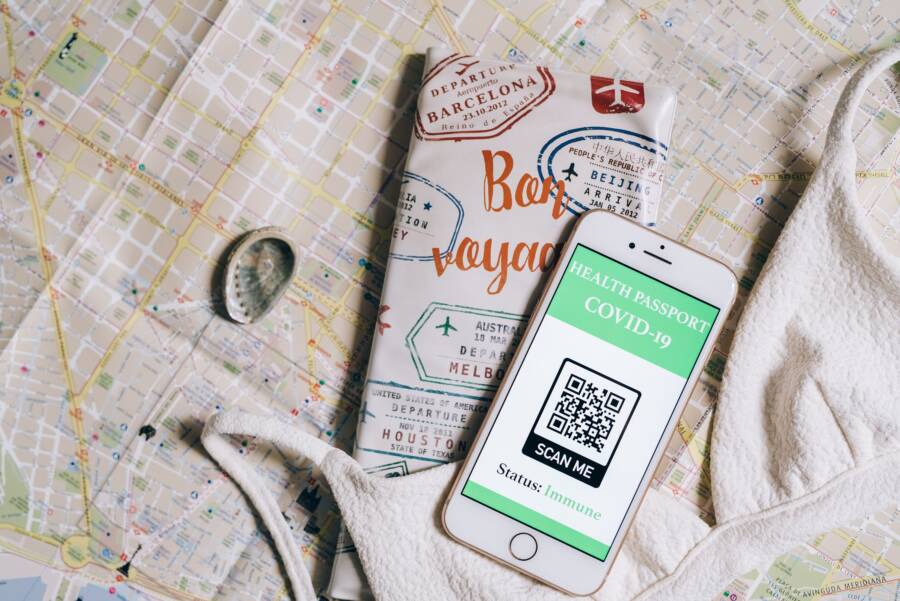
Saving sensitive IDs on your smartphone is convenient, but it remains risky if you fail to follow proper security protocols. Storing these documents in unencrypted photo galleries or public cloud backups exposes your personal data to hackers and identity thieves.
You should store these items in encrypted digital wallets or protected folders instead. These tools balance the need for instant access with the necessity of keeping your identity information private. You can protect your digital records by moving away from standard storage habits.
Follow this guide to secure your essential documents today.
Why Keeping Sensitive Documents on Your Smartphone Needs Extra Care
Storing passports and IDs on a smartphone exposes your most private data to unique risks. You carry this device everywhere, which increases the likelihood of physical theft or accidental loss. If an unauthorized person gains access to your unlocked screen, they gain instant access to your identity documents. Standard storage methods often fail to protect these files from automated cloud syncing or unauthorized app access.
The Dangers of Default Photo Storage
Most people keep copies of their IDs in the default photo gallery app. These galleries often sync automatically to cloud services like iCloud or Google Photos. While this helps if you lose your device, it creates a massive security hole. If your cloud account suffers a breach, your identity documents become visible to attackers. Many photo apps also lack the granular encryption necessary to keep single files hidden from prying eyes.
How Unauthorized Apps Access Your Files
Many free applications request access to your entire photo library before they function. You might grant this permission without considering the security implications for your saved documents. A malicious or poorly coded app can then scan your gallery, locate your passport photo, and transmit that data to a remote server. You lose control of your sensitive information the moment an app gains permission to read your media storage.
Why Physical Security Matters
A lost smartphone is not just a hardware loss when your ID is sitting inside the gallery. It becomes a permanent security threat that allows identity thieves to impersonate you. You must assume that any thief will attempt to bypass your screen lock or extract data directly from the storage chip. Without specialized encryption, these files sit as plain images that anyone can view once they bypass the lock screen.
You can categorize these risks to better understand why standard storage falls short:
These risks demonstrate that storing IDs requires more than just a passcode. You need to move your documents into encrypted containers that do not sync to public clouds. By isolating your passport from your general photo collection, you significantly reduce the chance of accidental exposure. Always prioritize apps that require secondary authentication, such as a biometric scan or a separate PIN, before they display your saved documents.
The Golden Rules for Storing IDs and Passports on Your Smartphone
Securing your identity documents on a smartphone requires more than standard screen locks. You must adopt tools designed specifically for high-stakes privacy. These platforms isolate sensitive files from your general media, which prevents unauthorized access during a device unlock or cloud breach.
Selecting the Right Secure Storage Tools
Default photo galleries fail because they prioritize accessibility and social sharing over granular security. They often sync images to public cloud services, creating a path for hackers to access your private data if your credentials leak. You should move your passport and ID images into dedicated, encrypted storage environments.
Use services like Apple Wallet, Google Wallet, or specialized password managers to house these files. These tools encrypt data at the storage level, meaning the files remain unreadable even if an intruder accesses your device filesystem. Password managers, such as 1Password or Bitwarden, allow you to create secure vaults where you can attach documents directly to an entry. These entries remain locked behind a master password or your device biometrics, offering a significantly higher barrier than a simple image file.
Consider these benefits when choosing a storage platform:
- Dedicated vaults prevent automatic cloud syncing to standard photo streams.
- Encrypted document attachments hide files from third-party apps requesting photo access.
- Most tools support offline storage to keep data off remote servers.
Avoid using notes apps or generic cloud storage folders for sensitive IDs. These applications often lack the specialized encryption protocols needed to protect your identity. You gain peace of mind by choosing tools built for digital security rather than convenience.
Implementing Biometric Locks and Encryption
Once you select a storage app, you must configure the internal security settings to ensure only you can access the files. Biometric authentication is your first line of defense against someone who manages to unlock your smartphone screen. You should require a unique scan or code every time the application opens.
Configure your device to use the following layers of protection:
- FaceID or Fingerprint Scanning: Enable biometric prompts inside your password manager or vault app settings. This ensures the app cannot open without your specific physical input.
- Master Password: Create a long, complex master password that differs from your device unlock code. This acts as a final safeguard if someone manages to bypass your screen lock.
- Auto-Lock Timing: Set your secure apps to lock immediately upon closing or after one minute of inactivity. This prevents access if you leave your device unattended while the app is still open.
Encryption remains useless if the access path is simple. Always disable settings that allow apps to keep your session active indefinitely. By forcing a fresh biometric check for each session, you ensure your document vault stays protected. If you lose your smartphone, these internal locks make it nearly impossible for a thief to view your stored passports or driver licenses. These steps turn your device into a truly secure container for your most valuable personal information.
Common Security Pitfalls to Avoid During Daily Use
You create significant risks when you rely on default settings to manage sensitive identification on your smartphone. Many users unintentionally expose their personal data by choosing convenience over hardened security. Protecting your identity requires you to identify these common habits and replace them with safer alternatives.
Relying on Unprotected Screen Sharing
You might need to show your ID quickly to a clerk or security agent. A common mistake involves keeping the image open in your gallery or a browser while you hand your device over. This gives the other person access to your entire photo library or other open apps. Always use built-in features that lock the screen to a single application if you must hand your device to someone else. iOS offers Guided Access for this purpose, while Android devices provide a similar app pinning feature. These tools prevent unauthorized people from swiping away from the document you intend to share.
Ignoring Software Update Prompts
Your smartphone relies on regular system updates to patch vulnerabilities that hackers exploit. You often delay these updates to avoid a temporary restart or a minor change in interface. However, outdated software leaves your device open to known security exploits that target media storage and system permissions. You should enable automatic updates in your settings to patch your device without manual effort. Each update often includes fixes that specifically prevent malicious apps from accessing your private files. Staying current keeps your operating system ahead of potential threats.
Connecting to Public Wi-Fi Networks
Free Wi-Fi networks in airports or cafes are rarely secure. If you access a cloud-synced document while connected to these networks, your data could pass through an unencrypted connection. An attacker on the same network might intercept this information as it travels between your device and the server. Always use a virtual private network if you must access sensitive documents while on public networks. This creates a secure tunnel for your data that prevents eavesdropping. Better yet, download your documents for offline use before you leave your home or office.
Overlooking App Permission Settings
Many applications ask for access to your full photo gallery to function properly. You might grant this permission to a photo editor or a social media app without realizing the risk. Once granted, these apps can scan your storage for images that look like IDs or passports. Periodically review your privacy settings to see which apps have access to your media files. You should revoke permissions for any app that does not absolutely need them for its core features. This simple audit limits how many third-party developers can scan your personal device for sensitive images.
Sharing Documents Through Insecure Messaging
You may be tempted to send a photo of your ID via standard SMS or unencrypted chat apps to a friend or relative. Traditional text messages travel as plain text, meaning anyone with access to carrier logs or network equipment could see the file. Use encrypted messaging services that offer end-to-end encryption for file transfers. These platforms ensure that only you and the recipient can read the document. If a secure messaging app is not an option, consider using a password-protected cloud link or a dedicated secure document-sharing platform instead.
Conclusion
Storing sensitive documents on your smartphone requires a shift in how you handle personal data. You must prioritize specialized encryption over simple convenience. Default gallery apps rarely provide the security levels needed to protect your identity from theft or unauthorized access.
Perform a routine audit of your device storage every few months to remove outdated or unnecessary files. Check your permission settings regularly to ensure no third-party applications have access to your sensitive folders. This habit keeps your digital records isolated from potential threats.
True peace of mind comes from maintaining a professional and safe digital lifestyle. By selecting hardened storage tools and keeping your software updated, you protect your identity against common risks. Your personal security is always worth the extra effort.