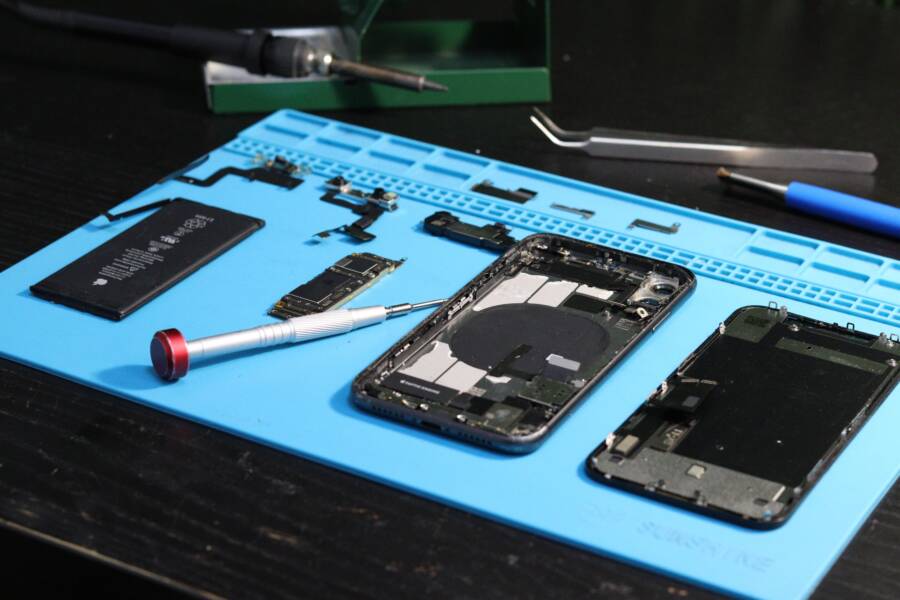
If your phone won’t restart normally, you can often fix it at home with a few safe steps. In many cases, the problem comes from a frozen system, weak battery behavior, a stuck button, or a software glitch, not a dead phone.
A phone that cannot restart normally often needs a forced restart, a charge check, or a button test before anything more advanced. Most smartphone issues like this are repairable without opening the device, but if the phone still won’t power on, won’t charge, or keeps looping on the logo, it’s time for professional help.
Why your phone may not restart the normal way
A phone that refuses to restart normally usually gives a few clear clues before you ever touch a repair tool. The cause is often either software corruption or a hardware fault, and the signs are different enough to spot early. Watching for those signs helps you avoid repeated restart attempts that can waste battery, hide the real issue, or make damage worse.
Signs the problem is software-related
Software issues usually show up as a phone that tries to start, then gets stuck. You may see the logo freeze, a spinning wheel that never ends, or a reboot loop where the screen turns off and starts over again. In some cases, the screen goes black after you tap restart, but the phone still vibrates, makes sounds, or reacts when you plug it in.
Another clue is partial life. The phone may charge, show the battery icon, or respond to notifications, but it never completes a normal boot. That often points to a system glitch, a bad update, or damaged startup files inside the operating system.
Look for these patterns before you assume the hardware is dead:
The logo appears, then stops responding.
The phone keeps restarting on its own.
The screen stays black, but charging still works.
Buttons respond, yet the phone never reaches the home screen.
If the phone shows signs of life but cannot finish startup, the problem is often software, not a broken device.
Signs the problem is hardware-related
Hardware problems usually feel more physical and less consistent. A loose power button, for example, can make the phone ignore restart attempts or turn off again the moment you press it. A swollen battery can also create strange behavior, including random shutdowns, weak charging, or a screen that lifts away from the frame.
Take extra care if the phone recently dropped, got wet, or overheated. Damage from impact or water can interrupt power delivery, so repeated restart attempts may do more harm than good. If the phone does not respond to charging at all, does not vibrate, and stays completely dark, hardware becomes more likely.
A few warning signs deserve caution:
The power button feels stuck, mushy, or loose.
The battery drains fast or the phone shuts off without warning.
The device shows no response to a known-good charger.
There is visible swelling, cracking, or water damage.
Stop trying to restart it over and over if you see those signs. A smartphone with hardware damage often needs inspection before any safe fix can work, and forcing more restart cycles can make a small problem bigger.
Try the safest fixes first before forcing anything
Start with the simplest checks before you press buttons over and over. A phone that won’t restart normally often has a weak battery, a stuck power button, or a temporary system freeze, and those problems can look worse than they are.
The goal is to rule out easy causes first. That saves time, protects the device, and gives you a clearer path if the phone still refuses to restart.
Charge the phone for at least 15 to 30 minutes
A deeply drained battery can make a phone seem dead or frozen. In some cases, the screen stays black for several minutes before any charging icon appears, so give it time before you try again.
Use a known-good charger, cable, and outlet if you can. A flaky cable or weak adapter can hide the real problem and make you think the phone has failed when it has only lost power.
A simple charging check can look like this:
Plug the phone into a charger you trust.
Leave it alone for 15 to 30 minutes.
Watch for vibration, a charging icon, or a screen flicker.
Try a restart again only after it has had time to recover.
If the battery was nearly empty, the phone may need a few minutes before the screen shows anything at all. That delay is normal on many phones, including smartphone models that protect the battery when power runs very low.
Check whether the power button is stuck or damaged
A jammed or sticky power button can stop a normal restart. If the button feels mushy, pressed in, or loose, it may not be sending the signal the phone expects.
Remove the case first, since a tight case can press on the button and make it seem broken. Then gently press the button a few times and check whether it springs back cleanly. If you see lint, dust, or grime around the edge, wipe the area carefully with a dry, soft cloth.
Use these quick checks:
The button should click or press evenly.
It should not feel sunken or catch on the frame.
It should respond the same way every time you press it.
If the button feels wrong, stop forcing restarts until you sort that out. A damaged button can make the phone behave like the system is frozen.
Force restart the right way for your phone type
If a normal restart fails, a force restart can help clear a temporary freeze. This is a common fix for an unresponsive phone, and in most cases it does not erase your data.
The exact button sequence depends on the model. Many Android phones use a combination of the power button and volume button, while iPhones use a different sequence that varies by model family. Because of that, use your exact phone guide if the first attempt does nothing.
Keep this rule in mind:
Follow the correct button sequence for your model.
Hold the buttons long enough for the screen to react.
Release them once the logo or restart screen appears.
A force restart is useful when the system is stuck, but it should stay a safe step. If the phone still won’t restart after a correct force restart, the next checks should focus on charging, buttons, and signs of hardware trouble.
Fix a phone that gets stuck on the logo or boot screen
A phone stuck on the logo or boot screen usually has a startup problem, not a dead display. The cause is often a bad accessory, a failed update, a corrupted app, or a system file that won’t load. Start with the easiest checks first, then move to recovery tools if the phone keeps looping.
Remove accessories and try again
Start by taking off the case, unplugging cables, and removing any external storage or adapter you added. A tight case can press the power button, and a faulty USB cable, SD card, or dongle can interrupt startup on some phones.
This quick test helps you narrow the issue without guessing. If the phone boots normally after you remove everything, one of those accessories was part of the problem.
A simple accessory check should include:
The phone case, especially thick or tight ones
Charging cables and adapters
SD cards, USB drives, or card readers
Headphone adapters, docks, or other attachments
If the phone starts after you strip it down, add each accessory back one at a time. That makes the culprit easier to spot.
Use recovery mode or safe mode if the phone keeps looping
If the logo keeps coming back, recovery mode and safe mode can point you in the right direction. Recovery mode is used for repair tasks like clearing cache, resetting the device, or applying a software fix. Safe mode starts the phone with only the basic system apps, which helps reveal whether a third-party app is blocking startup.
If the phone works in safe mode, a downloaded app is often part of the problem.
Safe mode is useful when the phone begins to boot, then freezes or restarts after a certain app loads. Recovery mode is better when the system itself seems damaged or the phone won’t reach the home screen at all. Both modes can save time because they separate an app issue from a deeper system fault.
What to do if a recent update caused the restart problem
A failed update is a common reason a phone gets stuck on the logo screen. The install may have stopped halfway, storage may have been too low, or another app may have conflicted with the update process. In those cases, the phone can keep rebooting while it tries to finish loading.
Your next step depends on the device and how far the update got. Some phones need time for the battery to drain before they will restart cleanly again. Others may let you retry the update, use a built-in repair tool, or connect to a computer for software repair.
If a recent update started the problem, move through the options in this order:
Let the battery drain if the phone is trapped in a boot loop.
Charge it again and try a normal start.
Retry the update if the phone offers that option.
Use the maker’s repair software if the phone supports it.
A recent update problem often looks worse than it is, but repeated failed boots can wear down the battery fast. If the phone still won’t move past the logo, the system file damage may need a deeper software repair.
When software fixes are not enough
If your phone still won’t restart after a forced restart, charging test, or safe-mode check, the problem may be bigger than a simple glitch. At that point, a factory reset is often the last software step to try before moving to repair support.
A reset can clear bad settings, broken apps, and corrupted system data. However, it also wipes the phone clean, so you want to protect your files first and know what the reset can realistically fix.
Back up data before trying a reset
Save anything you still can before you erase the phone. If it opens at all, use that small window to protect your photos, contacts, messages, and files. Once a factory reset runs, recovery may be hard or impossible.
Start with the easiest backup options available on your phone. Cloud backup can save photos, app data, and contacts if sync was already turned on. Synced accounts, such as your Google or Apple account, may already hold a copy of your contacts, calendar, and some media.
If the phone still responds to a cable connection, try a USB transfer next. Copy files to a computer as soon as possible, especially if the phone only stays on for a short time. That matters even more if the device is unstable, because every restart can be the one that stops it for good.
A quick backup plan can include:
Checking cloud photos and account sync first
Copying files to a computer with USB
Exporting contacts if the phone still opens the contacts app
Saving anything stored locally, such as downloads or voice notes
Once a factory reset starts, your data may be gone for good if you did not back it up first.
If the phone will not stay on long enough for a full backup, save the most important items first. Photos and contacts usually matter more than app settings, so handle those before anything else.
Know what a factory reset can and cannot fix
A factory reset can help when software is the real problem. It often clears startup errors, bad app conflicts, and system files that got damaged after an update. On many phones, this is the best way to fix a device that keeps freezing during boot or restarts in a loop.
Still, a reset has clear limits. It will not repair broken hardware, battery damage, or water damage. If the battery is swollen, the power button is stuck, or the phone took a fall before the restart problem began, the issue may stay even after a reset.
Use this simple comparison to judge your next step:
A reset is useful when the phone still has a software path back to normal. It is a poor fix for damaged parts, weak power, or liquid exposure. If you have already ruled out charging, button issues, and startup glitches, then a reset is the last software move before the problem likely needs hardware inspection or repair support.
If the phone still refuses to restart after that, the issue is probably beyond software. At that point, the safest next step is to stop pushing repeated restarts and look at repair options before more damage builds up.
How to avoid restart problems in the future
Most restart problems come from preventable habits. If you keep storage clear, update carefully, and treat the battery well, your phone is less likely to freeze, loop, or ignore restart commands later.
A smartphone that stays healthy usually has room to breathe. It also gets updates under the right conditions, with enough battery and a stable connection, so the system can finish the job without breaking halfway through.
Keep enough free storage and install updates carefully
Low storage can make a phone unstable. When the memory fills up, the system has less room for temporary files, app data, and update files, so even a normal restart can slow down or fail.
Try to keep a good amount of free space on the device. Delete old videos, move large photos to cloud storage or a computer, and remove apps you no longer use. That gives the phone room to run updates without getting stuck.
Updates need the right conditions too. Install them when the battery is strong, the phone is plugged in if needed, and the internet connection is stable. A weak battery or dropped connection can leave the software in an unfinished state, which is one of the easiest ways to trigger restart trouble.
A few habits help:
Clear unused apps and downloads often.
Back up photos and files before major updates.
Update on Wi-Fi that stays connected.
Start the update with enough battery or while charging.
A failed update can leave a smartphone stuck in a boot loop, so it’s better to wait for the right moment than rush the install.
Protect the battery and charging port
Battery wear can affect restart behavior over time. Use a quality charger and cable, avoid cheap replacements that overheat, and keep the phone away from extreme heat. Heat is hard on batteries, and repeated exposure can shorten their life.
The charging port also needs basic care. Lint can build up inside it and block a solid connection, so check it gently if charging becomes inconsistent. Use a soft, dry tool or compressed air with care, and never force anything into the port.
Keep the battery in better shape by following simple habits:
Avoid leaving the phone in hot cars or direct sun.
Charge before the battery drops too low.
Unplug once the phone is fully charged when possible.
Keep the port clean and dry.
These small steps reduce strain on the battery and power system. That makes future restarts more reliable, and it lowers the chance that a phone will act frozen when you need it most.
Conclusion
If your phone cannot restart normally, start with the safest fix path: charge it first, check the power button, then try a force restart. That order solves many problems caused by low battery, a stuck button, or a frozen system, and it keeps you from jumping straight to a reset.
If the phone still gets stuck on the logo or keeps looping, move to recovery mode or a factory reset only after you back up anything important. Most cases are still repairable at home when you catch the problem early, especially on a smartphone that shows some sign of life.
Stop troubleshooting and get professional repair if the battery is swollen, the phone has visible damage, or it shows no response at all. Those signs point to a hardware problem, and repeated restart attempts can make it worse.