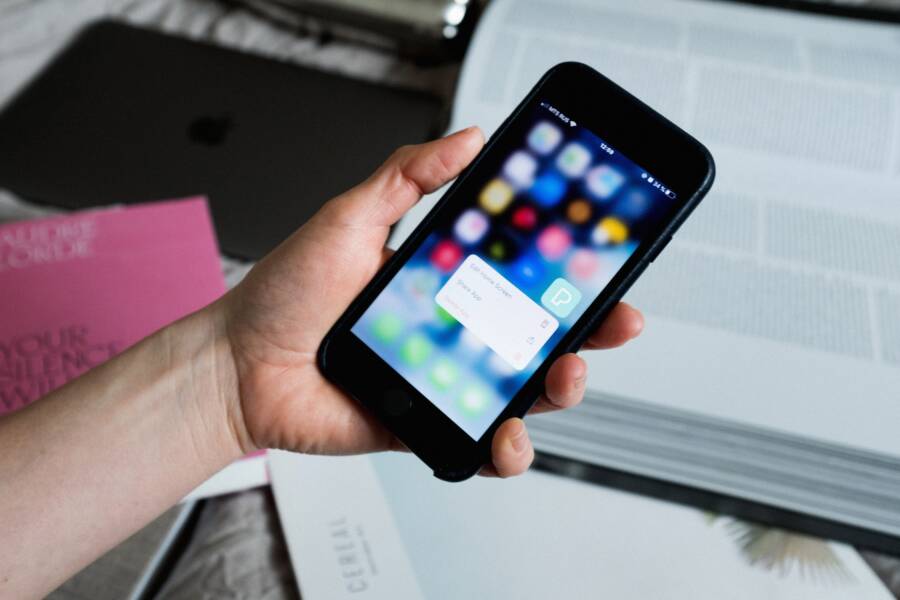
A phone that won’t show weather alerts usually has a settings, permission, network, or app problem, not a hardware failure. On most devices, weather alerts depend on emergency alerts, location access, notification settings, and support from your region or carrier.
The fix is usually straightforward on both iPhone and Android smartphones, though a few menu names differ. If your phone used to show alerts and stopped, the cause is often a disabled permission, a muted notification category, or a weak data connection. The steps below will help you check each one and get alerts working again.
Check the weather alert settings on your phone
Start with the settings on the phone itself. If alert types are turned off, your weather alerts may never appear, even when the app and network are working fine.
Turn on emergency and severe weather alerts
Open your phone’s Notifications, Safety, or Emergency alerts menu and check every alert switch you can find. Many phones separate weather alerts, emergency alerts, and public safety alerts, so one setting may be on while another is off.
On an iPhone, look under Settings > Notifications > Government Alerts and confirm that Emergency Alerts and Public Safety Alerts are enabled. On Android, the path can vary by model, but you usually find it in Settings > Safety and emergency, Settings > Notifications, or the Wireless emergency alerts menu. If you use a carrier app or region-specific system, check that app too.
If alerts still don’t show, turn off Do Not Disturb or Focus mode for a moment and test again. These modes can silence banners, sounds, and lock-screen alerts, which makes it look like nothing arrived.
If the phone is muting alerts, the message may still be coming through, just hidden.
Make sure weather alerts are allowed in the Weather app
Next, open the built-in Weather app or any third-party weather app you use. Many apps need their own alert permission or alert preference turned on, even when system notifications are already enabled.
Look for settings such as Weather alerts, Severe weather notifications, Storm alerts, or Alert subscriptions. Some apps also let you choose the alert type, the locations you want covered, and how often you want updates. If your smartphone has location-based alerts turned off, the app may not know where to send them, so check that the app can use your location in the background.
A few quick checks help here:
Notification permission: Confirm the app can send notifications at all.
Location access: Allow the app to use your location, ideally while in use or always, if the app requires it.
Alert categories: Make sure severe weather or emergency weather alerts are selected.
Saved locations: Add your current city if the app relies on stored places.
If you use a third-party app, compare its alert settings with the phone’s system settings. A smartphone can allow notifications globally and still block them inside one app.
Fix location access so the phone knows where you are
Weather alerts depend on more than a working app. Your phone also has to know your location with enough accuracy to match alerts to your area. If location access is off, limited, or stale, local warnings can miss the mark.
The fix usually starts with permissions and ends with a quick refresh of location services. On a smartphone, even one small setting can block the whole chain, so it helps to check the app, the system, and the saved city inside the weather app itself.
Allow location permission for the Weather app
Open the Weather app’s permission settings and set location access to While Using the App or Always, depending on how the app handles alerts. Many apps work fine with while-in-use access, but some local alert features need always-on access so they can check your area in the background. On Android, this setting may also include a toggle for Precise location, which should stay on for the best local results.
On iPhone, go to Settings > Privacy & Security > Location Services, tap the Weather app, and choose the permission level the app supports. On Android, open Settings > Apps > Weather > Permissions > Location and pick the closest match. If your weather app has its own location setting, open that too and allow it to use your current location.
A quick check inside the app matters just as much. Make sure the correct city, current location, or saved place is selected, especially if you travel or live near a city border. A weather app that thinks you’re in the wrong town will send the wrong alerts.
If local alerts seem delayed or off-target, location permission is usually the first place to look.
Refresh location services, GPS, and background data
If the permission looks right but alerts still lag, refresh the location tools your phone uses behind the scenes. Turn Location Services off, wait a few seconds, then turn it back on. That simple reset can clear a stuck GPS signal and help the phone pick up your current area again.
Next, open the weather app and update its location manually if it offers a refresh button. Some apps show a current-location icon or a pull-to-refresh action that forces a new location check. If you have not opened the app in a while, that refresh can make a big difference.
Background access also matters. Allow Background App Refresh on iPhone or Background data on Android so the app can keep checking for alerts when it is not open. If battery saver, restricted data, or app sleeping is enabled, alerts may arrive late or not at all. Saving battery is useful, but too much restriction can shut the door on timely weather updates.
A short checklist helps here:
Toggle location off and on to reset the signal.
Refresh the app’s location so it uses your current area.
Allow background refresh or background data for alert delivery.
Check battery-saving limits that may block updates.
When location services are working properly, the app can match alerts to where you actually are, instead of where your phone last guessed you were.
Rule out notification, battery, and network issues
If weather alerts still are not showing, the problem often sits in one of three places: notifications, power-saving settings, or the internet connection. A phone can receive the alert in the background and still fail to display it if alerts are muted, restricted, or unable to sync.
Check notification permissions and sound settings
A phone may get the warning but hide it from view if notifications are blocked or reduced. Open the Weather app settings and your phone’s notification menu, then confirm the app can send alerts, show banners, and appear on the lock screen.
Pay attention to these settings:
Notification permission so the app can display alerts at all.
Sounds and banners so the alert is visible and easier to notice.
Lock-screen alerts so warnings appear before you unlock the phone.
Badges or app icons if you want a visual cue on the home screen.
Critical alert settings on supported devices, which can allow urgent warnings to break through silent modes.
Silent mode can also hide important weather warnings. A quiet phone is fine for regular messages, but severe weather alerts need room to surface. If your smartphone uses Focus, Do Not Disturb, or similar filters, test with those modes turned off for a moment.
A notification can arrive without ever reaching your eyes if the phone is set to hide it.
Disable battery saver, data saver, and app sleep settings
Weather apps need background access to keep checking for new alerts. If the phone tries to save too much power, it can delay updates or stop them completely.
On Android, look for battery limits, restricted background activity, app sleeping, or adaptive battery settings that may affect the Weather app. On iPhone, turn off Low Power Mode and check that Background App Refresh is allowed for the app. If data saver is on, the app may also struggle to pull fresh alerts when you are not on Wi-Fi.
Use this simple rule: if the app cannot refresh often, it cannot warn you often. That matters most during fast-changing storms, when updates need to move quickly in the background.
Test your internet connection and update the app
Weather alerts depend on live data, so a weak connection can block them. Check Wi-Fi and mobile data first, then make sure airplane mode is off. A VPN can also interfere with location or server access, so disconnect it and test again.
If the app still acts stale, update it. Outdated versions can miss alert fixes, location changes, or notification support. After that, update the phone’s operating system too, since system changes often affect how alerts display on a smartphone.
A quick comparison helps:
If alerts still do not appear after these checks, the app is probably fine and the problem is elsewhere.
Use a simple troubleshooting path when alerts still do not show
If weather alerts still do not appear, follow a simple path instead of changing everything at once. Start with the app, then test another app, then move to resets only if the issue stays unresolved. That order saves time and makes it easier to spot where the problem really sits.
Restart the phone and reset the weather app
A restart clears short-term glitches that can block alerts, especially after an update or a long stretch of use. It can also refresh notification permissions and location data that may have stopped syncing in the background.
Start with the basics:
Force close the Weather app.
Open it again and check the alert settings.
Restart the phone.
Test the alerts once more.
If that does not help, reinstall the app. A fresh install can replace damaged app data and reset stuck notification behavior. After reinstalling, sign back in if needed, then allow location and notification access again. On a smartphone, that quick reset often fixes a problem that looks bigger than it is.
A restart will not change your weather preferences, but it can clear the small errors that keep alerts from appearing.
Compare the built-in weather app with a trusted backup app
If the built-in app still stays silent, try a second weather app. This helps you find out whether the issue is tied to one app or to the phone itself. If both apps fail, the device or its settings are the likely problem.
Use a backup app that supports local severe weather alerts, not just a general forecast. Look for an app that can send warning notifications for your current area, since a forecast-only app may not help during storms. If the backup app works, the original app may need a reset, an update, or a full reinstall.
A quick comparison can make the problem clearer:
Use the result as your guide. It keeps you from guessing and helps you focus on the right fix.
Reset network or notification settings only if nothing else works
If the alerts still do not show, a reset can clear deeper settings problems. Use it as a last step, because it can change other preferences too, such as Wi-Fi networks, Bluetooth pairings, or notification choices.
Before you reset anything, back up important settings if you can. Then choose the smallest reset that fits the problem. On some phones, a network reset helps when alerts fail because the app cannot reach live weather data. On others, a notification reset is better when warnings arrive but never appear on screen.
Keep it simple and work one step at a time. After the reset, test the Weather app again, then watch for a test alert or a real local warning. If alerts start showing, the issue was likely buried in a setting you could not see at first.
Know when the problem is not your phone
Sometimes the phone is working fine, but the weather alert system around it is not. Coverage, regional rules, and app support all affect what shows up on your screen, so a missing alert does not always mean your device is broken.
Check whether weather alerts are supported in your area
Weather alerts are not identical in every country, region, or app. Some places use local emergency systems, others rely on national weather services, and some carriers only support certain alert types. If your area does not broadcast a specific alert, your phone cannot display it.
That means a phone can be in perfect working order and still stay quiet. For example, severe storm warnings may appear in one city but not in a nearby rural area. Some apps also pull alerts only from supported regions, so the app may work, just not for your location.
If you travel often, check whether alerts are available in the place you are standing right now, not just your home region. A phone that shows alerts in one country may have fewer options in another.
Look for app or carrier limitations on your device
Carrier settings can limit alert delivery, especially after a SIM swap, software update, or network change. Outdated software can also block newer alert formats, and a bad SIM profile can keep the phone from pulling the right regional settings.
Some alert systems only send warnings for specific events, such as severe thunderstorms, flash floods, or tornadoes. Others only reach users inside a targeted area. If you are outside that zone, the alert may never appear, even if everything on your phone is set correctly.
A quick check can save time:
Carrier support may control which emergency alerts reach your device.
SIM issues can prevent the phone from loading the right network profile.
Outdated software can miss newer alert features or fixes.
App limits may restrict alerts to certain weather events or locations.
If your alerts work in some places but not others, the phone is usually fine. The missing piece is often regional support, carrier rules, or app coverage, not the device itself.
Conclusion
A phone that cannot show weather alerts usually needs a settings check, not a repair. Start with alert toggles, location access, notification permissions, and battery-saving limits, then restart or update the app and phone if needed.
These steps solve most cases on both iPhone and Android, including on a smartphone that used to work and suddenly went quiet. If the alert system is supported in your area, a few quick changes are often enough to bring it back.
The main takeaway is simple: turn on the right alerts, allow location, keep notifications active, and remove the power limits that block updates. Most phones can show weather alerts again after those basic checks.