Your phone can usually receive MMS on mobile data again once you fix the right settings, and the problem is often tied to carrier support, mobile data access, or an incorrect APN. In many cases, you can solve it without a repair shop, even on a busy smartphone used every day.
The steps below start with simple checks, like signal strength and data connection, then move into message settings, APN details, and network resets if needed. If your phone can send text messages but won’t pull in photos, videos, or group chats, the cause is usually one of a few fixable settings.
Why a phone can’t receive MMS even when mobile data is on
Mobile data being switched on does not automatically mean MMS will work. MMS depends on the phone reaching the carrier’s messaging system in the right way, and a small settings problem, weak signal, or network restriction can stop that process. That is why a phone may still send normal texts while failing on photos, videos, or group messages.
The good news is that the cause is usually simple once you separate regular texting from multimedia messaging. The checks below explain where MMS breaks most often and why a smartphone can look connected while still refusing to load incoming media.
MMS is not the same as a regular text message
SMS and MMS use the same Messages app on many phones, but they do different jobs. SMS carries plain text, so it can work over the basic voice and text side of the carrier network. MMS carries photos, videos, contact cards, and group messages, so it needs a working data path to fetch that content.
That difference explains a common pattern. Your phone may send and receive normal texts just fine, yet fail the moment someone sends a picture or a group chat update. The message may sit there loading, fail to download, or appear as a blank notification because the phone never completed the data transfer.
In practice, MMS is more demanding than SMS. It needs the carrier’s messaging service, a valid data connection, and the right phone settings. If any one of those pieces is missing, SMS can still pass through while MMS gets stuck.
Mobile data may be turned on, but MMS still may not work
A phone can show mobile data as enabled and still have no usable connection for MMS. For example, the signal may be too weak to download media, or the phone may be connected only in a limited way that allows texting but not full data access. Some carriers also block MMS if the line is not provisioned correctly.
Background data restrictions can create the same problem. If the Messages app cannot use data in the background, the phone may fail to pull in the file even though the data switch is on. Low-power mode, data saver settings, or temporary network glitches can add another layer of trouble.
A quick way to narrow it down is to watch what happens outside the Messages app:
If web pages load slowly or not at all, the phone may not have a real data connection.
If only MMS fails while browsing works, the carrier or message settings are more likely at fault.
If the phone has one bar or keeps dropping signal, MMS often times out before it finishes.
A data icon on screen does not guarantee MMS can load. The phone needs a stable connection, not just an active switch.
APN and carrier settings are often the hidden cause
The APN (Access Point Name) is the network path your phone uses to connect to your carrier’s data and MMS service. If that path is wrong, missing, or outdated, the phone may still make calls and send texts, but MMS will fail behind the scenes.
This is one of the most common reasons a phone won’t receive MMS on mobile data. It often happens after changing carriers, swapping SIM cards, restoring a backup, or resetting network settings. On some phones, the APN for MMS does not fill in correctly on its own, so the device never knows where to send or fetch media messages.
Carrier settings matter too. Some providers require specific MMS parameters, and a phone with the wrong profile may never download media correctly. If MMS problems started right after a carrier change, APN settings should be near the top of the list.
A few signs point to APN trouble:
SMS still works, but picture messages never load.
Group texts fail or arrive without media.
Mobile data works in some apps, but Messages cannot download MMS.
The issue started after inserting a new SIM or restoring the phone.
When APN settings are wrong, the phone is essentially using the wrong address for the carrier’s MMS service. Fixing that path often restores receiving MMS without changing anything else.
Start with the quick checks that fix most MMS problems
Most MMS failures come down to a simple connection issue, a blocked app setting, or a temporary glitch. Before changing APN details or network settings, start with the basics. These quick checks solve a large share of cases where a phone won’t receive MMS on mobile data.
Confirm mobile data is actually working
Do not rely on the data icon alone. Open a web page, refresh a social app, or load a video in a browser to confirm the phone has a real data connection. If the page stalls or apps only work on Wi-Fi, MMS will usually fail too.
If the connection seems weak, toggle mobile data off and back on. That can clear a stuck session and force the phone to reconnect to the carrier network. Also check the signal bars, because weak coverage often causes MMS to hang or time out before the download finishes.
A few settings can block data without making it obvious:
Airplane mode should be off.
Low-data mode or Data Saver should be off for testing.
If the phone keeps switching between 4G, LTE, and 5G, try moving to a stronger signal area.
MMS needs a working data path, not just a data icon. If web pages fail to load, the message app usually can’t fetch media either.
If normal browsing works but MMS still fails, the carrier messaging path or app permissions are more likely to blame. That helps narrow the problem fast.
Turn on MMS and cellular data for your message app
Some messaging apps need permission to use cellular data in the background. If that access is blocked, the app may open fine but fail when it tries to download a photo, video, or group message. Check the app’s data settings first, then review any battery controls that could limit background activity.
On many phones, the issue shows up after battery optimization gets too aggressive. The app may pause when it’s not open, so the MMS notification appears but the download never completes. Allowing background data and removing battery restrictions often fixes that.
Use these checks as a quick pass:
Open the Messages app settings and confirm cellular data is allowed.
Check whether background data is restricted.
Review battery saver or battery optimization settings for the app.
Make sure the app is allowed to run in the background.
If you use a different messaging app, give it the same attention. A smartphone can have mobile data turned on overall while one app still stays blocked. That small mismatch is enough to stop MMS from coming through.
Restart the phone and resend the message
A simple restart can clear a temporary network glitch and refresh the connection to your carrier. It also resets the messaging app in memory, which helps when the phone gets stuck trying to fetch an MMS that never arrives.
After the restart, ask the sender to resend the message if needed. Many MMS messages do not queue forever, and the original download attempt may have timed out. Once the phone reconnects cleanly, a fresh send is often all it takes.
If the message still does not appear, try sending a new MMS to yourself or asking someone else to send a small image. That gives you a quick test without changing more settings yet.
Check the settings that control MMS on Android and iPhone
If MMS still will not download on mobile data, the next place to look is the phone’s own messaging settings. Many phones hide the options that control picture messages, group chats, and background downloads inside the Messages app, carrier settings, or cellular settings, so a missing toggle can stop MMS even when data is on.
The exact path changes by device and carrier. On one phone, the setting may sit under Messages > Settings. On another, it may live under Cellular, Mobile Data, or a carrier-specific menu.
Make sure MMS messaging is enabled in the phone settings
Start with the Messages app settings and look for anything labeled MMS, multimedia messaging, or group messaging. On Android, these options are often inside the default messaging app settings. On iPhone, they usually appear under Settings > Messages.
If MMS is turned off, the phone can still send normal texts, but it will struggle with photos, videos, and other media. That creates a familiar symptom: messages arrive as a blank bubble, keep spinning, or never finish downloading.
On many devices, the key settings are easy to miss because they sit in different places:
Messages app settings for MMS, group messaging, or auto-download options
Chat settings in some Android messaging apps
Cellular or mobile data settings on iPhone
Carrier settings that appear after a network update
If you use a Samsung, Pixel, or another Android phone, the exact menu names may differ. The same is true for carriers, since some add their own message options or hide MMS controls inside a custom app menu. If you do not see an obvious MMS toggle, check both the Messages app and the phone’s cellular settings before moving on.
Check if group messaging or auto-download is turned off
Disabling group messaging or auto-download can make MMS look broken when the problem is really a setting. Group chats often rely on MMS, especially when the conversation includes mixed devices or media. If group messaging is off, those messages may arrive out of order, fail to load, or split into separate texts.
Auto-download matters for picture messages and videos. When it is off, your phone may notify you that a message arrived, but the image never opens unless you tap a download button. That can feel like MMS failure, especially if the sender thinks the message went through.
Watch for these signs:
A picture message arrives as a message notification but no image appears.
Group chat replies show up as individual texts instead of one thread.
Messages stay stuck on “downloading” or “tap to download.”
Photos work on Wi-Fi but not on mobile data.
If the message appears but the media does not, the phone may be blocking the download rather than losing the message.
This is common on a smartphone that has data restrictions, battery saver rules, or app-specific message settings. Turning group messaging and auto-download back on often restores normal behavior without changing anything else.
Review date, time, and software update settings
Incorrect date and time can interfere with messaging and network functions more than most people expect. If the phone clock is wrong, the device may have trouble verifying carrier services, syncing message timestamps, or completing background connections. That can break MMS downloads in a way that looks random.
Set the phone to use the network-provided date and time if that option is available. On iPhone, check Settings > General > Date & Time. On Android, look for Date & time under system settings and turn on automatic time if it is available.
After that, check for a software update. Outdated system software can carry messaging bugs, carrier compatibility problems, or network issues that affect MMS on mobile data. Once the basic fixes are done, install any pending update and restart the phone again.
A quick order of operations helps here:
Turn on automatic date and time.
Confirm the time zone is correct.
Check for a system update.
Restart the phone after the update installs.
If MMS starts working right after a software update, the issue was likely a compatibility problem between the phone and the carrier network. That is a common fix on both Android and iPhone, especially after the carrier changes its network settings or the phone gets a delayed update.
Fix the APN settings so the phone can use MMS on mobile data
If MMS works on Wi-Fi but fails on mobile data, the APN is one of the first settings to check. The APN tells your phone how to reach your carrier’s data and MMS services, so even a small mismatch can block picture messages, group chats, or short videos. One wrong field is enough to break the connection.
Find the current APN and compare it with your carrier’s settings
Open the phone’s APN list and compare each saved field with the carrier’s official APN details. Most carriers publish the correct values on their support site, and those values are the best reference because they match the current network setup.
Pay close attention to the fields that affect MMS, including the APN name, username, password, MMSC, MMS proxy, MMS port, and APN type. A phone can still show bars and load web pages while MMS fails in the background, so the mismatch is easy to miss.
A quick comparison helps you spot the problem faster:
If one field is off, fix it before testing again. On some smartphones, a copied APN from an old SIM or another carrier looks almost correct but still blocks MMS.
Reset APN settings to the carrier default
If the APN was edited manually, reset it to the carrier default first. That clears bad edits, old SIM settings, and leftover values from a previous network profile. It also removes the guesswork that comes with piecing together settings by hand.
The reset option usually appears in the APN menu, but the exact path depends on the phone model. On Android, it may be under Mobile Networks or Access Point Names. On iPhone, carrier updates often restore the correct profile through the cellular settings or a network reset.
After the reset, let the phone reload the carrier settings, then reopen the APN list and confirm the default values are in place. If your carrier requires a custom APN, enter it exactly as published, since one missing character can stop MMS just as easily as a blank field.
Save the APN changes and test by sending a photo message
After you edit or reset the APN, save the changes before leaving the menu. Some phones keep the new APN only after you back out correctly or choose it from the APN list, so don’t skip that step.
Then test MMS right away. Send a small photo to yourself or ask someone to send a short group message, because that confirms the phone can receive MMS over mobile data, not just text. A tiny image is better than a large one, since it shows whether the connection works without adding extra load.
If the photo arrives and opens normally, the APN fix worked. If it still stalls, go back and recheck the carrier values line by line, since MMS problems often come down to a single saved field that looks harmless at first glance.
If MMS still fails, rule out carrier, SIM, and app issues
If MMS still won’t load on mobile data, the problem may sit outside your phone settings. Carrier restrictions, a bad SIM, or a broken messaging app can block delivery even when everything looks normal on screen. At this point, the goal is to isolate where the failure starts, then test the simplest fix first.
Check whether your mobile plan supports MMS
Some plans simply don’t handle MMS the way a standard phone plan does. Prepaid, low-cost, and data-only plans are the most common examples, and they may support texting without fully supporting picture messages or group MMS. If your plan was never meant for full messaging service, your phone can’t download what the carrier won’t deliver.
Roaming and international use can cause the same issue. A plan that works at home may block MMS while you’re abroad, or it may require an add-on to keep multimedia messaging active. Even a valid account can run into limits if MMS isn’t included in the current package or if the carrier has suspended a feature on the line.
A quick carrier check can save a lot of time. If SMS works but MMS never arrives, ask whether the line has:
MMS support enabled
International or roaming MMS access
Any messaging add-on or provisioning requirement
A data-only or restricted plan type
If the plan doesn’t support MMS, no phone setting will fix it. The carrier has to allow the message first.
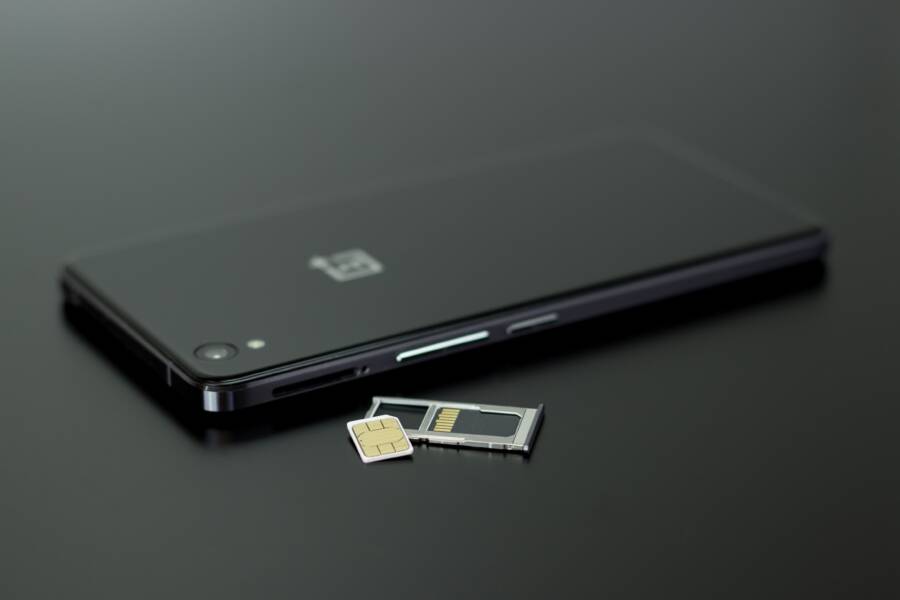
Reseat the SIM card or test another SIM
A loose, dirty, or damaged SIM can cause strange messaging problems, including missed MMS on a phone that otherwise seems fine. If the SIM isn’t making a solid connection, the phone may register on the network but fail during message delivery. That can look like an app problem when the real issue is the card itself.
Power off the phone, remove the SIM, inspect it for damage, then place it back carefully. If the tray is loose or the SIM shifts inside it, the phone may lose the steady carrier connection MMS depends on. A clean reseat is often enough to restore a flaky line.
If you can, test another SIM in the same phone. That comparison tells you a lot fast. When another SIM works, the phone is probably fine and the issue sits with the original carrier line. When the same problem follows the phone across SIM cards, the device or app settings are more likely to blame.
Clear the cache or switch the default messaging app
A buggy messaging app can block MMS downloads even when the carrier and SIM are working. On Android, clearing the app cache often removes damaged temporary files that stop pictures or group messages from loading. It won’t erase your messages, but it can clear out bad data that keeps the app stuck.
If the problem started after installing a third-party messaging app, try the built-in Messages app instead. Some apps handle MMS differently, and one app may fail while another works without any changes to the phone or carrier. On iPhone, the built-in Messages app is the main option, so app conflict is less common, but settings and software glitches can still interfere.
A practical test helps narrow it down:
Clear the cache for the messaging app on Android.
Restart the phone.
Open the default messaging app and test MMS again.
If you use a third-party app, switch back to the built-in app and compare results.
If MMS works in one app but not the other, the app is the problem. If it fails everywhere, the carrier or SIM is still the better place to look next.
When a reset or carrier call is the right next step
If basic checks, MMS settings, and APN edits do not fix the problem, it’s time to move to a network reset or contact your carrier. At that point, the issue is usually no longer a simple app setting, and the phone may need a fresh network profile or a line-level fix.
Reset network settings without wiping your data
A network settings reset can clear stuck mobile data, Wi-Fi, Bluetooth, and MMS settings at the same time. That makes it useful when the phone seems confused about how to connect, especially after a SIM swap, carrier change, or software update.
This step does remove saved network connections, including stored Wi-Fi passwords and paired Bluetooth devices. For that reason, it makes more sense after easier fixes have already failed. Once you reset, the phone starts with clean network settings and often reconnects more reliably.
Before you do it, save any important Wi-Fi passwords if needed. After the reset, reconnect to your home network, re-pair accessories, and test MMS again over mobile data.
Contact the carrier if MMS is blocked on the account side
Sometimes the phone is fine, but the carrier line is not. If SMS works, mobile data works, and MMS still fails, the carrier may need to refresh the line, reprovision messaging, or confirm that MMS support is active on the account.
Ask them to check both the phone number and the line status. A number can look active while the line still has a provisioning issue, a messaging block, or an old SIM record attached to it.
These are strong signs that the carrier needs to step in:
MMS fails on every app and after every settings change.
The phone can browse the web, but picture messages never arrive.
Group messages do not download, even with correct APN settings.
The issue started right after a plan change, SIM replacement, or port-in.
If the carrier can refresh the line and MMS starts working again, the problem was on their side. That saves a lot of time compared with changing settings over and over.
Get repair help if the phone can connect to data but still cannot receive MMS
If mobile data works, the APN is correct, and the carrier says the line is good, the issue may be inside the phone itself. At that point, you could be dealing with a deeper software problem or a device-level fault that needs service.
This is more likely when a smartphone connects normally in every other way, but MMS still stalls, fails to download, or never appears. A damaged system file, a failing modem component, or a corrupted messaging service can all cause that kind of behavior.
Repair help makes sense when you’ve already confirmed the basics:
The phone loads websites on mobile data.
The APN matches the carrier’s current settings.
The carrier has checked the line and MMS support.
The problem still returns after a network reset.
If the phone passes all of those checks, service diagnostics are the next step. A technician can test the modem, review software integrity, and determine whether the issue needs a repair or a full software restore.
Conclusion
If a phone cannot receive MMS on mobile data, the fix usually starts with the basics: confirm that mobile data actually works, check that the Messages app has permission to use it, and make sure MMS is turned on. Those first steps solve many cases before you ever touch deeper settings.
If the problem continues, move to the APN and compare it with your carrier’s current MMS values. After that, a network reset or a carrier support call is the right next move, especially if the line may need reprovisioning. A smartphone that can browse the web but still won’t load picture messages usually has a settings or carrier issue, not a broken screen or bad hardware.
The most reliable takeaway is simple: if a phone cannot receive MMS on mobile data, the solution is usually to confirm real data access, correct the APN settings, and check carrier support.