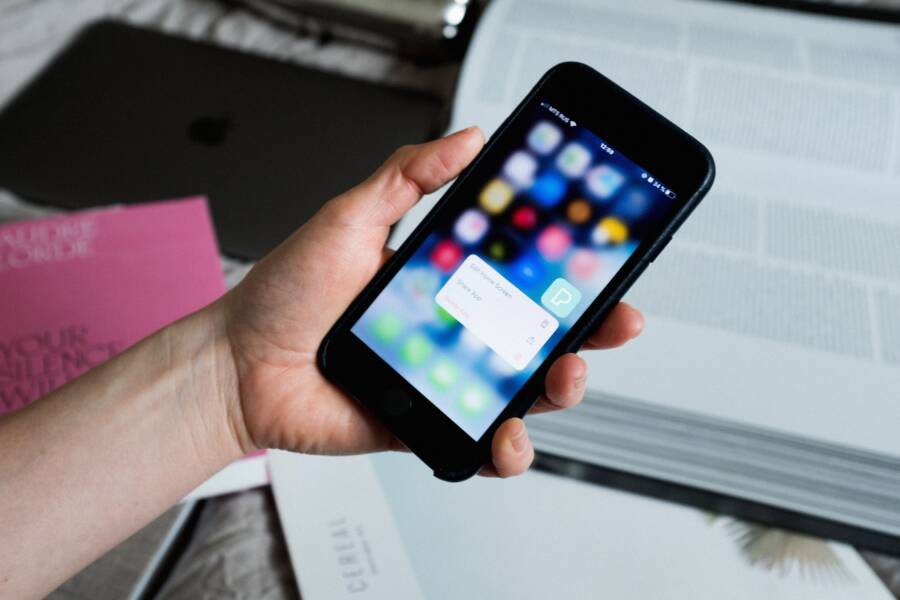
Most phone emoji suggestions issues come from keyboard settings, app glitches, or a missing predictive text feature. In many cases, you can fix the problem in a few minutes on both Android and iPhone keyboards.
Emoji suggestions help your phone predict symbols and show the right emoji faster while you type. If your smartphone stopped showing them, the cause is usually easy to track down, and the fix starts with a few simple checks on the keyboard and text settings.
Why your phone is not showing emoji suggestions
If your phone stopped showing emoji suggestions, the cause is usually a setting, a keyboard glitch, or a mismatch in your language or software setup. On most smartphones, emoji predictions depend on text prediction, so when that feature breaks, the emoji bar often disappears with it.
A quick check usually reveals the issue. Start with predictive text, then look at the keyboard app, and finally review language and system updates. Those three areas solve most emoji suggestion problems.
Predictive text may be turned off
Emoji suggestions usually depend on predictive typing. When predictive text is off, your keyboard has less context to work with, so emoji suggestions may vanish too.
On many phones, this setting sits inside the keyboard or general typing options. If you turned it off by mistake, or if an update reset it, your keyboard may still work normally but without helpful emoji prompts. Turning predictive text back on often brings the suggestions right back.
A simple example helps. If you type “happy”, your phone may suggest a smiley face. If prediction is disabled, that suggestion may never appear. In other words, the keyboard loses the feature that connects words with matching emoji.
If emoji suggestions disappeared after changing keyboard settings, predictive text is the first place to check.
Your keyboard app may be glitching
Keyboard apps can freeze, lag, or stop showing suggestions after heavy use. This happens more often after a system update, a keyboard app update, or a long stretch of typing without restarting the phone.
The good news is that many keyboard bugs are temporary. Closing the app, switching to another keyboard, or restarting the phone can clear the problem. If you use a third-party keyboard, that app may need its own update before emoji suggestions work again.
A few signs point to a keyboard glitch:
Suggestions disappear only in one app.
The keyboard feels slow or unresponsive.
Text prediction works sometimes, then stops.
Emoji suggestions return after a restart.
If the problem comes and goes, the keyboard app is often the real cause.
Language, region, or keyboard settings may not match
Emoji suggestions also depend on the language and keyboard layout you use. If your phone is set to one language, but your keyboard is typing in another, prediction may not behave the way you expect.
A missing keyboard layout can cause the same issue. For example, if your phone only has one language keyboard installed, and you switch to a different language mode, emoji suggestions may become limited or disappear. Region settings can also affect how certain keyboards handle predictions and emoji prompts.
Check for these common mismatches:
The keyboard language does not match the language you type in most often.
A keyboard layout was removed or never added.
The phone region is set differently from your usual language settings.
When the settings line up, suggestions usually get better right away. This is especially true on a smartphone that has been used with multiple languages over time.
Your phone may need a software update
System updates often fix keyboard bugs, prediction errors, and missing suggestion features. If your phone has been skipping updates for a while, the keyboard may be running with an old bug that affects emoji suggestions.
Updating the phone can also refresh text services tied to the keyboard. After the update, restart the device and test the keyboard again. That simple reset often clears lingering glitches.
If emoji suggestions stopped after a recent update, the reverse can happen too. A follow-up update from the manufacturer often patches the problem.
Check the settings that control emoji and text suggestions
Emoji suggestions depend on a few keyboard settings working together. If predictive text is off, the wrong keyboard is active, or the language tools are missing, your phone may stop showing emoji prompts even though typing still works normally.
Most fixes start in the keyboard settings on your smartphone. Once those options are on, the keyboard can link words, phrases, and emoji again. That is what brings back suggestions like a smiley face after you type “happy” or a heart after “love”.
Turn on predictive text and text suggestions
Predictive text is the setting that most often controls emoji suggestions. On iPhone, you can usually find it under Settings > General > Keyboard. Look for Predictive and turn it on, along with related text options if they are off.
On Android, the path depends on the keyboard you use, but it is often found under Settings > System > Keyboard or inside the keyboard app itself. Gboard, Samsung Keyboard, and similar tools usually have a section for text correction, suggestions, or predictive typing.
If those settings are disabled, the keyboard has less context for each word you type. That often means fewer emoji prompts, fewer word suggestions, and a less helpful suggestion bar.
A quick checklist can help:
Turn on predictive text.
Enable suggestions or text correction.
Save the change, if your phone asks.
Open Messages or Notes and test the keyboard right away.
If the suggestion bar is blank, predictive text is one of the first settings to check.
Make sure your keyboard supports emoji suggestions
Some third-party keyboards handle emoji suggestions differently from the built-in keyboard. A keyboard may still offer word prediction, but hide emoji prompts or place them in a different menu. That can make it look like the feature is broken when it is really just missing from that app.
If you use a keyboard app from the App Store or Google Play, switch back to the default keyboard for a test. On iPhone, try the built-in Apple keyboard. On Android, try the preinstalled keyboard such as Gboard or Samsung Keyboard.
If emoji suggestions return after the switch, the third-party app is the likely cause. At that point, you can keep using the default keyboard or review the app’s own settings.
A simple test helps you compare the two:
Open a text field.
Type a common word like “sad” or “party”.
Watch whether emoji suggestions appear above the keyboard.
Switch keyboards and repeat the same test.
If one keyboard shows suggestions and the other does not, you have found the source of the problem.
Check the keyboard language and dictionary settings
Language settings matter because emoji suggestions often rely on the keyboard dictionary. If the wrong language is active, or if a language pack is missing, the phone may not offer the same predictions. A disabled dictionary can cause the same issue.
Keep the language you type in most often at the top of the list. On both iPhone and Android, the keyboard settings usually let you add, remove, or reorder languages. If you type in English, for example, make sure English is installed and selected for the keyboard you actually use.
A mismatch can be easy to miss. Your phone may be set to one language, while the keyboard is set to another. Then the suggestion bar looks weak, empty, or inconsistent.
Check for these settings:
The main keyboard language is installed.
The dictionary or word suggestions are enabled.
Any extra language pack you need is downloaded.
The keyboard layout matches the language you type in most often.
If you switch languages often on a smartphone, test each one separately. Sometimes emoji suggestions work in one language mode and fail in another.
Update your keyboard app if it has its own settings
Some keyboards keep their own suggestion controls inside the app. Gboard, Samsung Keyboard, SwiftKey, and similar apps may each store text prediction settings in different places. If you never open those menus, you can miss the one option that controls emoji suggestions.
Start by updating the keyboard app in the App Store or Google Play. Then open the app’s settings and look for text prediction, suggestion strip, auto-correction, or emoji-related options. An update can also restore settings that were changed during a bug fix or app reset.
When you review the app settings, focus on the parts tied to suggestions, not just spelling. That is where emoji prompts are usually controlled.
If the app still behaves oddly after the update, turn the suggestion options off and back on again. Then restart the phone and test the keyboard in a chat app or notes app.
Quick fixes that often bring emoji suggestions back
If emoji suggestions suddenly stop showing, start with the easy fixes first. In many cases, the problem is temporary and tied to one app, one keyboard session, or a small settings glitch. A few quick changes often bring the suggestions back without touching the rest of your phone.
The best approach is to test the keyboard where you type most often, then move through the simplest resets. That saves time and helps you spot whether the issue is local to one app or affects the whole smartphone.
Close the app and reopen it
Sometimes the problem only happens in one app. Messages may show emoji suggestions while another app does not, or the reverse may happen after a crash, update, or long typing session.
Close the app completely, then open it again and test the keyboard. If the emoji bar returns, the issue was probably limited to that app and not the phone itself.
To compare behavior, try the same text field in different places:
Messages
Notes
A browser search box
Any app where you can type normally
Type a word that usually triggers emoji suggestions, such as “happy” or “love”. If suggestions appear in one place but not another, the app is likely part of the problem.
Restart the phone
A restart clears temporary memory issues and refreshes the keyboard system. That often helps when emoji suggestions disappear after the phone has been running for days or after a recent update.
This fix is simple, but it works because the keyboard depends on background services that can get stuck. Once the phone starts fresh, the suggestion bar often comes back on its own.
After the restart, open a text app and test again. If the emoji suggestions return, you can stop there and keep typing normally.
Clear the keyboard cache or reset keyboard data
If simple steps do not help, Android users can try clearing the keyboard cache or resetting keyboard data. This is a stronger fix because it removes temporary files that may be causing the keyboard to misread suggestions.
The exact menu depends on the device and keyboard app, but the goal is the same, clear out old typing data that may be broken. This can help after updates, app crashes, or repeated keyboard freezes.
Use this option carefully, since it may reset some saved typing behavior. Still, it is often the right next step when the keyboard keeps acting up after basic troubleshooting.
If emoji suggestions disappear across multiple apps, cached keyboard data is a common cause on Android.
Remove and re-add the keyboard
Reinstalling or re-enabling the keyboard can fix broken settings without changing the rest of the phone. This is especially useful when the keyboard starts behaving differently after an update.
If you use a third-party keyboard, remove it and add it again. If you use the built-in keyboard, disable it and turn it back on, if your phone allows that. This can restore missing suggestion settings, refresh permissions, and clear odd behavior tied to one keyboard profile.
After adding it back, test the same word again in Messages or Notes. If the emoji suggestions return, the keyboard settings were likely damaged or out of sync.
A good rule is simple, when the keyboard itself feels off, reset the keyboard before changing deeper phone settings.
If the problem is only happening in one app, check the app itself
When phone emoji suggestions fail in just one app, the keyboard is usually fine. That points to the app, its text field, or its own input rules. In that case, fixing the app is faster than changing system settings.
This matters because many apps handle typing in different ways. Messages, Notes, and a browser search bar often support full keyboard suggestions, while some apps limit them or break them after an update. If suggestions work in one place but not another, the app is the first place to look.
Test the keyboard in Messages, Notes, and a browser search bar
Start by typing in a few different places on the same phone. Open Messages, Notes, and a browser search bar, then type a word that usually triggers emoji suggestions, such as “happy”, “love”, or “sad”. If the emoji bar appears in those apps, your keyboard is working.
That test helps isolate the problem fast. When suggestions show up in Messages but not in one specific app, the issue is probably inside that app, not on the phone itself. The keyboard is sending predictions normally, but the app may not be accepting them.
A quick comparison can make the pattern clear:
If all three work, the app with the missing emoji suggestions is the weak point. If none of them work, the problem is broader and probably tied to keyboard settings.
Look for app updates or app bugs
An outdated app can break keyboard suggestions. The app may still let you type, but it may not handle predictive text or emoji prompts well. This happens often after a phone update when the app itself has not been refreshed yet.
Update the app first if a newer version is available in the App Store or Google Play. After that, reopen it and test the same text field again. If the problem started after an update, the next patch may fix it.
If updating does not help, reinstalling the app can clear damaged app data. That often works when the issue affects only one app and keeps coming back after you close it. Just sign back in if the app needs an account.
A simple rule helps here: if one app behaves differently from every other app, treat it like the source of the bug.
Check for restricted text fields
Some apps block emoji suggestions by design. Login boxes, secure password fields, and certain payment or verification forms often limit keyboard features for safety and privacy. In those fields, your phone may still type normally, but the suggestion bar can stay empty.
This is common in banking apps, admin tools, and sign-in screens. The app is reducing what the keyboard can do inside sensitive fields, so missing emoji suggestions do not always mean something is broken.
Try the same app in a regular message box, comment field, or notes area. If suggestions return there, the restricted field is the reason. That means the app is working as intended, even if it feels inconsistent.
When this happens, the fix is simple, use a different text field for testing. If emoji suggestions appear in normal fields but disappear in secure ones, your smartphone is behaving the way that app expects.
How to keep emoji suggestions working after you fix them
Once emoji suggestions start working again, the goal is to keep them stable. Most problems come back because a setting gets reset, a keyboard app gets replaced, or a system update changes the default typing setup. A few habits can protect the feature and keep your keyboard predictable.
Keep your phone and keyboard updated
Regular updates help prevent bugs that break typing features. Both your phone software and your keyboard app can affect emoji suggestions, so keeping them current reduces the risk of glitches and compatibility issues.
When an update arrives, install it before the problem grows into a bigger one. Keyboard bugs often show up after app changes or system changes, and updates are the usual fix. If emoji suggestions were restored after an update, stay on top of the next one too, since it may include another keyboard patch.
A simple habit helps:
Check for system updates once in a while.
Update your keyboard app when a new version appears.
Restart the phone after installing either one.
Test emoji suggestions in Messages or Notes.
That small routine keeps the typing tools on your smartphone in sync. It also lowers the chance that predictive text, language tools, or emoji prompts break again after a patch.
Use one main keyboard instead of switching often
Changing keyboards too much can create conflicts. Each keyboard app may store its own language, suggestion, and emoji settings, so frequent switching can leave the phone confused about which rules to follow.
If you want emoji suggestions to stay reliable, pick one keyboard and stick with it. The built-in keyboard on iPhone or Android is often the easiest choice because it usually works best with the phone’s own text system. Third-party keyboards can still work well, but they need more attention.
If you do switch keyboards, keep it controlled. Recheck your suggestions after the switch, and make sure the new keyboard has predictive text turned on. Otherwise, one keyboard may be using one language pack while another uses different settings in the background.
One main keyboard keeps the typing experience simpler, which makes emoji suggestions easier to maintain.
Review settings after major system updates
Major updates can reset typing options, change permissions, or replace default settings on a smartphone. After that happens, emoji suggestions may disappear even if everything worked the day before.
That is why it helps to review keyboard settings after a big update. Check predictive text, the default keyboard, language order, and any app permissions tied to text input. If the phone changed your default keyboard, switch it back right away.
A quick post-update check can save time later:
Confirm predictive text is still on.
Make sure the correct keyboard is set as default.
Review language and region settings.
Open a text app and test a few common words.
This step matters because updates often act like a reset button for hidden typing preferences. A short check after each major change keeps emoji suggestions working and makes future fixes easier if the keyboard starts acting up again.
When it still will not work, get help from the right place
If emoji suggestions still do not show after the usual fixes, the next step is to get support from the source that controls the problem. That may be your phone maker, the keyboard app developer, or, in some cases, a repair service if the issue started after a reset or update.
At this point, the goal is to stop guessing. If the keyboard feature vanished after a system update, the phone maker may already know about it. If it only happens in one keyboard app, that app’s support team is the better fit.
Contact your phone maker or keyboard app support
Reach out when the problem looks tied to a specific device, update, or keyboard app. If emoji suggestions disappeared right after a software update, a factory reset, or a keyboard reinstall, support can confirm whether the issue is known and whether a fix is available.
Use your phone maker’s support if the built-in keyboard is affected. Use the keyboard app’s support if you rely on Gboard, SwiftKey, Samsung Keyboard, or another third-party tool. That split matters because each team controls different parts of the typing system.
Before you contact them, collect a few details:
Your phone model and software version.
The keyboard app name and version.
When the problem started.
Whether it happens in every app or only one.
Whether predictive text still works without emoji suggestions.
That information helps support narrow the cause faster. It also saves you from repeating basic steps that you already tried.
If the feature disappeared after an update or reset, mention that first. It often points support in the right direction.
Back up your phone before deeper troubleshooting
If the issue still does not clear, back up your phone before any deeper repair step. That is especially important before a factory reset, a full keyboard data wipe, or a service visit that may require device checks.
A backup protects your photos, messages, contacts, and app data if the next step goes wrong. Use iCloud, Google One, or another backup tool that matches your phone. Then confirm the backup completed before you move on.
A quick backup check is usually enough:
Save your photos and videos.
Sync contacts and messages.
Back up app data if your phone supports it.
Confirm the last backup time.
After that, you can try stronger fixes with less risk. A reset should be a last step, not the first one, but backing up now gives you room to act if support recommends it.
Conclusion
Start with predictive text, then check your keyboard settings, and restart your phone. Those three fixes solve most emoji suggestion problems on a smartphone, especially when the keyboard still types normally but the emoji bar disappears.
If that does not work, check the keyboard app, language settings, and any recent updates. Most of the time, the issue is a small setting or a temporary glitch, not a hardware fault or a repair job.
Emoji suggestions usually come back with a few simple changes. Predictive text, keyboard settings, and a restart fix most cases before you need anything more.