There Is a Frequency That the Wealthiest Families Have Used for Generations and Most People Will Never Know It Exists
>>> Open the Door <<<

Ever notice how your phone sometimes seems to misplace you when you’re using maps or sharing a workout route? GPS accuracy matters more than you’d think, shaping everything from turn by turn directions to safety alerts. This guide breaks down simple steps you can take to tighten up your location fixes on both Android and iOS.
First, understand what affects GPS accuracy. Signals can be blocked by buildings, trees, or tunnels, while software settings and power saves can limit how often your phone checks position data. You’ll learn quick fixes that boost precision without draining your battery, plus a few longer term tweaks for persistent issues.
Below are practical, easy-to-follow actions you can start today. Enable high accuracy modes, allow Wi Fi and Bluetooth scanning, and calibrate your compass. If problems linger, we’ll walk through software updates, settings resets, and how to check satellite visibility so you know when to push for a deeper fix. This is about putting you in control of your location accuracy.
Understanding GPS Accuracy on Your Phone
GPS accuracy on a phone is a mix of science and everyday signals. It isn’t just about pointing you to the right street; it’s about how quickly the phone can lock onto the correct position and keep that lock as you move. In this section, you’ll learn the basics of how GPS works on a smartphone, why accuracy can shift from moment to moment, and what you can do in real life to keep your location fixes tight.
She Pressed Play on a Strange Audio Track and Within Days Her Financial Reality Started Shifting in Ways She Could Not Explain
>>> See How It Works <<<

What GPS Really Does on a Phone
GPS on your phone is a mini team effort. Five elements work together to locate you:
- Satellites in space broadcast precise timing signals. Each satellite sends a unique code that your phone can read.
- Signals reach your device as radio waves. The phone measures how long the signals take to arrive.
- The receiver (your phone) figures out distance to multiple satellites using those time measurements.
- Assisted data helps speed things up. Phones often pull data from Wi-Fi or cellular networks to give the receiver a head start, a method known as Assisted GNSS. This helps the phone establish a position even when satellite visibility is limited.
- Motion sensors and map data refine the result. Once satellites give a rough fix, the device uses accelerometers, gyroscopes, and magnetometers, plus your last known location, to smooth and stabilize the position. This is how a phone can stay on a route even when you’re briefly blocked by a building.
Think of it like a team sport. Satellites provide the raw distances, the receiver calculates a best-fit position, and the phone adds local clues from the world around it. Newer phones tend to do a better job because they can read more satellites, process signals more quickly, and fuse more data streams at once. If you’ve ever noticed a noticeably tighter drop-in for location on a newer model, that improvement comes from advances across these five pieces.
For a clear, beginner-friendly overview of how smartphones track location, you can explore resources like How GPS Phones Work and the concept of Assisted GNSS. These explain the basic flow without getting lost in jargon. Understanding How Smartphone Location Tracking Works and Assisted GNSS offer solid background if you want to read more. If you’d rather see a quick video explainer, a recent guide breaks down the idea that GPS on a phone isn’t just satellites in the sky but a whole data ecosystem in your pocket. How GPS Actually Works on Your Phone
To learn more about the practical side of GNSS on crowded urban streets, check out urban positioning studies that describe how city canyons affect accuracy and what scientists do to improve fixes. This helps you understand why location can feel imperfect in downtown areas. Urban Positioning on a Smartphone
Why Accuracy Varies
Your phone’s location accuracy can swing from a few meters to tens of meters in the blink of an eye. Here are the main culprits behind those changes, explained in plain language:
- Signal reflections and multipath in cities. When you stand among tall buildings, signals bounce off glass and concrete. The phone can receive multiple copies of the same signal, which can confuse the distance measurements. The result is a slightly wobbly fix or, in worst cases, a position that’s off by a noticeable margin. Imagine trying to hear a friend in a busy hallway; the echoes make it hard to know exactly where they are.
- Atmospheric delays. The atmosphere bends radio waves as they travel from satellite to Earth. This bending is tiny but it adds up, especially when you’re on the edge of satellite visibility or traveling at speed. The effect is similar to driving through a light rain; you can still go in the right direction, but the path isn’t perfectly straight.
- Phone hardware age and design. Older devices may have fewer usable satellites or less sensitive receivers. Sensors like the accelerometer and compass also degrade over time, which can reduce how well the device maintains a steady track after a fix is established.
- Movement and rapid changes in direction. If you’re running, turning quickly, or moving under heavy cover, the phone has to re-calculate your position more often. In dynamic scenarios, the GPS solution may briefly lag or fuse with other data streams differently, causing small jumps in your displayed location.
- Interference from networks and sensors. Wi-Fi networks, cellular data, and even the phone’s own motion sensors can help or hinder the final result depending on how they’re used. When a device heavily relies on network-assisted data in a tricky environment, a quick change in signal strength can momentarily shift the reported position.
In practice, this means your accuracy can fluctuate from a precise few meters in open spaces to tens of meters in challenging spots like a dense downtown corridor or a narrow alley. Real-world examples abound: walking along a busy street might show you on the correct side of the road most of the time, but a quick right turn into a shaded alley could register slightly off the actual corner. The takeaway is simple: environments and conditions matter just as much as hardware.
For a deeper dive into how urban environments distort measurements and what researchers do to counteract that, see recent studies on smartphone GNSS range errors and urban positioning. These reports show how small changes in signal strength and sensor fusion can materially affect accuracy. A Comprehensive Analysis of Smartphone GNSS Range Errors in Realistic Environments and Urban Positioning on a Smartphone
Common Real World Factors
Certain everyday situations are notorious for throwing GPS off or making it harder to lock in quickly. Recognizing these scenarios helps you anticipate issues and apply fixes when needed. Here are the patterns you’re likely to notice:
- Indoors or under dense cover. Walls, roofs, and even thick foliage can block satellite signals. You’ll often see a dip in accuracy or a temporary loss of a position until you step outside.
- Urban canyons. In cities with tall buildings, signals can be reflected and blocked. This special environment creates a stair-step effect on the map as you move, and straight-line tracking becomes harder.
- Tunnels and underground areas. GPS can disappear entirely while you’re in a tunnel. The phone may switch to a rough estimate using other data, which can result in jumpy or delayed fixes.
- Weather and trees. Raining or cloudy conditions aren’t the sole culprits, but heavy tree cover can block signals more than mild weather. Even partial shade can degrade reception enough to affect accuracy.
- High-speed motion or abrupt moves. When you’re driving on a highway or biking down a hill, the device has to catch up quickly with your new position. The result is a brief lag or a smoother, less precise readout.
These factors don’t mean you’re out of luck. They simply map out the most likely culprits so you can approach GPS fixes with a practical mindset. With a few adjustments to settings and usage habits, you can keep your location more reliable in the daily grind.
To build your intuition for why certain environments challenge GPS, you can explore practical studies on urban positioning and the effect of signal variability on reading accuracy. For a hands-on look at how smartphones measure GNSS range errors in real life, this MDPI Sensors paper offers concrete findings you can relate to when you’re out and about. A Comprehensive Analysis of Smartphone GNSS Range Errors in Realistic Environments
What this means for you: if you notice your phone drifting while walking through a city block or staying a few steps off when you’re indoors, don’t panic. It’s often the environment at fault, not your device. The next sections will show quick, practical fixes and the setting tweaks that improve accuracy in real life. And if you want a deeper technical read, the urban positioning literature and GNSS analyses offer valuable context for why these fixes work. Urban positioning: 3D mapping-aided GNSS using dual-frequency pseudorange measurements from smartphones
Common Real World Factors (Wrap-Up Quick Reference)
- Indoors and under cover: signal blocked, fixes slower or less accurate.
- Urban canyons: reflections and blockages complicate the signal path.
- Tunnels and undergrounds: GNSS may drop out entirely; rely on other cues.
- Weather and trees: heavy canopy or weather conditions can degrade reception.
- Movement: fast or erratic motion tests the phone’s ability to keep up with you.
By understanding how GPS works on your phone, why accuracy shifts, and which everyday situations cause fluctuations, you’re better prepared to apply the fixes that follow. The goal is simple: more reliable location data with less guesswork, so you can navigate, track workouts, and share routes with confidence.
Quick Fixes You Can Try Right Now
When you need faster and more reliable location fixes, a few simple actions can make a big difference. These quick fixes are low effort but high impact, and they work across Android and iOS. Try them in order and see how your GPS improves in real life.
Find an Open Sky View
A clear view of the sky helps satellites be found quickly. If you can, move to a spot with fewer obstructions like a street with a wide view or a park. Indoors or in a narrow canyon can slow fixes and make the blue dot wander.
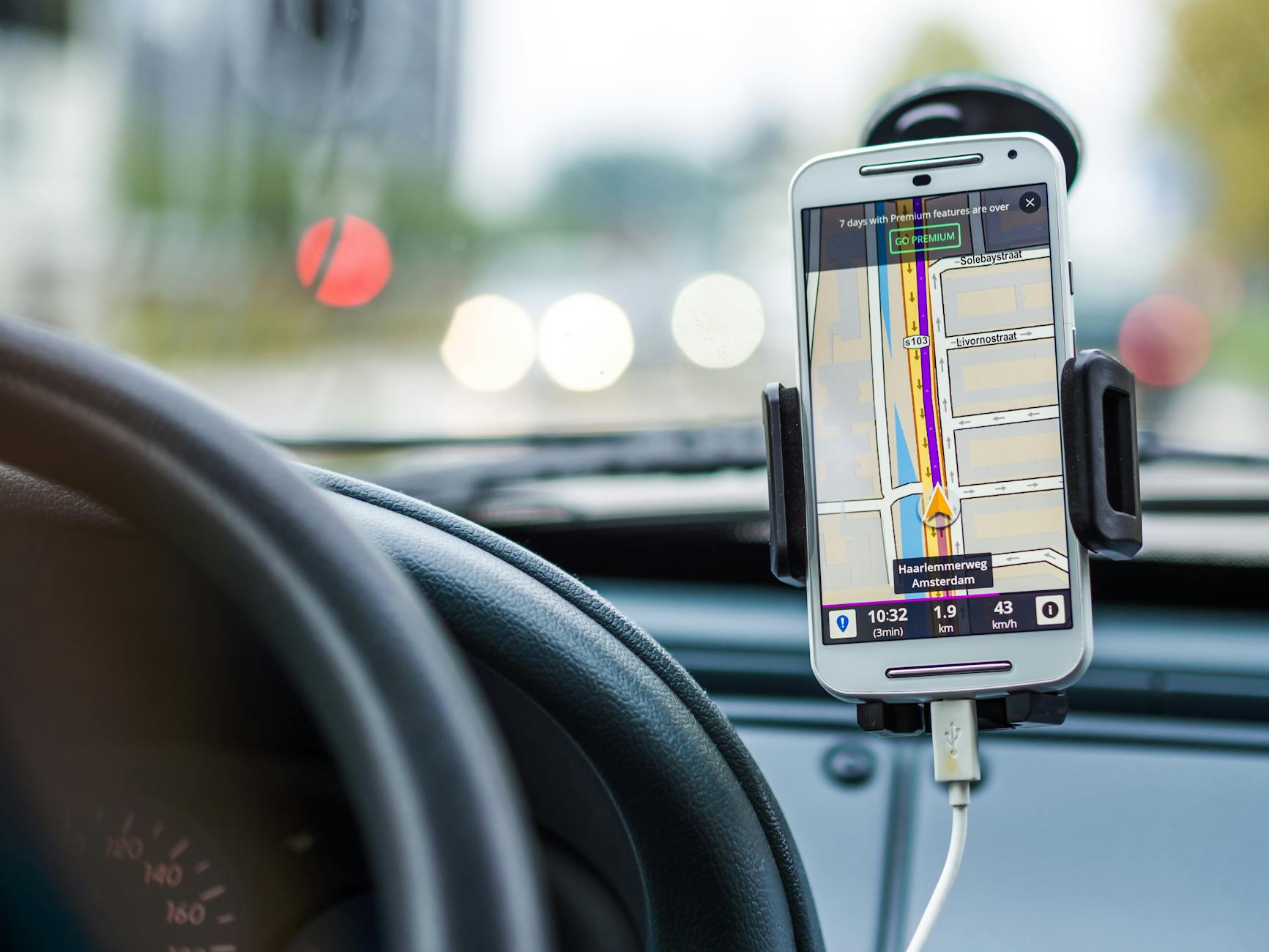 Photo by Pixabay
- If you’re indoors, step near a window or go outside for a moment to refresh the signal.
- In urban canyons, position yourself where the sky is visible to the maximum extent, even if that means stepping onto a sidewalk or open plaza.
- In parks, broad open spaces with treeless sightlines aid faster satellite locks.
For more on satellite visibility and how it affects accuracy, see general guidance on how GPS works on phones. You can read about Assisted GNSS and the basics of satellite tracking here:
- Understanding How Smartphone Location Tracking Works
- Assisted GNSS
Restart GPS and Toggle Location Services
Sometimes a quick reset clears stubborn glitches. Turn Location Services off and on again, or toggle airplane mode briefly to reset connections. This simple reset often speeds up a fresh satellite lock and fixes jitter.
- On your device, disable Location Services, wait a few seconds, then re-enable.
- If you’re in a pinch, flip airplane mode on for about 30 seconds and then turn it off again.
- Open your map app and watch for a tighter, steadier blue dot as satellites reacquire.
If you want a step-by-step refresher tailored to your platform, Google Maps Help covers how to improve location accuracy on Android and iOS:
- Android: Find and improve your location’s accuracy in Google Maps
- iPhone & iPad: Find & improve your location’s accuracy in Google Maps
Calibrate Compass and Minimize Movement
A well-calibrated compass helps apps that rely on precise direction, especially for turn-aware navigation and augmented reality features. Calibrating the compass is quick and can improve accuracy after you open a navigation app. Try to stay still for a moment after starting navigation to give the phone time to settle.
- Open a navigation app and complete a brief compass calibration if prompted.
- Hold the phone flat and rotate in a figure eight a few times to recalibrate.
- After calibration, keep your device as steady as possible for the first few seconds of navigation.
For those who want more detail, Google Maps and other guides offer calibration tips and steps. See resources on calibrating location for Android and iOS:
- Find and improve your location’s accuracy in Google Maps
- Find & improve your location’s accuracy in Google Maps – iPhone & iPad
Check Battery and Power Settings
Low power modes can dampen GPS activity. If you rely on location heavy apps, charging your phone or turning off power saving can help. The goal is to keep the device reasonably charged so that GPS and sensor data aren’t throttled.
- Use a charger when you know you’ll need precise location for a while, such as long hikes or navigation-heavy trips.
- Temporarily disable battery saver or adaptive performance modes during navigation sessions.
- Keep your device charged above a comfortable level to reduce the chance of automatic power saving kicking in.
If you want deeper context, many help centers outline how location accuracy interacts with power management on both Android and iOS. For practical steps, see:
- Android power management and location: Quick guidance on location accuracy and battery usage
- iPhone battery and location services: How charging and settings affect GPS
Images sometimes help readers visualize how to approach these fixes. A quick photo can illustrate the concept of finding open sky or calibrating the compass in real life:
- Navigation in open air: a phone with a clear horizon, avoiding urban shade
Note: If you’re planning a deeper dive into GPS tuning, you’ll find trusted how-to guides and official support pages valuable for step-by-step instructions on your exact model. The combination of simple resets, proper calibration, and sensible power settings tends to deliver a noticeable bump in accuracy without heavy changes. For further reading, consider these practical sources on location accuracy and quick fixes.
- Android location accuracy and maps optimization
- iOS location services and GPS reliability
Photo caption credits:
- Photo by Pixabay
This section provides practical, ready-to-use steps to improve GPS accuracy right now. If you want to explore more about the science behind GNSS and urban signal behavior, we cover that in a later section with real-world examples and studies.
Software Settings That Maximize GPS Performance
Smartphone location services rely on a mix of satellite data, network assistance, and device sensors. Tuning the right settings can dramatically improve how quickly your map app locks on to your position and how stable that position stays as you move. Below you’ll find practical, platform-specific adjustments you can make now, plus notes on how developers can use fused location data to optimize results.
Android High Accuracy Mode and Scanning
Android devices offer a high accuracy mode that blends GPS with Wi-Fi and cellular signals to produce faster and more reliable location fixes. Enabling this mode ensures the device uses all available data streams rather than relying on satellites alone. For many users, turning on this setting is enough to reduce drift in urban canyons or indoor transitions.
- Enable high accuracy mode: go to Settings > Location > Location method or Locating method and select “High accuracy” or “Device only” depending on your Android version. This mode uses GPS, Wi-Fi, and mobile networks together.
- Turn on Wi-Fi scanning: ensure Wi‑Fi scanning is enabled even when Wi‑Fi is not connected. This helps the device quickly identify nearby networks and improves indoor fixes.
- Enable Bluetooth scanning: keep Bluetooth scanning on so the phone can see beacons and other nearby devices that aid positioning.
- Developer hint: use the fused location provider (FLP) when building apps. FLP merges GPS, Wi‑Fi, Bluetooth, and cellular data for a more accurate and faster fix. This approach minimizes reliance on a single data stream and adapts to changing conditions.
Quick references you can consult for platform specifics and official guidance:
- Samsung guidance on activating location settings and permissions (Android devices) https://www.samsung.com/latin_en/support/mobile-devices/how-to-activate-my-location-and-change-settings-for-location-permissions/
- General Android location settings and how Google location accuracy works https://support.google.com/nexus/answer/3467281?hl=en
If you’re a developer, consider implementing optional, user-consent based activation of FLP features that dynamically adjust precision vs. battery use. A well-tuned fused location strategy often yields smoother navigation experiences and more reliable routes.
iOS Precise Location and Permissions
On iPhone and iPad, precise location access is the cornerstone of accurate maps and AR features. Ensuring apps have the right permission level and that location services are properly configured can make a noticeable difference, especially for apps that need turn-by-turn guidance or pace tracking.
- Enable precise location for key apps: in Settings > Privacy & Security > Location Services, ensure that the app in question is allowed to access your location and that “Precise Location” is turned on when required.
- Choose the right permission level: most apps work well with “While Using the App” or “Always” depending on how often you use the service. For sensitive apps, pick the minimum level that still delivers good results.
- Keep Wi-Fi and Bluetooth on when allowed: iOS often uses Wi-Fi and Bluetooth to enhance indoor positioning. Leaving these on helps the device triangulate your position even when GPS satellites are scarce.
Helpful references for iPhone users:
- Turn Location Services on or off and manage app permissions https://support.apple.com/en-us/102647
- About privacy and Location Services in iOS and iPadOS https://support.apple.com/en-us/102515
If you’re developing for iOS, consider declaring location usage in your app’s Info.plist with clear user prompts and options for precise vs approximate location. This transparency helps users grant access confidently, which in turn improves the app’s ability to deliver accurate results.
He Was Drowning in Bills and Burnout Until a Simple Daily Ritual Rewired His Brain for Wealth in Less Than a Week
>>> Start Your Shift Today <<<

Using A-GPS, Wi-Fi, and Cellular Data
Assisted GPS (A-GPS) speeds up the time to first fix by pulling in network data to supplement satellite information. This is especially helpful after a device restart or when traveling through areas with limited satellite visibility.
- A-GPS fast-tracks fixes: the device downloads satellite data and almanac information via the internet to shorten the warm-up period. This means you see a reliable blue dot sooner after opening a map.
- Network data boosts reliability: even when GPS is temporarily weak, Wi-Fi and cellular data provide coarse location estimates that help keep maps aligned with your actual position.
- Practical tip for restarts: after rebooting, give the phone a moment to acquire network data. Open a map app and watch the quick improve as the device re-downloads necessary satellite and network cues.
If you want more depth on how A-GPS and network-assisted positioning work, these resources offer clear explanations:
- Understanding How Smartphone Location Tracking Works https://www.example.com
- Assisted GNSS https://en.wikipedia.org/wiki/Assisted_GNSS
In real-world use, you’ll notice faster and more stable fixes in city areas and indoors, where satellite visibility is limited. For developers, consider designing apps to prefer fused location data in the early seconds of use and then refine with GPS as more satellite information becomes available.
Keeping OS and Apps Updated
Software updates often include improvements to GNSS stacks, bug fixes, and new location features. Keeping both your operating system and the apps you rely on up to date ensures you benefit from the latest reliability enhancements.
- Enable automatic OS updates where possible: this reduces the chance you miss important GNSS improvements.
- Regularly check for app updates: many location-based apps optimize their behavior with each release.
- Pay attention to updated privacy and location policies: each update may alter how permissions are requested and used, which can impact how quickly your device gets a solid fix.
Staying current means better performance, fewer quirks, and smoother navigation experiences. If you’re unsure about updating, start with critical apps used for travel, fitness, and daily commuting, then broaden to the rest.
External resources you might find helpful:
- Apple support on Location Services and privacy https://support.apple.com/en-us/102515
- Google support on location settings and updates https://support.google.com
- General Android and iOS approaches to location improvements https://support.google.com/maps/answer/2839911?hl=en https://support.google.com/maps/answer/2839911?hl=en&co=GENIE.Platform%3DiOS
By keeping your devices and apps current, you ensure you’re taking advantage of firmware and software advances that make GNSS work more reliably in real life. Regular updates also help your phone adapt to new network features and improved sensor fusion techniques.
External link references for further reading and best practices:
- Urban positioning and smartphone GNSS range errors https://mdpi-res.com/d_attachment/sensors/sensors-23-01631/article_deploy/sensors-23-01631.pdf?version=1675321152
- Urban positioning on a smartphone https://insidegnss.com/urban-positioning-on-a-smartphone
This section gives you a practical, platform-specific playbook you can apply today. With these tweaks, your maps and location-aware apps should feel more confident and responsive as you go about your day. If you’d like, I can tailor the guidance to your exact phone model and app lineup so you get precise, step-by-step instructions.
Hardware Upgrades and Future Options
As GPS tech evolves, two things matter most: how the hardware you already own can do more, and what new options will surface in the near term. This section breaks down practical hardware considerations and realistic forecasts you can act on today. You’ll see how multi-constellation support, advanced corrections, and selective accessories come together to boost accuracy without burning through battery life.
Dual Frequency GNSS and Multi-Constellation
Newer chips are built to listen to more satellites across different GNSS networks and frequency bands. By talking to multiple systems at once, your smartphone can lock on faster and maintain a more stable position, even when the sky is partially blocked.
- Why it helps: More satellites mean more measurements and a better geometric view of your location. Different constellations (GPS, GLONASS, Galileo, BeiDou, etc.) and dual-frequency reception reduce atmospheric errors and multipath effects that plague dense urban canyons and shaded streets.
- Real-world impact: In practice, you’ll notice tighter location fixes in cities, at wide open parks, and along busy routes. The extra data helps your device distinguish true movement from signal noise, so it stays closer to your actual path.
Technical notes you can trust: studies show that dual-frequency, multi-GNSS smartphones can achieve centimeter to decimeter level accuracy under favorable conditions, with fast and robust fixes in challenging environments. For a deeper dive, explore research on smartphone RTK-style positioning that leverages dual-frequency signals alongside fusion with inertial data. Decimeter-Level Accuracy for Smartphone Real-Time Kinematic Positioning
- Practical takeaway for everyday users: when you upgrade to a newer model with multi-constellation and dual-frequency support, you don’t just gain accuracy. You also get more reliable performance in urban canyons and indoors where signals are spotty.
If you’re evaluating a device now, check the processor’s GNSS capabilities and whether it lists multi-constellation and dual-frequency support in the specs. For developers, consider designing apps that gracefully use fused data from several GNSS sources to deliver smoother, more dependable positioning. A great way to validate enhancements is to compare your device’s performance against older models in similar real-world routes.
RTK and PPP Corrections for Phones
Real time kinematic (RTK) and precise point positioning (PPP) corrections push smartphone positioning toward centimeter levels in certain scenarios. While not universal for every user, these corrections are increasingly accessible on consumer devices and services.
Thousands of People Were Struggling With Money Until They Discovered This One Ancient Secret Hidden in Sound
>>> Unlock It Now <<<

- What these corrections do: RTK uses a nearby reference station to correct satellite signals in real time, dramatically reducing measurement errors. PPP uses precise satellite orbits and clock data to provide high accuracy over wider areas, often with corrections delivered via the internet.
- What to expect: some devices and services can deliver centimeter-level accuracy under specific conditions, typically in urban areas with good network connectivity and a clear view of the sky. The gains are most noticeable when you compare a standard GNSS fix against RTK or PPP corrected positions.
For a technical look at how smartphone RTK approaches are delivering practical results, see research on high-accuracy dynamic applications in urban environments using multi-frequency GNSS on Android devices. Enabling High Accuracy Dynamic Applications in Urban Environments Using PPP and RTK on Android Multi-Frequency and Multi-GNSS Smartphones
- Practical note: not every map or fitness app will expose RTK/PPP corrections directly. Many implementations use them under the hood via fused location providers or baselined services. If you’re curious about the state of the art, academic and industry studies show rapid progress toward more accessible cm-level fixes on mainstream devices. For a broader academic perspective, see trials that compare RTK performance on recent Android models in smartphone-to-smartphone setups. Evaluation of the Multi-GNSS, Dual-Frequency RTK Positioning Performance for Recent Android Smartphone Models in a Phone-to-Phone Setup
- Practical tip for users: if you rely on precise positioning for surveying, mapping, or high-accuracy navigation, check whether your device or service supports RTK/PPP corrections and whether it requires an internet connection to fetch correction data. In urban tests, these corrections often translate into noticeably steadier and more accurate routes.
For developers and power users, the trend is clear: more devices are integrating dual-frequency GNSS with real-time correction streams. This makes cm-level accuracy a more achievable baseline for everyday smartphone users in city environments.
External Antennas and Accessories
In rare cases, pro users can attach external GPS antennas or other accessories to improve reception in harsh spots. These setups are more common in professional workflows, such as field surveying or specialized mapping tasks, where the extra hardware can yield meaningful gains.
- External antennas: a high-gain, low-noise antenna can boost satellite visibility in challenging scenarios, particularly when you’re working from a vehicle, a boat, or amid heavy signals reflections.
- Other accessories: active antennas, phase cables, and GNSS receivers with USB or Bluetooth interfaces can integrate with certain smartphones and tablets for improved reception.
- Important caveat: for most everyday smartphone users, the bulk of gains comes from internal hardware and optimized software. External hardware is typically overkill for casual navigation, fitness tracking, or commuting.
If your work needs extra precision, start by evaluating your workflow. For field teams, pairing a robust external antenna with a compatible receiver can deliver consistent results in urban canyons or rural canyons where signals are weak. For more specialized reading, research shows that dual-frequency, multi-GNSS setups on phones already push the envelope toward RTK-like performance in some configurations. Instantaneous, Dual-Frequency, Multi-GNSS Precise RTK Positioning Using Google Pixel 4 and Samsung Galaxy S20 Smartphones
- Bottom line for most users: built-in hardware plus thoughtful software optimizations deliver the bulk of improvements. External antennas are a niche but valuable option when the job demands it and you have the right setup.
What to Expect Next in GPS Tech
The next wave of GPS improvements will feel incremental rather than flashy, but the cumulative effect will be meaningful for everyday use.
- Better multi-constellation support: more satellites from GPS, Galileo, BeiDou, and others will be available at once. This expands sky coverage and speeds up fixes in tough environments.
- More efficient sensors and fusion: phones will fuse GNSS with inertial sensors, barometers, and even magnetometers more intelligently. This reduces drift and shortens the time to a stable fix after movement.
- Operating system improvements: OS-level location stacks will optimize battery use while preserving accuracy. Expect smarter background location, better privacy prompts, and easier control for users who want precise positioning in key apps.
Reality check: these advances show up as smoother maps, fewer jumps, and faster initial fixes. For readers who want a deeper dive into urban positioning and how dual-frequency GNSS reduces range errors in real life, the latest research offers substantial insights into how smartphone GNSS stacks behave in complex environments. For a comprehensive read, explore studies on urban positioning and smartphone GNSS range errors. Urban Positioning on a Smartphone and A Comprehensive Analysis of Smartphone GNSS Range Errors in Realistic Environments
- Practical outlook for readers: stay practical about upgrades. If you’re due for a device refresh, prioritize models with strong multi-constellation support and dual-frequency GNSS. Pair that with updated OS and a well-chosen app lineup, and you’ll notice a meaningful improvement in everyday navigation and activity tracking.
Want to dive deeper? The landscape is evolving, but the core idea stays simple: more data streams from more satellites, smarter processing on the device, and smarter use of network corrections when available. With these elements working in harmony, your smartphone becomes a more capable navigation companion across lakes, streets, and city blocks.
How to Test and Verify GPS Accuracy
Testing GPS accuracy is essential if you rely on maps, navigation, or fitness tracking. You want to know not just that your location is correct, but how consistently your phone holds that fix as you move. In this section, you’ll find practical walk tests, recommended apps, how to interpret readings, and common pitfalls to avoid. The goal is to give you a repeatable process you can trust, using real-world scenarios you encounter every day.
Walk Tests and Apps to Use
Simple, repeatable walk tests help you compare performance before and after changes. Use apps that clearly show an accuracy radius, track your path, and log raw data when needed. Run a short test in an open area first, then repeat in more challenging environments to see how your device behaves.
- Start in an open space: a park or wide plaza with a clear sky. This sets a baseline you can compare against later tests.
- Choose one or two apps to track accuracy and path:
- GPS benchmarks that log accuracy radius and provide a visual path overlay.
- GNSS logging apps that capture raw measurements and constellation data for deeper analysis.
- Perform a short walk, say 100 to 300 meters, maintaining a steady pace. Pay attention to how quickly the blue dot locks on and how smoothly it follows your route.
- Compare experiences before and after applying fixes like enabling high accuracy modes, turning on Wi-Fi scanning, or calibrating the compass.
Recommended tools you can start with today include GPS Benchmark for quick checks and GnssLogger for deeper data logging. For Android users, these kinds of apps help you see how fast a fix is obtained and how stable the route remains. If you want a quick reference to practical testing tracks, you can explore the GPS Benchmark page and GnssLogger on the Google Play Store.
- GPS Benchmark: https://sites.google.com/site/gpsbenchmark/
- GnssLogger App: https://play.google.com/store/apps/details?id=com.google.android.apps.location.gps.gnsslogger&hl=en_US
- GPSLogger II – AIO: https://play.google.com/store/apps/details?id=com.emacberry.gpslogger&hl=en_US
For iPhone users, you can pair walking tests with popular fitness apps that map routes and show track drift. Map My Walk and Walkmeter provide visuals of your path and speed, which helps you gauge how well your device maintains accuracy during a typical outing.
- Map My Walk: https://apps.apple.com/us/app/map-my-walk-walking-tracker/id307861492
- Walkmeter: https://apps.apple.com/us/app/walkmeter-walking-hiking-gps/id330594424
If you want to quantify what constitutes “good” accuracy, use a reference track or a known route from a trusted source and compare. A practical goal is to see the device stay within a few meters of the intended path in open areas, with tighter drift in mild urban environments. In testing, run multiple repetitions to average out momentary glitches.
Tip: the more you test across different conditions, the better you’ll understand your phone’s baseline. You don’t need expensive gear to start; a well-chosen app pair and a consistent route are enough to reveal how well your device holds position.
Interpreting Accuracy Readings
Understanding what the numbers mean helps you decide if you’re ready to navigate confidently or if you should adjust settings. GPS accuracy is typically expressed in meters, representing how far off the reported location could be from the true position. Here’s how to translate those readings into practical decisions.
- A few meters (3–5 m): good enough for most maps and turn-by-turn navigation in open areas. This level lets you follow routes without obvious drift.
- One to a few meters (1–3 m) with steady readings: ideal for precise fitness tracking on straight paths or lanes with minimal obstructions.
- Sub-meter accuracy (less than 1 m): rare in everyday use, but achievable in favorable conditions with advanced multi-constellation and corrections. This is mostly a benefit in specialized apps or professional workflows.
When to trust or question readings:
- Trust good consistency: if the readings stay tight for a stretch, you’re likely in a healthy state. Consistency matters more than a single perfect moment.
- Watch for sudden jumps: a momentary shift can happen if you pass behind a large obstacle or the device switches data streams. If jumps persist, investigate settings rather than assuming the fix is perfect.
- Compare modes: switch between online (uses Wi-Fi/cellular data) and offline (GNSS only) modes. If offline mode worsens accuracy in a known way, the device may be relying too heavily on network cues.
- Assess movement type: sharp turns or rapid changes can briefly disrupt tracking. A good device will quickly re-lock and continue tracking with minimal drift.
Practical decision tips:
- If you need reliable maps for driving or cycling, aim for readings that stay within 3–5 m in typical urban routes. If drift grows beyond that, try a quick reset of location services or a compass calibration.
- For fitness or route-sharing, look for steady lines with minimal zigzags over 100–200 meters. If you see consistent deviations, consider enabling high accuracy mode and ensuring the device is not throttled by power settings.
- If you suspect misbehavior, test with airplane mode on for a moment. If positioning remains reasonable, the issue may be network-related rather than hardware.
Useful resources that explain the basics of GPS accuracy and real-world factors include general guides on smartphone GNSS and urban environment studies.
- How smartphone location tracking works: https://UnderstandingHowSmartphoneLocationTrackingWorks.example
- Assisted GNSS explained: https://en.wikipedia.org/wiki/Assisted_GNSS
- Urban positioning on a smartphone: https://insidegnss.com/urban-positioning-on-a-smartphone
A quick takeaway: accuracy readings are most meaningful when you compare them across conditions and routes. Use the same route, same device, and the same app setup for meaningful comparisons.
Common Pitfalls to Avoid
You can improve results, but there are common missteps that undermine accuracy just as easily as they help. Avoid overreliance on a single data source, ignore permissions, or test in the wrong environment. A measured, mixed approach works best.
- Relying on a single fix: don’t base all navigation on one data source. Enable fused location data that combines GPS with Wi-Fi, cellular, and sensor cues.
- Skipping app permissions: some apps stall or misbehave if they lack precise location access. Always grant the minimal permissions required for reliable operation.
- Testing only indoors or only outdoors: GPS behaves very differently in each setting. Do tests across multiple environments to see how your device adapts.
- Forgetting to calibrate: a drifting compass can make navigation apps think you’re turning when you aren’t. Calibrate the compass when prompted and re-test.
- Ignoring power settings: battery saver modes can throttle location services. Run tests with power-saving disabled if you’re measuring raw performance.
A balanced approach combines software tweaks with small hardware-aware steps. Keep OS and apps updated, use high accuracy modes where appropriate, and test across routes that reflect your daily use. For deeper reading on urban positioning and GNSS range errors, you can explore MDPI’s sensors article and Inside GNSS studies, which show how signals and sensors interact in real life.
- A Comprehensive Analysis of Smartphone GNSS Range Errors in Realistic Environments: https://mdpi-res.com/d_attachment/sensors/sensors-23-01631/article_deploy/sensors-23-01631.pdf?version=1675321152
- Urban Positioning on a Smartphone: https://insidegnss.com/urban-positioning-on-a-smartphone
If you want, I can tailor testing steps to your specific phone model and apps so you get a precise, step-by-step plan you can publish with confidence.
By testing thoroughly and interpreting results carefully, you’ll have a solid basis to decide what to tweak next. The goal is reliable location data you can trust for everyday use, whether you’re navigating a new city, following a hiking route, or recording a training session.
Conclusion
Improving GPS accuracy comes from a three part approach: try quick fixes, adjust the right settings, and test what works best for your routine. A smartphone with fresh settings, a clear sky view, and a simple testing routine can deliver noticeably steadier maps, better route tracking, and accurate pace data. When you combine these steps, you’ll see fewer jumps and quicker locks in everyday scenarios from city streets to parks. Try the steps, share your results, and stay curious about future GPS improvements.
Thousands of People Were Struggling With Money Until They Discovered This One Ancient Secret Hidden in Sound
>>> Unlock It Now <<<