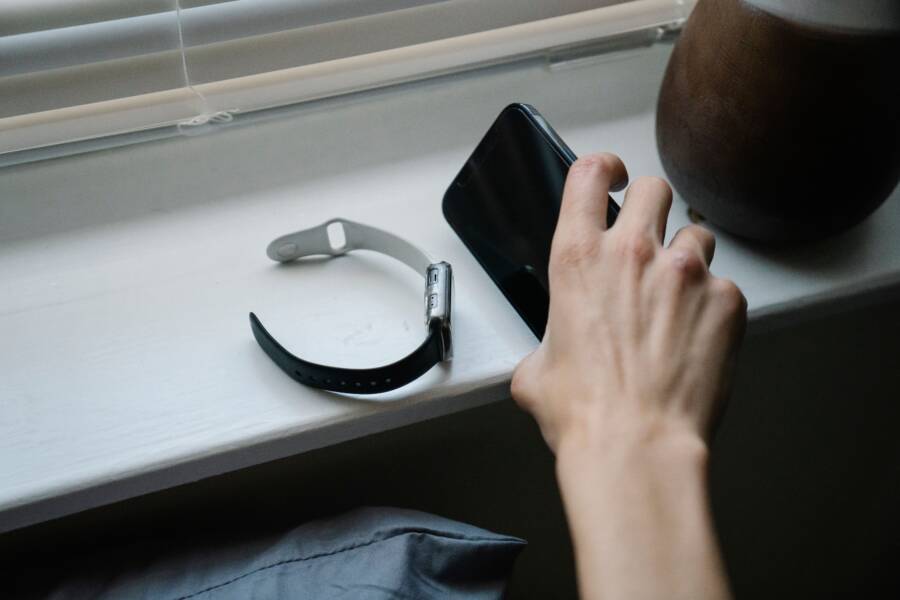
If your phone frequently triggers the voice assistant while sitting in your pocket or resting on your desk, you can disable these accidental activations by adjusting specific settings in your software. Voice assistants like Siri and Google Assistant are often too sensitive to background noise or physical contact, but you have the power to restrict their access and restore a quiet, predictable experience to your smartphone.
These unintentional interruptions happen because your device listens for wake words or detects pressure on physical buttons. By tweaking your configuration, you gain control over how and when the assistant responds to your environment.
Understanding Why Your Voice Assistant Keeps Popping Up
Voice assistants often activate without a clear command because they rely on patterns that frequently overlap with daily life. Your smartphone constantly monitors for specific audio triggers or physical inputs designed to make the device more accessible. When these internal sensors misinterpret common environmental factors, the assistant launches unexpectedly. Knowing how these triggers work helps you minimize the frequency of these interruptions while keeping your device ready for genuine requests.
Common Triggers for Accidental Activation
Software engineers build smartphones to respond to specific cues, but these cues lack the intelligence to differentiate between a user and background noise. Accidental activations generally stem from three predictable sources:
Physical Button Compression: Many devices trigger an assistant when the power button remains held down for more than a second or two. If you carry your phone in a tight pocket or a crowded bag, external pressure against the frame acts exactly like a deliberate long press.
Ergonomic Swipes: Modern interfaces often map assistant access to specific gestures, such as swiping diagonally from a bottom corner. When you pull your smartphone from a sleeve or retrieve it from a pocket, your palm or thumb often performs this specific motion unintentionally.
Acoustic False Positives: Microphones are sensitive by design. Televisions, podcasts, or casual conversations often contain phonetic sounds that mimic “Hey Siri” or “Okay Google.” The software hears these sound waves, matches them against its internal phoneme database, and assumes you need assistance.
Why You Should Take Control of Your Settings
Allowing your smartphone to remain in a perpetual state of high alert comes with practical downsides. Taking manual control of your assistant settings offers immediate benefits for your user experience and your device longevity.
Battery performance is the most immediate area of improvement. When your assistant listens for wake words around the clock, the processor and microphone remain active in the background. Disabling always-on listening prevents this constant power drain, which helps your battery last longer between charges.
Privacy is another primary motivation for restricting automatic activation. You might prefer your device to remain silent unless you explicitly provide physical authorization. By disabling voice-activated triggers, you stop the hardware from processing ambient audio in your personal space. This simple configuration change ensures that your smartphone only interacts with you when you initiate the process, which removes the risk of the device recording or interpreting private conversations. Managing these features manually gives you a more reliable, quiet, and secure experience every day.
How to Disable Wake Words and Voice Triggers
You can stop your smartphone from reacting to accidental inputs by manually disabling the voice recognition features that listen for wake words. Each operating system provides specific menus to manage these permissions, allowing you to silence the device whenever you prefer a manual-only interaction. Adjusting these settings prevents the assistant from misinterpreting background audio as a command, which restores your privacy and saves battery life.
Turning Off Voice Recognition on iPhone
Apple centralizes the controls for its voice assistant within the main settings menu. If you want to stop your device from reacting to the “Hey Siri” or “Siri” wake words, follow these steps:
Open the Settings app from your home screen.
Scroll down and tap on the Siri & Search menu option.
Locate the Listen for toggle switch.
Select the Off option to prevent the smartphone from activating through audio commands.
Once you toggle this setting off, your iPhone will no longer trigger the assistant using voice triggers. You can still access the assistant manually by pressing the side button or the home button, depending on your specific hardware model. Disabling this feature is a simple way to eliminate phantom activations caused by televisions or casual conversations in your immediate vicinity.
Managing Google Assistant Settings on Android
The process for restricting Google Assistant on an Android smartphone involves navigating through the Google app settings. Because Android manufacturers sometimes customize the interface, the path remains consistent through the primary Google application. Follow these instructions to modify your voice triggers:
Locate and open the Google app on your smartphone.
Tap your profile picture in the top-right corner of the screen.
Select the Settings option from the menu.
Tap on Google Assistant to view the specific configuration sub-menu.
Select Hey Google & Voice Match to adjust how the device handles audio requests.
Toggle the Hey Google switch to the off position.
By turning off this setting, your smartphone stops continuously monitoring for the wake word. This change remains in effect until you manually revert the setting. If you wish to use the assistant later, you can still trigger it by long-pressing the power button or using a designated home screen shortcut. This method gives you complete control over your environment and prevents the device from capturing audio input without your direct consent.
Stopping Accidental Button Presses on Your Smartphone
Physical buttons on your smartphone often create unintended interactions when they rub against tight pockets, bag linings, or tabletops. Modern devices frequently map long presses on power or side buttons to voice assistant activation, making these hardware triggers a common source of annoyance. Fortunately, you can alter how your phone responds to these physical inputs or switch to protective gear that shields your buttons from surface pressure.
Adjusting Side Button Shortcuts
Most manufacturers allow you to remap the behavior of your physical buttons through the accessibility or settings menus. By changing these configurations, you stop the phone from launching a voice assistant every time the side button encounters even light resistance.
On an iPhone, Apple includes specific controls to manage side button responses. You can navigate to Settings, select Accessibility, and tap on Side Button or Top Button. From there, you can adjust the click speed to require a more deliberate press, or you can set the Press and Hold to Speak feature to Off. This modification ensures the device ignores brief or accidental button contact.
Android devices vary by manufacturer, but most offer similar options within the system settings. You can search for Gestures or Buttons in your settings menu to locate configurations for the power button. Many phones permit you to disable the long-press shortcut that triggers Google Assistant, often replacing it with a power menu or simply doing nothing at all. Making this change prevents the device from initiating a search when you pull it out of a cramped pocket.
Using Cases That Prevent Button Sensitivity
The physical design of your phone case often dictates how easily buttons respond to external pressure. Some manufacturers produce covers with extremely thin or raised button covers that are prone to accidental compression. These materials lack the structural rigidity needed to keep the physical buttons recessed, effectively turning your case into a trigger for unwanted voice assistant prompts.
When you shop for a new protective cover, prioritize models that feature deep-set button cutouts or rigid, recessed buttons. These designs provide a barrier that prevents fabric or flat surfaces from pushing the buttons inward. You might also look for cases made from thicker materials, such as heavy-duty polycarbonate, which often have button covers that require significant force to activate.
If you already own a case that causes frequent issues, you can often trim the rubber or plastic surrounding the buttons with a sharp blade to create more clearance. Removing the extra material around the button housing decreases the likelihood of the case binding against the switch. Choosing a design with independent button covers—where each button moves separately from the rest of the frame—frequently resolves the sensitivity issues that lead to persistent, accidental assistant launches.
Troubleshooting Persistent Issues and Alternative Solutions
Even after adjusting software settings and using protective cases, your smartphone might still trigger a voice assistant unexpectedly. Persistent issues often indicate deeper software conflicts or secondary hardware sensitivities that require a more methodical approach. By isolating the cause, you can stop these interruptions for good.
Pinpointing Software Conflicts
Sometimes, third-party applications interfere with system-level settings, causing the voice assistant to launch despite your efforts to restrict it. If you notice the assistant triggers more often when using specific apps, a software conflict is the likely culprit.
To identify a problematic app, check your recent usage patterns. If the assistant launches during a specific activity, such as listening to music or using a navigation tool, investigate that application’s permissions. Many modern apps request persistent microphone access or integrate their own voice commands, which can bypass your system preferences. Removing or updating these applications often resolves the issue.
Managing Background Processes
Background services on your smartphone can consume resources and occasionally misinterpret ambient noise as a wake command. If you suspect an invisible process is keeping the assistant active, consider clearing your cache or checking your recent activity logs.
Some users find relief by toggling the “Hey” or “Wake” command settings off and on again. This simple reset forces the operating system to reconfigure its internal voice recognition database. If the problem persists, perform a soft reset on your device to clear temporary memory files that might hold onto outdated configuration states.
Evaluating Accessibility Features
Accessibility settings often contain hidden triggers that override standard user preferences. If you use features like VoiceOver, Switch Control, or specific gesture-based shortcuts, your smartphone might be interpreting normal physical contact as a command to launch the assistant.
Navigate to the Accessibility section within your device settings.
Review any active shortcuts or gesture controls.
Disable features that map physical interactions to system tasks.
Test your device for a full day to see if the frequency of accidental launches decreases.
Considering Alternative Input Methods
If hardware buttons continue to be the source of your frustration, look for alternative ways to interact with your device. You can often replace the default long-press shortcut with a different function, such as opening the camera or turning on the flashlight, which makes an accidental activation far less disruptive.
If you rarely use a voice assistant, consider uninstalling the feature entirely if your device manufacturer allows it. This complete removal provides the highest level of control over your smartphone. You can still use manual search bars or on-screen keyboards for your daily tasks, which ensures that your device remains silent until you specifically decide to provide input.
Conclusion
Stopping accidental voice assistant launches requires a combination of software adjustments and physical awareness. By disabling wake words and remapping button shortcuts on your smartphone, you prevent the device from reacting to background noise or pocket pressure. These small changes stop unwanted interruptions and protect your privacy while you go about your day.
Test these new settings by placing your device in your pocket or leaving it near an active conversation to ensure the modifications work as intended. A quiet assistant that only responds when you explicitly initiate a request is far more helpful than one that triggers on its own. Take a moment to verify your configuration to enjoy a more predictable and controlled experience with your technology.