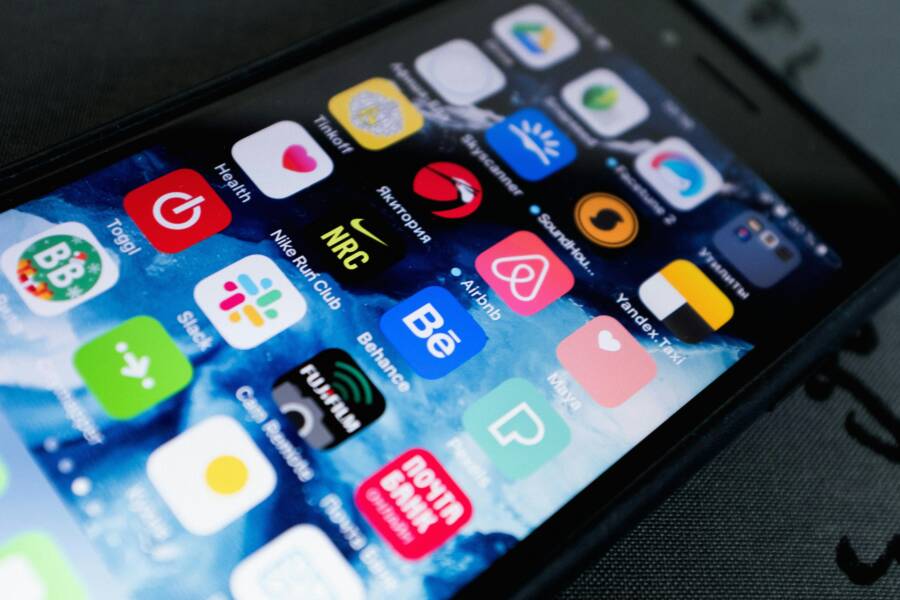
Too many apps on your home screen can slow even the fastest smartphone down, because every extra swipe adds friction. When your most-used apps are buried on page three, you waste time scrolling instead of opening what you need.
A better home screen setup makes daily phone use faster on both iPhone and Android, and it can also help you stay focused. The goal is simple, speed and less clutter, not a perfect layout.
The steps below show how to organize your home screen so your most-used tools stay within easy reach.
Why a faster home screen saves time every day
A faster home screen saves time because it cuts out small delays you repeat all day. Each extra swipe, search, or folder tap adds friction, and that friction adds up fast.
When your phone opens to the tools you use most, your routine feels lighter. Your smartphone stops acting like a maze and starts acting like a tool that gets out of the way.
The difference between a pretty screen and a fast screen
A neat layout can look polished, but polish does not always mean speed. A home screen packed with matching icons and tidy folders may look calm, yet it can still slow you down when your most-used apps are buried.
A fast screen puts function first. That might mean a calendar widget, a message app, a camera shortcut, and a few daily tools right where your thumb lands. It may not look trendy, but it works for real habits.
A good home screen should match how you actually use your phone, not how it looks in a screenshot.
That matters because daily phone use is usually quick and practical. You check a payment app, open email, set a timer, or jump into maps. If those apps are easy to reach, you save seconds every time, and those seconds add up across the day.
Common signs your layout is slowing you down
A cluttered setup is easy to miss when you use it every day. Still, the signs show up fast once you pay attention.
If your home screen feels like this, it may be slowing you down:
- You swipe through multiple pages to find basic apps.
- You keep apps in random spots because you never settled on a system.
- You have duplicate folders with names like “Stuff” or “Other.”
- You tap the wrong app often because similar icons sit too close together.
- You search for apps instead of opening them from the home screen.
- You keep moving icons around, but the layout never feels easier.
That kind of setup wastes attention as well as time. On a smartphone, even a small pause can break your flow. If you pause every time you want to open one app, your phone is working against you.
Start by sorting apps by how often you use them
The easiest way to clean up a phone home screen is to sort apps by frequency first. Open the apps you use most often, then give them the best spots on the screen that opens first. That simple rule keeps your smartphone setup focused on speed instead of clutter.
When every app has the same priority, your screen turns into a pile of options. When you sort by use, the layout starts to match your habits.
Put your top daily apps on the first screen
Keep the apps you open many times a day on page one. These are the tools that should be visible without searching or swiping, because they save the most time.
Good candidates include:
- Messages
- Phone
- Camera
- Maps
- Calendar
- Music
- Banking apps, if you use them often
Place these in the spots your thumb reaches first. If you open email ten times a day, it belongs closer than an app you touch once a week. The first screen should feel like a short list of your real habits.
If an app gets used daily, it deserves a front-row spot.
Move less important apps off the main screen
Apps you use once in a while do not need to sit on page one. Move them to the app library, app drawer, or a second screen so they stay available without crowding your main layout.
This does not mean deleting them. It only means hiding them from the front where they compete with your core apps. That small change cuts clutter and keeps your home screen easier to scan.
A smartphone works best when the most useful tools are easy to reach. If an app matters but does not matter right now, move it back a level and keep the first screen clean.
Group similar apps so your brain has less work to do
Once your most-used apps are in place, sort the rest by purpose. Grouping similar apps reduces the number of decisions you make each time you open your phone.
A simple setup might look like this:
- Communication for messages, email, and calls
- Work for docs, notes, and task apps
- Shopping for retail and delivery apps
- Travel for maps, rides, and airlines
- Health for fitness, sleep, and medication apps
- Media for music, video, and podcasts
This kind of grouping keeps your brain from hunting through random icons. Fewer choices make your phone faster to use, and the whole screen feels easier to manage.
Use folders, widgets, and layout rules that make sense
A fast home screen works best when every element has a job. Folders should cut taps, widgets should answer questions at a glance, and the layout should make your most-used apps easy to spot fast.
If a folder, widget, or rule adds friction, it needs to go. Your phone should feel organized without making you think too hard.
Build folders that reduce taps, not create extra steps
Folders help when they collect apps that belong together and save you from hunting through a long screen. They hurt when they turn a quick tap into a second search.
Keep folder names short and clear, like Work, Travel, or Health. Long names slow you down, and vague names like “Stuff” or “More” don’t help when you’re trying to move fast.
A good folder setup stays limited. Too many folders turns the screen into a filing cabinet, which defeats the point. For most people, a few well-chosen folders are enough.
Use folders only for apps that fit a real pattern. For example, email, docs, and task apps can live together. Random apps with no clear link should stay separate.
A folder should save time. If it takes more than one or two taps to reach an app, the folder is doing too much.
Keep the apps you open most often outside folders if possible. That way, your main tools stay one tap away, while less-used apps sit neatly in the background.
Choose widgets that give useful information at a glance
Widgets work best when they answer simple questions without opening an app. Weather, calendar, reminders, battery, and notes are all strong choices because they show useful details right away.
A calendar widget can show your next meeting. A reminders widget can keep tasks visible. Battery widgets help if you use earbuds, a watch, or a tablet. On some devices, smart stacks can rotate through useful widgets without taking up extra space.
Use widgets with a clear purpose, not just because they look tidy. A widget should save time. If it only fills space, it gets in the way.
Limit the number of widgets on the screen you use most. Your smartphone home screen still needs room for core apps, and too many widgets can bury them fast. A clean mix usually works better than a crowded panel.
Keep one simple layout rule for the whole screen
A consistent layout makes apps easier to find because your brain starts to expect where things live. On a phone, that pattern matters more than fancy spacing or perfect symmetry.
A practical setup is simple:
- Top row for glanceable tools, such as widgets or status-based apps
- Middle area for daily apps you open often
- Bottom row for thumb-friendly actions, such as phone, messages, browser, or camera
That structure keeps the screen easy to scan and easy to use with one hand. It also reduces the mental work of searching, because you know where to look first.
Once you pick a rule, stick with it across pages if you use more than one. Consistency helps your phone feel familiar, so you spend less time hunting and more time tapping the right app.
Set up your phone for one-handed speed
One-handed use is where a home screen either helps or gets in the way. If your most-used apps sit near your thumb, you move faster with less strain and fewer mis-taps.
That matters because most people use one hand more than they realize. They check messages while walking, open maps in line, or tap a timer while holding coffee. A smart layout makes those moments easier on both iPhone and Android.
iPhone home screen habits that speed things up
iPhone works best when you keep the first screen simple and treat the dock like your command bar. Put your most-used apps there, since the dock stays anchored and easy to reach. For many people, that means Phone, Messages, Safari, and Camera, or other apps that open several times a day.
Use the App Library to keep rarely used apps out of sight without deleting them. That clears the main screen and keeps your phone focused on what matters now. If you have too many pages, trim them down so you only keep the ones you actually use.
You can also use Focus modes to show different home screens for work and personal time. A work Focus can hide social apps and show calendar, email, and notes. A personal Focus can bring back music, travel, and messaging tools. That gives you the right screen at the right time, without extra sorting.
Android home screen habits that speed things up
Android gives you more freedom, so use that flexibility with purpose. The app drawer is useful for anything you do not need on the front page, while the home screen can stay reserved for your core apps.
Widgets work especially well on Android because you can place them where they fit your thumb and your habits. A calendar, weather, or to-do widget can save a few taps each day. Just keep them limited, because too many widgets can push your best apps out of reach.
Icon placement matters too. Put the apps you open most often in the spots that are easiest to tap with one hand, and leave the top area for things you check less often. Android launchers can add more control if you want it, but you do not need a custom launcher to build a faster setup.
Make the bottom of the screen your fastest zone
The bottom half of the screen is where one-handed speed really happens. Your thumb reaches it with the least effort, so that space should hold the apps you open most.
Use that area for actions you repeat all day, such as:
- Messaging
- Phone calls
- Camera
- Browser
- Maps
- Notes or reminders
Keep the top of the screen for things you open less often, because reaching up takes more movement and slows you down. This also helps with comfort, since your hand stays in a more natural position.
Most people already use one hand for quick tasks, even if they do not notice it. Once you place the right apps at the bottom, your phone feels easier to use right away.
Avoid the mistakes that make phone screens feel slow again
A clean phone home screen can still feel sluggish if the layout works against your habits. Extra swipes, crowded pages, and constant rearranging all slow down access, even when the screen looks tidy. Small changes matter here because your fingers and eyes should find the right app almost instantly.
The goal is simple, keep the first screen light, readable, and stable. When you cut back on friction, your smartphone feels easier to use every time you pick it up.
Do not keep too many pages or folders
Every extra page adds another swipe, and every deep folder adds another tap. That may sound small, but it turns quick tasks into little searches. If you open messages, maps, or your camera several times a day, those extra steps pile up fast.
A good rule is to treat each extra screen as a cost. If you need three swipes to reach an app, it no longer belongs close to the front. The same idea applies to folders with too many layers, since each one asks you to stop, scan, and decide again.
Keep folders shallow and pages limited. When a folder starts holding everything, it stops helping. A simpler setup makes your home screen feel lighter and cuts the chance that you forget where an app lives.
The faster your thumb reaches an app, the less your phone interrupts your flow.
Do not overcrowd the screen with widgets and icons
A crowded screen makes the right app harder to spot. Too many icons, mixed with large widgets, create visual noise. Your eyes have to work harder, and that slows every scan.
Leave space around the apps you use most. Clear spacing makes shapes and labels stand out faster, which helps when you are checking your phone in a hurry. A phone screen should read like a short list, not a packed bulletin board.
A simple layout usually works better than a busy one:
- Keep only a few widgets on the main screen.
- Leave room between app groups.
- Place your most-used apps in consistent spots.
- Remove icons you rarely open from the first page.
This kind of spacing matters on any smartphone, because the screen size is limited. Once the space fills up, even familiar apps take longer to find. A cleaner layout lets your thumb and eyes move together without hesitation.
Do not reorganize just because an app is new
New apps often look useful at first, so it is tempting to move them onto the home screen right away. That usually creates churn. You rearrange the screen for an app you may barely use, then change it again a week later.
Let new apps prove they belong. Keep them in the app library, app drawer, or a secondary page until they become part of your routine. If you open an app every day for two weeks, it has earned better placement. If you used it once and forgot about it, it does not deserve prime space.
This approach keeps your layout steady. Stable placement matters because your brain learns where things live. Once that pattern changes too often, you start searching again instead of reaching on autopilot.
A good check is simple:
- Use the app for real tasks.
- Notice whether you open it often.
- Move it to the home screen only if it becomes part of your routine.
That keeps your phone organized around habits, not hype.
Keep your home screen fast with a quick monthly reset
A home screen works best when it changes with your habits. A quick monthly reset keeps it clean, current, and easy to use, so you spend less time hunting for apps.
Set aside a few minutes each month and clear out what no longer fits your routine. The goal is simple, keep your phone close to the way you actually use it.
Do a short app audit and move what you no longer use
Start by checking which apps you opened in the last month. Most phones make this easy through screen time or app usage info, and that gives you a clear picture fast. If an app barely got touched, move it off the main screen.
Keep the process light. You do not need to review every app in detail. You only need to spot the ones that no longer belong on the front page of your smartphone.
A quick monthly audit can follow this simple pattern:
- Look at your most-used apps.
- Identify apps you have barely opened.
- Move rare-use apps to the app drawer, app library, or a secondary page.
- Remove apps you no longer want at all.
This keeps your first screen focused on daily tools, not old habits. If you keep an app for “just in case” use, fine, but it does not need prime space.
Adjust the layout when your routine changes
Your home screen should change when your life changes. School, work, travel, parenting, and new hobbies all shift which apps matter most. A screen that worked last month may already be out of date.
If you travel more, maps, airline apps, and ride services may deserve a better spot. If work gets busier, email, calendar, notes, and file apps should move closer. When a hobby becomes part of your week, give its app a place that matches how often you open it.
Update the layout as soon as your habits shift, because waiting only lets clutter build up. A monthly reset is enough for most people, and it keeps your phone organized without turning it into a chore.
A simple question helps here, which apps did you reach for most often this month? Put those first, and let the rest sit farther back. That small habit keeps your smartphone fast, clear, and ready for real use.
Conclusion
A faster home screen starts with one simple rule, put the apps you use most where your thumb can reach them first. When you sort by use, cut clutter, and keep folders and widgets limited, your phone becomes easier to scan and quicker to open.
The best setup is the one you can maintain without thinking about it. Keep the layout clean, check it once in a while, and move anything that no longer earns a front-row spot.
If your current screen feels slow, make a few changes today on iPhone or Android. A small reset can make your home screen feel much more useful right away.