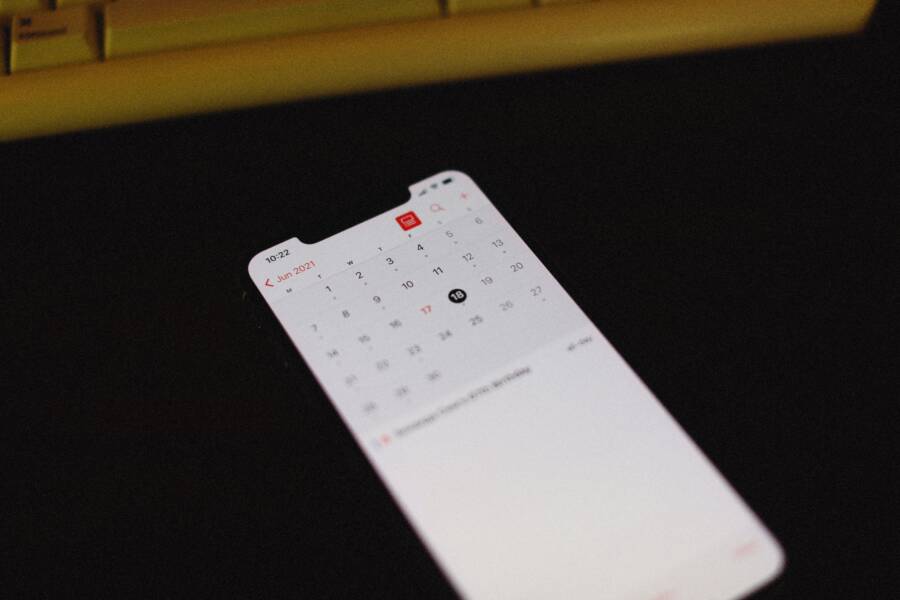
Separating your schedule into distinct calendars for work, personal tasks, and family events is the best way to regain control of your time. This strategy stops competing priorities from cluttering your view and allows you to focus on the task at hand. By using your smartphone to color-code and toggle these specific categories, you remove mental fatigue caused by an overflowing daily list.
Organizing your life into dedicated buckets reduces the stress of overlapping commitments. It ensures that a quick glance at your screen reveals exactly what you need to see. This guide explains how to configure your devices so you can manage your obligations without the chaos.
The Benefits of Separating Your Schedules
Managing multiple commitments on a single smartphone often creates a cluttered visual environment. When every task, meeting, and deadline occupies the same space, your brain struggles to distinguish between urgent work items and relaxing personal plans. Separating these schedules into distinct categories removes this friction. You gain the ability to toggle specific views, which keeps your attention fixed on the current context without unnecessary distractions from other parts of your life.
Reducing Cognitive Overload
Your brain processes information more efficiently when it filters out irrelevant data. Seeing a long list of fifty items for the entire week makes it difficult to prioritize the next hour. You might feel a sense of fatigue before even starting your first task because the total volume of work appears overwhelming. By separating your professional and personal calendars, you limit your visual field to what matters right now.
When you only see work events during office hours, your focus remains narrow and deep. You stop worrying about upcoming grocery store runs or dentist appointments while trying to write a report. This separation allows you to treat your smartphone as a tool for singular focus. You can hide your personal calendar completely during the workday, which prevents the accidental intrusion of non-work reminders. This simple change reduces the mental cost of context switching, as your mind spends less energy ignoring tasks that don’t require immediate action.
Improving Work-Life Balance
Maintaining a clear line between your professional responsibilities and your private time is vital for mental health. If your smartphone constantly displays work notifications alongside your personal evening plans, you never truly leave the office. You feel the constant pressure of upcoming deadlines even while you sit at the dinner table. Creating separate calendars gives you a physical and digital boundary that forces this separation.
You can set your smartphone to hide work-related alerts or events once you finish your shift. This action signals to your brain that the workday is officially over. You can then toggle on your personal schedule to see your evening or weekend plans. This habit helps you protect your recovery time. When you know exactly when you are off the clock, you participate more fully in your personal life. You stop checking emails during family time because you consciously decided that the work calendar is currently invisible on your screen. This boundary keeps your focus on the present moment, whether you are finishing a project or enjoying personal time.
Step by Step Setup Guide
Setting up multiple calendars is the most direct way to organize your life on a single screen. Once you define your primary categories, you can manage your daily obligations with greater precision. Follow these steps to ensure your smartphone remains a clear window into your schedule rather than a source of confusion.
Creating Dedicated Calendars for Different Roles
Start by opening your primary calendar service, such as Google Calendar or iCloud, in a web browser. Creating these calendars on a computer is often faster than using your mobile device. Most services allow you to add new calendars under a settings or sidebar menu.
Give each calendar a clear, functional name based on your life roles. Use specific labels like these to keep your categories distinct:
- Work: For office meetings, client calls, and professional deadlines.
- Personal: For doctor visits, errands, and social commitments.
- Family: For shared events, school schedules, or spouse-related plans.
- Health: For gym sessions, meal planning, or self-care reminders.
Choose a unique color for each calendar once you save the names. Distinct colors help you identify the type of event instantly without reading the text. For example, select bright blue for work tasks to keep them professional, and pick a softer green for personal items. This visual coding lets you gauge your workload at a glance when you open your calendar app.
Syncing Your Calendars to Your Smartphone
Having your calendars ready is only the first step. You must now ensure your smartphone pulls this data correctly from your account. Open your device settings and navigate to the accounts or mail section. Select your primary calendar account to verify that the calendar syncing toggle is active.
Launch your calendar app after confirming the account settings. Most apps require a manual refresh to pull in newly created calendars. You can usually find a list of all your calendars by tapping the main menu or the hamburger icon in the top corner. Make sure every new category has a checkmark next to its name.
If you do not see a specific category, look for a sync settings option within the calendar app itself. Sometimes, mobile devices hide secondary calendars by default to save storage space. Ensure your phone is set to fetch new events frequently so you stay updated on changes. Keeping your device settings correct means you never miss a commitment because your phone failed to display the updated schedule.
Best Practices for Managing Your Time
Effective time management on a smartphone requires more than just installing an app. You need a system that minimizes friction and keeps your priorities visible. By establishing clear habits, you stop reacting to your phone and start directing your day. Use these techniques to gain consistent control over your schedule.
Color Coding for Instant Recognition
Visual cues reduce the time your brain needs to process information. When you assign a specific color to each calendar, your eyes map out your day before you read a single word. This process prevents you from feeling overwhelmed by a dense list of tasks.
Choose high-contrast colors for different categories to maximize readability on your smartphone screen. Use a bright hue for high-priority work tasks to make them stand out during business hours. Assign cooler, softer tones to personal events or fitness activities to signal a shift in your mental state.
Follow these tips to keep your color system functional:
- Keep the total number of colors under five. Too many shades turn your screen into a confusing rainbow.
- Use consistent colors across all devices. If work is blue on your computer, keep it blue on your smartphone.
- Update your color palette annually. Your priorities change, so your visual system should adapt alongside them.
When you glance at your phone, these colors tell a story. A solid block of one color indicates a focused day. A mix of many colors suggests a fragmented schedule that might require more white space for transitions.
Sharing Calendars with Family Members
A shared family calendar removes the constant back-and-forth communication regarding who is doing what. It acts as a single source of truth for household logistics. You no longer need to send text messages or ask about dinner plans when the schedule is visible to everyone.
This setup works best for recurring chores, meal planning, and transportation duties. If you have children, add school pickups or after-school activities to a shared calendar. This ensures that every adult knows exactly who handles the logistics for the day.
Use these practices to maintain a shared family schedule:
- Create a dedicated “Family” calendar account rather than just sharing your personal one. This keeps your private appointments separate.
- Grant “edit” permissions to all adults in the home. This allows anyone to add or update events as plans change.
- Enable push notifications for shared calendars. You will receive an immediate alert when someone updates a meal time or adds a new errand.
Using a shared calendar on your smartphone saves time and prevents miscommunication. You can coordinate your arrival times or plan meals without needing a single phone call. This transparency allows your household to function as a team rather than as a collection of individual schedules.
Solving Common Scheduling Problems
Managing multiple calendars often leads to conflicting appointments if you do not check your layers before adding new events. You can prevent these mistakes by adopting a rigid verification process every time you accept an invitation on your smartphone.
Avoiding Conflicts Between Work and Personal Time
Most calendar apps allow you to view multiple layers at once. Before you confirm a new meeting or social gathering, toggle all your calendars to the visible state. This simple step reveals hidden gaps or overlaps that you might otherwise miss.
If you add an event to the wrong calendar, you risk showing your boss private errands or exposing your family schedule to colleagues. Always confirm the destination calendar before you press save on your smartphone screen. Many apps provide a small color indicator during the creation phase to help you verify the correct layer.
Check your upcoming week at least once per day to catch potential conflicts early. If you spot two events that occupy the same time, move one to a different slot immediately. This practice reduces the chance of double-booking yourself during busy periods.
- Toggle all calendars to see the full view.
- Verify the calendar label before saving an event.
- Review your upcoming week for overlaps daily.
- Move conflicting tasks to different time slots as soon as you find them.
Managing Notifications for Different Calendars
You do not need an alert for every single item on your schedule. Constant buzzing from your smartphone distracts you from your current task and reduces your efficiency. You should customize your notification settings to prioritize only the most important commitments.
Navigate to the settings menu within your calendar app to adjust alerts for each individual layer. Disable notifications for low-priority categories like holiday lists or weather updates. You still see these events when you look at the app, but they will not interrupt your day with unnecessary pings.
Keep alerts active for critical work meetings and family obligations. You might also choose to receive multiple notifications for high-stakes items. Setting one alert for an hour before the meeting and another for ten minutes prior ensures you remain prepared.
This selective approach keeps your attention on your work while maintaining your awareness of essential events. You stay informed without the irritation of a constantly buzzing phone. Adjust these settings whenever your schedule changes so your alerts always reflect your current priorities.
Conclusion
Organizing your life into dedicated calendar layers transforms your smartphone from a source of stress into a tool for focus. You gain the ability to partition your time and protect your peace by hiding non-essential categories when they don’t apply.
Start small by creating two distinct calendars today, such as one for your professional duties and one for your personal errands. Once you establish this habit, you can add more layers to fit your specific needs. Consistency is the key to maintaining this system. Check your settings weekly to confirm that your view remains clear and your notifications stay relevant.