How to Make Icons Larger on Your Phone Home Screen (iPhone & Android)
Tired of squinting at tiny icons as you try to tap the right app on a busy home screen? You’re not alone. Bigger icons make daily tasks easier and reduce mistakes, especially for little fingers and tired eyes.
If you’ve ever missed a tap or missed an appointment because an icon was just too small, this guide is for you. Learning how to make icons larger on your phone home screen can improve visibility for all ages and boost overall usability. It also helps with accessibility, so you can navigate more confidently with less strain.
You’ll find simple, step by step tips for both iPhone and Android devices. We’ll cover quick adjustments that don’t require new apps or fancy settings, and we’ll explain how the changes affect everything from launching apps to reading labels. Whether you’re organizing a family phone or optimizing your own device, the goal is a cleaner, faster home screen. By the end, you’ll know exactly how to make icons larger on your phone home screen and why these tweaks matter for everyday smartphone use.
Enlarge iPhone Home Screen Icons in Minutes
If you want a quicker, cleaner way to spot apps on your iPhone without squinting, you’re in the right place. These techniques let you enlarge icons and make the home screen feel more spacious. Use them alone or in combination to fit your vision and tapping style. Below you’ll find three practical approaches that work well for most users, with simple steps you can follow today.
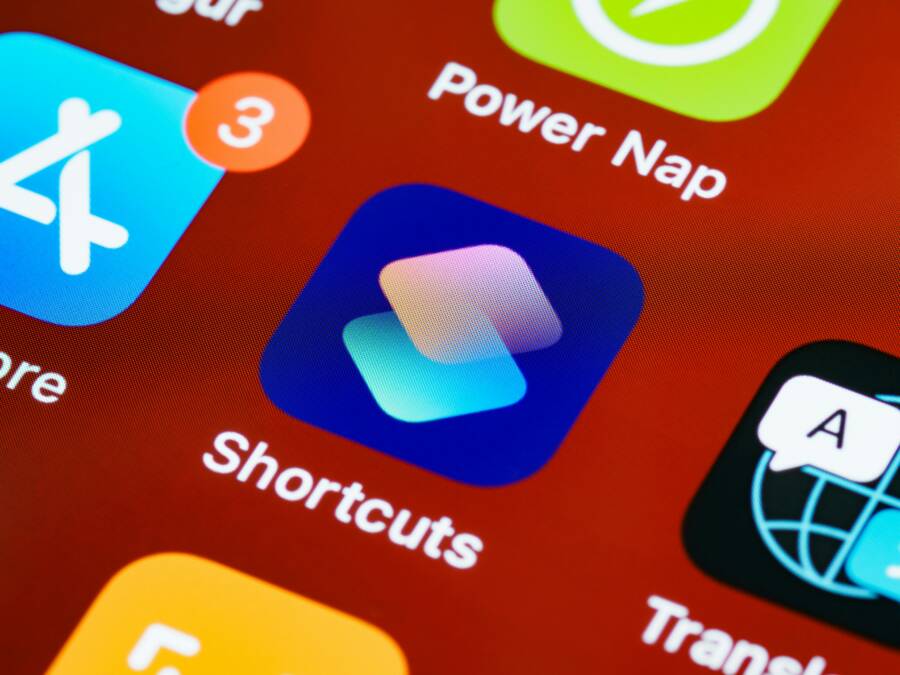
 Photo by Brett Jordan
Turn On Display Zoom for Instant Bigger Icons
Display Zoom is a fast way to get larger icons, text, and app labels without changing app sizes or layout. It makes the home screen feel like a full-screen view, which helps you tap more accurately. To enable:
- Go to Settings > Display & Brightness.
- Tap Display Zoom > Larger.
- Set and restart if prompted.
This mode magnifies items across the screen, not just icons. Your apps still work as usual, and you won’t lose functionality. If your icons seem awkward after turning on Zoom, try quick tweaks by rechecking brightness and font size to fine tune readability. For quick help, see Apple guidance on Zoom and icon sizing: https://support.apple.com/en-us/109058. If you’re curious about other users’ experiences, you can also read discussions on enlarging home screen icons here: https://discussions.apple.com/thread/255101020.
Pros: easier tapping, full-screen feel, clearer visibility. Cons: a slightly heavier on-screen footprint and more content size for everything, not just icons. Test the setup on your iPhone until it feels natural.
Tip: If you can’t access Settings due to magnified icons, triple-finger tap to zoom out and then adjust settings.
Images and visual cues can reinforce what you see on screen, so refer to the official steps when in doubt.
Use Accessibility Settings to Scale Up Icons
Accessibility features help tailor your home screen to your vision needs. By adjusting text size, bold text, or display options, you can make labels and icons easier to read. It’s common to pair these with Display Zoom for a bigger, more legible layout.
Steps:
- Settings > Accessibility > Display & Text Size.
- Use the Larger Text slider to increase label size, or turn on Bold Text for stronger contrast.
- If needed, enable Display Zoom again for even more impact.
Impact on the home screen: larger app labels improve clarity without altering icon shapes. You can mix this with Display Zoom to amplify the overall feel. For straightforward guidance on making text easier to read on iPhone, check https://support.apple.com/guide/iphone/make-text-easier-to-read-iph3c076905a/ios. For additional font size options, see https://support.apple.com/en-us/102453.
Good for: anyone who prefers bigger labels or higher contrast. If you need even more size, consider the Larger Text path along with Bold Text.
A practical tip for vision needs: this approach works well with a larger icon base and crisper label spacing, making it easier to spot and tap apps at a glance.
Add Oversized Widgets for More Screen Space
Widgets can reduce the need to rely on dense icons by offering glanceable information in larger blocks. Using oversized widgets on the home screen creates breathing room and can replace several small icons with a single, informative tile.
How to add:
- Long-press on the home screen, then tap the + button.
- Choose a large widget size from the widget gallery.
- Place it where you want, and create a stack if you like, so you can swipe through multiple widgets in one column.
Benefits: quick access to weather, calendar, reminders, or news without tapping many icons. This approach ties directly into a larger feel on the home screen and helps you stay organized with less clutter.
Steps recap:
- Long-press the home screen.
- Tap + to add a widget.
- Select a large size and place it.
- Optional: create a widget stack for space efficiency.
For further guidance on widgets, Apple’s official article is a solid resource: https://support.apple.com/en-us/118610. You can also learn about adding, editing, and removing widgets here: https://support.apple.com/en-us/iphb8f1bf206/26/ios/26 and the general widget editing guide at https://support.apple.com/en-us/118610?linkId=245284299. A visual example showing weather and calendar widgets can be found in Apple’s widget showcase: see the image linked in their support page.
This section gives you practical ways to reclaim home screen space quickly. Try combining oversized widgets with the other methods for a noticeably more relaxed layout without sacrificing usability.
Resize Android Home Screen Icons Step by Step
If you want bigger, easier-to-tap icons on your Android home screen, you’re in the right place. This section breaks down practical, straightforward steps to enlarge icons without adding new apps or complex workarounds. We’ll cover system-wide display changes, grid adjustments, and Samsung-specific options so you can pick the method that fits your device and how you use your smartphone daily.
Adjust Display Size to Enlarge Everything
Raising the overall display size makes icons, text, and controls larger across the board. It’s a quick way to improve visibility if you’re balancing glasses, lighting, and touch accuracy at the same time. Here’s how to do it on most Android devices:
- Settings > Display > Display size or Font & display size.
- Drag the slider to a larger size and preview the change.
- If your launcher looks off, a quick restart of the launcher app can help reflow icons neatly.
Impact: this method affects everything on the screen, not just icons. The home screen will feel roomier, with bigger labels and touch targets. It works well on Pixel and many other stock Android experiences, but some manufacturers may present slightly different menu labels. If you don’t see the option, look under Accessibility or Display options in Settings.
Tips to optimize clarity:
- Pair with a larger font size for crisper labels.
- If icons look oversized, tweak brightness or contrast for better readability.
- A quick reboot of the launcher can fix alignment after the change.
Useful reference: Android accessibility and display size guidance can help you plan adjustments that stay comfortable across apps and widgets. See official Android help here: https://support.google.com/accessibility/android/answer/11183305?hl=en
Takeaway: this is the simplest, most universal route to bigger icons and easier tapping, especially when you’re juggling multiple apps on a busy screen.
Tweak Home Screen Grid for Bigger Icons
A smaller grid means each icon occupies more space, which yields bigger icons and more breathing room. This method is especially handy if you prefer a minimal, uncluttered layout or you want fewer icons per page for quicker tapping.
How to adjust:
- Long-press an empty area on the home screen.
- Open Home settings and find Grid size or Icon size.
- Choose a larger icon by selecting a smaller grid (fewer rows and columns) or directly increasing icon size if the option is available.
- Save or apply changes; you’ll see the difference immediately.
Device examples: Pixel devices and many Android builds offer grid adjustments in stock or near-stock experiences. One UI and other manufacturer skins often expose similar controls, though the path can vary slightly.
Why this helps:
- You get more legible icons without changing app order.
- It creates a calmer home screen, reducing mis-taps during quick tasks.
- It’s easy to revert if you don’t love the new layout.
For additional ideas on grid tweaks and icon sizes, see How to change the icon size on your Android phone from Android Authority: https://www.androidauthority.com/change-icon-size-android-870979/
Samsung Galaxy Users: Quick Icon Scaling
Samsung’s One UI offers a few tuned options that let you scale icons more precisely, sometimes via the Good Lock app for deeper customization. If you’re using a Galaxy, these steps can yield noticeably larger icons without sacrificing layout balance.
Exact steps you can try:
- Settings > Home screen > Home screen grid or Good Lock app for more control.
- Long-press the home screen > Settings gear > Icon size.
- Use the size slider to increase icons, or explore additional options within Good Lock Home Up modules to tailor icon shapes and spacing.
Notes on One UI differences:
- Good Lock and Home Up provide a broader toolbox for icon and widget customization.
- The interface may present icon scaling options separate from grid size, so you can fine-tune each parameter.
- If you don’t see a grid option, update Galaxy Store or install the Good Lock module set to unlock extra controls.
Practical tip: after applying icon size changes, you might want to review your dock icons and ensure the layout remains balanced with the new scale. For a deeper dive into Good Lock customization, see this community discussion on icon sizes in Good Lock: https://us.community.samsung.com/t5/Samsung-Apps-and-Services/Icon-sizes-in-Good-Lock/td-p/2575045
Additional reading on Galaxy grid changes: How to change Grid Size on Home Screen for Samsung devices: https://www.samsung.com/sg/support/mobile-devices/how-to-change-grid-size-on-home-screen-for-samsung-mobile-device/
References and further guidance:
- Change the grid size on Galaxy home screens to balance icons and widgets: https://www.samsung.com/sg/support/mobile-devices/how-to-change-grid-size-on-home-screen-for-samsung-mobile-device/
- Icon sizing tips in Galaxy Good Lock discussions: https://us.community.samsung.com/t5/Samsung-Apps-and-Services/Icon-sizes-in-Good-Lock/td-p/2575045
- Quick tips on One UI customization and grid management: https://www.youtube.com/watch?v=O3ghxm-UuQE
If you’re trying to strike a balance between readability and screen density, these methods give you several levers to pull. Start with the easiest, then layer in grid or module-based tweaks to arrive at a setup that feels natural to tap and glance at, all while keeping your smartphone experience smooth and efficient.
Extra Tips and Fixes for Perfect Icon Sizes
Tuning icon size isn’t just about appearance. It improves tapping accuracy, speeds up navigation, and reduces eye strain. In this section, you’ll find practical, battle-tested tips you can apply whether you’re using iPhone or Android. These ideas go beyond simple adjustments, helping you craft a home screen that feels comfy, organized, and ready for quick actions. Try a mix of methods to dial in the exact look and feel you want.
Install Custom Launchers for Full Control
If you want precise control over icon size, Nova Launcher or Niagara Launcher are solid starting points. Both offer free versions that provide scalable icon options, flexible grid layouts, and extensive theming without demanding money up front. To set a default launcher, install the app, then follow the prompts to make it your home screen default. In Nova and Niagara, head to settings and tune icon scale, grid density, and padding until everything feels right. Use these tools to balance readability with screen density. Pros include exact sizes, themes, and predictable layouts; cons involve occasional extra setup and the need to back up before major changes. A quick backup keeps your default setup safe if you decide to revert. For a closer look at how these launchers handle icons, see discussions and tutorials from Android enthusiasts and official guides: How to change the icon size on your Android phone and Nova Launcher icon size discussion. If you’re curious about broader launcher comparisons, you can also explore a detailed take on Niagara Launcher: Niagara Launcher not your typical launcher.
Tips for success:
- Start with a modest 110–120% icon scale and adjust in small steps.
- Save a quick backup of your home screen layout before changing grids.
- Combine with a slightly larger display size for a more spacious feel without clutter.
Troubleshoot When Icons Stay Small
Small icons can feel stubborn, but a short checklist usually solves the issue quickly. First, perform a quick restart of your device; this clears temporary glitches that can reset display settings. If icons still appear small, clear the launcher cache or reset the launcher preferences. Check whether a theme, wallpaper, or accessibility setting is constraining icon size or label visibility. If a specific slider is missing, search the device’s settings for “icon size,” “display size,” or “font size” to locate the right control. As a last resort, a factory reset can restore default icon sizes, but back up first. Quick fixes often restore balance with minimal downtime. For more concrete steps and additional context, see resources on general Android troubleshooting and icon sizing: How to change the icon size on your Android phone. To explore broader user experiences with launcher tweaks, check out Nova Launcher icon size discussions.
Takeaway: a methodical approach with small adjustments usually resolves stubborn sizing issues without needing a full reset. If you still struggle, revisit your grid and display size combinations, then test tap accuracy across a few favorite apps.
Make Your Phone Home Screen Work Better Today
You’ve enlarged your icons. Now take the next step to boost speed and focus on your smartphone home screen. A smart layout cuts clutter and puts key apps front and center. This setup saves time and lowers frustration during busy days. Let’s refine your screen with quick organization tricks that pair well with bigger icons.

Photo by Nikita Khandelwal
Group Apps into Folders for Less Clutter
Folders bundle similar apps and free up space. Drag one icon onto another to create a folder. Name it something clear like “Work” or “Fitness.” Add more apps inside, and your home screen shows fewer items at once.
This trick works on both iPhone and Android. Bigger icons inside folders stay easy to tap. Limit each folder to five or six apps. You’ll spot what you need faster without endless scrolling.
Dock Your Top Four Apps
The dock at the bottom holds apps you open most. Pick your daily must-haves: email, messages, calendar, browser. Long-press to move them there. Access stays quick from any screen.
On Android, resize the dock if your launcher allows. iPhone users keep it to four spots. Test your picks over a day. Swap if habits shift. This spot gets prime real estate for smooth flow.
Hide Pages You Rarely See
Swipe left to your app library or unused pages. On iPhone, long-press the home screen, hit the page dots, and uncheck extras. Android launchers let you delete pages outright.
Keep one or two main pages with essentials. The rest hides but remains searchable. Your smartphone feels lighter and more direct. For iPhone layout ideas that build focus, check 15 iOS home screen layout ideas to organize your iPhone. Android fans can try 5 easy ways to optimize your Android home screen.
These changes make your screen pull its weight. Apply them now for a setup that matches how you live and work.
Conclusion
Making icons larger on your home screen is a quick win for clearer visibility and faster tapping, and anyone can do it in minutes. Key takeaways: use Display Zoom on iPhone, adjust Display Size on Android, and explore custom options or launchers for precise control. Pair these with thoughtful wallpaper choices to avoid clutter and improve contrast, then build a habit of checking readability in different lighting.
If you want more practical tweaks, check our guides on wallpaper tips and home screen organization for even better results on your smartphone. Stay curious, test a few setups, and you’ll cultivate a simpler, more reliable daily workflow.