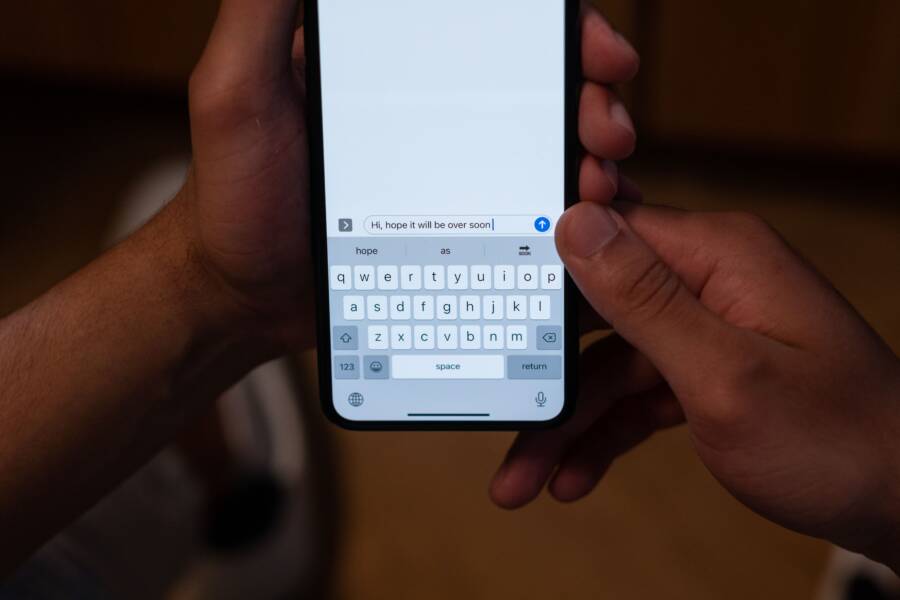
Missing a verification code is frustrating when you need to sign in to an important account. Your smartphone is likely working fine, as this issue usually stems from simple carrier filters or software settings rather than hardware damage.
This guide helps you identify why you are not receiving SMS messages and provides steps to restore your access. You can follow these solutions on any modern smartphone to start receiving your security codes again.
How to Check if You Accidentally Blocked Verification Numbers
Sometimes your smartphone settings block incoming text messages from automated systems. Verification codes often arrive from short code numbers, which are five or six-digit strings. If you previously marked a message from one of these services as spam or added the sender to a block list, your device will silently filter out future attempts. Checking these lists is a fast way to rule out human error before you contact your carrier or the service provider.
Unblocking Short Code Numbers on iPhone
Your iPhone maintains a list of numbers you have restricted from sending you messages or calling you. If you accidentally blocked a service, you need to remove it from the blocked contacts menu. Follow these steps to verify your current restrictions:
- Open the Settings app on your iPhone.
- Scroll down and tap the Messages option.
- Select the Blocked Contacts menu near the bottom of the screen.
- Review the list for any short code numbers or automated sender names.
- Swipe left on any number that looks like a verification service to reveal the Unblock button.
- Tap Unblock to confirm your choice.
Once you remove the number from this list, your iPhone will accept new messages from that sender again. It is a good idea to trigger a new code request from the app or website to test if the fix works. If the number does not appear in your blocked list, your carrier might have applied a separate filter that requires a different approach.
Managing Blocked Numbers in Android Messages
Android devices often utilize the Google Messages app to handle SMS traffic. This app includes a built-in spam protection feature that might identify incoming verification codes as junk. You should check both the blocked numbers list and the spam folder to see if your code is hiding there.
Open the Google Messages app on your smartphone and follow these directions:
- Tap your profile icon or the three-dot menu in the corner of the screen.
- Select Spam & blocked to view your filtered conversations.
- Look through the list for any messages from the service you are trying to access.
- If you find a relevant conversation, tap the notification at the top that says Not spam to move it to your main inbox.
If you do not see the message in your spam folder, verify that you did not add the contact to your phone’s system-wide block list. You can check this by opening your phone’s main Settings menu, selecting Apps, choosing Messages, and reviewing the Blocked Numbers section under permissions or SMS settings. Removing the service from these categories allows your smartphone to process incoming verification tokens normally.
Simple Troubleshooting Steps for Smartphone SMS Issues
If your smartphone still refuses to deliver verification codes after checking your block lists, you might need to address deeper software or carrier settings. These issues often arise from temporary glitches in your connection or restrictive account features. You can follow these steps to narrow down the problem and regain access to your security notifications.
The Power of a Network Settings Reset
A network settings reset is a powerful tool when your device stops communicating properly with cell towers. This action clears your saved Wi-Fi networks, Bluetooth pairings, and VPN configurations. Your smartphone will behave as if it just left the factory for all connectivity functions. You should only use this method after trying basic restarts and toggle switches for your cellular data.
Because this process wipes your saved Wi-Fi passwords, keep those credentials handy before you begin. You can perform this reset by navigating to your system settings, selecting the General or System menu, and choosing the option to reset network settings. Your device will restart automatically once the process finishes. After it powers back on, your phone will attempt to re-establish a fresh connection to your carrier. This clean slate often clears out hidden errors that prevent incoming SMS traffic from reaching your inbox. If you still face issues after this reset, the problem likely exists at the account level with your service provider.
Verifying Carrier Restrictions and SMS Limits
Some mobile carriers block premium SMS messages by default to protect you from unexpected charges. Verification codes frequently come from these automated short code numbers, which can trigger carrier-side filters. If your account has a restriction against third-party or premium messaging services, your device will never receive the validation token. You cannot change this setting through your phone menu, as it lives on the carrier network instead.
You should contact your carrier customer service team to confirm that your account allows short code messages. Ask the representative specifically if there are any active blocks on your line for automated verification codes. They can often refresh your signal or remove a flag that stopped the delivery of these specific texts. If they confirm your account settings are correct, ask them to resend the network registration signal to your device. This often forces the carrier to re-sync your smartphone with their messaging gateway, which resolves the delivery failure permanently.
Advanced Fixes When Codes Still Do Not Arrive
If basic troubleshooting fails, more complex issues might block your verification messages. Secure platforms rely on precise timing to authorize requests. When your device clock drifts from the actual time, the handshake between your smartphone and the remote server fails. This mismatch makes the security token look expired or invalid, so the system rejects the delivery attempt entirely.
Time and Date Synchronization Issues
Most mobile operating systems update the date and time automatically using information from cellular towers. However, settings sometimes get stuck or disabled during manual updates or travel across time zones. Even a difference of a few seconds can trigger a security timeout. Because verification tokens have a short lifespan, an out-of-sync clock prevents the validation process from finishing.
You should verify that your automatic time settings are active by following these steps:
- Open the Settings app on your smartphone.
- Navigate to General and then select Date and Time.
- Toggle the switch for Set Automatically to the on position.
- Restart your device to force a fresh time sync with the network.
If your settings were already set to automatic, toggle the switch off and then back on. This simple action prompts your device to ping the network for the current time again. Keep in mind that a manual time setting often causes repeated failures with automated login systems.
If the time is correct but you still encounter problems, check your time zone settings. Some regions require manual verification if you recently traveled or if your carrier has misidentified your local cell tower location. Setting your time zone manually to your current location often resolves persistent authentication errors. Once you adjust these settings, request a new code. The server will likely recognize your device and process the request properly now that your internal clock matches the global standard.
Comparing Authentication Methods: Alternatives to SMS
Verification codes sent via SMS often fail due to carrier interference or network congestion. When your smartphone cannot reliably receive these texts, you should consider more consistent alternatives. Many services now offer secondary authentication methods that bypass the cellular network entirely. These options provide faster access and increase your account security by removing reliance on mobile carrier infrastructure.
Using Authenticator Apps for Reliable Access
Authenticator apps generate time-based codes directly on your device without needing a cellular connection. Once you link a service to an app like Google Authenticator, Microsoft Authenticator, or Authy, the app produces a new six-digit code every 30 seconds. Because these apps function offline, they eliminate the issues caused by delayed SMS delivery.
To set up this method, look for security settings within your online account. Choose the option labeled “Authenticator App” or “TOTP” (Time-based One-Time Password). Scan the provided QR code with your chosen application to establish the link. From that point forward, you can access your account even if your smartphone has no cellular signal. This method is the preferred standard for security, as it remains immune to SIM-swapping risks that affect traditional SMS messages.
Leveraging Push Notifications for Quick Verification
Push notifications offer a simplified login experience. Instead of typing a code manually, the service sends a prompt to your registered device. You simply tap “Approve” or “Yes” on the screen to confirm your identity. This method reduces the chance of manual entry errors and speeds up your login process significantly.
Most major platforms now integrate this feature directly into their dedicated mobile apps. If you frequently have trouble with SMS codes, check if your service provider supports app-based push notifications. You can usually enable this under the security or two-factor authentication settings of the specific platform. This approach is highly effective because it relies on the internet connection of your smartphone rather than the messaging protocol of your carrier.
Utilizing Recovery Codes and Hardware Keys
If you lose access to your smartphone, you need a backup plan. Most platforms provide a set of one-time recovery codes when you enable two-factor authentication. You should save these codes in a secure location, such as a password manager or a printed physical document. If your device stops receiving SMS messages, you can enter one of these backup codes to gain entry to your account.
Hardware security keys provide another robust alternative. These small USB or NFC devices act as physical proof of your identity. When you plug the key into your computer or tap it against your smartphone, it verifies your credentials instantly. Security keys offer the highest level of protection against phishing attempts. While they require an initial investment, they are the most dependable method for users who frequently face issues with SMS delivery or cellular connectivity.
Switching to these methods improves your experience when your smartphone struggles with standard verification texts. You gain control over your login process and reduce your dependence on carrier performance.
Conclusion
Most SMS delivery issues on a smartphone stem from simple block lists, outdated network settings, or incorrect system times. Checking your blocked contacts and resetting your network configuration usually resolves these communication barriers.
If these steps do not restore your access, the issue likely sits with your service provider. Contact your mobile carrier to verify that they have not applied a server-side filter against short-code messages on your account.
Transitioning to authenticator apps or push notifications provides a more reliable way to verify your identity moving forward. These alternatives bypass the carrier network entirely and often offer better protection for your online accounts.