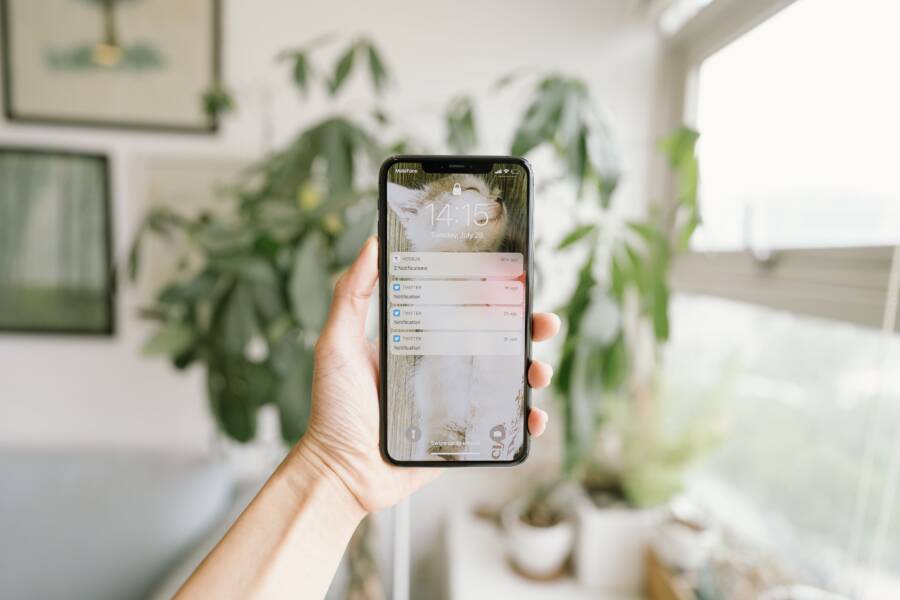
Focus mode fails to deliver your alerts because of conflicting system settings rather than a hardware malfunction. Most users accidentally exclude important contacts or apps from their allowed lists during the initial setup process.
Your smartphone is designed to prioritize silence when these profiles activate, but you can override those restrictions by manually updating your notification permissions. Adjusting these settings ensures your device stays quiet for general noise while still buzzing for the people who matter most.
Understanding How Focus Mode Filters Your Notifications
Focus mode acts as a gatekeeper for your smartphone. When you activate a specific profile, the system intercepts incoming signals to prevent interruptions. It compares every alert against your established whitelist. If an app or contact lacks permission, the system holds the notification silently. This process is often misunderstood as a software glitch, but your device is simply following the strict instructions you provided during setup.
The Role of Silence and Notification Permissions
Your smartphone relies on two distinct layers of permission to manage alerts. The first layer is the Focus filter itself, which determines if a profile allows an app to break through the silence. However, a second layer exists within the general system settings for each individual application. If you have disabled notifications for an app in your main system menu, the Focus filter cannot override that restriction. Even if you explicitly add an app to your allowed list, the global system setting remains the master authority.
You must verify that your apps retain their ability to send alerts outside of Focus before blaming your settings. Check your device notification center to ensure banners, sounds, and badges are active for the specific apps you need. If the system has blocked those apps entirely, the phone will remain quiet even when the Focus profile permits activity. Many users accidentally toggle these system-level switches while trying to troubleshoot, which prevents their preferred apps from communicating properly.
Why Individual Contact Settings Matter
Focus modes treat individual contacts as separate entities from general app traffic. You might allow text messages as a category, but your smartphone will still suppress alerts from anyone not specifically authorized in your contacts list. If a person is missing from your permitted list, their messages will arrive in your inbox without triggering a sound or a vibration. This behavior ensures that your phone only interrupts you for people you prioritize.
Adding contacts to your whitelist is a manual process that often gets overlooked during the initial configuration. You can designate specific people as exceptions to your rules, allowing their calls and messages to bypass the filter regardless of the current profile status. If you suspect you are missing urgent updates, review your contact list within the Focus settings menu to see who has permission to bypass the silence.
Open your settings menu and navigate to the Focus section.
Select the specific profile you currently use, such as Work or Personal.
Tap on the People tab to view your current list of allowed callers and texters.
Use the Add button to include any missing individuals who should reach you while the mode is active.
Maintaining this list requires occasional updates as your communication habits change. If a contact is not on this list, your smartphone will silently categorize their incoming messages as low-priority activity. Regularly auditing these entries is the most effective way to prevent important messages from disappearing into your notification history without an alert.
Quick Fixes for Over-Blocking in Focus Mode
If your smartphone is too quiet, it often means your Focus filters are working against your actual needs. You might find that important alerts disappear, leaving you unaware of messages from close friends or urgent work updates. Adjusting these settings helps you regain control over your notification stream. You can modify your lists to ensure the right people and apps break through the silence without turning the entire feature off.
Adding Important Contacts to Your Allowed List
Most smartphones let you designate specific people as permanent exceptions. When you add a contact to your whitelist, their calls and texts ignore any active Focus profile. Follow these steps to grant your most important contacts permanent access:
Open the Settings app on your smartphone and find the Focus menu.
Select the specific profile you want to change, such as Work or Personal.
Tap the People option to see your current list of allowed callers and texters.
Choose the option to add or include people.
Search your contact list and select the names of the individuals you wish to authorize.
Save your changes to confirm the new permissions.
Once you finish these steps, your smartphone will permit notifications from these individuals while the chosen profile is active. You can revisit this list whenever your priorities change. If you notice a specific person is still failing to alert you, verify that their name appears correctly on this approved list. Some devices also include an option to allow calls from groups, such as Favorites, which simplifies the process if you already maintain a list of preferred contacts.
Checking App Specific Notification Rules
Beyond contacts, you must ensure that your messaging apps have the necessary system permissions to bypass Focus blocks. If you have muted a specific conversation or disabled notifications for an app globally, your smartphone will suppress those alerts regardless of your Focus settings. Check your application permissions using this process:
Navigate to the main Notifications section within your phone settings.
Scroll through your list of installed apps to locate your messaging services like Messages, WhatsApp, or Telegram.
Verify that the Allow Notifications switch is active for each service.
Return to your Focus settings and select the Apps menu for the profile you currently use.
Add the specific messaging applications you want to allow to the whitelist.
Even if an app is on your Focus allow list, the main system setting acts as the final gatekeeper. If the app permissions are off, the Focus filter cannot override that choice. It is a good idea to confirm that banner and sound settings are active for these apps within the general notification menu. If you still don’t receive alerts, restart your device to clear any temporary software conflicts that might interfere with notification delivery. This confirms the operating system recognizes the updated permission rules immediately.
Troubleshooting Common Focus Mode Conflicts
Focus mode is a helpful tool for managing interruptions, but it often stops working as intended when software configurations collide. If your smartphone fails to notify you of incoming messages, the issue usually stems from a minor setting mismatch rather than a hardware error. You can typically restore your alerts by forcing the device to refresh its current configuration or by auditing overlapping schedules.
Resolving Software Glitches with Simple Resets
Sometimes your smartphone simply gets stuck in a loop and fails to read your active Focus settings correctly. When this occurs, toggling the feature off and back on is often the fastest way to clear the error. This action forces the operating system to re-examine your whitelist and apply your permission rules from scratch.
If a simple toggle does not work, a full restart of your smartphone acts as a comprehensive reset for the software environment. A reboot clears temporary cache files that might hold onto outdated notification data. Once the device powers back on, the operating system reloads your Focus profile with a clean slate. You should notice your allowed contacts and applications start pushing alerts through immediately after this refresh.
Avoiding Conflicts with Do Not Disturb Schedules
Many users accidentally silence their phones because they have multiple, overlapping Focus schedules active at once. For example, you might have a manual Work mode enabled while a separate, pre-set Do Not Disturb schedule runs in the background. If these two modes have different permission lists, your device will default to the most restrictive settings. This creates a situation where you receive some messages but lose others, depending on which rule the system prioritizes in that moment.
You can resolve these conflicts by centralizing your schedule management within the Focus settings menu. Review every active schedule to ensure they do not conflict with your daily habits.
Delete any old, unused schedules that might trigger unexpectedly during the day.
Check if your location-based triggers are firing correctly when you arrive at specific places.
Disable automated activation features if you prefer manual control over your notification stream.
Verify the end times for your schedules to ensure they do not run longer than you intend.
When you keep your schedules distinct, your smartphone acts with greater consistency. If you find your phone still blocks messages, check if a Smart Activation feature is running. Smart Activation uses your location, app usage, and time of day to turn on Focus modes automatically, which often happens without you noticing. Turning this off gives you total authority over when your notifications stay silent.
Advanced Tips to Manage Your Alerts Better
Beyond standard whitelist configurations, you can sharpen your notification management on your smartphone by using granular filters and system-wide automation. These advanced techniques help you separate high-priority signals from daily digital noise without disabling your productivity profiles. By applying these methods, you gain precise control over what breaks through your concentration.
Using Notification Summaries for Non-Urgent Tasks
If you find that specific apps clutter your lock screen even when Focus is active, consider enabling a notification summary. This feature collects alerts from lower-priority applications and delivers them at scheduled times rather than in real time. Because your smartphone groups these updates, you stay informed about social media or news updates without receiving constant interruptions throughout your workday.
Go to your system notification settings to locate the summary menu.
Choose the applications that provide frequent but non-essential updates.
Set a delivery schedule that aligns with your breaks or transition periods.
This approach keeps your primary notification stream clear for important messages while ensuring you don’t miss non-urgent content. Your device then acts as an assistant that waits for the right moment to show you updates.
Configuring Time-Sensitive Notifications
Many modern operating systems include a toggle specifically for time-sensitive notifications. When you enable this for messaging or calendar apps, your smartphone allows alerts marked as urgent to bypass your Focus mode restrictions. This is a common solution for people who use food delivery services, ride-sharing apps, or professional scheduling tools that provide live status updates.
Verify this setting inside the specific app notification menu for your key services. When enabled, your phone recognizes the intent behind the alert and displays it even when your current profile is otherwise silent. This is a subtle way to let critical information through while keeping casual pings blocked.
Setting Up Different Alert Sounds for Priority Contacts
Assigning unique ringtones or text tones to specific individuals provides an immediate auditory cue. You don’t have to look at your smartphone to know if an important contact is trying to reach you. By customizing these tones, you can differentiate between routine messages and urgent ones that require your immediate attention.
Open your Contacts app and select the person you want to prioritize.
Tap the Edit button to modify their specific details.
Select a unique ringtone and text tone that stands out from your default settings.
Save your changes to apply the new alert profile.
When your phone vibrates or rings during a Focus session, the distinct sound tells you whether you should check the device. This method reduces the need to constantly monitor your screen while ensuring you never miss a message from your inner circle.
Conclusion
The secret to a reliable smartphone experience is consistency. Regularly auditing your notification settings and contact whitelists prevents important messages from being trapped by overly aggressive Focus filters. If you are unsure about your current configuration, ask a friend to send you a test message while your preferred profile is active.
A well-tuned device acts as a silent assistant that balances your need for quiet with your requirement for connectivity. By taking the time to customize your permission lists, you ensure that your smartphone supports your productivity instead of blocking the people who need you most.