A smartphone should open the camera and let you record audio with ease. If it won’t, privacy settings are often the culprit. This guide walks you through practical steps to regrant access, adjust toggles, and get back to capturing moments and conversations without fuss.
If you’re juggling multiple apps and devices, you’ll find a clear path to find the guilty switch and fix it quickly. The steps work on most Android and iPhone models, and they avoid deep tech jargon so you can solve the problem without frustration.
Why access can suddenly stop
Modern phones protect your privacy by asking for permission before apps use the camera or mic. Sometimes, a software update, a misfired prompt, or a parental or enterprise control can block access even after you grant it once. In other cases, a factory reset or a quick system refresh resets permissions to a safe default. Knowing where to look makes the fix simple rather than stressful.
Check permissions for each app, then widen the view to system-wide privacy settings. This helps you identify whether a single app is blocked or if a global setting blocks camera and mic for every app.
Inspect app permissions for camera and mic
One of the most common causes is a mistaken or forgotten permission denial. Start with your most-used apps that access the camera and mic, like the camera app, social apps, or video calling programs.
Android devices
- Open Settings and go to Apps & notifications.
- Tap the app you want to check.
- Choose Permissions. Confirm Camera and Microphone are set to Allow.
- If you see Don’t allow, switch to Allow. If you can’t change it, the app may be restricted by a parental control or enterprise policy.
- Repeat for other apps you frequently use for photos, videos, or calls.
iPhone/iOS devices
- Open Settings and scroll to the app in question, or start at Privacy.
- For Camera access, select Camera and ensure the toggle for the app is on.
- Do the same for Microphone under Privacy > Microphone, turning on access for the app.
- If you’ve previously blocked access with a prompt, you may need to reinstall the app or accept the permission request again when it appears.
Test with a quick try
- Open the camera app and take a photo or video. If it works, the issue is likely resolved for that app.
- Open a voice memo or recording app and start a quick test. If audio records clearly, the mic is accessible.
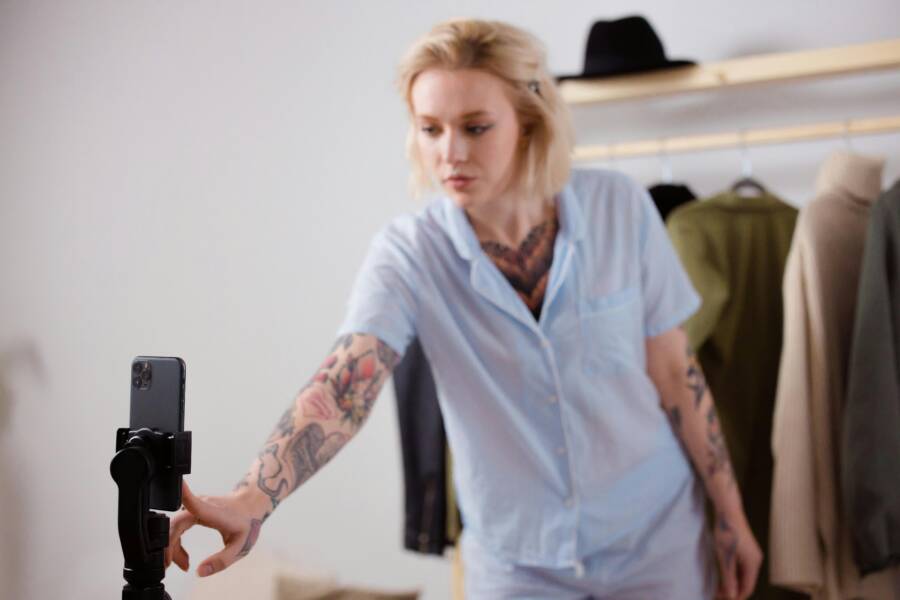
Visual cue: privacy at a glance
Photo by Jakub Zerdzicki
This photo captures a smartphone setup where privacy controls matter. It’s a useful reminder that a few toggles can affect core functions.
Review system privacy toggles and quick settings
If permissions inside apps look correct but access still fails, the problem could be at the system level. Many devices offer a privacy dashboard or global toggles that affect camera and mic usage.
Android devices
- Settings > Privacy > Permissions Manager. Here you can see a global view of Camera and Microphone access by app.
- Some phones add a Quick Settings tile or a Privacy Dashboard. Open it to confirm Camera and Microphone toggles are enabled system-wide.
- Check for any app restrictions. Some devices let you block specific apps from using hardware like the camera.
iPhone and iPad
- Settings > Screen Time > Content & Privacy Restrictions. If enabled, these rules can block camera and microphone for certain apps or entirely.
- Settings > Privacy > Camera and Settings > Privacy > Microphone show which apps have access. Re-enable if needed.
- Corporate devices may use Device Management profiles. If so, talk to your IT contact to adjust or remove the restriction.
Third-party privacy tools
- Some security apps include a feature that blocks the camera or mic when you’re not actively using them. Check any security or privacy apps for lock or block settings.
- If you find a switch that blocks hardware, disable it or add the camera and microphone to a whitelist.
When you should think about resetting privacy settings
If you’ve tried individual app permissions and system toggles with no luck, a reset can help. Don’t worry, you don’t have to wipe your data to do this. You’re simply restoring permissions to a sane baseline.
Android – reset app permissions
- Settings > Apps & notifications > See all apps.
- Tap the three-dot menu and choose Reset app preferences.
- Confirm. This won’t delete data but will reset all disabled apps, notification settings, and request approvals.
- Reopen affected apps and grant permissions again when prompted.
iOS – reestablish permissions
- There is no one-tap “reset all” for iOS permissions, but you can systematically reapply permissions.
- Uninstall and reinstall the camera or affected apps to trigger fresh permission prompts.
Test and verify after adjustments
- Launch the camera app and take a short photo. Confirm the shutter opens and the app saves the image.
- Open your preferred video or audio app and run a quick recording.
- If both functions work, you’re done. If not, move to more checks.
Common culprits behind continued issues
- A lingering prompt you dismissed in haste, causing the app to lack permission.
- An update that changed default settings or reinterpreted a permission.
- A time-limited policy on a work device that restricts hardware access.
- A conflict with another app vying for the same hardware.
Smartphone troubleshooting flow
- Start with the simplest fix: recheck permissions for the most-used apps.
- Move to system privacy settings to catch global blocks.
- If needed, reset app preferences to clean any misconfigurations.
- Finally, test across multiple apps to rule out a single app being the source.
Hardware checks you can skip until the end
If permissions and toggles are all correct but the hardware still won’t respond, consider hardware checks. A camera module or microphone component can fail, but this is rarer. You’ll usually notice anomalies like the camera lens failing to focus, a blurry image, or muffled audio across all apps. If this is the case, it’s time to contact service support or visit a qualified technician.
A quick guide to safe, effective changes
- Always test after each change. This keeps you focused and avoids a flood of confusing results.
- Keep a small checklist. It helps you track which steps you’ve completed.
- Don’t install new apps right before testing. New software can introduce new permission requests that muddy the results.
- If you’re on a shared device, check for family controls or admin restrictions that could override your choices.
Practical tips to prevent future lockouts
- When a prompt asks for camera or mic access, grant it if you plan to use that app frequently. The prompt is a good guardrail against silent blocks.
- Periodically review app permissions. A quick sweep every few months helps you stay in control.
- Use a single, trusted security app if you want extra privacy protections. Whitelist only the apps you actually need.
- Keep your phone updated. System updates often improve privacy controls and fix bugs that can block access.
When to seek professional help
If none of the above steps restore access, you may be facing a deeper issue. Contact the manufacturer’s support line or visit an authorized service center. If the phone is under warranty, mention recent updates or settings changes that might have triggered the problem. In rare cases, hardware repair is necessary, and attempting a DIY fix could void coverage.
A concise checklist to save time
- Confirm app permissions for Camera and Microphone on all frequently used apps.
- Review system privacy toggles and any global restrictions.
- Check for a security or parental control app that blocks hardware access.
- Reset app preferences if needed, then regrant permissions.
- Test with multiple apps to verify consistency.
- If problems persist, check for OS updates and hardware issues.
Conclusion
Privacy toggles are powerful gatekeepers for your camera and microphone. When access disappears, the path back is usually clear: review app-level permissions, examine system privacy settings, and reset as needed. A methodical approach keeps you in control of your smartphone and helps you reclaim essential features fast.
If you’ve followed these steps and still can’t access the camera or mic, you’re not alone. A professional assessment can confirm whether the issue is software related or a hardware fault. Keeping your device up to date and mindful of permission prompts will reduce future hiccups and keep your smartphone performing at its best. Share your experience in the comments and tell us which step helped you most.
Photo by Jakub Zerdzicki