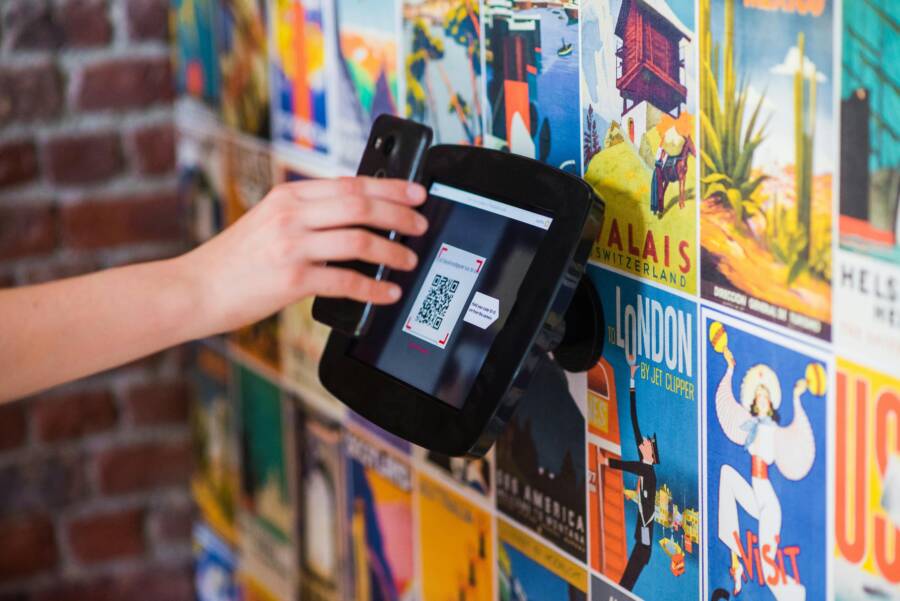
QR codes are a quick doorway to deals, tickets, and information. When your phone can see the code but won’t scan it, frustration follows. The problem may sit in simple settings or a tiny lens issue, not in your phone’s brain. Here’s a practical guide to diagnose and fix a phone that won’t scan QR codes even with camera access.
If you’re using a smartphone that you rely on every day, this guide will help you get back to scanning fast. The steps apply to most Android and iPhone models and don’t require fancy tools.
Confirm Camera Permissions and System Settings
The first hurdle is permission. Even if an app asks for camera access, a setting might block it. Without permission, scanning won’t work, even if the camera itself is healthy.
- For iPhone users: open Settings, tap Privacy, then Camera. Make sure the apps you want to use for scanning are allowed to access the camera.
- For Android users: open Settings, go to Apps, select the QR scanning app or the camera app, and check Permissions. Ensure Camera is enabled. Some devices also have a separate setting for “Camera” in system permissions that must be on.
After you adjust permissions, restart the app and try scanning again. If you’re unsure whether the camera app can scan, test with a quick scan in the stock Camera app. If that works, the problem may be with a third party app rather than the camera hardware.
If your device can scan barcodes in other apps but not in the one you prefer, try a different scanner while you troubleshoot.
Update Software and Applications
Software updates fix bugs that block QR scanning or interfere with camera features. The fix can be as simple as a system update or a quick app update.
- Update the operating system: check for pending updates and install them.
- Update scanning apps: open the app store and install the latest version of the QR scanner you use.
- If you’re testing with the built-in camera scanner, ensure the camera app is up to date.
A quick reboot after updates helps the new code take effect. If the problem started after an update, a rollback might be possible only in rare cases, so focus on the latest patch for now.
Clean the Lens and Improve Lighting
A dirty lens or poor lighting creates images the code can’t interpret. The scanner does not read what it cannot see clearly.
- Clean the lens gently with a microfiber cloth.
- Check the lighting: avoid glare or direct bright light that washes out the code. Aim for even lighting and try to move to a darker area if reflections appear.
- Hold the phone steady and at the right distance. Most codes scan best from about 6 to 12 inches away, but this varies with code size.
If the code is printed, ensure the print is sharp and the code has high contrast. A faded or damaged code can fail to scan even on a phone with a good camera.
Clear Cache and Reinstall
Some scanning apps accumulate data that interferes with scanning. Clearing the cache or reinstalling can clear the fog.
- Android: go to Settings, find the QR scanning app, choose Storage, then Clear Cache. If needed, Clear Data but note this removes saved preferences.
- iPhone: delete the scanner app and reinstall it from the App Store. Then reconfigure permissions.
After clearing, open the app again and try scanning a test QR code.
Try a Different Scanner or Built-In Scanner
If one scanner fails, another might work. It also helps identify whether the issue is the code, the app, or the phone itself.
- Use Google Lens on Android to scan QR codes. Lens is widely compatible and often more forgiving with some codes.
- On iPhone, use the built-in Camera app to scan a QR code. If the code is recognized by the Camera app, the issue is likely isolated to a third party scanner.
- For both platforms, you can install a well-regarded third party scanner for comparison. If multiple apps fail on the same code, the issue is likely with the code or the camera.
A simple test is scanning a known, clean QR code from a printed flyer or a widely used URL. If another code works but the one you’re trying to scan does not, the code itself may be problematic.
Check the QR Code Quality and Type
Not every QR code is created equal. Some codes have issues that confuse scanners, regardless of the device.
- Size matters: very small codes are hard to read. If possible, try a larger version.
- Contrast and color: codes with pastel or low-contrast backgrounds can be hard to read. High contrast black on white is the easiest.
- Distortions: curved or damaged codes, warped prints, or codes printed on curved surfaces are harder to interpret.
- Error correction: highly damaged codes may still be readable, but a severely damaged code is unlikely to scan.
- Type of code: some codes encode longer URLs or data. If a code is lengthy or uses unusual formats, a scanner might struggle.
If you’re stuck with a single code that will not scan, try to obtain a fresh copy of the code or request a different format from the source.
Check Network and App-Specific Considerations
Sometimes the problem isn’t the code or the camera. If a QR code triggers a web page or an app action, a weak network or blocked access can influence the experience.
- Ensure you have a stable internet connection when the scan is meant to open a link or verify data.
- Some codes require permission to open a particular app or to access files. Make sure any required permissions are granted within the app you’re using.
- If you’re scanning codes from a banking or payment app, extra security layers can block certain scans. Check for any security prompts that appear after you try to scan.
A solid test is to scan a code that links to a known safe URL and see if the browser opens it correctly.
Inspect Hardware Health and Camera Capabilities
If multiple codes fail across several apps, hardware could be at fault. Modern smartphones are capable of scanning many codes, but the camera module can still suffer from issues.
- Autofocus problems: when the camera struggles to lock focus on small details, it can fail to read a code.
- Lens damage: scratches or smudges on the lens impede clarity.
- Sensor issues: a failing sensor can reduce image quality.
If you suspect hardware problems, compare the camera’s performance with other tasks, like taking a photo of a distant object. If you notice blurred images or poor focus in general, a service check may be needed.
When to Seek Professional Help
If you’ve walked through the troubleshooting steps and QR scanning remains broken, professional support is warranted.
- Document the steps you’ve taken and the outcomes. This helps the technician begin where you left off.
- Bring a few QR codes that fail and a working one for comparison.
- Ask for a camera diagnostic and, if available, a hardware test that the store can run.
A reputable service center can determine whether the issue is with the camera module, the motherboard, or a software component. If your device is under warranty, this path can save time and money.
Practical Preventive Tips for the Long Run
Preventing future issues is easier than fixing them after they appear. A few habits help keep QR scanning smooth on your smartphone.
- Keep the lens clean and avoid putting the device on dusty surfaces.
- Use a screen protector that doesn’t scratch the lens when you wipe the screen.
- Regularly update the OS and scanning apps to stay compatible with new QR formats.
- Store a reliable scanner in your toolbox of apps, not just one option. If your primary scanner fails, you have a quick backup.
- When printing codes, use high contrast, large sizes, and clear margins to improve readability.
A simple habit like testing your scanner with a common QR code every few weeks can catch problems early.
Realistic Scenarios: Quick Checks You Can Do Now
- Scenario A: You open the Camera app and the QR code appears but nothing happens. Action: check permissions, note whether a pop-up requires you to open a link; try Google Lens or re-run with the built-in scanner.
- Scenario B: You used a third party scanner, and it suddenly stops reading. Action: clear cache, update or reinstall the app, test with a known good code.
- Scenario C: You’re in a low light area. Action: reposition the code and the light, avoid glare, and hold the phone steadily.
These small checks save time and help you decide whether you’re dealing with a simple setting or a hardware problem.
A Quick Reference Guide to Troubleshooting
- Confirm camera access for the app you’re using.
- Update OS and scanner apps to the latest version.
- Clean the lens and improve the lighting.
- Try a different scanner or the built-in camera.
- Inspect the code quality and try another code.
- Test in a reliable network environment if the code requires online verification.
- If all else fails, seek professional help.
This sequence keeps you moving without guessing.
How This Impacts Everyday Smartphone Use
A QR code not scanning can derail plans that hinge on quick access to information. It can slow entry to a venue, block a contactless payment, or frustrate a simple store visit. By following a steady troubleshooting method, you can determine whether the issue lies with your phone, the code, or the app. The goal is to restore a smooth experience without replacing hardware or diving into complicated settings.
Final Thoughts and Next Steps
QR scanning should feel effortless on a capable phone, but glitches happen. Start with permission checks and software updates, then move through lens care, lighting, and app changes. If the problem persists across multiple apps and codes, you’re likely looking at a hardware issue that needs professional attention. A well maintained smartphone, kept clean and updated, offers reliable scanning for years to come.
If you try these steps and still can’t scan, consider asking a trusted technician to examine the camera module. You might also reach out to the device manufacturer’s support team for guidance. Either way, you’ll gain clarity on what’s going on and what to do next.
If you found this guide helpful, share it with friends who rely on QR codes daily. Have you faced a QR scanning mystery with your phone recently? Tell us what you tried and what worked for you in the comments. Your experience can help others troubleshoot faster.