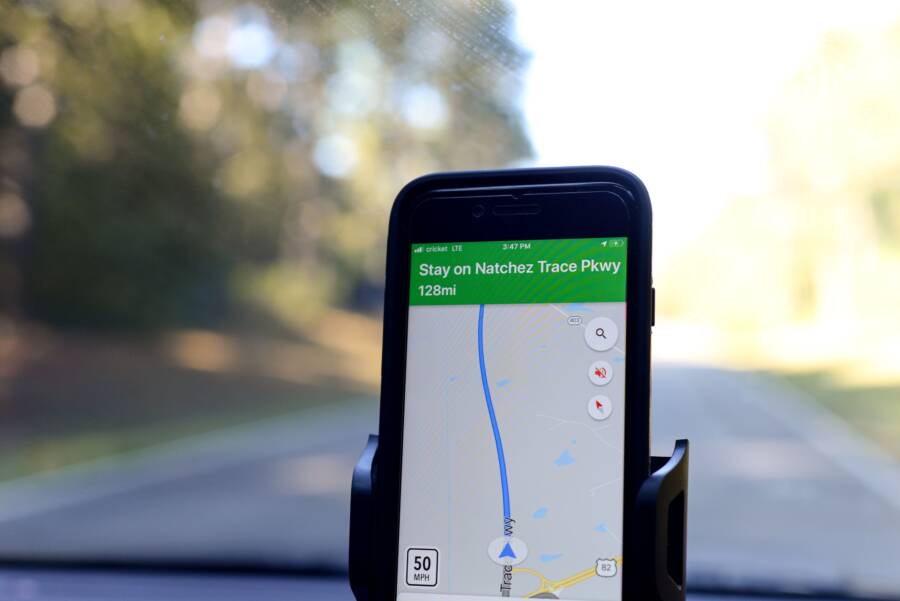
You can download map areas for offline use through Google Maps or Apple Maps to maintain navigation without cellular service. This simple feature saves you from getting lost in areas with poor signals.
Rural travel, hiking, and international trips often lack reliable data connections. Downloading your maps ahead of time on your smartphone ensures that you stay on track regardless of your signal strength.
Follow these steps to prepare your device before you leave home.
Why You Should Download Offline Maps Before Your Next Trip
Relying on a constant internet connection for navigation often causes frustration during travel. Even in modern cities, you might encounter dead zones, subway tunnels, or areas with extreme network congestion. A smartphone remains a powerful tool in these situations, but only if you prepare your data ahead of time.
Saving Battery and Reducing Data Usage
Continuous signal searching drains your battery rapidly as your smartphone attempts to maintain a connection to distant towers. When you switch to offline maps, your device works less to pull live traffic and map updates from the network. This reduction in background activity keeps your battery life longer for essential tasks like photography or emergency calls.
Offline map files also remove the need for constant data streaming. If you travel internationally, you avoid the high costs of roaming charges while maintaining accurate navigation. You simply download the area you need over a stable Wi-Fi connection before your trip starts. Your phone then functions using internal GPS sensors, which work independently of your cellular data plan.
Maintaining Navigation in Remote Areas
Cellular coverage is often unpredictable in national parks, rural highways, or mountainous regions. You might find yourself without a signal exactly when you need to make a critical turn. Downloading offline data ensures your map data remains accessible even when your screen shows no service bars.
Having a saved map acts as a digital insurance policy for your journey. You stay on track regardless of temporary network outages or provider limitations. If you frequently visit remote destinations, storing these files on your smartphone allows for consistent wayfinding.
Offline maps provide the reliability you need when cellular networks fail. Use them as your primary backup or your main method of travel in areas with sparse infrastructure. By setting up these files before you depart, you gain confidence that your smartphone will guide you to your destination without interruption.
Step-by-Step Guide to Saving Maps for Offline Navigation
You can prepare your smartphone for travel by downloading map data directly to your device. This process takes only a few minutes when you have a stable internet connection. Once saved, the data functions automatically when your network signal drops.
Downloading Areas in Google Maps
Google Maps allows you to save specific geographic regions for offline use. This method is effective for driving or walking through areas with limited data coverage.
- Open the Google Maps app on your smartphone.
- Sign in to your account to ensure your saved maps sync correctly.
- Search for the city, region, or landmark you plan to visit in the search bar.
- Tap the name of the place at the bottom of the screen to view more details.
- Select the More icon, usually represented by three dots in the top right corner.
- Choose the option labeled Download offline map from the menu.
- Adjust the blue bounding box on the map to include the specific streets or areas you need.
- Check the estimated file size at the bottom of the screen before confirming your selection.
- Tap the Download button to store the map data on your device storage.
Once the download finishes, the app stores the map locally. You can rename your maps or update them manually within the Offline maps menu in your account settings. Keep in mind that these files expire after a set time to ensure the navigation data remains accurate.
Using Apple Maps for Offline Travel
Apple Maps recently added a feature to download map data for designated regions. This process works directly through the settings menu of your smartphone to help you avoid data gaps.
- Launch Apple Maps on your device.
- Tap your profile picture or initials located near the search field.
- Select the Offline Maps option from the presented list.
- Tap the Download New Map button to start the selection process.
- Search for a specific location or use your current position to define the area.
- Resize the map boundary to cover your planned travel route or neighborhood.
- Review the required storage space for the download before tapping the Download button.
After the progress bar completes, the map is ready for use without cellular service. Your smartphone switches to this local data automatically when it detects a weak or missing connection. You can manage your downloaded regions within the same settings menu by tapping Edit or selecting specific maps to delete or update. Checking these settings before a trip helps you maintain a reliable navigation experience.
Pro Tips for Managing Your Offline Map Data
Effective management of your map data prevents storage clutter on your smartphone. Because high-resolution maps consume significant memory, you should adopt a routine for maintaining these files. Following a few simple practices keeps your navigation tools fast and reliable.
Optimize Your Storage Space
Download only the specific areas you truly need for your trip. Large, broad map files take up unnecessary space and increase the time your smartphone requires to load details. Focus your downloads on cities or regions where you expect to travel.
If you plan a cross-country drive, divide the route into smaller, focused segments instead of one massive file. Most map apps display the storage size before you start the download. Keep an eye on this number to balance detail with device capacity.
Schedule Regular Map Updates
Offline map data loses accuracy as roads change or businesses move. Both Google Maps and Apple Maps periodically flag outdated files that require an update to maintain precision.
Check your offline settings menu once every few weeks if you keep maps saved for daily use. Many apps offer an auto-update feature if you remain connected to Wi-Fi. Enable this setting to let your smartphone handle the maintenance in the background.
Audit Downloaded Regions Before Travel
Delete outdated map files from your smartphone to keep your storage organized. Old files for trips you completed months ago serve no purpose and occupy space meant for photos or apps. A quick review of your saved maps list prevents potential errors where the app tries to navigate using obsolete data.
Follow these best practices to keep your device organized:
- Label your maps with clear names like “Summer Vacation” or “Work Route.”
- Delete map files immediately after you return from a trip.
- Review your map list once per month to remove unused regions.
- Clear the cache of your map app occasionally to resolve minor performance glitches.
These habits ensure your smartphone remains a dependable partner on the road. By keeping your offline library lean and current, you gain more space for your memories and faster performance when you need directions the most.
Limitations and Best Practices for No-Service Navigation
Offline maps offer a safety net for travelers, but they operate differently than standard internet-connected applications. Your smartphone relies on its internal GPS sensor to determine your position without needing a cellular signal. While this technology is reliable for location tracking, it lacks the live data streams that keep your digital map fully updated. Understanding these gaps helps you use your device effectively when you are off the grid.
Understanding Data Limitations
Offline maps are static snapshots of the world at the time you downloaded them. They do not show live traffic congestion, road construction, or accidents that occur after you save the area. If a major road closes due to repairs, your smartphone might still suggest that route because it lacks real-time awareness of the situation.
Public transit schedules and business hours also remain static within offline files. You should not rely on your map to provide current bus arrival times or opening status for restaurants when you lack service. Treat your offline map as a base layer for navigation rather than a complete source of up-to-date travel intelligence.
Managing Battery and Storage Constraints
Using internal GPS sensors for extended periods consumes more power than standard operation. Your smartphone works harder to calculate your position using satellite signals alone compared to when it helps triangulate with cellular towers. Keep a portable power bank handy during long hikes or road trips through remote territory.
High-resolution map data demands significant storage space on your phone. Download only the specific areas you need to prevent your device from running out of memory. If you find your phone is slowing down, check your settings to remove old map regions that you no longer need. This practice clears storage for photos and other travel apps.
Optimal Use of Offline Tools
To achieve the best experience, you must adjust how you interact with your device while offline. Follow these strategies to maintain accuracy and reliability:
- Download map regions while you are connected to high-speed Wi-Fi to ensure all map tiles and details load completely.
- Check the map boundaries before you depart to confirm your entire route fits within the saved area.
- Use offline maps alongside paper maps in extremely remote regions where electronic failure remains a possibility.
- Avoid frequent zooming or panning while offline because this forces the app to render more data and increases battery strain.
Following these practices ensures your smartphone remains an effective navigation tool throughout your journey. By accounting for the lack of live updates and managing your device resources, you stay on track with confidence. These habits turn your device into a dependable companion in places where cell signals fade.
Final Thoughts
Preparation is the best way to ensure your smartphone keeps you on the right path when cellular service fails. You avoid the stress of lost connections by proactively saving your maps. This small investment of time before your trip pays off when you encounter dead zones or remote areas.
Take a moment to test your offline maps while you are still at home on a stable Wi-Fi network. Open the app and toggle your phone to airplane mode to verify the data loads correctly. This quick test confirms your navigation remains functional before you head out the door. Use these simple tools to explore with confidence.