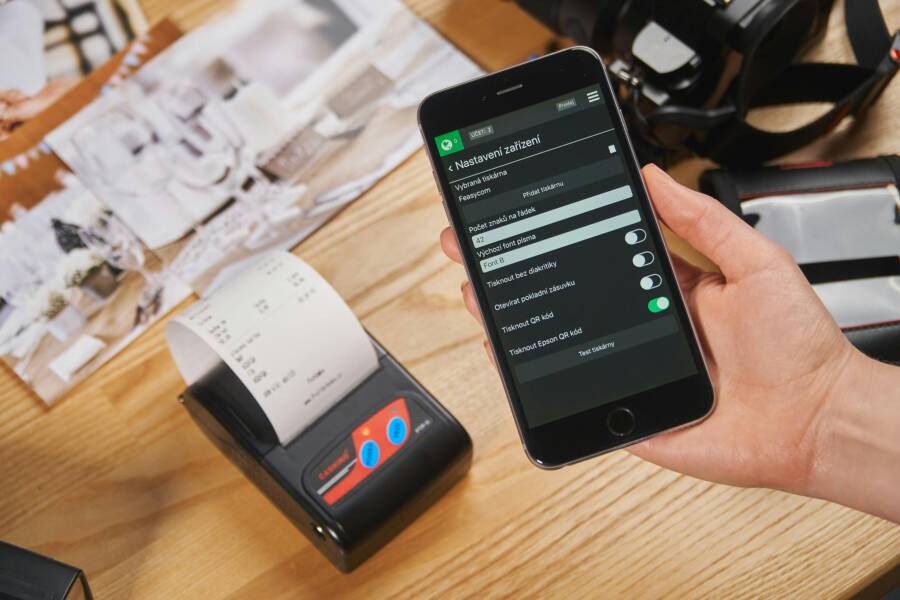
Ever tried to print from your phone and end up with blurry text or dull photos? The quality of prints often hinges on a few simple settings that live in your printer app or the device’s built in print options. This guide will show you how to adjust print quality on both Android and iPhone so what you see on screen becomes what you get on paper.
You’ll learn how phone photos and documents translate to prints, how to connect to printers, and the exact steps for Android and iPhone users. We’ll cover quick tweaks that boost image sharpness, color accuracy, and text clarity, plus why sometimes the printer’s own app holds the key to better results. A couple of practical examples will help you solve common issues fast.
If you’re printing a family photo, a work document, or a proof your friend will judge by, these steps make a difference. For a photo, select high quality or best output and use the printer’s photo paper option if available. For documents, push the DPI to 300 and choose the right paper type to keep text crisp. By the end, you’ll print with confidence using your smartphone, no guesswork required.
What affects print quality when you print from a phone
Printing from a smartphone is convenient, but the results can vary. The quality depends on the image you start with, how you handle color, and the capabilities of the printer and its connection. Use these practical guidelines to predict and improve your prints.
Photo resolution, DPI, and file formats
Print sharpness starts with the image itself. A photo that’s too small or low in pixel count will look soft or pixelated when printed larger. A quick rule of thumb: aim for at least 300 pixels per inch (ppi) for good prints. On a 4×6 print, that means about 1200 by 1800 pixels. For an 8×10, you’ll want roughly 2400 by 3000 pixels. If you don’t have that much detail, don’t print at a larger size than the image supports, or you’ll lose clarity.
DPI, or dots per inch, is the printer’s way of measuring detail. Think of it as how finely the printer can place ink on paper. If your photo file has enough pixels, the printer will render more detail at higher DPI settings. As a baseline, print at 300 DPI for photos and 600 DPI for text or documents when the option is available. Increasing DPI beyond what the image supports won’t improve quality and can slow the print.
File formats matter too. Here’s how to choose:
- JPEG: Great for photos. It compresses data to keep file sizes down. Use when you have a standard photo and the file size matters. If the image is already compressed, extra editing may introduce artifacts.
- PNG: Best for images with sharp edges or transparent backgrounds. It’s often larger than JPEG but preserves more detail.
- RAW: Provides the most data and best quality for editing, but prints require processing. If you print directly from a RAW file on a phone, you’ll usually convert it to JPEG or TIFF first for compatibility.
Quick reader’s checklist before printing:
- Is the image resolution high enough for the intended print size?
- Is the file in a print-friendly format (JPEG, PNG, or TIFF from the app)?
- Have you allowed for slight crop or framing changes in the shot?
- Is the white balance or exposure set to avoid blown highlights or blocked shadows?
- If you edited the image, did you keep an uncompressed version for printing?
For more on optimal pixel counts and print size, see guidance from imaging resources as you plan your file. Image Resolution Guide provides practical thresholds for common sizes.
Color profiles and image edits
Color management is the hidden driver of print accuracy. Most consumer prints look best when you use the sRGB color space. It’s the most widely supported profile by consumer printers and online labs, and it helps keep colors consistent between screens and paper. If your image was captured or edited in a wider color space, converting to sRGB before printing usually prevents surprising color shifts.
Edits can affect how colors render on paper. Subtle adjustments to brightness and contrast often improve printed detail without oversaturating. A good starting point is to slightly increase contrast to recover midtone detail in shadows, then fine-tune brightness so whites stay clean without clipping.
Notes to avoid color drama:
- If your printer isn’t color calibrated, heavy color boosts or shifting can look odd once printed.
- When you’re unsure, print a small test sample on similar paper to check how edits translate to ink on stock.
Simple editing tips for better prints:
- Normalize exposure before printing to preserve detail in both shadows and highlights.
- Keep saturation modest; printing often amplifies color slightly, so aim for a gentle boost.
- Use a soft proofing approach: simulate the print in your editing app to preview how colors will appear on paper.
For color profile basics and practical guidance, consider these resources. They reinforce why many labs default to sRGB and how to test different settings if you’re chasing exact color results. Choose the color space for my files
Printer connection and on-device options
How you connect to the printer can influence output quality. A stable USB connection is often more reliable for color accuracy and consistent results than a wireless link, which can be impacted by network traffic or interference. If you print over Wi-Fi or Bluetooth, choose the printer’s highest quality or Best mode when available.
On-device options also matter. Many printer apps offer a “photo print” or “best quality” setting. Selecting the right mode can improve color fidelity and sharpness. Always verify you’re using the device’s best available print mode rather than a default draft setting.
A quick reminder: keep your printer firmware up to date. Firmware updates can fix color rendering issues, improve scan and print reliability, and boost overall print quality. If you’re unsure how to update, check the printer manufacturer’s support page or the on-device settings menu.
For readers who want to compare wireless versus USB outcomes, practical experiences show USB often delivering more stable color and sharper images in busy environments. If you’re evaluating options, see community insights on how connection type affects print quality. Poor print quality using WiFi compared to using USB
Supporting guidance on how to optimize wireless printing and calibration practices can be found in printer-specific troubleshooting articles. If you’re curious about how firmware updates improve results, explore further explanations and real-world tests. Printer Firmware: The Hidden Software Inside Your … – Printersfy
Additional reading on wireless versus wired printing quality can help you decide the best setup for your needs. Wi-Fi vs Bluetooth Printers: Which Is Better for Printing
Chinese-language readers may also find practical notes on staying consistent across devices when printing from a smartphone. For broader context on file types and print quality, this guide covers common formats and printing outcomes. Your Guide to The Best File Type For Printing
If you want a quick explainer on color profiles in printing labs, this resource clarifies why sRGB is widely used and how it affects the final result. What is sRGB Color Space? What’s Its Importance for Displays | BenQ US
What you’ll take away from this section
- The image you start with drives the printed result more than any other single factor.
- Use the right color profile and mindful edits to maintain accuracy.
- Prefer the highest quality print mode and keep firmware up to date for consistent results.
Links and further reading help you verify best practices and tailor your approach to your printer and stock. The Best Image File Formats (And When to Use Each One)
Note: In practice, use the smartphone to capture a well exposed shot, edit with restraint, and print with a calibrated process or simulation proof to ensure the look on paper matches your intention.
Ready the devices: phone, printer, and paper
Before diving into print quality tweaks, get everyone on the same page. Your smartphone, the printer, and the paper you choose all impact results. A quick pre-check helps you avoid waste and frustration later. Think of it as laying out the ingredients for a precise, high-quality print.
 Photo by Hook Tell
Check printer compatibility and setup
Start by confirming your phone can print with the printer you have. On iPhone, look for AirPrint compatibility. If your printer supports AirPrint, your iPhone will find it quickly when both devices are on the same Wi‑Fi network. If the printer doesn’t show up, try these quick checks:
- Restart the printer and the phone, then reconnect to the same Wi‑Fi.
- Confirm the printer is connected to the correct network and not in a guest or isolated network segment.
- Update the printer’s firmware or drivers through the manufacturer’s app or support site.
For Android users, verify that the device supports the Android default print service or the printer’s companion app. If the printer is not visible, open the print settings and enable the printer using Mopria or the printer’s own app. If you still don’t see it, try pairing the device via Bluetooth or re-adding the printer in Wi‑Fi mode. For more on Android printing basics, see the Mopria guidance and Android printing resources. Print From Android
If you want to troubleshoot AirPrint specifically, Apple’s official guide is a solid starting point. It covers printer compatibility checks and how to connect when you’re on the same network. Use AirPrint to print from your iPhone or iPad
In practice, a stable connection matters more than you might think. A wired connection can yield steadier color and sharper results, but wireless setups are more convenient for mobile printing. If you’re evaluating options, weigh the location of the printer and network traffic that could affect print speed and quality. For common AirPrint issues and fixes, check practical troubleshooting articles. Fix AirPrint Issues: HP Printers & iOS Troubleshooting
Tips at a glance
- Ensure both devices are on the same network with strong signal.
- Keep the printer within a few meters of your phone when testing.
- Use the printer’s highest quality mode if available, and confirm it is active in the print dialog.
Paper, ink, and printer maintenance
Your choice of paper and ink has a direct effect on output. Matte stock dulls gloss and reduces glare, while glossy paper increases color vibrancy and sharpness but can smear if not handled promptly. For everyday documents, ordinary office paper is fine; for photos or color-rich graphics, opt for higher-quality stock.
- Paper types: Matte is forgiving and versatile; glossy and satin finishes deliver richer color and sharper contrasts.
- Ink quality: Genuine or high-quality third-party inks tend to perform better than ultra-cheap options. If colors look off, consider replacing one cartridge at a time to identify the culprit.
- Environmental care: Store paper in a cool, dry place away from direct sunlight to prevent curls and color shifts.
Maintenance basics that pay off
- Clean print heads if streaks appear. A simple head-clean cycle in the printer’s settings can restore uniform ink flow and restore sharp edges.
- Run a test page after any cartridge change to confirm even distribution.
- Keep the printer’s paper tray aligned and free of dust to avoid feeding errors and smudges.
If you’re unsure about the right paper for your project, a quick go-to is standard matte photo paper for mixed content, reserving glossy stock for vibrant color photos. For more on paper selection, consider these resources. They offer practical guidance on choosing stock for different print goals. The Best Image File Formats (And When to Use Each One)
Simple maintenance checklist
- Check print quality on a test page after new ink or paper is loaded.
- Inspect the paper type and ensure it matches the print job.
- Clean the printer head every few weeks if you print often.
Keep software and firmware up to date
Software and firmware updates are not just cosmetic. They fix bugs, improve compatibility, and often enhance print quality. Keeping your devices current helps minimize color shifts and misreads between the screen and paper.
- Phone OS updates: These often include improved printing APIs and better handling of print dialogs.
- Printer firmware: Updates fix known issues and can improve color rendering and stability.
- Printing apps: App updates bring new features, better presets, and improved print quality controls.
Quick update steps
- On iPhone: open Settings > General > Software Update. Install any available updates.
- On Android: Settings > System > Software Update (or similar, depending on the device), then install.
- Printer: Use the printer’s companion app or the manufacturer’s website to check for firmware updates, then install following on-screen prompts.
A note on compatibility: some printer features require the latest app or OS version to unlock advanced print quality controls. If you notice missing options after an update, re-open the print dialog in the app and verify that you’re using the newest driver. For a broad overview of updating practices, you can explore practical guides on color management and device firmware. Printer Firmware: The Hidden Software Inside Your … – Printersfy
Key takeaways
- Updates matter for both reliability and quality.
- Regular checks prevent surprises during important prints.
- If a feature disappears after an update, reinstall or rebind the printer in the app.
Images and visuals can help you see the setup in action. If you’re preparing a guide that includes a setup walkthrough, an image showing the phone, printer, and paper stack can be very helpful. Photo by Hook Tell
External resources
- AirPrint setup and troubleshooting: Use AirPrint to print from your iPhone or iPad
- Android printing basics and Mopria: Print From Android
What you’ll take away from this section
- Verify that your phone, printer, and paper are ready for clean, accurate prints.
- Use the right paper type and reliable ink to match your project.
- Keep devices current to maintain strong print quality and compatibility.
Images and references are provided to help you visualize every step and validate best practices as you prepare your print setup. The Best Image File Formats (And When to Use Each One)
Access print options from apps and pick the right printer
When you want to control print quality from your phone, the first step is to access the print dialog from the app you’re using and select the correct printer. Most Android apps that support printing (photos, PDFs, documents) include a share or print option tucked behind the menu icon. Here’s a quick, copyable walkthrough you can keep handy:
- Open the item you want to print (a photo in Gallery, a document in a file app, or a webpage in a browser).
- Tap the three-dot menu or the share icon, then choose “Print” or “Print image.”
- In the print dialog, select the printer. If you don’t see your printer, tap the dropdown to view available devices. Look for the Mopria Print Service or your printer’s own app as alternatives.
- Choose the right print job settings before sending it to the printer. You’ll typically see options like quantity, color, and orientation here.
- Tap the print button to start. If you notice the printer is slow to respond, confirm the device is on the same network and try reconnecting.
Knowing how to reach the print options quickly helps you adjust quality on the fly. If you’re unsure how your particular printer handles on-device printing, check the manufacturer’s support page or the Mopria guidelines for Android printing basics. Print From Android
In practice, the app you’re using often determines how many quality controls you get. Some apps expose advanced options such as “Quality,” “Best,” or a specific DPI setting right in the dialog; others limit you to color or grayscale. If you’re printing photos, look for a photo print or best quality option. For documents, choosing higher resolution modes can improve text sharpness. If you’re uncertain, a quick test print is a smart move. Try a small photo or a short document page first to confirm the results before printing the whole batch.
The key takeaway here is to always confirm you’ve picked the right printer in the dialog. A mismatched device is the most common cause of disappointing prints, especially when you’re printing from different rooms or across a network. When in doubt, print a quick test page to ensure color, brightness, and alignment look correct on the stock you’ll use.
Links for reference and deeper guidance:
- Print From Android
- For AirPrint users on iPhone or iPad, Apple’s guide can help you confirm compatibility (useful if you also print from an iPhone later in the article). Use AirPrint to print from your iPhone or iPad
Adjust DPI, quality, and color per print type
Understanding how to balance DPI, color, and quality settings makes a big difference in the final look of your print. Here’s how to approach it for Android:
- Higher quality mode: In the print dialog, look for an option named something like “Quality,” “Best,” or “High.” Selecting this uses more ink and time but yields sharper output, especially on photos or graphics.
- DPI guidance: If your printer supports explicit DPI, use 300 DPI for photos as a general baseline. For text documents, 600 DPI can improve edge clarity for small fonts. If your image already has dense detail, increasing DPI beyond what the image supports won’t add real detail and may slow things down.
- Color management: Most consumer printers render colors best when you stay within sRGB color space. If the app allows color profile selection, choose sRGB or a standard color profile the printer recommends. Subtle edits to brightness, contrast, and saturation can help avoid blown highlights or muddy shadows once printed.
Practical rules of thumb:
- For photos: Prefer “Best” or “Photo” quality if available, and set DPI around 300 for strong detail without excessive ink usage.
- For text documents: Choose higher DPI (often 600) if the device offers it, and ensure the paper type supports crisp text.
- If unsure, start with a test print at moderate settings, then adjust from there.
If you want deeper technical context on DPI and print quality, look into resources that compare DPI impacts on photos versus text. For example, guides about printing at 600 DPI versus 1200 DPI can help you decide when the extra cost and time are worth it. 600 vs 1200 DPI: Choosing the Right Print Resolution
Quick reminder: higher DPI doesn’t always mean better results. It depends on image resolution, the printer’s capabilities, and the stock you’re using. If you’re printing a fresh image from your phone, aim for a resolution that matches or slightly exceeds the intended print size. For proofs and color-critical jobs, previewing the print before you commit helps you avoid waste and ink drift.
External references you can use for deeper understanding:
- Understanding DPI for scanning and printing scenarios. Understanding DPI for Scanning Photos
- A science-based look at print resolution choices. A Detailed Review for Printing Photos: 600 DPI vs 1200 DPI Resolution
What you’ll take away from this subsection
- DPI and print quality are paired with the content type.
- Photos benefit from higher quality modes and around 300 DPI; text may benefit from higher DPI but be mindful of ink usage.
- Preview the print whenever possible to avoid surprises.
For more hands-on tips on how color and DPI interact with your printer, keep reading and try a quick test print. A small run helps you dial in the best settings without wasting materials.
Tips for photos versus documents
Printing from Android can behave very differently depending on whether you’re dealing with photos or documents. Here are practical distinctions to keep in mind and steps you can take right away.
- Photos:
- Use the printer’s photo or best quality mode. This optimizes color fidelity and sharpness, especially on vibrant images.
- If your photo is zoomed in or cropped, confirm that the print size matches the image’s aspect ratio to avoid unwanted cropping.
- Preview the image in the print dialog. If colors look off, you may need to adjust brightness or saturation in the phone’s photo editor before printing.
- Documents:
- Prioritize crisp text by selecting a higher DPI if available and choosing a paper type that supports clean ink edges.
- If your document includes images, ensure they aren’t compressing too aggressively in the app before printing.
- Use grayscale only if color isn’t needed; this can save ink and improve legibility in black and white PDFs or scans.
Practical checklists you can follow:
- Preview before printing to confirm layout and color accuracy.
- Print a low-DPI test page if your goal is to save ink while validating layout.
- If color shifts occur, switch to a standard color profile and re-check.
A quick note on stock impact: glossy stock heightens color vibrancy but can lead to smudges if handled too soon. Matte paper reduces glare and is a safer all-around choice for text documents or mixed content. If you’re unsure which stock to pick, start with standard matte for general use and save glossy for high-impact photos.
Useful external resources that explain common print stock effects and how to pick paper:
- Paper choices and how they affect print quality. The Best Image File Formats (And When to Use Each One)
What you’ll gain from this subsection
- Clear guidance on when to print photos versus documents with Android.
- A simple preview and test-print approach to minimize waste.
- Practical reminders about stock choice and how it affects the final look.
External links for setup and compatibility you may find helpful
- AirPrint setup and troubleshooting for iPhone users who also print from mobile devices: Use AirPrint to print from your iPhone or iPad
- Android printing basics and Mopria guidance: Print From Android
What you’ll take away from this section
- You can reliably improve print results by choosing the right printer, tuning the DPI and color, and considering paper stock.
- Always test print when you switch printers, apps, or stock.
- Keeping firmware and apps updated helps preserve color accuracy and stability.
Images and references are included to help you visualize and validate best practices as you prepare your print setup. For more on file formats and print outcomes, explore related resources linked here.
How to Change Print Quality on iPhone
Printing from your iPhone should feel straightforward, but getting the result you want can take a few targeted tweaks. In this section, you’ll learn quick ways to access AirPrint options from Photos or Files, adjust the standard print settings, and explore options for more precise control. The goal is simple: crisp text, accurate color, and photos that pop on paper without wasting ink.
Print using AirPrint from Photos or Files
AirPrint makes printing from an iPhone effortless. Start in the app where your content lives and send it to a compatible printer on the same Wi-Fi network.
- From Photos: open the photo you want to print, tap the share icon, then select “Print.” In the printer dialog, pick the AirPrint printer you see listed. You can adjust basic options right there.
- From Files or other apps: open the document or file, tap the share or menu icon, and choose “Print.” The print dialog will show the available printer. If your printer supports AirPrint, it will appear in the list.
In the print dialog you’ll usually see:
- Number of copies
- Color or grayscale
- Paper size
- Orientation (portrait or landscape)
Tip for quick wins: if the preview looks off, go back to the content and adjust crop or framing first. For photos, cropping in a way that preserves the image’s aspect ratio helps prevent unwanted white space or cropping after printing. If you need more control than the basic AirPrint options provide, you can consult the broader AirPrint guidance from Apple for troubleshooting and setup. Use AirPrint to print from your iPhone or iPad
If you want a deeper look at size adjustments and print behavior on iPhone, see the practical tips from iPhone Life. It covers how to change print size and access printer settings on iPhone. How to Change Picture Print Size on Your iPhone
Choose quality and paper settings on iPhone
The default print dialog is powerful enough for most tasks, but there are subtleties that can improve results. Focus on selecting the correct paper type, color mode, and print quality to match your project.
- Printer dialog options: look for “Quality,” “Best,” or a selectable DPI if your printer exposes it. Higher quality modes use more ink but yield crisper text and richer photos.
- Paper type choices: when you’re printing photos, select a stock that supports vivid color and sharp edges. For documents, standard office paper typically works, but glossy or heavier stock can enhance presentation pieces.
- Color handling: if your printer or app lets you choose a color profile, stay within a standard space like sRGB. This helps keep colors consistent with what you see on screen.
Even small changes can make a big difference. Before committing to a batch, run a quick test print on the same stock you’ll use for the final job. If you’re curious about what impacts color accuracy, a good reference point is the guidance on color space and print proofs from reputable sources. Choose the color space for my files
For iPhone users who want to manage print size directly from the device, it helps to crop or resize images before sending them to the printer. If you need to adjust the size, cropping within the Photos app can ensure the print matches the intended frame without surprises in the margins. Apple’s official pages offer additional steps for Pages and other apps that support printing. Set paper size and orientation in Pages on iPhone – Apple Support
A practical takeaway: always choose the printer’s highest quality mode if you’re aiming for a clean, professional look. For text documents, pairing high DPI with the right paper stock helps maintain sharp edges and legibility. If you’re unsure which setting is best, start with a small proof print to confirm results before printing in bulk.
Extra context on color management can help you understand why certain profiles work best across devices. Consumer printers typically perform reliably in sRGB, which minimizes unexpected shifts when moving from screen to paper. What is sRGB Color Space? What’s Its Importance for Displays | BenQ US
What you’ll gain from this subsection
- Clear path to better print quality using AirPrint on iPhone.
- Quick guidance on when to use high quality modes vs. standard.
- Practical tips for choosing paper stock to suit your project.
Using third party apps for more control
If you need finer control over DPI, color, and layout, third party printing apps can offer capabilities beyond the built-in AirPrint dialog. These apps typically expose settings that let you pin down print quality, color profiles, and precise page sizing.
- Examples of apps that expand control include tools from printer manufacturers or general printing apps that support advanced settings. They may offer adjustable DPI, color calibration options, and layout tweaks not found in the standard print dialog.
- Where to find them: search the App Store for printer-specific apps from your printer maker or trusted third-party print apps. Look for reviews that mention print quality, ease of use, and reliable results.
- Costs and ease of use: many reputable apps offer free basic features with optional paid upgrades. If you print occasionally, a free option may be enough; for frequent, color-critical work, a paid app with robust DPI controls can be worth it.
Quick-start approach:
- Install a reputable printing app that supports your printer.
- In the app, look for a dedicated Print or Advanced settings section.
- Set DPI to a value that matches your content (for photos around 300 DPI is common; for text you may push higher, depending on the printer).
- Choose a color profile recommended by the app or printer vendor, typically sRGB or Adobe RGB depending on print needs.
- Do a test print to confirm color, brightness, and layout before committing to a full run.
If you want a sense of practical guidance on how to manage print quality with apps, you can explore general print quality discussions and printer-specific tips from trusted sources. For example, Apple and printer manufacturer communities often offer insight into how these apps behave with different models. How can I change print quality and print profile settings when using Airprint?
A note on cost and usability: while premium apps can deliver excellent control, they aren’t necessary for casual printing. Start with the built-in options to see if they meet your needs, then consider a third party option if your work demands tighter control over DPI or color.
What you’ll take away from this subsection
- Third party apps can unlock precise DPI, color, and layout control.
- Assess cost vs. benefit by testing a free tier before committing.
- Choose an app that aligns with your printer’s capabilities for best results.
Tips for getting the most from any printing setup
- Keep the printer firmware current to access the latest quality controls.
- Run small test prints after changes to avoid wasting paper and ink.
- Maintain consistent paper stock for predictable outcomes.
External resources and setup tips
- Apple AirPrint basics and troubleshooting: Use AirPrint to print from your iPhone or iPad
- Android printing and Mopria basics for broader context: Print From Android
What you’ll take away from this section
- You can gain more control over print quality by using AirPrint wisely and, when needed, turning to third party apps.
- Start with the simplest settings and only add tools when you need them.
- Regularly update your devices and apps to keep print results consistent.
Images and visuals can help you see the exact steps. If you’re compiling a guide that includes screenshots, an image showing the iPhone’s print dialog and the available options can be very helpful.
Quick tricks to optimize print quality
Printing from your phone should feel straightforward, but small adjustments can make a big difference. This section gives you practical, fast tricks to dial in crisp text, vibrant photos, and color accuracy. Think of your smartphone as the control center for the print you want on paper. Use these tips to make sure what you see on screen translates to paper with confidence.
Edit photos before printing
Simple edits can sharpen prints without turning a good image into an overprocessed one. Start with light adjustments that preserve natural tones.
- Brightness: Tweak just enough to prevent shadows from turning muddy while avoiding blown highlights.
- Contrast: A small boost helps midtones pop, which improves detail in both shadows and bright areas.
- Sharpness: Increase slightly to recover edge clarity, but stop before you introduce halos or noise.
Why these edits matter: printed images reveal every pixel, so subtle tweaks help the ink render more clearly on paper. If you overdo edits, you risk halos, banding, or color shifts that become obvious once printed.
Practical quick-win approach:
- Apply a gentle brightness lift, then nudge contrast by a few points.
- Preview the print proof in your photo app or editing tool to see how changes translate to paper.
- Save a separate print-ready copy in a non-destructive format (like TIFF or a high-quality JPEG) so you can revert if needed.
For further guidance on editing for prints, see resources like Editing Your Photos For Optimal Printing. https://www.postsnap.com/blog/article/editing-your-photos-for-optimal-printing
Shoot in high resolution and avoid upscaling
The base file sets the ceiling for print sharpness. Capture at the phone’s maximum resolution and avoid upscaling any further.
- Use RAW when possible: it preserves more detail and latitude for adjustments without introducing artifacts.
- If RAW isn’t available, shoot in the highest quality JPEG your camera offers. Ensure there’s enough pixel data to support the target print size.
Why this matters: upscaling a low-resolution image to fit a larger print creates blur and noise that printers struggle to mask. A higher original resolution keeps edges crisp and color smooth.
Quick tip for a clean workflow:
- If your app saves RAW, shoot in RAW + JPEG (some phones offer this automatically). Print from the high-quality JPEG or a converted TIFF for best results.
- For quick tasks, shoot in the best JPEG mode and avoid enlarging beyond the image’s native resolution.
If you want deeper context on upscaling, check Upscaling Photos: Comparing Methods Based on Print Quality. https://www.adorama.com/alc/upscaling-photos/
A practical takeaway: plan your print size before shooting. If you know you’ll print large, aim for higher resolution from the start rather than relying on later upscaling.
Do test prints to calibrate
A quick test print is the fastest path to predictable results. It helps you confirm color fidelity, sharpness, and how your stock behaves with ink.
What to print on a test page:
- A simple color gradient and a small photo swatch to check color shifts.
- Text blocks with different fonts and sizes to verify edge sharpness.
- A mixed section with both images and text to see how the printer handles balance.
Test print checklist:
- Are colors accurate or do they look shifted toward a hue?
- Is the text crisp or do you see feathering on the edges?
- Do blacks stay rich and whites stay clean without clipping?
- Is there any ink bleeding or ghosting in lighter areas?
Next steps based on results:
- If colors drift, switch to a standard color profile like sRGB and reprint.
- If text is soft, increase the DPI or choose a higher quality mode if available.
- If gloss stock causes glare, try a matte stock for easier reading and clarity.
A handy reminder: print a small page first when you switch printers, stock, or apps. It saves waste and time.
For additional guidance on color management and print proofs, explore resources on color spaces and printing workflows. This helps you understand why sRGB is a common standard. https://www.smugmughelp.com/hc/en-us/articles/18212580127252-Choose-the-color-space-for-my-files
What you’ll take away from this subsection
- A quick test print reveals all the important details before you commit.
- Calibrating with a real page minimizes waste and surprises.
- Simple color profiles and stock choices make a strong difference.
Common issues and quick fixes
Prints can misbehave in small ways. Here are the most common problems and fast ways to fix them.
- Color shifts: Calibrate with a known neutral reference image and use the printer’s color management options. If your app allows it, pick a standard color profile like sRGB.
- Streaks or banding: Run a head cleaning or alignment if your printer supports it. Change to fresh ink and reprint a small test page.
- Faded prints: Check ink levels, confirm you’re using the right paper type, and ensure you’re not printing in a draft or economy mode.
- Smudges or smearing: Use a faster-drying stock and adjust the print speed in the device’s advanced settings if available.
Keep it simple. If a test page shows issues, fix one variable at a time: try a different stock, then adjust the color profile, then DPI if needed.
For more practical troubleshooting on printer behavior and firmware updates, see resources like Printer Firmware: The Hidden Software Inside Your … – Printersfy. https://printersfy.com/printer-firmware/
Key quick fixes you can apply today:
- Switch to a higher quality mode in the print dialog.
- Use a more suitable stock for photos or text.
- Update firmware and app to ensure stable color rendering.
What you’ll take away from this subsection
- Most problems have a quick, one-change fix.
- Start with color profiles and stock, then move to DPI if needed.
- Regular maintenance and updates prevent recurring issues.
External resources to broaden your understanding:
- AirPrint setup and troubleshooting for iPhone users: Use AirPrint to print from your iPhone or iPad. https://support.apple.com/en-us/109349
- For Android users, Mopria basics provide a reliable baseline: Print From Android. https://mopria.org/print-from-android
What you’ll take away from this section
- Quick fixes cover most common print problems.
- A small, targeted set of changes yields reliable results.
- Keep firmware and apps up to date to maintain quality.
Images and visuals can help you visualize issues and fixes. If you’re detailing a setup, include an image showing a common error and the corrected print. Photo by Hook Tell. https://www.pexels.com/@hook-tell-1947041
Conclusion
Printing from your smartphone doesn’t have to be guesswork. Start with a high resolution photo or document, pick the printer’s best or photo mode, and set the DPI to a level that matches your stock and content type. Do a quick test print to verify color, sharpness, and cropping, then adjust paper type or color profile as needed. Share your results or ask questions in the comments so we can fine tune the exact steps for your setup, and keep your smartphone prints crisp and true to life. Ready to get your best print yet, starting now.