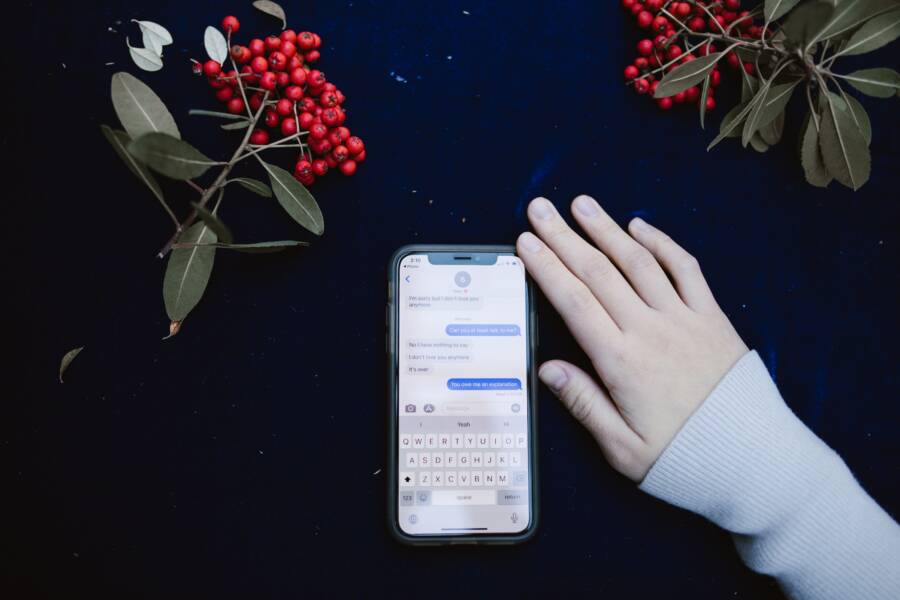
You can stop private message content from appearing on your lock screen by adjusting your notification settings. Most modern smartphones show these previews by default to keep you informed, but this feature often compromises your personal privacy.
Changing this behavior is a simple matter of modifying system-level preferences in your device menu. You don’t need technical expertise to hide these snippets; you only need to navigate to the correct privacy section to restrict what displays while your device is locked.
Follow the instructions below to secure your incoming messages and keep your conversations private.
Understanding How Notification Settings Work on Your Smartphone
Your smartphone operates on a system designed to keep you updated in real time. By default, most mobile platforms display message previews on the lock screen to provide instant access to information. While this creates a convenient user experience, it often exposes personal conversations to anyone who glances at your device. Understanding how these alerts interact with your system software helps you regain control over your private data.
The Role of System Settings in Data Protection
Modern operating systems manage notifications through a centralized hub. This system acts as a gatekeeper between incoming data packets from your apps and the display hardware on your smartphone. When a message arrives, the operating system evaluates your global preferences to decide how much detail to show.
System-level overrides: Global settings usually dictate the behavior of all notifications. If you set the system to hide sensitive content, the phone masks message text across the entire device, regardless of individual app configurations.
Data abstraction: During this process, the operating system replaces specific message text with a generic label like “New Message” or “Notification from [App Name].” This keeps the notification functional while stripping away the sensitive content that could compromise your privacy.
Hardware interaction: The display controller holds this information in a buffer. By modifying the notification settings, you instruct the system to clear that buffer of specific text before it renders the lock screen image.
Each app type interacts with this architecture differently. Messaging platforms often attempt to push the full text of a conversation to the notification tray. However, your system settings possess the final authority to determine whether that text ever reaches the pixels on your screen.
Why Manual Settings Changes Are Often Necessary
Turning off previews at a system level is a solid starting point, but it does not always cover every scenario. Notification permissions function within a hierarchy, and sometimes specific app settings can override your broader preferences. If you find that your lock screen still shows message details, an app-specific permission is likely still active.
Modern mobile platforms utilize a layered permission structure to balance functionality and security:
Global Lock Screen Settings: This is the top tier. It controls what displays on the locked screen for the entire smartphone.
App-Specific Permissions: Individual apps have their own menu items. If you manually enabled “show previews” inside a specific chat app, that setting might interact unpredictably with your global preferences.
Focus or Do Not Disturb Modes: These modes add another layer. They can sometimes bypass standard notification rules to ensure high-priority messages reach you, occasionally exposing content you previously chose to hide.
You should audit these settings whenever you install a new app. Many applications request permission to display notifications as part of their initial setup process. By checking the notification menu for each app, you ensure that no secondary preference is undermining your primary data protection plan. Regularly verifying these settings prevents apps from leaking private information through the very tools meant to keep you organized.
Steps to Disable Sensitive Message Previews on Android
You can prevent private notifications from appearing on your lock screen by adjusting your system privacy settings. Android allows you to control how much information displays while your smartphone remains locked, which is the most effective way to protect your messages from prying eyes.
Managing Lock Screen Privacy Globally
The fastest way to hide message content is through the global notification menu. This change applies a blanket rule to every app on your smartphone, ensuring that no sensitive text appears on your display until you unlock it.
Open the Settings app on your device.
Tap on Notifications.
Look for the menu labeled Notifications on lock screen.
Select the option labeled Don’t show notifications at all, or choose Hide sensitive content.
If you choose the latter, your phone still alerts you when a message arrives, but it replaces the actual text with a generic label like “Content hidden” or “New notification.” This setting is the best balance between maintaining awareness of incoming alerts and keeping your personal conversations private.
Adjusting Settings for Specific Messaging Apps
Sometimes, you might want a specific app to show previews while keeping others private. Because many messaging apps have their own internal configuration menus, these settings occasionally override your global preferences. Checking these individual settings ensures your privacy rules stay consistent across your entire smartphone.
To manage notifications for a specific app, follow these steps:
Navigate to Settings and tap Apps or Notifications.
Select the See all apps option to view your full list.
Tap on the messaging app you want to configure, such as WhatsApp, Signal, or Messages.
Select Notifications from the app info menu.
Tap on Notification categories or Lock screen settings.
Toggle off the setting that allows sensitive content or previews to appear on the lock screen.
Many messaging platforms provide granular control, allowing you to mute notifications for specific chats or groups without blocking the app entirely. If you use multiple messaging apps, repeat these steps for each one to confirm that your privacy settings are active everywhere. Regularly auditing these permissions helps you maintain control over your digital footprint and prevents accidental data leaks on your lock screen.
How to Turn Off Message Previews on iPhone
Managing your notification privacy on an iPhone requires a clear understanding of the iOS settings hierarchy. Apple provides options to restrict sensitive information from appearing on your lock screen, allowing you to choose how much content is visible based on your device security state. You can decide whether to block all previews or only hide them while your smartphone remains locked.
Configuring Global Preview Preferences
The primary method for controlling message content on your iPhone involves the global notification settings menu. This configuration change acts as a master switch, applying your chosen privacy policy to every application installed on your smartphone. By default, iOS displays message snippets, but you can override this behavior in just a few taps.
Open the Settings app from your home screen.
Select the Notifications menu.
Tap on Show Previews.
Choose the setting that matches your privacy needs.
You have three distinct options within this menu. If you select Always, your phone displays message content on the lock screen regardless of your security settings. If you choose When Unlocked, the message text remains hidden until you authenticate via Face ID, Touch ID, or your passcode. Choosing Never hides the message content entirely from the lock screen, forcing you to open the application to view any incoming text. Selecting When Unlocked provides the most balance for most people, as it keeps sensitive details hidden from casual observers while maintaining quick access for you once the phone recognizes your face.
Customizing Previews for Individual Apps
You might prefer to see message previews for essential communication tools while hiding them for others. The iOS notification architecture allows you to override the global setting for specific apps. This flexibility ensures that a work email alert stays private, while a trusted family message remains visible at a glance.
To adjust these settings for a particular app, follow this process:
Navigate to Settings and tap Notifications.
Scroll through your list of apps and tap on the one you want to modify.
Locate the Lock Screen settings section.
Select Show Previews.
Set the preference to Always, When Unlocked, or Never.
By setting an app to Never, you block its content from appearing on the lock screen even if your global setting is set to Always. Conversely, setting an app to Always allows its notifications to appear even if your global setting is set to When Unlocked. This granular control allows you to tailor your smartphone experience to your exact privacy requirements. Always remember to check these settings after installing new applications, as many apps default to showing previews upon their initial setup. Taking this extra step ensures your privacy remains intact across every messaging platform you use.
Troubleshooting When Settings Do Not Stick
Sometimes your smartphone ignores your privacy choices, leaving message previews visible despite your efforts to hide them. This happens when system processes hang, temporary data conflicts occur, or an outdated operating system fails to apply new rules. If your settings do not take effect immediately, follow these logical steps to clear the hurdle and enforce your privacy preferences.
Updating Software for Better Privacy Controls
Keeping your smartphone software current is the most effective way to eliminate bugs that prevent privacy settings from functioning correctly. Operating system manufacturers frequently release patches that address glitches in the notification management framework. When you ignore these updates, you keep known flaws active on your device.
An outdated system often struggles to communicate between your security choices and the hardware responsible for the lock screen. Developers might fix a specific issue where third-party apps bypass global privacy rules, but that fix only reaches your device once you install the latest firmware. Checking for updates allows your phone to apply the most recent security protocols, which keeps your notification hierarchy stable.
If you notice that your privacy settings revert to their default state after a restart, your system software likely has a corrupted configuration file. Installing a pending update overwrites these broken files with stable, current versions. Always verify that your smartphone runs the latest available version of its operating system to maintain the integrity of your privacy controls.
Checking for App Conflicts and Cache Problems
If updates do not solve the issue, a corrupt app cache is often the culprit. Your smartphone stores temporary data in a cache to help apps load quickly, but these files sometimes retain old settings that conflict with your new privacy requirements. Clearing this cache forces the app to refresh its configuration and adopt the updated rules you just defined.
Restarting the device also helps by killing background processes that might be holding onto restricted notification permissions. A clean restart forces the operating system to reload all services, ensuring that every app reads your current privacy policy from scratch.
Follow this sequence to resolve persistent preview issues:
Perform a full restart of your smartphone to stop any hung background processes.
Navigate to the app info menu for the messaging platform that refuses to hide its previews.
Select the option to clear the cache for that specific application.
Verify that your system-wide notification settings remain enabled after the refresh.
These simple actions frequently resolve discrepancies between your intent and the display output. By clearing out the digital clutter, you allow your privacy settings to function as intended without interference from outdated data.
Conclusion
Securing your privacy on a smartphone requires a simple adjustment to notification settings. By selecting the option to hide content on your lock screen, you prevent private messages from appearing to bystanders while maintaining your ability to receive alerts.
Always check these preferences after you install new messaging apps or apply major system updates. Manufacturers often reset or adjust notification defaults during software patches, so a quick audit is necessary to keep your data protected. Regularly reviewing your permissions ensures that your personal conversations remain visible only to you.