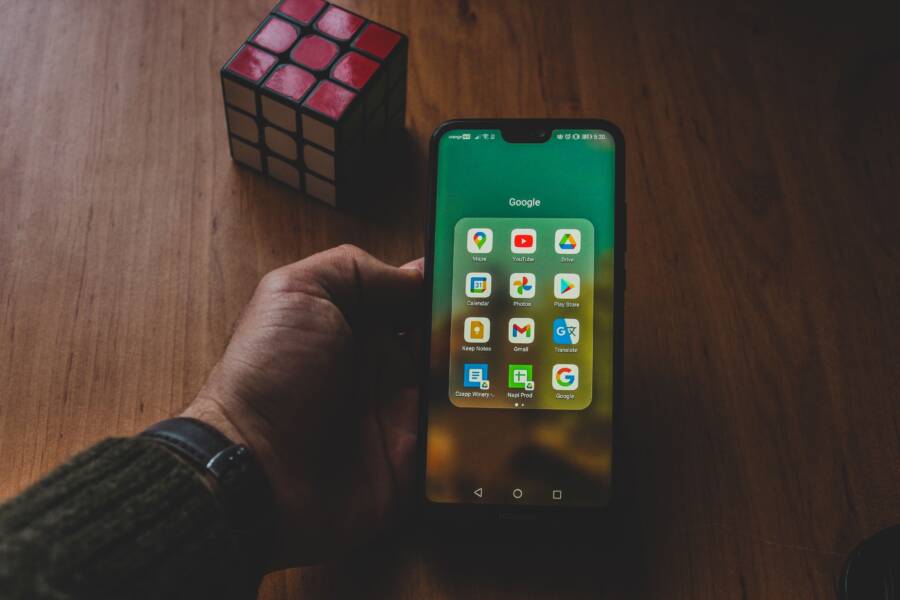
When split screen mode unexpectedly closes on your smartphone, the culprit is usually insufficient system memory or a background process interfering with the display layout. Most modern devices prioritize active applications, so if your RAM reaches capacity, the operating system forcibly shuts down secondary windows to stabilize the primary task. You can often resolve this by clearing your recent apps, disabling battery optimization for the specific software you use, or adjusting your display scaling settings.
This issue creates a frustrating workflow interruption when you rely on multitasking for productivity. Whether you are comparing documents or referencing a video while taking notes, a stable split screen is essential for efficient device use. Understanding why your hardware struggles to maintain this mode allows you to apply targeted fixes rather than restarting your phone repeatedly.
The following sections explain why your device encounters these errors and provide actionable steps to restore consistent multitasking performance.
Quick Checks to Fix Persistent Split Screen Issues
When your smartphone suddenly exits split screen mode, the issue often stems from temporary data conflicts or application constraints. Before you factory reset your device or seek professional repairs, perform these basic diagnostic checks. These steps address the most frequent reasons for window instability without requiring advanced technical knowledge.
Clear Your Background App Cache
Memory management is a primary factor in how your smartphone handles multitasking. When you open multiple windows, the operating system allocates a specific portion of random access memory to keep both applications active simultaneously. If your device cache becomes cluttered with temporary files from apps you no longer use, the system runs out of available space for your active windows. When this memory limit hits, the processor automatically terminates the secondary window to protect the stability of the primary app.
You can prevent these forced closures by clearing the cached data of your most frequently used apps. Follow these steps to refresh your memory allocation:
Open your device settings and navigate to the apps or application manager section.
Select an application you regularly use in split screen mode.
Tap on the storage option for that specific app.
Choose the button labeled clear cache to remove temporary data.
Avoid clearing the app data if you are not prepared to log back into your accounts, as this step often resets your preferences. Regularly performing this maintenance keeps your memory clear and allows the operating system to prioritize your current multitasking needs.
Verify App Compatibility with Multitasking
Not every application developer builds their software to support split screen functionality. Some apps are programmed to enter a full-screen view only, which creates a hard conflict when your operating system attempts to force them into a smaller, secondary window. When you drag an unsupported app into split screen mode, the application often encounters an error or a display logic failure. To prevent the entire interface from freezing, the operating system immediately closes the split screen mode and returns the unsupported app to a single window.
You can quickly determine if an app is the source of your trouble by testing it with different software pairings. If the split screen closes every time you use a specific app, the issue is likely a lack of compatibility rather than a hardware defect. Consider these points when verifying your apps:
Check the app store description for notes on tablet or multitasking support.
Test the split screen feature with two built-in system apps, like your browser and notepad, to ensure your phone hardware functions correctly.
Use the developer options menu in your settings to force activities to be resizable, though note that this may result in visual glitches for apps that were not designed for smaller screens.
If an app consistently refuses to stay in a split screen view, it is likely hard-coded to ignore such requests. Contacting the app developer or checking their official support forums provides clarity on whether they plan to add this feature in future updates. Relying on apps known to support multitasking is the most reliable way to maintain a stable workflow on your smartphone.
Advanced Settings That Keep Split Screen Mode Stable
Keeping your smartphone stable while running two apps side-by-side often requires more than just clearing your cache. Hidden power management settings and specific display parameters often interfere with multitasking by forcing background windows to collapse. By adjusting these advanced configurations, you allow your device to dedicate the necessary resources to both windows without premature termination.
Check Battery Optimization and Power Saving Limits
Smartphone manufacturers prioritize battery longevity by aggressive management of background processes. When you enable power saving mode, the operating system limits the CPU resources available to apps that are not in the active, primary focus. Because a split screen setup requires two apps to remain active simultaneously, the system often interprets the secondary window as a background process that is safe to kill.
You can prevent this by excluding your multitasking apps from these power restrictions. Follow these steps to adjust your battery settings:
Open your settings and select the battery or device care section.
Tap on battery optimization or app power management.
Find the applications you frequently use in split screen mode.
Set these specific apps to unrestricted or don’t optimize.
Once you change these settings, the operating system stops throttling the background window. This provides the app with enough processing power to stay open while you focus on your primary task. If your phone still closes windows, verify that your global power saving mode is off, as it often overrides individual app settings.
Review Developer Options for Window Scaling
Advanced display settings hidden within the developer options menu significantly impact how your smartphone renders multiple windows. If you have enabled features like force activities to be resizable or modified your screen DPI, the system may struggle to calculate the layout for two simultaneous windows. When the software encounters a rendering conflict, it immediately exits split screen mode to restore visual stability to the primary interface.
Navigate to your developer options to check if these settings are causing your window instability:
Disable any custom DPI scaling or minimum width settings if you have recently altered them.
Locate the option labeled force activities to be resizable and ensure it is enabled if you frequently multitask with older applications.
Reset your window animation scales to default, as extreme settings sometimes trigger layout logic errors.
If you are unsure whether these settings are the cause, toggle your developer options off entirely to see if the default configuration restores stability. Many users find that reverting to standard display scaling resolves persistent closing issues because it stops the phone from trying to force apps into unsupported dimensions. These adjustments provide a reliable foundation for your smartphone to maintain two active windows without conflict.
How Software and System Updates Impact Your Experience
System updates perform a vital role in maintaining the health and stability of your smartphone. Developers frequently release these patches to address underlying code conflicts, memory leaks, and interface errors that trigger unexpected behavior like closing split screen mode. When software remains outdated, your device may struggle to interpret modern multitasking commands, causing the operating system to prioritize stability over complex window management. Keeping your system current ensures that the underlying framework can handle two active windows without triggering a safety shutdown.
The Role of System Patches in Resolving UI Bugs
Operating system developers consistently release minor updates to fix bugs that interrupt user interactions. If your device suddenly closes split screen mode, it often indicates a known glitch within the window management service that the manufacturer has already identified and patched in a recent version. Installing these updates replaces faulty instructions with optimized code that better manages resource allocation between concurrent applications.
Ignoring these updates leaves your smartphone vulnerable to persistent errors that simple settings changes cannot fix. Manufacturers specifically target multitasking performance in these releases because it is a core feature that requires high stability. When you update your software, you receive:
Patches for memory leaks that force apps to close when resources run low.
Refined display drivers that prevent window scaling conflicts during multitasking.
Compatibility fixes for third-party apps that may struggle with the split screen interface.
Checking for updates in your system settings is often the fastest way to resolve persistent interface bugs. If an update is available, install it and restart your smartphone to ensure all background processes initialize correctly. This simple habit prevents the system from defaulting to its error-prone behavior.
When to Reset System Settings
Sometimes, configuration files accumulate conflicting data that interferes with advanced features like split screen mode. A full factory reset clears your entire device, but you can often solve software-driven window closing by resetting only your system preferences. This process returns network, keyboard, and display configurations to their original state without deleting your photos, contacts, or installed applications.
Follow these steps to perform a settings reset on most modern smartphones:
Open the settings menu on your smartphone.
Search for the system or general management section.
Select the reset option, which is usually grouped with restore or migration tools.
Choose the specific action labeled reset all settings.
Confirm the action by entering your screen lock PIN or password.
Your smartphone will restart automatically after the process completes. Once it reboots, you must reconnect to Wi-Fi and reconfigure personal preferences like your wallpaper or sound profiles. This action clears the corrupted configuration data that might be forcing your apps to close, providing a clean slate for your multitasking features to operate as intended. Using this method effectively removes deep-seated glitches while keeping your personal data safely stored in your device storage.
Alternative Solutions When Split Screen Still Fails
If standard troubleshooting fails to keep your smartphone in split screen mode, the underlying issue might be a deeper software conflict or a hardware limitation. You should consider third-party tools or alternative interface settings to regain your multitasking functionality. These methods act as workarounds while you determine if a more permanent repair is necessary.
Use Third-Party Window Management Applications
When the native operating system fails to hold two windows open, specialized applications designed for screen management can help. These tools often bypass standard OS restrictions by creating a virtual container for your apps. This process forces the device to treat the split view as a single primary window, which prevents the system from closing the second half due to resource mismanagement.
You can search your app store for window managers or multitasking organizers that offer floating window support. These apps provide a stable way to keep notes, calculators, or browsers accessible while you work in a primary application on your smartphone. Because these tools operate differently than the built-in split screen function, they often avoid the specific bugs or display logic errors that cause your phone to collapse the view.
Adjust Display Scaling and Resolution
Sometimes the physical screen dimensions or the pixel density settings of your smartphone cause a rendering conflict. If your interface is set to a non-standard size, the operating system struggles to map two apps correctly. A display that is scaled too large or too small can trick the phone into thinking it lacks the necessary space for a split screen.
You can modify these settings through your device display menu:
Reduce your font size or display zoom to a standard or small setting.
Switch your screen resolution from a high-performance setting to the default or lower resolution.
Ensure you are not using a theme or launcher that modifies the standard aspect ratio.
Changing these settings gives the system more room to render dual windows. If your phone suddenly holds the split screen mode after you revert to standard scaling, your previous display settings were the primary cause of the instability.
Disable Screen Overlays and Accessibility Services
Applications that draw over other apps can interfere with the way your smartphone manages window focus. Services such as blue light filters, screen recorders, or even certain accessibility tools create an invisible layer that sits above your active windows. When you initiate a split screen, the system may detect this overlay as a potential security or performance risk, causing it to shut down the multitasking mode immediately.
You should test your device by temporarily disabling these services:
Identify apps that have permission to draw over other screens in your settings menu.
Turn off accessibility features that modify your screen interface or provide overlays.
Attempt to use the split screen mode again to see if the behavior improves.
Removing these overlays often resolves the conflict, as it allows the window manager to control the display layout without interference from third-party services. If you find a specific app causes the issue, you can keep that app turned off whenever you need to use split screen functionality.
Conclusion
Persistent split screen issues on your smartphone almost always trace back to memory pressure, incompatible app settings, or aggressive power management. By clearing your cache, disabling battery optimization for multitasking apps, and resetting system configurations, you resolve the conflicts that trigger these forced closures.
Most users restore stable performance by addressing these software bottlenecks rather than requiring hardware repair. Take a moment to monitor which apps overlap in your workflow, as identifying specific compatibility gaps saves you time and frustration during daily use.
A well-maintained smartphone operates efficiently when the operating system has the necessary resources to balance active processes. Keep your software updated and avoid extreme display scaling to maintain a smooth experience. Does your device now hold split screen mode reliably after applying these adjustments?