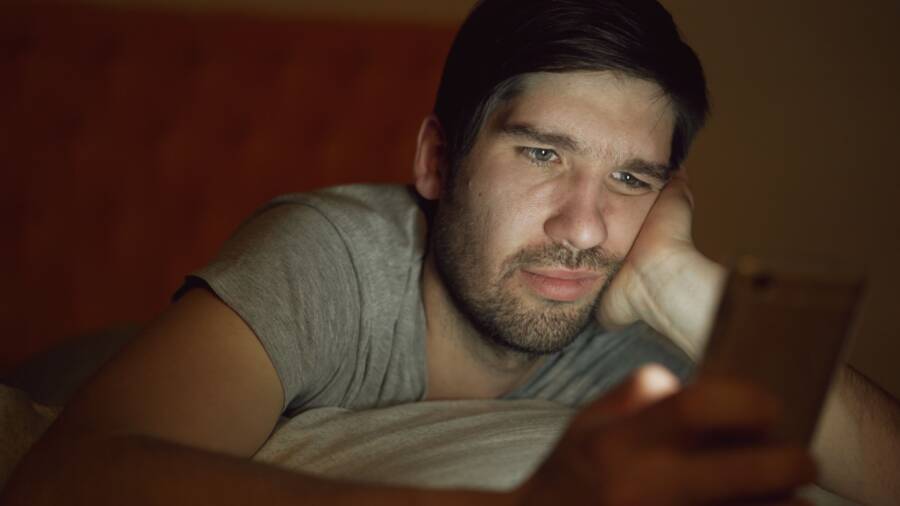
If your screen goes dark before you finish reading a text, your smartphone is likely triggering a battery-saving feature. This automatic dimming is a standard function designed to preserve power, but it becomes a nuisance when the timer is too short.
You have full control over these settings on both iPhone and Android devices. Adjusting the display sleep interval is a simple process that keeps your screen active for as long as you need.
Follow these steps to customize your display preferences and stop your screen from dimming prematurely.
Adjusting Sleep and Auto-Lock Settings
Your screen timeout settings determine how long a smartphone stays active before it turns off the display. Most manufacturers set a default of one minute or less to save battery power. However, this often causes the screen to dim while you are reading a long article or following a cooking recipe. Increasing this duration gives you more control and prevents constant screen interruptions.
How to Change Screen Timeout on iPhone
Apple calls this feature Auto-Lock. It manages the amount of idle time allowed before the device puts the display to sleep. You can adjust this timing by following these steps:
- Open the Settings app on your iPhone.
- Scroll down and tap on Display and Brightness.
- Select Auto-Lock from the list.
- Choose a duration that fits your needs.
Setting your timer to two or three minutes is often helpful for casual reading. If you frequently use your phone for work or study, five minutes may be a better choice. Keep in mind that a longer duration consumes more battery power because the backlight stays active. Use the shortest time that still allows you to finish your tasks without interruption.
How to Change Screen Timeout on Android
Android menus vary by brand, but the setting for screen timeout is almost always located in the main display options. Samsung, Google, and other manufacturers typically use similar terminology to group these controls. You can find the adjustment by following this path:
- Open your phone Settings.
- Tap on Display.
- Look for an option labeled Screen Timeout or Sleep.
- Pick the preferred time duration from the provided list.
Most devices offer options ranging from 15 seconds up to 10 or 30 minutes. Selecting a duration of two minutes provides a good balance for most people. If you find your screen still darkens too fast while reading, consider choosing five minutes instead. A smartphone usually manages power effectively at this setting without significant battery drain. Be sure to select a value that matches how you use your phone throughout the day.
Checking Battery Saver and Power Management
Your smartphone relies on power management software to extend battery life throughout the day. While these features keep your device running longer, they often lower screen brightness or shorten the time before the display turns off. If your screen seems to dim unexpectedly, check these energy settings first.
Managing Battery Optimization Settings
Low Power Mode on an iPhone or Battery Saver on an Android device prioritizes energy conservation over display performance. When these modes are active, the system restricts background tasks and aggressively reduces screen brightness to save juice. If you notice your display dimming frequently, these modes are the likely culprits.
On an iPhone, check your status by looking at the battery icon. If it is yellow, Low Power Mode is on. To disable it, follow these steps:
- Open the Settings app.
- Tap the Battery menu.
- Toggle the switch for Low Power Mode to the off position.
Android devices use similar labels like Battery Saver or Power Saving Mode. You can usually locate these in the Quick Settings panel by swiping down from the top of your screen. If the icon is highlighted, tap it to disable the restriction. Alternatively, go to Settings, select Battery, and look for the Battery Saver option to turn it off. Disabling these settings allows your smartphone to use its full brightness potential again.
The Impact of Adaptive Brightness
Most modern smartphones use an ambient light sensor to detect your environment. This hardware component measures the amount of light in the room and adjusts your screen brightness to match. When you move from a dark room into direct sunlight, the sensor tells your phone to increase brightness so you can see the display clearly. Conversely, it dims the screen in low-light settings to prevent eye strain and reduce power consumption.
Problems occur if the light sensor is blocked or dirty. If you have a case covering the sensor or a smudge of oil over the glass near the front camera, the phone may struggle to read the ambient light correctly. The device might assume you are in a dark room and dim the screen, even if you are standing in a bright area.
Follow these tips to keep your display working correctly:
- Wipe the top bezel of your smartphone with a clean, microfiber cloth to remove dust or fingerprints.
- Verify that your screen protector does not cover the sensor area.
- Test the feature by toggling Adaptive Brightness off in your Display settings.
If the dimming stops after you turn off Adaptive Brightness, the sensor was likely misinterpreting your environment. You can leave this feature off if you prefer manual control over your brightness levels. Many users find that setting the brightness manually prevents the sudden, distracting shifts caused by the automatic sensor adjustments.
Fixing Software Bugs and Overheating
Smartphone hardware generates heat during intensive tasks, which can trigger automatic brightness reductions. If your screen dims suddenly while the device feels hot, the system is likely protecting internal components from damage.
Why Heat Makes Your Screen Dim
High temperatures impact the chemical stability of lithium-ion batteries and the lifespan of sensitive microchips. When a smartphone detects extreme heat, it limits processing power and reduces screen brightness to generate less internal warmth. This behavior is a safety mechanism rather than a malfunction. You should not ignore a hot device, as consistent overheating can degrade battery capacity over time.
To safely cool down your smartphone, follow these practices:
- Close all resource-heavy applications, such as games, video editors, or GPS navigation tools.
- Remove any thick protective cases that trap heat against the back of the device.
- Place the phone in a shaded area with good airflow.
- Avoid charging the device while it is hot, as the charging process adds significant heat.
Do not place your smartphone in a refrigerator or freezer to cool it down quickly. Rapid temperature changes cause condensation inside the device, which leads to permanent water damage. Allow the phone to return to room temperature naturally before you resume heavy tasks.
Performing a System Update or Restart
Software bugs often conflict with power management features and cause the display to behave erratically. A simple restart clears the temporary memory and stops background processes that might cause the system to freeze or dim unexpectedly. This action acts as a reset for the operating system, often resolving minor glitches that occur after long periods of uptime.
If a restart does not resolve the dimming issue, check for available software updates. Manufacturers frequently release patches that improve power management efficiency and fix known display bugs.
Follow these steps to update your device:
- For iPhone users, open Settings, tap General, and select Software Update.
- For Android users, navigate to Settings, tap System or Software Update, and select Check for updates.
Keeping your software current ensures the device handles thermal management and brightness adjustments correctly. If the screen continues to dim after you update the operating system, examine the device for third-party apps that might conflict with display settings. Uninstalling recently added apps can help identify if a specific program is causing the conflict.
Conclusion
Managing your smartphone display settings is a trade-off between convenience and power efficiency. You can easily extend your screen timeout or adjust brightness sensors to fit your specific reading habits. Always monitor your battery percentage after making these changes to ensure your device still lasts throughout the day.
If you find that your battery drains too quickly, simply return to your settings and select a shorter duration. This flexibility allows you to customize your mobile experience to match your personal needs.