Your smartphone typically charges only when powered off because of a software conflict or a damaged charging port. This behavior suggests the operating system is failing to recognize the power input while running.
You can often resolve this by clearing the cache or checking your cable for physical debris. Follow these steps to diagnose and repair your device before seeking professional help.
Quick Fixes for Charging Issues
Most charging problems stem from simple physical or hardware conflicts. Before you assume the internal hardware is broken, perform these basic checks to restore normal power flow to your smartphone.
Checking Your Charging Port for Debris
Pocket lint, dust, and tiny debris often collect inside the charging port of a smartphone. This buildup prevents the charging cable from making full contact with the internal pins. When the device is off, the power management system sometimes accepts a weak connection that it rejects while the operating system is active.
Use a bright light to inspect the bottom of the port closely. You might see a compact layer of fabric fibers or dirt at the base. If you spot debris, remove it with a non-conductive tool. A wooden toothpick works well because it will not scratch the delicate pins or cause an electrical short.
- Turn off your device completely to avoid any electrical accidents.
- Insert the tip of a wooden toothpick into the port.
- Gently scrape the sides and the bottom of the cavity.
- Shake the device lightly to let the loosened particles fall out.
- Use compressed air in short bursts to blow out any remaining dust.
Do not use metal needles, paperclips, or safety pins. These conductive materials can short out the pins or damage the port housing, turning a minor cleaning task into a permanent hardware failure.
Testing Different Cables and Adapters
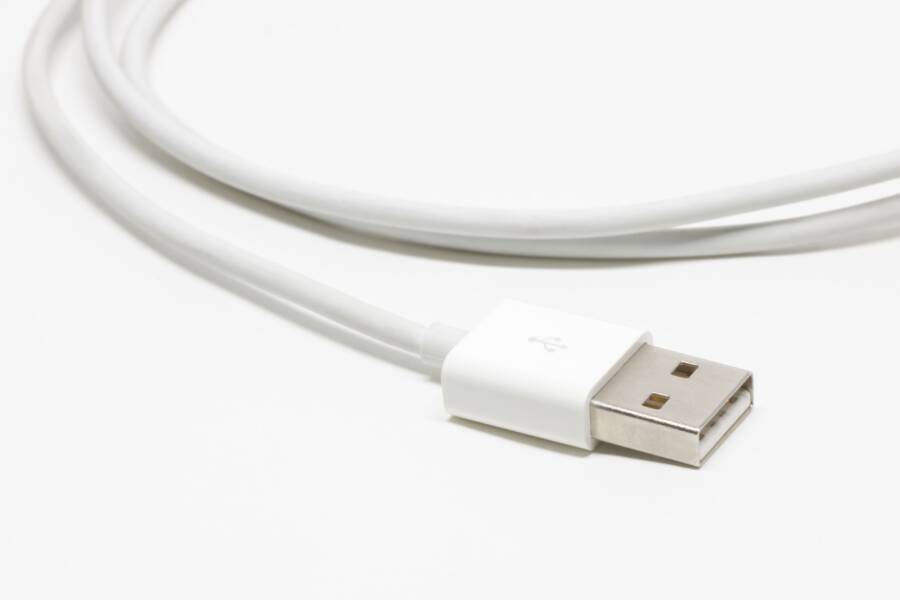
Charging cables often suffer from invisible internal fractures. When a cable is frayed or partially broken, it may struggle to provide the constant voltage required to power a running smartphone. The device might reject the charge while the processor draws power, yet accept it when the system remains idle.
Start by swapping your current cable with an official accessory from the manufacturer. Off-brand cables frequently lack the necessary power shielding or internal wiring gauge to sustain a stable connection. If a different cable fixes the issue, your old cord likely has a broken wire inside its insulation.
The wall adapter is another common point of failure. Sometimes the adapter provides insufficient amperage, causing the device to detect the power source intermittently. Use a known working power brick to verify whether the issue persists. If the smartphone charges perfectly with a different setup, you have identified the culprit without needing a professional repair. Always stick to high-quality charging components to protect the battery health of your device over the long term.
Software Solutions to Try First
When your smartphone stops charging while powered on, the culprit is often a conflict in the operating system or a temporary power management error. These software glitches block the device from recognizing the incoming current. Before you consider hardware repairs, try these simple digital adjustments to restore normal charging behavior.
Performing a Forced Restart
A forced restart is a powerful tool to clear temporary memory and background processes. When your smartphone enters a state where it refuses to charge, the internal power management controller might be stuck in a loop. By cutting power to the processor briefly, you force the system to reload its charging drivers from scratch.
For iPhones, the process depends on your specific model:
- Press and quickly release the volume up button.
- Press and quickly release the volume down button.
- Press and hold the side button until the Apple logo appears on your screen.
If you use an Android device, the steps are generally more consistent across manufacturers:
- Press and hold the power button for at least 15 to 30 seconds.
- Keep holding until the screen goes black and the device begins its reboot sequence.
- Once the logo appears, release the button and let the system finish loading.
This method does not delete your personal data or photos. Instead, it resets the temporary cache that manages hardware communication. After the reboot completes, plug your smartphone into a power source to see if it now registers the connection while turned on.
Updating or Resetting System Settings
Software bugs within the operating system can interfere with how your device interprets battery status. Manufacturers often release updates specifically to address power management issues. Check if a newer version of the software is available by navigating to your settings menu. If an update is pending, install it immediately to patch any known conflicts that might prevent charging.
If updating your software does not work, the problem could lie within deeper system configurations. Sometimes, settings related to battery optimization or background data usage become corrupted. Resetting these can clear the issue without wiping your entire device. Look for an option to reset all settings, which reverts configurations like Wi-Fi passwords and display preferences to their defaults.
When all software attempts fail, a factory reset is the final option to consider. This process wipes everything from the device, including apps and personal files. Before you proceed, back up your photos, contacts, and essential documents to a cloud service or computer. A factory reset removes persistent software issues that simple reboots cannot touch, providing a clean state for the hardware to operate. If your smartphone still fails to charge after a full reset, the issue is likely a physical fault in the charging port or battery circuit.
Understanding Battery and Hardware Problems
When your smartphone refuses to charge while powered on, the battery or internal power circuit often fails to communicate properly with the main processor. While software fixes resolve many issues, physical damage sometimes forces the device into a state where it only accepts energy during a boot-up sequence. This section helps you determine if your hardware needs professional intervention or if the battery has simply reached the end of its functional life.
Identifying Battery Health Signs
Your battery capacity naturally degrades over several years of use. As a lithium-ion cell ages, its internal resistance increases, which makes it harder for the device to draw power while the screen, processor, and radio antennas are active. You can check the current health of your battery through built-in system tools on both major platforms.
On an iPhone, go to Settings, select Battery, and tap Battery Health and Charging. You will see a maximum capacity percentage that indicates how much total energy the cell stores compared to when it was new. If this number drops below 80 percent, the battery often struggles to sustain peak performance, which frequently causes charging interruptions or unexpected shutdowns.
Android users face a more fragmented experience because different manufacturers include varying tools. You should open Settings and look for a section labeled Battery or Battery Usage. Many newer devices show a simple health status, such as Good or Needs Service. If your specific model lacks this feature, download a reputable diagnostic app from the Play Store, such as AccuBattery, to monitor discharge rates and actual battery capacity.
Watch for these physical and functional symptoms that indicate you need a professional replacement:
- The back of your smartphone feels warm or hot during charging or light tasks.
- The display appears lifted or pushed outward from the frame, which suggests a swollen battery.
- Your device jumps between different percentage levels or shuts off suddenly when the battery indicator shows 20 percent or higher.
- The system slows down noticeably because it cannot draw enough power to maintain high processor speeds.
If you observe any of these signs, the battery is likely failing. Hardware failure often limits the power management chip to a safe-mode state while the phone is off. In this state, the device limits power intake to prevent overheating, which explains why charging works when the processor is inactive but fails when you turn the phone on. Replacing the battery is often the most cost-effective way to restore normal function to a reliable smartphone.
When to Contact Professional Support
Sometimes your troubleshooting efforts will not restore normal charging behavior. If you have cleaned the port, tried multiple cables, and performed a factory reset without success, the issue is likely a failure of internal hardware. At this stage, professional help is the safest and most efficient path to a working smartphone. Continuing to force power into a damaged circuit or battery increases the risk of fire or permanent damage to the logic board.
Signs That You Need an Authorized Technician
Hardware issues often require specialized tools and technical skills that go beyond typical household fixes. You should reach out to a certified service center if you encounter problems that indicate component failure. These scenarios signal that the device requires internal repairs rather than software adjustments.
- The charging port feels loose or exhibits visible physical damage like bent pins.
- Your device gets excessively hot in a localized area while charging, even when it is powered off.
- You smell a faint metallic or sweet chemical odor coming from the device.
- The screen shows horizontal lines, flickering, or other signs of internal shorts after a charging attempt.
- The battery has expanded and pushed the screen or back panel away from the frame.
Choosing the Right Repair Service
Selecting a reliable repair shop keeps your investment protected. Manufacturer-authorized service centers are your best option if your device is still under warranty or if you want genuine, high-quality replacement parts. These technicians have access to official repair manuals and diagnostic tools specific to your smartphone model.
If you choose a third-party repair shop, check their reputation before handing over your phone. Look for businesses with transparent pricing, positive customer reviews, and a clear warranty on their labor and parts. Ask if they use original parts from the manufacturer or aftermarket alternatives. Genuine components often provide more reliable performance and better compatibility with your device.
Preparing for Your Repair Visit
Before you drop off your device for service, take a few steps to protect your data and privacy. Even if the device does not charge while turned on, you can often power it up briefly or access your data through a computer backup.
- Back up your data to the cloud or a computer if the device still holds a charge.
- Remove your SIM card and any external memory cards to keep your personal information secure.
- Disable features like Find My iPhone or Android Device Protection, as these often prevent technicians from performing certain repairs.
- Remove any protective cases or external accessories that might get in the way of the repair process.
Most professional shops will ask you to sign a waiver regarding data privacy during the repair. Being prepared ensures a smoother process and helps the technician focus on the hardware problem without administrative delays.
Conclusion
A smartphone that only accepts a charge while powered off often points to a conflict between the operating system and the hardware. You can usually resolve this by cleaning debris from the port, testing different charging accessories, or performing a forced restart.
Use this checklist to decide your next step. If you have cleaned the port and tried multiple cables without success, move to the software steps. If a factory reset fails to fix the issue, or if you notice heat or swelling, contact a professional technician for hardware diagnostics.
Professional support is the best path if you suspect deep circuit failure or a faulty battery. Taking action early prevents further damage and keeps your device functional for longer.