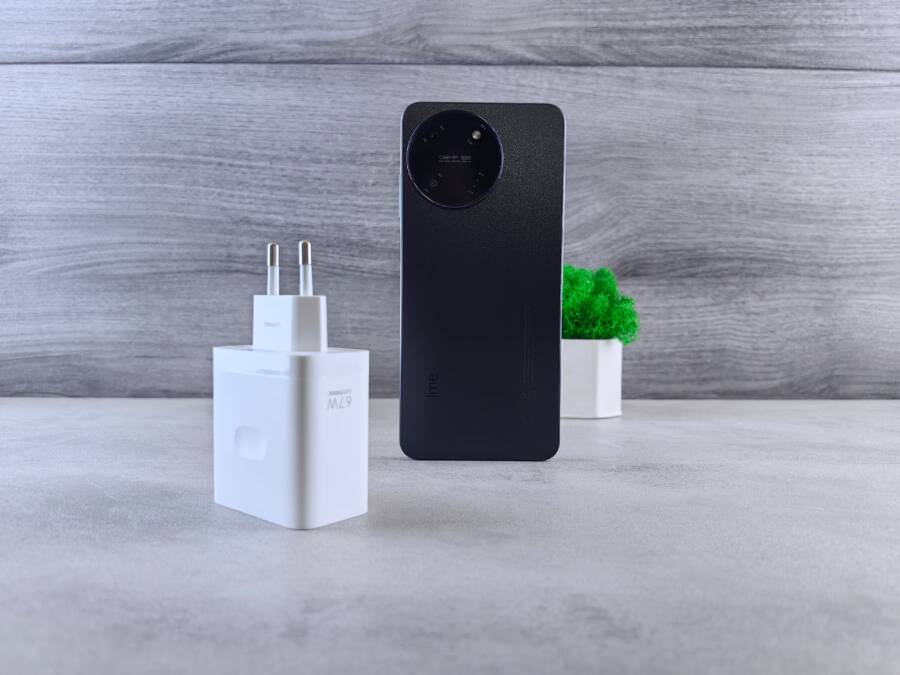
If your smartphone shows a charging icon but refuses to go above 0% or 1%, you likely face a minor software glitch, a blocked charging port, or a worn-out battery. These issues often happen suddenly, but you can usually fix them at home without specialized tools.
Most people resolve this by clearing debris from the port or forcing a system restart. If the device still won’t power on, a faulty cable or wall adapter might be the culprit.
Follow these troubleshooting steps to identify the exact cause and revive your device.
The Simple Physical Fixes to Try First
Before you assume your battery is dead or your phone has a major hardware failure, check for basic physical obstructions. Most charging issues on a smartphone stem from simple debris buildup in the port or faulty accessories. Performing these quick inspections often solves the problem in minutes without a trip to the repair shop.
Cleaning the Charging Port Safely
Dust, lint, and pocket debris frequently pack into the charging port over time. This blockage prevents the charging cable from making a solid electrical connection. If your cable feels loose or fails to click into place, dirt is likely the culprit.
Follow these safety rules to clear the port without causing damage:
- Power off your smartphone completely before you begin.
- Use a non-conductive tool like a thin wooden toothpick or a plastic dental pick.
- Avoid metal needles, paperclips, or safety pins because they can scratch the delicate contact pins or cause a short circuit.
- Shine a bright flashlight into the port to spot compressed debris.
- Gently scrape the bottom of the port to loosen material, then shake the device upside down to let the particles fall out.
Work slowly and carefully. You do not need to apply significant pressure to dislodge the trapped material. If you feel resistance, stop and try a different angle to avoid bending the internal pins. Once you clear the port, plug the cable back in to see if the charging indicator activates.
Validating Your Cable and Power Adapter
If the port appears clean, the problem might exist within the charging chain itself. Cables sustain internal damage from bending or fraying that you cannot always see. A broken wire inside the casing stops current from reaching your smartphone.
Test these components methodically to identify the faulty link:
- Inspect the cable for external tears, exposed wires, or bent connectors.
- Swap your current cable for another one known to work with a different device.
- Try a different power source, such as a wall outlet in another room, to rule out a blown fuse or tripped breaker.
- Plug your phone into a high-powered computer USB port instead of a wall adapter.
Testing a computer port helps determine if your wall charger is the issue. If your phone begins to charge via a computer, your wall power adapter is likely defective. However, keep in mind that computer ports deliver less power than wall chargers. If the device charges slowly but consistently on a computer, you simply need a replacement wall adapter. Using high-quality, certified cables prevents these issues from recurring in the future.
Software Troubleshooting for Charging Issues
If your hardware is clean and your cables work correctly, your smartphone might suffer from a minor software glitch. Software controls how the device manages power input and battery regulation. Sometimes, the operating system fails to communicate with the charging hardware, leaving the battery stuck at a low percentage. You can resolve these communication errors using a few simple internal fixes.
Performing a Forced Restart
A forced restart clears the temporary memory of your smartphone and resets the power management system. This process is different from a normal power cycle because it cuts the connection between the software and the battery controller. Follow these steps to perform a hard reset based on your model.
For modern iPhones, including the iPhone 8 and all newer models:
- Press and quickly release the Volume Up button.
- Press and quickly release the Volume Down button.
- Press and hold the Side button until the screen goes black and the Apple logo appears.
For most Android devices:
- Press and hold the Power button for at least 15 to 20 seconds.
- If your device has a dedicated volume key, hold the Power and Volume Down buttons simultaneously until the screen flashes.
- Release all buttons once the manufacturer logo shows up on the screen.
These steps force the device to reboot even if the screen remains unresponsive. After the phone finishes restarting, plug it back into a power source to see if the charging indicator appears.
Checking for System Updates
Outdated software sometimes creates bugs that affect battery calibration. These errors might prevent the device from accepting a charge, even when the battery is physically healthy. If your smartphone has enough power to turn on, you should check for available software patches.
Navigate to your settings menu to confirm you have the latest firmware installed:
- On an iPhone, go to Settings, then General, and select Software Update.
- On an Android device, open Settings, scroll to System or About Phone, and select Software Update or System Update.
If an update is available, connect your charger and begin the download. New software often includes fixes for battery management and power efficiency that resolve charging loops or incorrect battery level reporting. Always keep your system current to prevent these calibration issues from occurring during daily use.
When the Battery Needs Professional Help
If you have cleaned your charging port, replaced your cables, and cleared software bugs, but your smartphone still refuses to charge, the physical battery may have reached its natural end. Batteries are chemical components that degrade over time as they complete charge cycles. When this chemical capacity drops significantly, the phone can no longer sustain enough power to initialize the startup process. You should identify the signs of a failing battery to determine if it is time to visit a professional repair shop for a replacement.
Identifying Signs of a Worn Battery
Your smartphone battery often provides several warnings before it fails completely. These symptoms typically appear gradually but become more pronounced as the cell loses its ability to hold a charge. If you notice your device behaving in the following ways, the hardware is likely degraded.
- Rapid drainage: Your battery percentage drops by large increments during light use. If you see it lose 10 percent or more in just a few minutes, the internal resistance has likely increased.
- Unexpected shutdowns: The phone powers off randomly even when the indicator shows 20 percent or 30 percent power remaining. This happens because the battery cannot provide the sudden burst of energy required for intensive tasks.
- Physical swelling: If you notice the back of your phone looks curved or the screen appears to lift from the frame, stop using the device immediately. A swollen battery is a safety hazard that requires instant professional attention.
- Excessive heat: If the area around the battery feels hot to the touch during simple tasks or while connected to a power source, the battery is struggling to process the energy flow.
When these symptoms appear, the internal chemical structure of the battery can no longer support your daily needs. While software tweaks might help a healthy battery, they cannot reverse the physical wear inside a dying cell.
Understanding Battery Health Indicators
Modern mobile operating systems provide built-in tools to help you monitor the status of your battery. Checking these metrics offers a clear picture of how much capacity remains compared to when the device was new. If your maximum capacity sits below 80 percent, you will likely experience the charging and power issues discussed in this guide.
On an iPhone, navigate to Settings, tap Battery, and select Battery Health & Charging. The Maximum Capacity percentage indicates how much total energy the battery stores relative to its factory state. If the system reports that your peak performance capability is degraded, the device may throttle speed to prevent unexpected shutdowns.
Android devices often include similar diagnostics within the settings menu. You can open Settings, select Battery, and look for Battery Usage or Battery Health. Many manufacturers include a health status indicator that displays whether the battery condition is Good or requires service. If your specific phone model does not show this in the settings, you can download reputable third-party applications from the app store to run a diagnostic test.
If your battery health shows below 80 percent, the hardware is functionally worn. In this scenario, professional replacement is the only reliable way to restore full charging capability and device performance.
Preventing Future Charging Problems
Keeping your smartphone healthy requires small, consistent habits that protect your battery and port integrity. Charging issues often result from heat, debris, or poor power management. By adjusting how you handle your device daily, you avoid the frustration of a phone that fails to charge.
Adopt Better Charging Habits
Many users cause long-term battery degradation by leaving their devices plugged in at 100 percent or letting them drop to zero. Modern batteries perform best when kept within a middle range of 20 to 80 percent charge. If you regularly drain your device completely, you increase the chemical stress on the internal cells.
Try these simple adjustments to extend the life of your battery:
- Unplug your smartphone as soon as it hits 80 or 90 percent rather than leaving it on the charger overnight.
- Turn on optimized charging settings, which are available in the battery menu on most modern devices.
- Use original or certified power adapters to prevent voltage spikes that can damage the internal power management chip.
- Keep your phone out of direct sunlight or hot cars while charging, as high temperatures accelerate chemical aging.
Maintain a Clean Port Environment
Charging ports collect lint and dust whenever you store your smartphone in a pocket or bag. This buildup blocks the charger pins and leads to inconsistent power flow. You can minimize this by checking your port once every few months with a bright light.
If you notice a loose connection, take action immediately before the debris gets packed into the bottom of the port. You should also consider using a dust plug if you work in environments with high levels of dirt or fine particles. These small silicone or plastic inserts block debris from entering the port during your workday.
Monitor Battery Health Periodically
Proactive monitoring alerts you to issues before your device stops charging entirely. Once a month, take a moment to look at your battery health settings. If you notice the maximum capacity dropping faster than usual, you might need to adjust your usage patterns or check for background apps that consume excessive power.
Reviewing these metrics helps you plan for future maintenance. You avoid being caught off guard by a phone that refuses to turn on when you need it most. By staying aware of your battery performance, you ensure your device remains reliable for years instead of months.
Conclusion
Most charging failures start with simple blockages or minor software hiccups. You can usually restore power by cleaning the port, testing your cables, or performing a forced restart on your smartphone. These steps address the most frequent reasons why a device gets stuck at a low percentage.
If your battery health is low or the device remains unresponsive after these attempts, the internal hardware is likely damaged. You should contact a professional repair shop to inspect the battery or charging port. Proper care and regular checks will keep your device running longer.