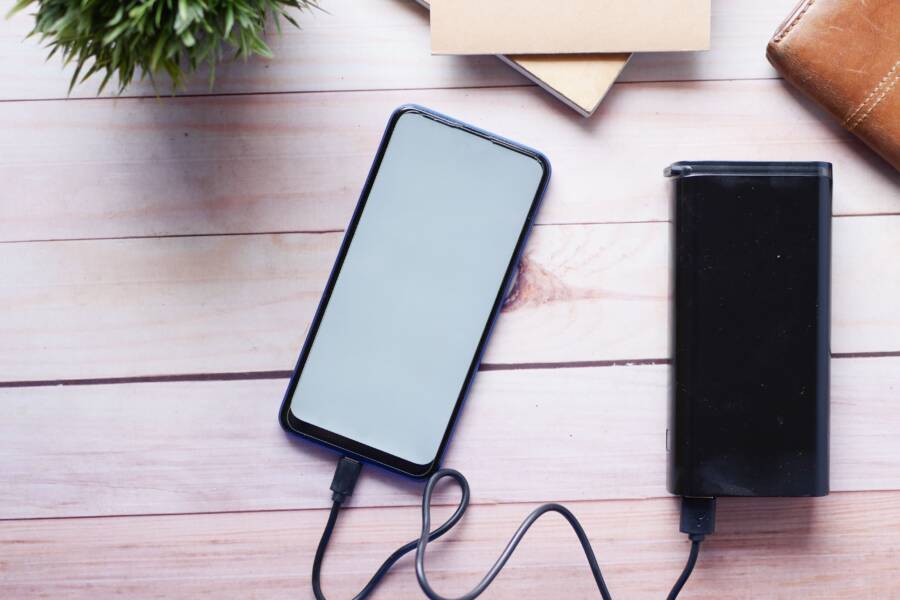
Overnight battery drain usually happens because of background sync, persistent app activity, or outdated software settings preventing your smartphone from entering a deep sleep state. By adjusting a few system configurations, you can stop this power loss and ensure your device stays charged until morning.
Identifying the specific processes consuming energy during these quiet hours is the first step toward fixing the problem. Follow the steps below to reclaim your battery life and stabilize your hardware performance.
Identifying Common Culprits of Overnight Battery Drain
Your smartphone uses energy even when you are not actively using it. Most modern devices operate background processes to keep apps updated and sync your data, but these tasks occasionally run away with your power supply. If your battery drops by more than a few percentage points overnight, you need to investigate the specific activities occurring behind the scenes.
Checking Your Battery Usage Stats
You can pinpoint exactly which apps or system services consume the most power by checking the built-in battery menu. This dashboard provides a breakdown of energy consumption over the last 24 hours or the past week.
On an iPhone, open the Settings app, tap Battery, and wait for the usage list to populate. You can toggle between the “Last 24 Hours” and “Last 10 Days” views to see which apps are active during your sleeping hours. If an app you rarely open appears at the top of the list with significant “Background Activity,” that is your primary culprit.
For Android users, navigate to Settings, select Battery, and tap Battery Usage. Depending on your manufacturer, you might need to tap a graph icon or a separate menu labeled “View Detailed Usage.” Look for apps that show high usage percentages, specifically those that report heavy “Background” time. If you notice a specific app draining power, you can tap it to restrict its background data access or force it to stop running entirely.
The Impact of Poor Connectivity and Signal
A major reason your smartphone loses charge overnight involves your connection to the outside world. When your device struggles to find a stable cellular or Wi-Fi signal, the internal modem works much harder to maintain a link with nearby towers. This constant searching uses significant amounts of electricity, as the phone periodically boosts signal strength to reconnect.
If you sleep in a room with thick walls or in an area with inconsistent coverage, your phone likely spends the entire night oscillating between weak bars and no service. This creates a hidden drain that does not appear as a specific app in your usage stats. Instead, the “Cell Standby” or “Network” category will show disproportionately high power consumption.
To test if connectivity is the issue, try turning on Airplane Mode before you go to bed. If you wake up and find the battery has only dropped by one or two percent, poor signal quality is the likely cause. If you must remain reachable, consider moving the phone to a location with better reception or disabling features like 5G in favor of a more stable 4G connection. Stabilizing your signal prevents the modem from running at full power, keeping your device cool and your battery level healthy until morning.
Practical Steps to Stop Battery Drain Before You Sleep
You can prevent most overnight power loss by modifying how your device behaves while you remain inactive. Your smartphone is a small computer that constantly searches for updates, pings servers, and maintains connections even when you are not using it. By creating a rigid set of rules for your phone to follow during the night, you force it to prioritize energy conservation over constant connectivity.
Using Focus Modes and Do Not Disturb
Modern operating systems include sophisticated Focus modes that act as a gatekeeper for your hardware. When you activate these settings, your phone suppresses notifications, limits incoming pings, and prevents the screen from waking up for non-essential alerts. Every time a screen lights up or a notification sound plays, the device pulls extra power from the battery; preventing these interruptions is the most effective way to keep your charge high until morning.
You should configure your Focus mode to block all notifications except for emergency contacts or critical system alerts. Follow these steps to set this up effectively:
Open your device settings and locate the Focus or Do Not Disturb menu.
Create a schedule that matches your sleep routine, so the mode turns on and off automatically.
Review the allowed notifications list and remove every app that does not require immediate attention.
Disable the feature that allows your screen to wake up for push notifications during this timeframe.
By silencing these alerts, you prevent the processor from jumping into an active state throughout the night. Your smartphone remains in a low-power, dormant condition because it no longer needs to signal your arrival of messages, emails, or social media updates.
Managing Background App Refresh and Sync
Many apps request permission to check for new data in the background, which forces your processor to wake up frequently. While this keeps your apps current, it consumes significant energy when those updates occur every few minutes during your sleep. You can stop this activity by disabling background refresh for non-essential applications in your system settings.
To restrict background activity, navigate to the specific settings menu for background processes:
On an iPhone, go to Settings, then General, and select Background App Refresh. You can turn this off entirely or disable it for apps you do not need to update while you sleep.
On Android, go to Settings, tap Apps, and select the specific app you want to restrict. Tap Battery or Mobile Data and toggle off Background Data or Background Activity.
Prioritize restricting apps like social media, news readers, or shopping platforms, as these are often the primary offenders for constant background synchronization. Only keep background sync active for essential communication or security services. Reducing the number of tasks your processor handles at 3:00 AM keeps your smartphone temperature low and preserves your battery percentage for the day ahead.
Advanced Tweaks to Stabilize Your Battery Performance
Beyond basic software settings, you can apply several specific adjustments to your device configuration to prevent power leakage while you sleep. These secondary optimizations focus on reducing the total workload of your processor and radio components. When you limit unnecessary background activities, your smartphone maintains a steady state of rest, preventing the battery from dropping during those critical hours of inactivity.
Disabling Push Notifications for Non-Essential Apps
Every notification that hits your screen forces your smartphone to perform several power-intensive tasks. The device must wake the processor, activate the display, and often sync data to fetch the latest update for that specific app. When you receive dozens of pings from social media, marketing emails, or games during the night, your phone never enters a deep sleep state. This cycle keeps the system alert and consumes energy that should remain in your battery for the next day.
You can preserve your charge by restricting which apps send alerts while you are sleeping. Consider the following approach to quiet your device:
Review your notification settings for apps that rarely provide urgent information, such as shopping apps, news aggregators, or social media platforms.
Disable “Push” notifications for these services entirely, or change them to “Fetch” modes if your operating system allows.
Keep notifications active only for essential communication tools like phone calls, SMS, or high-priority work messaging.
By narrowing your notification list, you allow your phone to remain idle for longer periods. This quiet environment reduces the frequency of screen wake-ups, which is a major contributor to overnight power drain.
When to Consider Hardware or Battery Health Issues
Sometimes, your battery drains quickly overnight regardless of how many software settings you adjust. If you consistently lose more than ten percent of your charge in a few hours despite strict background restrictions, the problem might reside in the chemistry of the battery itself. Lithium-ion batteries degrade over time, losing their capacity to hold a charge or report their status accurately to the operating system.
Check your device health menu to see if the battery has reached a critical stage of wear. On an iPhone, navigate to Settings, tap Battery, and select Battery Health. An Android user should look for a similar metric in the Battery or Device Care section. If your maximum capacity sits below eighty percent, the battery is likely nearing the end of its functional life.
When the hardware cannot hold a charge effectively, no software tweak will fix the issue. In these cases, a professional replacement is the only reliable solution to restore your smartphone to its original performance. If your device feels unusually warm to the touch while charging or if the battery percentage jumps randomly, prioritize a battery health check or a physical inspection at an authorized service center before assuming the drain is purely software-related.
Comparing Charging Habits for Long Term Health
Modern smartphone batteries rely on lithium-ion chemistry, which is sensitive to how you manage your daily power cycles. While charging your device overnight is convenient, constant exposure to high voltage levels puts unnecessary stress on the internal cells. Understanding how these habits affect the hardware helps you extend the useful life of your device significantly.
The Problem with 100 Percent Charging
Most lithium-ion batteries reach their full chemical capacity at 100 percent, but maintaining that state for several hours creates internal pressure within the cells. This happens because the charger continues to provide a “trickle” of energy to keep the battery at its maximum limit while the phone sits idle. Over months of nightly charging, this stress causes the battery to lose its maximum capacity faster than it would under moderate use.
Many manufacturers now include software features that mitigate this effect. By enabling optimized charging, your device learns your sleep routine and pauses the charge at 80 percent, only finishing the final segment right before you wake up. You can check your battery settings to verify if this feature is active. Taking advantage of this tool is a simple way to protect your battery chemistry without changing your evening routine.
Temperature Control and Charging Efficiency
Heat is the primary enemy of any rechargeable battery, and charging generates thermal energy by design. When you charge your phone on a soft surface like a bed or under a pillow, the heat cannot dissipate, which accelerates the degradation of the internal components. High temperatures combined with a constant flow of electricity during the night create the perfect environment for premature battery wear.
You can preserve your battery health by following these practices:
Place your phone on a hard, flat surface like a nightstand while it charges to allow for proper airflow.
Remove thick cases if your device feels warm to the touch during the charging process.
Avoid using fast chargers overnight because they generate more heat than standard, slower charging methods.
Keep the device away from external heat sources like direct sunlight or bedroom heaters.
Managing these small variables ensures that your battery stays cool throughout the night. If the smartphone remains at a stable temperature, the chemical reactions inside the battery remain predictable and efficient. This focus on heat management prevents the swelling and rapid capacity loss that often plague devices after only a year or two of heavy use.
Finding a Balanced Routine
The goal of healthy charging is to keep the battery in the “sweet spot,” which typically ranges between 20 and 80 percent charge. Regularly depleting your battery to zero or keeping it at 100 percent for extended periods forces the lithium ions to stay in a strained state. If you find your phone draining quickly, consider whether you are constantly keeping it at either extreme end of the capacity spectrum.
You don’t need to obsess over these numbers every hour of the day. A few practical changes, such as using a slow charger overnight or keeping the device in a cool spot, produce noticeable results over time. Your smartphone is designed to last for several years, and treating the battery with consistent care ensures it remains reliable through that entire lifespan.
Conclusion
Effective battery management requires a combination of monitoring usage patterns, pruning unnecessary background tasks, and ensuring your connectivity settings remain stable during dormant hours. By addressing these factors, you prevent your smartphone from working harder than necessary while you sleep.
Test these adjustments over the next few nights to observe the impact on your battery levels. You will likely notice that a few deliberate configuration changes yield significant improvements in your device longevity.