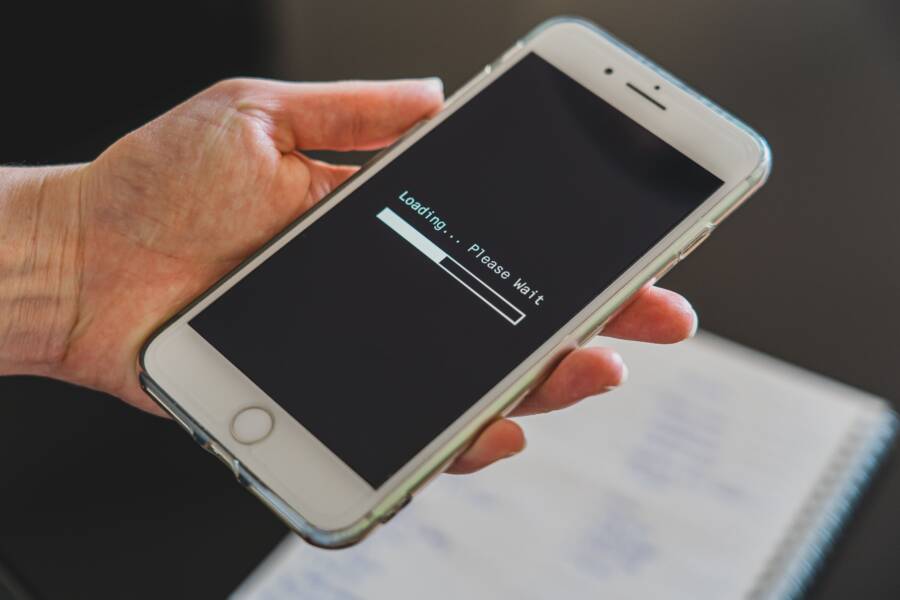
Backup errors on your smartphone usually stem from connectivity issues, full cloud storage, or outdated system software. You can fix most of these problems by verifying your internet signal, clearing unnecessary files from your account, or installing the latest updates.
Losing access to your personal files is stressful, but the solution is often simpler than you might expect. These steps help you recover your data quickly so you can get back to using your device without interruption.
Follow these troubleshooting procedures to resolve common error codes and restore your smartphone backup successfully.
Check Your Internet Connection and Storage Space
Backup errors often occur when the smartphone cannot communicate with the server or lacks room for the data. Before you try complex technical solutions, confirm these two basic requirements. A solid connection and enough space prevent most sync failures during the backup process.
Verifying Wi-Fi Stability and Speed
Large data transfers require a consistent flow of information between your smartphone and the cloud. If your signal drops or speed fluctuates, the backup process stalls and displays an error. You need a stable network to maintain a successful upload or download of your files.
To check your connection, follow these steps:
- Open your browser and navigate to a speed test website like Fast.com or Speedtest.net.
- Run the test to check your upload speed, as this determines how quickly your data reaches the cloud.
- Switch your smartphone to a different network if the results show high latency or slow speeds.
- Move closer to your router to improve signal strength if you stay on the same network.
A slow or unstable connection frequently causes the backup to time out. When this happens, the smartphone pauses the sync, which often results in a generic network error. Using a wired connection for a computer helps, but for a mobile device, a strong Wi-Fi signal is your best path to success.
Managing Cloud Storage Limits
Cloud providers give you a set amount of free space for your backups. Once your account reaches its limit, the smartphone cannot upload any new information. This scenario triggers specific error codes that prevent you from completing your backup or restore.
You can check your remaining space through your system settings:
- On an iPhone, go to Settings, tap your name at the top, and select iCloud to see your storage breakdown.
- On an Android device, open the Google One app or go to your Google Drive settings to view your account usage.
If your storage is full, you must delete old files to create room. Common items that consume space include high-resolution videos, old backups from devices you no longer own, and large attachments in your emails. Deleting these unnecessary files clears space for your current smartphone backup.
Once you free up enough room, try the backup process again. If the error persists after clearing space, verify that your account sync permissions remain active. Your device will often show a notification when you successfully clear enough space, which signals that you can proceed with the backup.
Addressing Common Error Codes for iPhone and Android
Smartphone backup failures often present as cryptic numerical codes or vague system alerts. These messages indicate that your device cannot reach the backup server or finalize the data transfer. You can resolve most of these issues by identifying whether the error stems from a hardware limitation or a software conflict.
Decoding iPhone Error Messages
Apple devices display specific error codes during a backup or restore attempt to pinpoint the exact failure. These codes generally fall into two categories, which include hardware communication issues and software-based sync failures. Recognizing the difference helps you choose the right repair path for your smartphone.
Hardware-related errors often occur when the connection between your device and the computer or iCloud server breaks. Codes such as Error 9, 4005, or 4013 frequently appear during a restore process when the hardware loses contact with the server. You should inspect your USB cable, try a different USB port, or switch to a different computer to rule out physical damage.
Software errors often involve permission conflicts, outdated system versions, or corrupt data blocks. Error codes like 10, 14, or 1671 typically indicate that the phone software cannot process the backup file correctly. You can often clear these by performing a force restart on your smartphone, updating your iOS version, or resetting your network settings.
If you see these codes, follow this checklist to isolate the problem:
- Check your USB cable for visible frays or damage if you use a computer to restore your phone.
- Update your operating system to the latest available version, as old software often lacks support for new security protocols.
- Disable temporary security software or firewalls on your computer, as these tools often block the connection to Apple servers.
Troubleshooting Android Backup Failures
Android backups rely on the Google Drive sync service to store your app data, call history, and device settings. When this process fails, the issue usually involves a corrupt local cache or an unreachable cloud drive. Checking your account health helps you see if the backup file itself is usable or if it contains damaged data.
Start by opening the Google Drive app on your smartphone to verify the backup status. Navigate to the Backups menu in the side drawer to see the last successful upload date and the specific items included. If the app shows a constant error or a stalled progress bar, the current backup file might be corrupted or missing required permissions.
You can verify the integrity of your backup by checking these system settings:
- Clear the cache of the Google Drive app and the Google Play Services app, as these tools manage the background sync process for your phone.
- Toggle the Google One backup setting off and then back on to force the system to re-index your data files.
- Ensure that your Google account does not have a “storage full” warning, as this often prevents the creation of new, healthy backup files.
If the system indicates that your existing backup is corrupt, you may need to delete the current entry in Google Drive and trigger a fresh upload. This removes the broken file and forces your smartphone to create a clean set of data. While this takes more time, a fresh backup is often the only way to bypass persistent sync errors that block your restoration.
Essential Software Updates and Hardware Resets
Your smartphone relies on consistent communication between system files and cloud servers to finish a restore. When your operating system falls behind, it often lacks the protocols necessary to read or unpack older backup files. Keeping your device updated is the first step toward correcting these sync failures.
Updating Your Device OS for Compatibility
Restore processes fail when the smartphone software version does not align with the backup data structure. If you created a backup on a newer version of the operating system and try to load it onto a device with an older version, the system often rejects the file to prevent corruption. This mismatch creates a communication gap where the phone cannot interpret the compressed data from your cloud storage.
Manufacturers frequently release patches to fix known bugs in the restoration sequence. You should check for available updates if you encounter consistent errors during the initial setup.
- Open your device settings and navigate to the software update section.
- Select the option to download and install the latest firmware.
- Allow the smartphone to restart and apply these changes fully.
Once the system software is current, try the restore process again. Many users find that this simple version match allows the device to recognize and process the backup files without further errors. Always ensure your battery is above 50 percent or keep the device plugged into a power source to avoid interruptions during the update.
Safe Restart Methods for Stuck Restores
A stuck restore often stems from a temporary process hang rather than a critical hardware failure. Forcing a restart clears the volatile memory of your smartphone and stops background tasks that block the data transfer. These methods reboot your device without erasing your personal data or the existing backup files.
Follow the correct combination for your specific model to bypass the freeze:
- For iPhone 8 and later models, press and quickly release the volume up button. Press and quickly release the volume down button. Then, press and hold the side button until the Apple logo appears on the screen.
- For iPhone 7 models, press and hold both the volume down and the power buttons simultaneously until the screen goes black and the logo reappears.
- For most modern Android devices, press and hold the power button for about 10 to 15 seconds. If that does not work, try holding the power and volume down buttons at the same time until the device triggers a reboot sequence.
If the restore still stalls after a restart, ensure the device is not overheating. High temperatures can cause the processor to throttle, which often slows down the decryption of backup files. Let the smartphone cool for a few minutes if the back of the case feels hot to the touch. Afterward, restart the device one more time and initiate the restoration from a stable Wi-Fi network to avoid further interruptions.
Advanced Solutions When Standard Fixes Fail
When basic restarts and network checks fail to resolve backup errors, your smartphone often requires a more direct approach. Software conflicts or deep-seated system bugs sometimes block standard cloud restoration paths. You need to bypass these automated processes by moving your data through a physical connection. This method removes the volatility of wireless signals and provides a stable environment for your data migration.
Using Computer Backups for a Cleaner Restore
A wired connection to a computer creates a dedicated tunnel for your information. Wireless backups rely on external servers, local bandwidth, and background sync processes that frequently crash during large transfers. By contrast, a USB connection forces the smartphone to communicate exclusively with your local computer. This setup eliminates signal interference and prevents the random connection timeouts that ruin cloud restores.
Using a computer also provides more control over the files moving onto your device. You can choose to restore only specific data sets, which reduces the chance of re-importing a corrupt system file that caused your error in the first place. Most manufacturers provide desktop software designed to manage these direct transfers with higher precision than an over-the-air update can offer.
Follow these steps to perform a successful wired restore:
- Connect your device to a trusted computer using an official or MFi-certified USB cable.
- Open the desktop management software, such as iTunes for older devices or Finder for current macOS systems.
- Select your device from the sidebar to view your backup options.
- Choose the Restore Backup command and pick the most recent file saved on your computer drive.
- Keep your smartphone plugged in until the process completes fully.
The stability of this connection is the primary advantage. Because the data transfer happens through a physical port, the smartphone doesn’t have to manage network handshakes or data packet loss. This method is the standard solution for persistent errors because it bypasses the cloud storage layer entirely. If you still encounter failures, the issue likely resides in the backup file itself or your device storage hardware. A clean restore from a computer is the most effective way to verify if your data is healthy or if you need to set up the phone as a new device.
Preventing Future Backup Issues
Regular maintenance prevents most restoration failures before they happen. You can stop errors from appearing by setting up consistent sync habits and monitoring your account health. These small actions ensure your files stay safe and ready for recovery whenever you need them.
Automating Sync Schedules
Manual backups often fall to the bottom of your to-do list. When you wait too long between sessions, you risk losing recent photos, contacts, and messages. Most modern operating systems offer automatic sync features that handle the heavy lifting for you. You should verify that these settings remain active to protect your data without manual intervention.
To enable or check your automatic backup settings on your smartphone:
- Open your system settings and locate the account or cloud backup section.
- Toggle the automatic backup switch to the on position.
- Verify that your device is configured to back up when connected to a charger and Wi-Fi.
This setup removes human error from the equation. Your phone will perform a quiet data sync during the night while you sleep. You no longer need to remember to trigger the process, which reduces the chance of missing critical updates to your cloud storage.
Testing Backup Integrity
A backup file is only useful if it contains readable information. Sometimes, a process shows as complete even though the data inside is corrupted. You should perform a test restoration on an old device or a secondary account to verify that your files are intact. This practice confirms that your cloud provider successfully indexed your photos and documents.
You can spot potential corruption by watching for these signs during your daily usage:
- Apps on your smartphone crash frequently after a recent sync.
- The backup file size in your cloud storage settings is zero or unusually small.
- Your cloud account displays an error notification about specific files being unreadable.
If you notice these issues, stop the current sync process immediately. Delete the last backup entry in your cloud dashboard and start a fresh one. Taking this step early prevents the corrupted file from overwriting your previous healthy data.
Organizing Cloud Data
Clutter within your cloud account often triggers sync errors. When you keep thousands of redundant screenshots or massive video files, you increase the likelihood of hitting your storage cap. Managing your data regularly keeps your smartphone backups lean and efficient.
Start by auditing your cloud storage once a month to remove unnecessary items. Sort your files by size to identify the biggest space consumers quickly. Deleting large, non-essential videos creates breathing room for your important system settings and contact lists. This organization helps your smartphone sync faster and reduces the risk of timeout errors during the upload process.
Conclusion
Restoring a backup on your smartphone is a standard procedure that occasionally hits a roadblock. You can usually overcome these errors by verifying your internet connection, updating your device firmware, and clearing space in your cloud storage account.
These issues feel overwhelming, yet they rarely indicate permanent data loss. Most errors have a straightforward technical fix that restores your access to your personal files.
Stay patient as you work through these steps. You will regain access to your information once you clear the conflict between your device and the cloud.