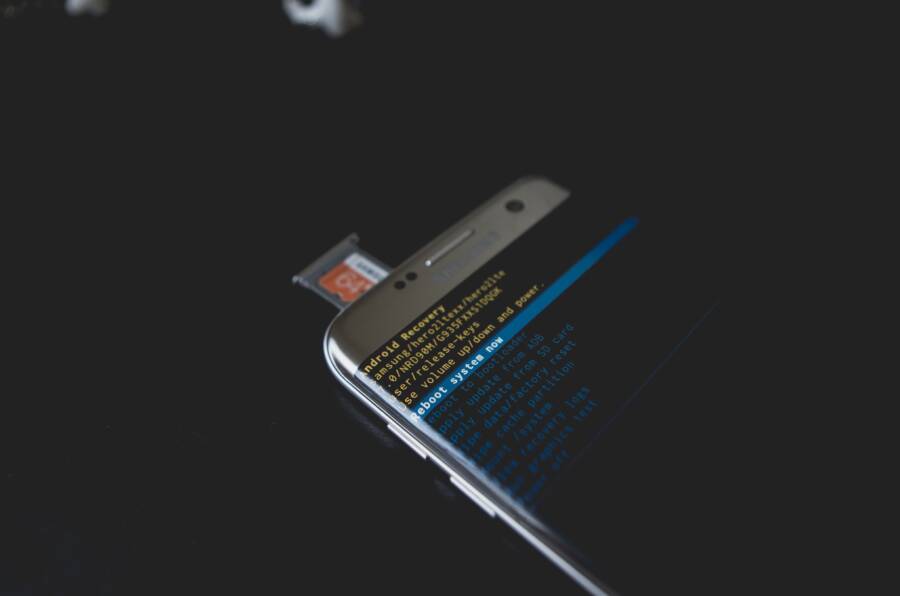
When your smartphone fails to detect a new SIM card, the cause is usually a minor hardware misalignment or a simple software setting conflict. You can resolve most of these connectivity issues at home without needing professional repair services or expensive replacements.
These problems often occur because the card isn’t seated properly in the tray or the network settings need a quick refresh to recognize the new hardware. By following a few standard troubleshooting steps, you will restore your cellular connection in just a few minutes.
Common Reasons Your Smartphone Fails to Read a New SIM
A new SIM card often solves connectivity issues, but the process hits a wall when your device refuses to recognize the hardware. You might see a “No SIM” error or a signal bar with a red exclamation mark. These problems originate from physical contact errors, software glitches, or incompatibility between the card and your smartphone. Understanding the specific cause allows you to troubleshoot the issue systematically without visiting a repair center.
Checking for Physical Damage and Dirt
The connection between your SIM card and the device relies on precise alignment. If the gold contact points are obscured by debris, the internal sensor cannot complete the electrical circuit required to initialize the network.
Follow these steps to inspect and clean the components:
Power off your smartphone to prevent any electrical shorts during the process.
Use the provided ejection tool or a small paperclip to open the SIM tray carefully.
Remove the SIM card and inspect the gold contacts under a bright light. Look for scratches, corrosion, or oily residue from fingerprints.
Wipe the gold contact area gently with a clean, soft, dry cloth. Avoid using water or liquid cleaning agents, as moisture can damage the card or the tray.
Inspect the empty SIM tray for dust, lint, or small debris that might prevent the card from sitting flush in its slot. Use a can of compressed air to blow out the tray if you spot anything inside.
Reinsert the card, ensuring it clicks or locks into the correct position according to the tray’s orientation.
After you reinsert the tray, turn the device back on. If the issue persists, the problem likely lies in the software or network compatibility rather than a simple dirty contact.
Understanding Network Locks and Carrier Compatibility
Many smartphones sold through specific mobile operators arrive with a software restriction known as a carrier lock. This security feature prevents the device from connecting to networks operated by different providers, even if you insert a perfectly functional SIM card.
If you purchased your device from a provider, it remains locked to their network until they authorize an unlock. You can verify the status of your device by contacting the carrier support line or checking the device settings. Most modern smartphones display “SIM Restricted” or “Network Locked” in the settings menu if a mismatch exists.
Compatibility issues also arise when using older hardware with modern technology. Older devices may lack support for newer SIM formats like eSIM or specific 5G-ready card architectures. For example, a phone manufactured several years ago might not recognize a high-capacity card designed for current network standards. If you are moving a card from a newer device into an older one, confirm that the hardware version supports the network frequency bands required by your current service plan. When in doubt, check your manufacturer website for specific SIM compatibility details.
Quick Hardware Fixes You Can Try Yourself
If you have already ruled out software glitches and carrier locks, your smartphone might simply have a loose connection or a faulty card. You can perform these quick hardware checks to determine if the issue is a physical misalignment or a permanent failure of the SIM card itself.
Properly Reseating the SIM Tray
A misaligned card is the most common hardware cause for a connection error. The SIM tray must hold the card perfectly flat against the internal pins for the phone to register the network. Even a microscopic shift, often caused by dropping the phone or sudden vibrations, creates a gap that disrupts the electrical signal.
Use the metal ejector tool included with your phone or a standard paperclip to open the tray. If you force the tray, you risk bending the delicate internal pins. Once the tray is out, place the SIM card into the slot again. Ensure the notched corner of the card matches the shape of the tray exactly. If the card sits unevenly or pops out slightly before you slide it back into the phone, the tray or the card itself might be warped. Press the card down firmly into its housing until it sits completely flush, then slide the tray back into the smartphone until it clicks or sits level with the phone frame.
Testing with a Different Device
If reseating the card doesn’t solve the problem, you should test the SIM card in another smartphone to identify the source of the failure. This process helps you distinguish between a damaged card and a faulty card reader on your original phone.
Find a friend or family member with a device that uses the same SIM card size. Turn off their phone, remove their SIM card, and insert your card into their device. If their smartphone detects your card and displays signal bars immediately, your card is functional. In this scenario, the issue likely resides with your own smartphone hardware or a malfunctioning SIM slot.
However, if their device also displays a “No SIM” error when using your card, your SIM card is likely damaged or deactivated. In that case, your service provider will need to issue a replacement card. This simple cross-test saves you from unnecessary repair visits and helps you pinpoint whether the hardware failure is in the palm of your hand or buried inside the SIM chip itself.
Software Steps to Force Connection
When physical inspection fails to resolve SIM card errors, your smartphone might simply be stuck in a software loop. Modern devices constantly communicate with nearby cellular towers to maintain a stable signal. Occasionally, this background process hangs, causing the phone to ignore the valid SIM card seated inside. You can clear these temporary software communication errors using a few system-level commands that force the device to re-initialize its modem and search for a fresh connection.
Refreshing Your Network Connection
The fastest way to troubleshoot a persistent “No SIM” error is the Airplane Mode toggle. When you activate Airplane Mode, your smartphone immediately cuts power to all radio transmitters, including the cellular modem, Wi-Fi, and Bluetooth. This action effectively forces the system to drop its current connection and stop searching for signals.
Wait about 15 seconds after turning on Airplane Mode before you toggle it back off. This short pause allows the baseband processor to fully clear its cache and discharge any residual signal data. As soon as you disable Airplane Mode, the device performs a fresh handshake with the local cell tower. This sequence often clears out “phantom” errors where the phone thinks the network is unavailable even when the SIM card is physically present and functional. If the initial toggle does not trigger a signal, repeat the process after restarting the device to ensure a complete cycle of the modem hardware.
Resetting Mobile Network Settings
If your smartphone still fails to register the SIM card, a deeper corruption within the network configuration files might be to blame. System settings related to Access Point Names (APNs), carrier configurations, and preferred network modes occasionally become misaligned during software updates or minor system crashes. You can clear these problematic configurations by resetting your network settings to their original factory state.
You will find this option within the system menu of your smartphone. On most Android devices, navigate to Settings, select System or General Management, and look for Reset options. From there, choose Reset network settings. For iOS users, navigate to Settings, tap General, select Transfer or Reset iPhone, choose Reset, and then tap Reset Network Settings.
Be aware that this process clears more than just cellular configurations. It deletes all saved Wi-Fi passwords, unpaired Bluetooth devices, and custom VPN profiles you have previously configured. Your phone will restart automatically after the reset. Once it reboots, the device will treat the cellular connection as if it were brand new, forcing it to scan for your carrier and pull the correct network registration data from the SIM card. This often restores functionality when standard restarts fail to move the needle.
When to Contact Your Carrier for Help
You should reach out to your mobile operator when self-service troubleshooting fails to resolve the connection issue. Persistent errors, such as a repeating “No SIM” notification despite multiple attempts to reseat the card, often point toward account-level restrictions or hardware defects that you cannot fix from your home. Contacting support becomes necessary when you suspect your service has been suspended or the SIM card has reached the end of its functional life.
Identifying Account and Billing Issues
Sometimes your smartphone hardware is perfectly healthy, but the carrier has placed a hold on your service line. This frequently happens if a payment method expires or if there is a discrepancy in your billing information. When a carrier restricts your account, they disable the SIM card at the network level, which causes your phone to report a connectivity error. Before spending time on advanced technical repairs, log into your carrier account portal via a browser or a secondary device to verify that your service remains active and in good standing.
If your account status looks correct, ask a customer service representative if your line has been flagged for any administrative reason. They can see if your account requires identity verification or if an internal system error is preventing your SIM card from authenticating with local towers.
Requesting a SIM Card Replacement
Physical wear on the chip is a common cause of failure that is impossible to repair. Even if the card looks pristine to the naked eye, the internal circuitry might have sustained damage from heat, moisture, or simple age. When you have tested your SIM card in a different device and confirmed it still fails to connect, your card is almost certainly faulty.
Visit a local retail store for your provider or call their support line to request a new SIM.
Bring a valid form of identification to the store, as providers require verification to issue a new SIM card.
Ask the representative to activate the new card before you leave the store so you can verify that it connects to the network immediately.
If you are using an eSIM, the support representative can usually send a digital activation QR code to your email, which allows you to switch without visiting a physical location.
Dealing with Persistent Device Locks
If you recently acquired your smartphone from a third party or a previous owner, it might be carrier-locked. This security software restricts the device to a specific network provider, meaning it will reject any SIM card from a different company. This error does not necessarily mean your card is broken; it means the device software refuses to accept the credentials provided by your current carrier.
Only the original carrier that locked the phone has the authorization to release it. Contact their support department and provide the device IMEI number, which you can find in your phone settings or on the original packaging. They will verify if your device meets their specific unlock criteria, such as having a completed service contract or being fully paid off. Once they process the unlock request, they will send a signal to your smartphone to lift the restriction, allowing your current SIM card to register without further issues.
Conclusion
Most SIM card recognition errors stem from simple physical misalignments or outdated network configurations. You can resolve the vast majority of these issues by cleaning the gold contacts, reseating the card, or performing a basic network reset on your smartphone.
If these steps fail to restore your cellular service, a hardware fault or a carrier-side restriction is likely the culprit. Testing your card in another device provides a clear answer on whether you need a replacement chip or further assistance from your service provider. Staying connected remains essential, and following this systematic approach gets you back online as quickly as possible.