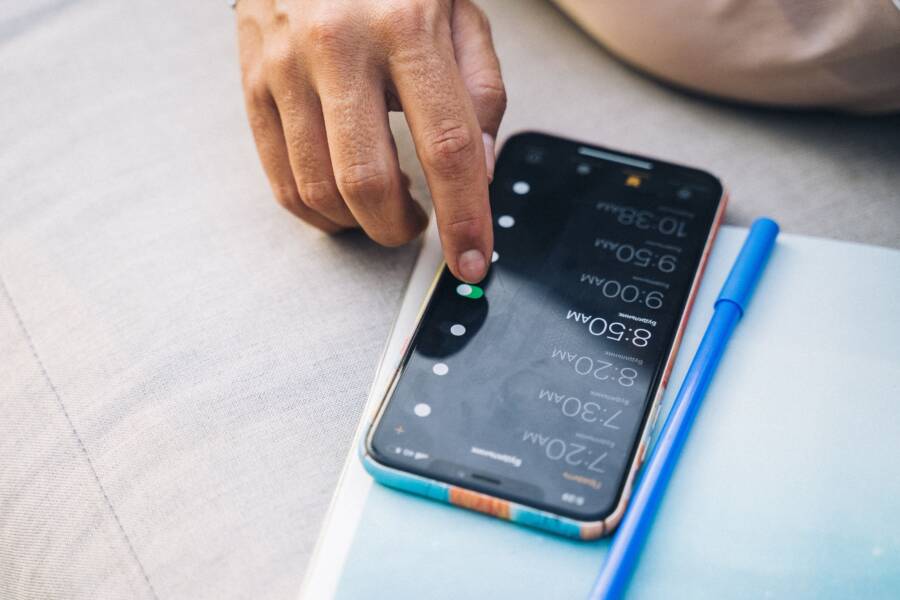
Alarms often fail to trigger on weekends because your smartphone scheduling settings have specific repeat intervals that exclude those days. Many users mistakenly assume their alarm profiles are global when they are actually restricted to a Monday-through-Friday cycle.
This issue commonly arises when you create a new alarm without verifying the active days or when an operating system update resets your alarm preferences. Checking your device settings is the most effective way to prevent these missed alerts.
Follow the steps below to adjust your alarm configuration and ensure your device alerts you exactly when you need it.
Checking Your Alarm Settings for Weekend Reliability
Many users rely on their phone to wake them up, yet weekend failures remain a common point of frustration. If your device remains silent on Saturday or Sunday, the issue often sits within the individual alarm settings rather than a software bug. Checking your configuration helps identify if the alarm is currently restricted to weekdays.
Verifying Individual Day Selections
Modern smartphone operating systems allow you to assign specific days to each alarm. An alarm might be set for Monday through Friday, leaving your weekend schedule empty. You must confirm that Saturday and Sunday are active for every alarm you count on.
To check these settings on an iPhone:
-
Open the Clock app and tap the Alarm tab.
-
Select your recurring alarm to view its details.
-
Tap on the Repeat option.
-
Verify that both Saturday and Sunday have a checkmark next to them.
On an Android device, the steps are similar but vary slightly by manufacturer:
-
Launch the Clock app and select your alarm.
-
Look for the days of the week listed under the alarm time.
-
Tap each day you want the alarm to trigger, ensuring Saturday and Sunday appear highlighted or toggled on.
Checking each day status matters because software updates or accidental taps often clear these selections. If a day is not explicitly toggled, your phone skips that day entirely. Always open the alarm settings again after you update your operating system, as these resets happen more often than users expect.
Understanding the Repeat Feature
The repeat feature manages how your alarm behaves over long periods, but it is a common source of confusion. Some users set separate, one-time alarms for each day of the week instead of using the built-in repeat function. While this works, it creates a maintenance burden. If you miss one day, you have to recreate it, which leads to gaps in your schedule.
The repeat function is a more efficient approach because it keeps your chosen days locked in. When you select specific days in the repeat menu, the smartphone keeps that instruction indefinitely until you manually change it.
Common pitfalls include:
-
Using a one-time alarm that does not roll over to the next weekend.
-
Creating multiple alarms for different days, which makes it difficult to see the full weekly schedule at a glance.
-
Misinterpreting the labels for days, where a user thinks they selected the full week but only toggled a few specific days.
If you rely on a single, repeating alarm, you reduce the risk of human error. Reviewing the list of alarms inside your clock app allows you to spot any conflicting schedules or days that were accidentally turned off. Consistent monitoring of these repeat intervals keeps your morning routine predictable.
How System Updates and Do Not Disturb Modes Block Alarms
System features such as Focus modes and Do Not Disturb (DND) settings often prioritize silence over potential alerts. While these settings help manage notifications, they occasionally suppress the very alarm sounds necessary to wake you up. Smartphone operating systems treat alarms differently than standard notifications, but incorrect configurations can still cause them to fall silent. Conflicts also emerge after major system updates, which may reset your notification preferences or alter how the system handles audio priority.
Managing Do Not Disturb and Sleep Focus Settings
Most modern devices offer specialized focus modes that filter alerts throughout the night. If you use a sleep-specific setting, the device may automatically suppress non-essential sounds. Although your alarm should bypass these filters by default, custom restrictions often override this behavior. You must grant the clock application permission to sound even when the device is in a quiet state.
On an iPhone, you should navigate to the Focus settings to manage these exceptions. Access your system settings, tap on the Focus menu, and select your Sleep profile. Within the Apps category, ensure you have added the Clock app to your allowed list. This manual whitelist overrides general silence rules and guarantees that your chosen wake-up tone plays at the scheduled time.
For Android users, similar controls exist within the notification settings. You can designate your clock app as an exception by following these steps:
-
Open the Settings app on your smartphone.
-
Select Apps and find the Clock application in your list.
-
Tap on Notifications and ensure the category for alarms is set to high priority.
-
Check your Do Not Disturb settings to verify that alarms remain on the allowed list for interruptions.
Verifying these settings prevents your phone from muffling sounds during your resting hours. If you continue to experience missed alarms, check your overall sound profile settings to ensure that the alarm volume is not tied to the system-wide ringer volume, which might be turned down for the night.
Updating Software to Fix Known Alarm Bugs
Smartphone manufacturers frequently release software updates that address background stability issues. These updates often resolve bugs where the system incorrectly classifies the clock application as a background process rather than an active task. If your alarm consistently fails on specific days, the issue is likely a known glitch in your current version of the operating system.
Outdated software creates friction between your settings and the hardware’s internal clock. Developers patch these timing conflicts in periodic maintenance releases. You should check for available updates if your alarms behave inconsistently or fail to trigger during scheduled weekend periods. Keeping your device current ensures that the system properly handles wake-up calls without interference from outdated code.
You can check for available updates by visiting the system section in your settings menu. If an update is ready, perform a backup before installation to protect your personal data. Once the update finishes, reopen your clock application and re-verify your alarm schedule. System updates can occasionally reset custom audio settings or notification permissions, so a quick review of your alarm preferences after a restart is a good practice to maintain reliability.
Alternative Solutions When Stock Apps Fail
Sometimes the built-in clock on your smartphone simply fails to meet your specific scheduling requirements. If you frequently find yourself missing weekend alarms, it might be time to install a dedicated third-party alarm app. These tools often provide more robust features, better redundancy, and more intuitive interfaces than the default software included with your mobile operating system.
When to Consider Third-Party Alarm Clocks
You should consider moving to a third-party application if your current system fails to offer the granularity you need for your weekend routine. Reliable third-party apps provide features that stock tools often lack. Look for apps that support offline functionality, ensuring that your wake-up call triggers even if your network connection drops or your device experiences a sync error.
Prioritize apps that offer these specific benefits:
-
Offline performance: An alarm should never depend on a cloud connection to function correctly.
-
Ad-free operation: You want an alarm that displays your time and controls immediately without forcing you to interact with advertisements first.
-
Logical volume management: Many third-party developers build their apps to bypass system-wide volume limits, which creates a helpful buffer against accidental silence.
-
Advanced scheduling: Look for apps that allow you to set complex repeat patterns, such as alternating weekends or specific dates throughout the year.
If you find that your current smartphone clock app feels unreliable or overly restrictive, these alternatives act as a secondary safety net. Running a secondary alarm through a third-party app provides redundancy. If your primary system alarm fails to trigger, the secondary application often uses a different internal notification process to ensure you still wake up on time.
Testing Your New Alarm Configuration
Installing a new app is just the first step. You must verify that your new alarm configuration actually triggers as expected before you rely on it for an important weekend morning. A brief testing protocol helps you avoid the frustration of a missed wake-up call on a Saturday.
Follow this simple testing sequence to confirm your setup:
-
Set an alarm for exactly two minutes ahead of your current time.
-
Lock your smartphone screen to simulate your device state during sleep.
-
Observe whether the alarm screen appears and if the sound plays at the correct volume.
-
Dismiss the alarm and check your notification history to ensure the event logged correctly.
-
Repeat this process while the device is in your preferred Do Not Disturb or Sleep focus mode.
This quick trial run confirms that the operating system permissions, such as notification access and sound overrides, are set correctly. If the alarm fails to sound during this test, navigate back to your device settings. Check that you have granted the new app full permission to ignore focus modes and provide persistent alerts. Once the test succeeds, you can feel confident that your weekend schedule remains protected.
Conclusion
The most effective way to maintain a reliable alarm schedule on your smartphone is to audit your repeat settings manually. Verify that Saturday and Sunday are explicitly selected, as individual alarm profiles often default to weekday-only cycles after system updates.
If your device continues to stay silent, check your Do Not Disturb or Sleep focus permissions to ensure the clock app bypasses all sound restrictions. Applying these fixes keeps your morning routine predictable regardless of the day of the week.
If your default clock app remains inconsistent after these adjustments, consider testing a third-party alarm application as a secondary safety net. Consistent monitoring of your notification settings and software status is the best approach to stop missing your wake-up calls.