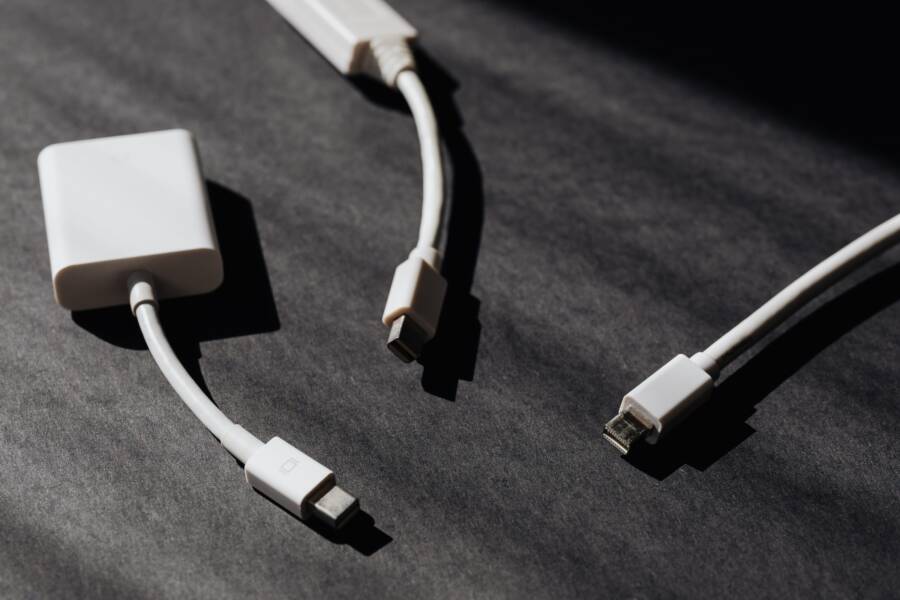
When your USB file transfer keeps dropping, you are likely dealing with a loose physical connection, a damaged cable, or incorrect software settings. Most of these issues involve simple fixes that you can manage on your own without needing professional repair services.
If your smartphone disconnects mid-transfer, it interrupts your workflow and potentially risks file corruption. You don’t have to settle for unreliable hardware performance or frequent connection errors.
The following guide provides a comprehensive look at the specific steps required to stabilize your connection and ensure your data moves from your smartphone to your computer without interruption.
The Simple Checks Before You Change Settings
You often do not need to alter your software configurations to fix connection drops. Hardware obstructions and incompatible cables are the most common culprits. Before you modify device drivers or toggle advanced USB options, inspect the physical path your data travels. These simple checks often restore a stable connection in seconds.
Inspecting Your Charging Port for Dust and Debris
Your smartphone port collects lint and dust from pockets or bags over time. This debris creates a physical barrier between the USB cable and the internal pins, which prevents a solid connection. If the cable cannot seat fully, the contact becomes intermittent, causing your file transfer to fail whenever the phone moves slightly.
Use a non-conductive tool like a wooden toothpick or a plastic dental pick to clean the port. Gently scrape the interior to dislodge trapped particles, but avoid applying force that might bend the internal pins. Never use metal items such as needles, safety pins, or paperclips. Metal tools conduct electricity and cause short circuits, which permanently damage your phone hardware.
Power off your smartphone to minimize risk.
Shine a bright light into the port to identify clumps of lint.
Carefully hook the debris and pull it outward.
Use a burst of compressed air to remove any remaining loose dust.
After cleaning the port, reconnect your cable. You should feel a firm click as the connector seats properly into the socket. A secure fit is necessary for consistent data transmission.
Verifying Your USB Cable and Port Compatibility
Many people assume every USB cable handles data at the same speed or stability. This is a common mistake. Some cables are strictly for charging and lack the internal copper wiring required to transfer data. If you use a charge-only cable, your computer will never recognize the smartphone, or the connection will drop as soon as the system attempts to initiate a transfer.
Even a true data cable suffers from internal damage that remains invisible from the outside. Frays, pinches, or snapped copper strands inside the protective shielding cause signal loss during large file copies. Since data transfer requires a steady stream of information, even a millisecond of interruption forces the operating system to abort the process.
Always test a different cable if your current one results in frequent disconnections. Borrow a cable from another device or use one that you know works with other peripherals. If the transfer completes without error using a replacement cord, your original cable has faulty internal wiring and requires replacement.
Optimizing Smartphone Settings for Stable Transfers
When your hardware is physically sound, the software settings on your smartphone often dictate whether a file transfer succeeds or fails. Modern operating systems prioritize power efficiency over constant data connectivity. While this preserves battery life during daily use, it frequently interferes with long-duration data transfers through a USB connection. Adjusting these configurations forces your device to maintain a persistent link with your computer.
Setting the Correct USB Configuration Mode
By default, many devices switch to a charging-only state when you plug them into a computer. This prevents your smartphone from appearing as a drive on your desktop. To fix this, you must explicitly set the device to Media Transfer Protocol, commonly known as MTP, which allows for the bi-directional movement of files.
Follow these steps to ensure your device uses the correct protocol:
Connect your smartphone to the computer using a high-quality data cable.
Swipe down from the top of your screen to open the notification shade.
Look for a notification that says something like “Charging this device via USB” or “USB for charging.”
Tap that notification to open the USB preferences menu.
Select “File Transfer” or “MTP” from the list of available options.
If the notification does not appear, you might need to enable developer options. Navigate to your phone settings, find the “About Phone” section, and tap the “Build Number” seven times until you see a message stating you are now a developer. Once enabled, go back to your system settings, open “Developer Options,” and locate “Default USB Configuration.” Change this setting to “File Transfer” so the phone defaults to this mode every time you connect.
Disabling Battery Optimization for Connectivity Apps
Android and other mobile operating systems utilize aggressive battery management to shut down background processes that consume energy. When you start a large file transfer, the system may interpret the USB connectivity service as an unnecessary background drain and suspend it. This action causes your computer to lose contact with the smartphone, resulting in an immediate disconnection.
You can prevent this by excluding your file manager or the underlying USB system services from battery optimization settings. Follow this process to keep your connection alive:
Open your phone settings and tap on “Apps” or “App Management.”
Tap the menu icon (usually three dots in the corner) and select “Special access” or “Battery optimization.”
Locate the list of apps and filter it to show “All apps.”
Find the system process related to USB connectivity or your specific file transfer app.
Select “Don’t optimize” or “Unrestricted” for these services.
By switching these apps to an unrestricted mode, you tell the operating system to prioritize the file transfer task regardless of your battery percentage. This simple change stops the background service from being killed, which creates a stable link between your computer and the smartphone for the duration of your data migration.
Troubleshooting Drivers and Computer Software
Outdated or corrupted drivers frequently cause unstable USB connections during file transfers. Your operating system relies on these small software programs to communicate with the hardware attached to your motherboard. When these instructions become misaligned, the computer may struggle to maintain a steady handshake with your smartphone, resulting in frequent drops. Refreshing this communication layer often fixes persistent connection issues that physical checks cannot resolve.
Updating or Reinstalling USB Drivers on Windows
Windows uses standard drivers to recognize most devices, but these generic files sometimes fail to manage high-speed data traffic correctly. Manufacturer-specific drivers are superior because they contain optimized code tailored to the exact specifications of your hardware. You can manage these drivers through the Device Manager, which serves as the control center for all connected hardware.
Right-click the Start button and select Device Manager from the menu.
Expand the section labeled Universal Serial Bus controllers or Portable Devices.
Look for your smartphone or a device marked with a yellow warning icon.
Right-click the entry and choose Update driver to let Windows search for the latest version automatically.
If the connection remains unstable, choose Uninstall device instead of updating.
Disconnect your smartphone, restart your computer, and plug the device back in to force Windows to reinstall a fresh copy of the driver.
If Windows fails to locate the correct software, visit the official support website of your phone manufacturer. They often provide standalone driver packages that offer better stability than the generic versions provided by the operating system. Installing these specialized drivers ensures your computer handles the data stream with the efficiency required for large transfers.
Testing Alternative USB Ports and Hubs
The physical port you choose on your computer influences the power delivery and signal integrity of your data transfer. USB hubs often act as a common source of failure because they split a single connection among multiple peripherals. These devices frequently struggle to provide enough power for a smartphone during a high-speed transfer, leading the system to drop the connection to preserve energy.
Directly connecting your device to the motherboard of your desktop computer is the most reliable method for data migration. Motherboard ports reside on the rear panel of the computer and provide a dedicated power and data path that bypasses internal cabling or external hubs. Front-panel ports on a computer case often use thin, unshielded wires that increase the likelihood of signal noise and interference.
If you must use a laptop, try every available port on the machine to rule out a localized fault in one of the USB controllers. Many laptops feature ports with different power outputs, typically marked with icons or distinct colors like blue or red. Always avoid passive USB splitters if you experience interruptions, as these items create a weak point in the signal chain. Moving the cable to a direct, rear-facing port usually provides the consistent voltage necessary for a stable, uninterrupted file transfer.
Handling Large File Transfers Without Interruption
Moving gigabytes of data between your smartphone and a computer often reveals weaknesses in hardware stability. Long transfer sessions increase the chance of encountering timing errors or memory bottlenecks that cause the connection to drop. You can reduce these risks by breaking large data sets into smaller, manageable batches or by utilizing alternative transfer methods when physical limitations prevent a stable link.
Why Splitting Large Files Improves Success Rates
Transferring one massive file or a folder containing thousands of items puts significant stress on the connection between your smartphone and the computer. If a single packet fails during a long-duration transfer, the operating system often terminates the entire operation rather than attempting to recover the missing data. By splitting your files into smaller batches, you limit the time the USB connection must maintain a perfect state, which minimizes the probability of a timeout error.
Older hardware or systems with limited RAM often struggle to manage a massive stream of incoming data. When the computer or the phone experiences a buffer overflow, it temporarily pauses the data flow to catch up. If this pause lasts too long, the operating system registers the device as disconnected. Smaller transfers prevent these buffer issues by keeping the data throughput consistent and predictable for the hardware involved.
Group your files into folders of roughly 1 to 2 gigabytes each.
Transfer one folder at a time rather than selecting everything at once.
Verify that each batch completes before starting the next one.
This approach gives you a clear checkpoint for your progress. If a single transfer drops, you only need to restart the current folder instead of losing hours of work on a massive, combined transfer.
When to Use Cloud Sync Over Wired Connections
Sometimes your hardware simply cannot maintain a stable physical connection regardless of how many cables or ports you test. If you deal with loose ports on an aging smartphone or a computer with faulty USB controllers, a wired connection becomes a source of frustration rather than utility. Cloud sync services serve as a reliable alternative that removes physical hardware from the equation entirely.
Cloud-based transfers rely on your local network speed instead of the stability of a physical port. This method is superior when you need to move files that are not time-sensitive, as the process happens in the background without requiring your active attention. Unlike a USB connection that fails the moment the cable shifts, cloud uploads resume automatically if your network signal temporarily fluctuates.
Use wired connections when you have an immediate need for data migration or when you must move files larger than the storage limits of your cloud account.
Use cloud sync when you have a stable Wi-Fi network and want to avoid the risks of a fraying cable or a loose smartphone port.
Choosing the right method depends on the stability of your physical hardware. If your USB port disconnects with the slightest movement, stop fighting the hardware and utilize your home network to bridge the gap. This switch preserves the integrity of your files and prevents the inevitable data corruption that occurs when a physical transfer drops midway.
Conclusion
A stable USB file transfer depends on a reliable physical and software path. You can often restore a connection by clearing debris from the port, swapping to a high-quality data cable, or adjusting your smartphone USB protocol settings.
Updating your computer drivers and connecting directly to the motherboard prevents common data bottlenecks. Troubleshooting is a methodical process of elimination. If you follow these steps systematically, you will likely stabilize your connection and complete your file transfers without further interruption.