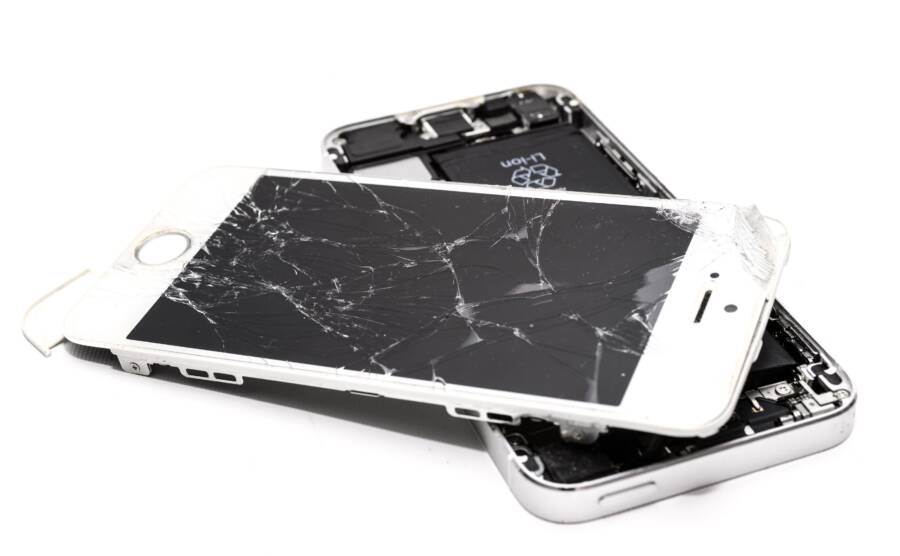
When your smartphone refuses to save a new file, it is almost always because the internal storage is full or the file system has hit a temporary glitch. You can resolve this by clearing unnecessary cache, checking your app permissions, or troubleshooting underlying software errors.
If your device displays a storage error message, you likely have less than a few hundred megabytes of space remaining. Files require breathing room to write data correctly, so the operating system blocks new saves once it reaches a critical threshold.
The following steps will help you identify the specific cause and clear the path for your data. You can start by checking your available space in your settings menu.
First Steps to Diagnose Your Storage Issues
Before you delete important photos or uninstall apps, you need to identify the exact cause of your storage error. Often, a smartphone reports full storage when temporary files, system logs, or app caches consume hidden partitions. Diagnostic steps help you determine if you face a genuine lack of space or a software conflict.
Checking Your Available Capacity
You must first verify if your device actually lacks space. Operating systems require a small buffer of free storage to manage file writes, and when this threshold drops too low, the device prevents new saves.
On Android, open your Settings app and look for the Storage menu. Many manufacturers place this under Device Care or Battery and Device Care. You will see a graphical breakdown showing how much space photos, videos, apps, and system files occupy. If the free space indicator shows less than 1 GB, your smartphone likely needs a cleanup.
On an iPhone, go to Settings, tap General, and select iPhone Storage. This screen displays a color-coded bar representing your used capacity. Below the bar, you see a list of apps sorted by size. If your “System Data” category is unusually large, it often suggests a corrupted cache or pending software updates that failed to complete.
Why a Simple Restart Works Wonders
A restart is a primary troubleshooting step because it clears temporary caches and terminates frozen background processes. When an app tries to write a file but encounters a locked system file, the storage process hangs. Rebooting forces the operating system to release these locks and re-index the file system.
Background processes often accumulate logs that stay active in your random access memory. These processes can inadvertently lock the file system if they crash while writing a temporary file. A restart wipes the temporary RAM and stops these orphaned tasks.
If your smartphone still reports a storage error after a reboot, you know the issue resides in the actual data volume rather than a temporary process glitch. This realization saves time by narrowing your focus to manual file management or app data cleanup.
How to Free Up Space on Your Smartphone
When your device runs out of memory, simple tasks like snapping a photo or downloading an email attachment become impossible. Most storage issues stem from a buildup of media, unused applications, and temporary data. By performing a regular audit of your files, you can quickly reclaim gigabytes of space and restore normal functionality to your smartphone.
Deleting Large Files and Unused Apps
The most effective way to regain storage is to remove the heavy items you no longer need. Many users keep high-definition videos from years ago or apps they opened only once.
You should start by identifying the biggest consumers of your space. Most smartphones provide a breakdown that sorts items by file size. Follow these steps to clear out the clutter:
Open your storage management settings to view a list of installed apps.
Filter this list by size to find applications that occupy hundreds of megabytes.
Uninstall apps you have not used in the past three months.
Scan your photo gallery for long videos, which often take up more room than thousands of still images.
Delete duplicate photos or blurred shots that serve no purpose.
Check your “Downloads” folder as well. Browsers often save PDFs, installers, and images that you viewed once but never needed again. Clearing this folder frequently prevents accumulation before it becomes a bottleneck for your system.
Clearing App Cache Effectively
Applications create temporary files, known as cache, to load data faster when you return to them. Over time, these files can become massive. Occasionally, this data gets corrupted, which causes your smartphone to struggle when attempting to write new information to the disk. If an app crashes or blocks your ability to save files, clearing its cache is the primary fix.
You can clear this data without deleting your personal account information or settings. For Android devices, navigate to the Apps section in your settings, choose an app, and select the Storage option. You will see a button labeled “Clear Cache” that removes only the temporary data.
For iPhone users, the system manages cache automatically, but you can force an app to refresh its data by offloading it. Go to your storage menu, select the specific app, and tap “Offload App.” This removes the app files while keeping your user documents intact. Once finished, reinstall the app from the store to ensure it runs with a clean set of temporary files. If an app frequently fills its cache, consider using a lighter alternative or accessing the service through a web browser instead.
Troubleshooting App Permissions and File Access
Sometimes your smartphone functions perfectly, but a specific application refuses to save files. This behavior often stems from a permission conflict rather than a lack of actual memory. Security updates or accidental user inputs can revoke the access an app needs to write data to your internal storage. Identifying these restrictions is the first step to restoring your workflow.
Granting Necessary App Permissions
Applications require explicit authorization to modify or write files on your smartphone. When an app loses this access, it fails to save downloads, photos, or documents. You can manually inspect and correct these settings within your system configuration.
For Android devices, follow these steps to verify your permissions:
Open the Settings app and select Apps or Application Manager.
Find the specific app that cannot save files and tap on it.
Select Permissions to view a list of granted and denied categories.
Look for Storage or Files and Media in the list.
Tap the setting and ensure it is set to Allow or Allow access to all files.
If you use an iPhone, the process focuses on privacy settings rather than individual app permissions for file storage. Navigate to Settings and scroll down to the app in question. Check if the app has access to Photos or Files. If the switches are gray, toggle them to the on position to grant access.
Keep in mind that some apps require a restart after you change their permission settings. If the app still fails to save files, close it completely from your recent apps menu and open it again. This forces the app to re-check its permissions and recognize the new access.
Addressing Corrupted File Systems
System errors can occasionally trap your smartphone in a state where file operations hang indefinitely. If you encounter consistent save failures across multiple apps, the core file system might face a conflict. Booting your phone into Safe Mode is a reliable way to determine if a third-party application is the source of this trouble.
Safe Mode disables all non-essential applications installed from the app store. If your file system works correctly while in this mode, you have proof that a recently installed or updated application is the culprit. You can then identify and remove the offending software to restore stability.
To enter Safe Mode on most Android devices:
Press and hold the physical power button until the power menu appears.
Long-press the Power Off icon or prompt on the screen.
Confirm the restart into Safe Mode when the option appears.
Attempt to save a file or perform a task that previously failed.
If the problem vanishes in Safe Mode, restart your smartphone normally and uninstall recent apps one by one. Start with applications that manage files, cloud syncing, or storage. Checking your system for pending updates also helps, as developers often release patches to fix known file system conflicts. If the error persists even in Safe Mode, you might need to contact the manufacturer or consider a factory reset to resolve deeper system corruption.
When to Consider More Drastic Measures
Sometimes standard troubleshooting fails to resolve persistent storage errors on your smartphone. When you have exhausted simple fixes like cache clearing or app permission adjustments, you might face deep software corruption or hardware failure. These situations require more intensive intervention to recover the functionality of your device.
Performing a Factory Data Reset
A factory reset returns your smartphone to its original state by wiping all user data and system settings. You should use this as a last resort because it deletes your photos, contacts, and apps permanently. Before you proceed, back up your critical data to a cloud service or a computer to prevent permanent loss.
The process varies slightly between devices, but the goal remains the same. You typically find this option in the System or General Management menu of your settings. Once you initiate the reset, the device erases the entire flash storage partition. This often fixes complex file system errors that standard reboots cannot reach.
After the device reboots, it will act as if it is brand new. You can then restore your data from your most recent cloud backup. If the storage error returns immediately after you restore your files, you likely have a corrupted backup or a specific app that triggers the issue.
Reinstalling the Operating System
If a factory reset fails, the operating system software itself might be damaged. This situation is rare, but it happens after interrupted system updates or failed custom firmware installations. You might need to use a dedicated software tool provided by the manufacturer to flash the operating system image onto your device.
Manufacturers like Apple or Samsung offer desktop software that communicates with the smartphone via a USB cable. These tools often include a recovery mode that attempts to repair the system files without erasing your personal data. If that fails, the software will perform a clean install of the firmware.
Check the support website for your specific model to download the correct recovery software. You will need a reliable USB cable and a stable connection to your computer throughout this process. An unexpected disconnect during a firmware flash can render your device unusable, so treat this as a final option.
Recognizing Hardware Failure
Storage issues sometimes indicate that the internal flash memory chip on your smartphone is physically failing. Flash memory has a finite lifespan, and it degrades after years of intense use. When the hardware reaches the end of its life, it loses the ability to commit new data to memory permanently.
You might notice signs that point toward hardware damage rather than software issues. Common indicators include:
Files disappear shortly after you save them.
Your device frequently reboots without a clear cause.
The system displays constant read and write errors even after a full factory reset.
Certain folders become locked or inaccessible despite having empty space.
If you suspect hardware failure, stop trying to write new data to the device. Continued attempts may cause further damage or lead to total data loss. Contact a professional repair center to diagnose the physical integrity of the storage component. They can determine if a chip replacement or a motherboard repair is necessary to get your device back in working order.
Conclusion
Most storage errors on your smartphone stem from a simple lack of available space or minor temporary software glitches. Regular maintenance tasks like clearing app caches, uninstalling unused applications, and deleting large, forgotten media files usually restore your ability to save data quickly.
If problems persist, verify your app permissions and perform a restart to clear stuck system processes. Maintaining these habits prevents storage bottlenecks before they begin and keeps your device performing at its best.
Backing up your data to the cloud or an external drive is your strongest defense against potential hardware failure. If you continue to see errors after trying these steps, consider a factory reset to eliminate deeper software conflicts.