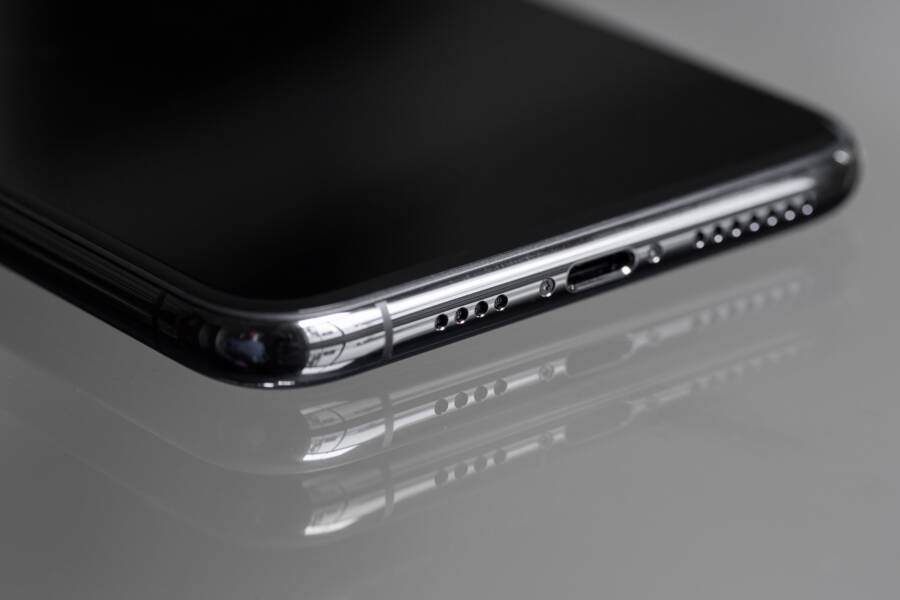
If your smartphone stops fast charging mid-cycle, the system is likely lowering the power intake to protect your battery from overheating or hardware damage. This issue usually stems from physical debris in the port, a faulty charging cable, or a minor software glitch.
Most users can resolve these drop-outs by cleaning the charging port or switching to a high-quality, certified cable. Identifying the specific source of the interruption is the first step toward restoring reliable, high-speed power delivery to your device.
Follow these troubleshooting methods to diagnose your hardware and restore consistent charging speeds.
Checking for Physical Damage and Debris
Most charging interruptions occur because the connection between your cable and the smartphone port is compromised. Pocket lint, dust, or microscopic debris often packs into the bottom of the charging port over time. This buildup creates a physical barrier that prevents the cable from seating properly, which forces the device to drop from high-speed charging to a slower, inconsistent power draw.
Cleaning Your Charging Port Safely
Before assuming your hardware is broken, inspect the port under a bright light. If you see packed material inside the receptacle, you need to remove it carefully. Using the wrong tool can permanently damage the sensitive pins inside the port, so caution is mandatory during this process.
Power down your smartphone completely to prevent any accidental electrical shorts during the cleaning process.
Use a wooden or plastic toothpick to gently scrape the inner edges of the charging port.
Apply light pressure to lift the debris toward the opening of the port rather than pushing it deeper.
Avoid using metal needles, paperclips, or safety pins because these conductive materials can short-circuit the internal pins and render the charging port useless.
Use a can of compressed air held at a slight angle to blow out any loose particles that remain after your initial cleaning.
If the debris is stubborn, repeat the process with a fresh, clean toothpick. Do not use liquids or cleaning solvents, as these introduce the risk of corrosion or shorting out the internal circuitry of your device. Once you finish, check the port again to ensure it is clear before reconnecting your charging cable.
Inspecting the Cable and Power Adapter
If the charging port is clean but your smartphone still drops its fast-charging status, the fault often lies with the accessories themselves. Cables endure significant mechanical stress through constant bending and tugging, which eventually breaks the internal wiring. Even if the outer jacket looks fine, the hidden copper strands might be failing to maintain the high current required for fast charging.
Look closely at the cable for any visible signs of wear, such as fraying near the connectors or sharp kinks in the wire. Check the plastic housing of the power adapter for heat damage or discoloration, as these indicators suggest internal component failure.
The most reliable way to isolate the problem is to perform a cross-test with hardware you know works. Use a different, high-quality cable with your current power adapter to see if the fast-charging mode resumes. If the issue persists, swap the power adapter for one that is certified for your specific device. If the phone charges normally with the replacement accessories, your original cable or brick is likely the culprit and needs a replacement.
Troubleshooting Software and Settings
Software conflicts or incorrect power management settings often hide behind the appearance of hardware failure. While physical issues like debris are common, your smartphone manages charging speeds through complex firmware algorithms. When these background processes experience bugs or conflicts, the device may default to standard charging to protect its internal components. Resolving these issues requires a systematic check of your operating system environment.
Testing in Safe Mode
Safe mode acts as a diagnostic environment that disables all third-party applications. If your smartphone fast charges normally while in this mode, you have a definitive answer that a specific app is responsible for the drain or the charging interruption. Many apps run background services that consume high amounts of energy or attempt to wake the device during the charging cycle. These constant wake-up requests can trick the charging controller into throttling power delivery to keep the phone temperature within a safe range.
To access safe mode, follow these standard steps:
Hold the physical power button until the power-off menu appears on your screen.
Long-press the power-off icon or the restart option provided by your specific manufacturer.
Select the prompt to reboot into safe mode when it appears.
Once the phone restarts, plug in your fast charger and monitor the charging indicator.
If the fast-charging symbol remains stable, look for recently installed apps or tools that monitor battery status. Uninstalling these applications one by one often fixes the interference. If the problem continues even in safe mode, you likely have a deeper system-level bug or a hardware issue.
Managing Battery Heat Management
Heat is the primary enemy of lithium-ion batteries. When your smartphone detects high internal temperatures, it triggers a safety mechanism that lowers the charging speed to prevent thermal runaway. This drop in wattage protects the chemical integrity of the battery cells. High heat often results from intensive background tasks, screen brightness, or using the device while it sits on a surface that traps heat.
Several factors contribute to thermal throttling during a charging session:
Using processor-heavy applications, such as games or high-resolution video streaming, while the device is connected to a power source.
Placing the phone on non-conductive surfaces like thick blankets or pillows that prevent heat dissipation.
Operating the device in direct sunlight or high-temperature environments.
Running multiple background updates or heavy system backups simultaneously with charging.
You should always charge your device in a cool, well-ventilated area. If you notice your smartphone feels hot to the touch, disconnect the charger and let the battery return to a neutral temperature before resuming. Many modern devices also include battery health settings that limit charging rates once the battery reaches a certain temperature threshold. Adjusting these settings or checking for system updates can resolve conflicts where the software is overly sensitive to heat, preventing the fast-charging protocol from dropping unnecessarily.
Understanding Charger Compatibility and Protocols
Fast charging is not a universal standard. Your smartphone communicates with your power adapter through a specific handshake protocol to determine the maximum safe wattage. If these two components do not speak the same language, the device defaults to a basic, slower power profile. Understanding these technical requirements helps you identify why your charging speeds drop unexpectedly.
Identifying Charging Standards
Most modern devices rely on Power Delivery (PD) or proprietary standards to manage energy flow. USB-Power Delivery is an open standard that allows a charger to negotiate power levels with your device dynamically. If you use a charger that lacks support for your smartphone’s specific requirements, it will charge at a minimal rate, often under 5 watts, which feels like a failure to fast charge.
Many manufacturers implement proprietary protocols to optimize speed. For example, some brands use technology that pushes high voltage exclusively through their branded cables and adapters. When you connect a third-party cable that lacks the internal chip required to confirm this compatibility, the smartphone detects the mismatch. It then throttles the input to prevent potential damage, which causes the fast-charging icon to vanish from your status bar.
Decoding the Handshake Process
The charging process begins the moment you plug in your cable. Your smartphone and the power adapter exchange a digital signal to agree on a voltage and current level. This handshake confirms that the cable is capable of handling high power and that the adapter can provide it safely.
If this communication breaks down, you experience common charging issues:
Power negotiation fails because of a low-quality cable that cannot carry the data signal between devices.
The charger overheats during the handshake, causing the adapter to lower the output as a safety measure.
The smartphone firmware detects a voltage fluctuation, forcing a reset to a lower, stable power state.
You should always verify that your charger supports the same protocols as your specific smartphone model. Checking the fine print on your power adapter reveals its output capabilities, such as outputting 9V at 2A. If your device requires 20W or higher to trigger “fast charge” mode, an older 5W brick will never provide the expected speeds. Replacing an incompatible charger with a unit that matches your phone’s required wattage and protocol standard often resolves these intermittent charging drops.
When It Is Time to Seek Professional Help
Most charging issues disappear after you clear debris or swap out a damaged cable. However, internal hardware failures or complex software bugs often require an expert touch. If you have exhausted standard troubleshooting steps and your smartphone still fails to maintain fast charging speeds, you should consult a professional technician to prevent further damage.
Persistent Hardware Malfunctions
If you notice physical damage on your device, such as a loose charging port or a misshapen connector, you should stop attempting to charge the unit immediately. Persistent connection problems often indicate that the internal pins within the USB-C or Lightning port are bent or corroded. While some users attempt to realign these pins, this process frequently results in a short circuit that permanently destroys the motherboard. A professional service center uses specialized tools and microscope-assisted repair techniques to safely replace or repair the charging assembly without damaging surrounding components.
You should also seek assistance if your smartphone shows signs of battery expansion. If you notice the screen lifting or the back panel bowing outward, the battery is unstable and dangerous. This physical pressure often interferes with the charging controller and causes the device to throttle power intake. Because lithium-ion batteries are volatile, you must avoid DIY repairs and bring the device to an authorized center for a safe battery replacement.
Unresolved System-Level Conflicts
Sometimes, your smartphone suffers from a corrupted firmware installation that standard reboots cannot fix. If the fast charging feature stopped working immediately after a system update, the problem likely lies within the operating system itself. You can verify this by performing a factory reset to eliminate software bugs. Back up your personal data before doing this, as it wipes your internal storage.
If the charging drops persist even after a complete factory reset, the logic board may have developed a fault. Logic board issues are difficult to diagnose at home because they require professional-grade diagnostic software and schematics to track the flow of electricity across the board. An authorized repair technician can run a series of diagnostic tests to pinpoint whether the power management integrated circuit is failing. This component controls the voltage negotiation process, and when it malfunctions, your phone often refuses to accept anything other than the slowest, safest charging speed.
Considering Warranty and Authorized Repairs
Using unauthorized repair shops often voids your manufacturer warranty or compromises the water-resistant seals of your smartphone. If your device is still under warranty, contact the manufacturer or an authorized service provider first. They often provide free or discounted repairs for hardware defects that appear through normal use.
Keep these factors in mind when choosing where to take your device:
Authorized service centers use genuine parts, which maintain the integrity of your fast-charging handshake protocol and hardware safety.
Independent repair shops provide faster turnaround times but may use aftermarket parts that lack the necessary chips to support proprietary fast-charging standards.
Manufacturer support provides a documented history of your repairs, which helps if the problem recurs or if you decide to trade in the device later.
Professional repair services are the most effective way to address deep-seated issues that standard troubleshooting cannot reach. When you hand your device to a qualified technician, you receive a diagnosis based on actual circuit testing rather than educated guesswork. If the cost of repair exceeds the value of your phone, the technician can provide an objective assessment to help you decide between a repair or an upgrade.
Conclusion
Restoring your fast-charging speed often involves minor adjustments rather than expensive repairs. Most issues arise from simple factors like port debris, incompatible cables, or high temperatures. By keeping your charging port clean, using certified hardware, and managing the thermal environment of your smartphone, you can maintain efficient power delivery.
Most charging problems are solvable at home with basic maintenance and a quick check of your accessories. If these steps do not improve your charging speed, professional diagnostic tools remain your best option to identify deeper hardware failures.