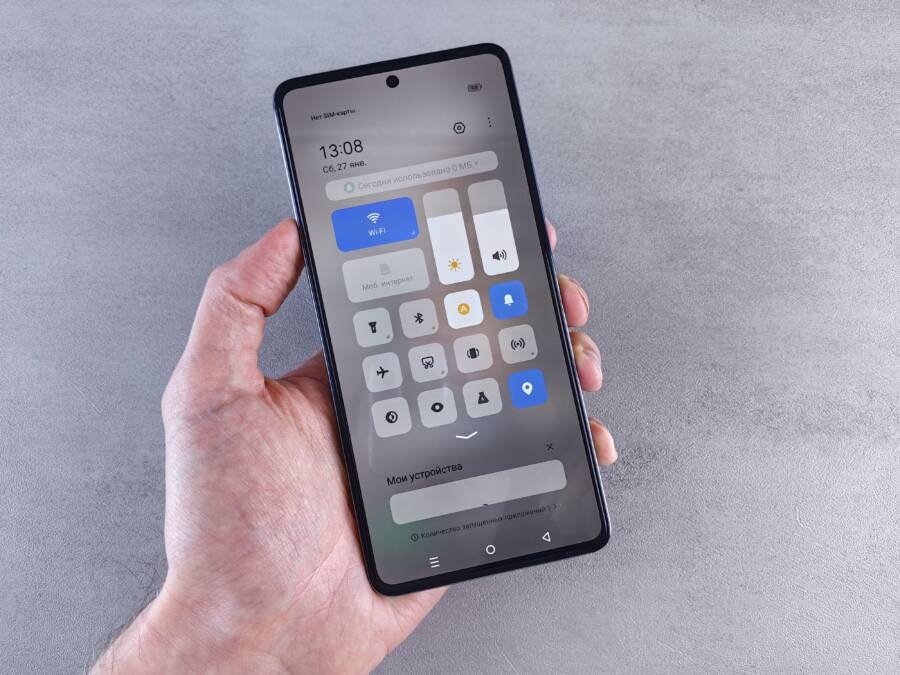
When your smartphone stops syncing data over Wi-Fi, the issue usually stems from aggressive power-saving modes, corrupted app caches, or restrictive network settings. You can often fix these synchronization failures by toggling your connection, clearing temporary data, or adjusting battery optimization settings for specific apps.
Cloud sync problems occur because your device prioritizes battery life or cellular data conservation, which inadvertently puts background tasks on hold. Many users experience this when their phone enters a deep sleep state or when an update breaks the existing link between the cloud service and the local storage.
Understanding these technical triggers is the first step toward getting your files and photos moving again. You will find the most effective solutions to restore your cloud connectivity in the following sections.
Quick Fixes for Common Cloud Sync Interruptions
When your cloud services stop updating on your smartphone, simple network issues are the most frequent culprits. Synchronization requires a consistent data handshake between your device and the server. If this connection drops, the software often pauses the process rather than risking data corruption. Most sync errors resolve quickly once you identify the physical or configuration barrier blocking your signal.
Verify Your Wi-Fi Connection Stability
A weak or fluctuating signal is the primary reason for sync timeouts. Your smartphone needs a stable stream of data to upload files or sync photos to the cloud. When the signal strength is low, the connection between your device and the router breaks intermittently, causing the sync process to crash and restart repeatedly.
To test your connection strength, look for the signal bars on your status bar. If you see only one or two bars, your proximity to the router is likely the problem. Physical obstructions, such as thick walls, metal appliances, or heavy furniture, can block the radio waves. Moving closer to your wireless access point often provides the immediate boost your device needs to complete the pending transfers.
You can also check for stability by running a speed test on your phone. If your upload speeds show extreme variations or stay near zero despite a full signal, the Wi-Fi hardware itself might need a reset. Unplug your router for thirty seconds and plug it back in to clear the cache. This simple step often restores the throughput required for successful cloud synchronization.
Check Your Internet Service Restrictions
Sometimes the network environment prevents your smartphone from reaching cloud servers entirely. Public Wi-Fi networks in coffee shops, airports, or libraries often block background data services to preserve bandwidth for web browsing. These networks may also require a secondary sign-in page that your phone cannot navigate automatically, leaving your sync tasks in a permanent state of pending failure.
Corporate or office networks pose a similar challenge. Many workplace firewalls restrict traffic to non-business cloud platforms to maintain security and monitor data usage. If your device connects to the guest network at your office, the network administrator might have blocked the specific ports that your cloud service uses for updates.
If you suspect network restrictions are the cause, switch your smartphone to a private, password-protected home network. You should also verify that you have not accidentally enabled a VPN or a DNS-filtering app. These services sometimes inadvertently block sync traffic by misidentifying the data packets as unauthorized or suspicious. Disabling your VPN temporarily will reveal if your security software is the actual barrier to your cloud connectivity.
Adjusting Battery and Background Data Settings
Your smartphone manages power and data usage to extend battery life and reduce mobile costs. These features often suppress background processes, including cloud synchronization, when the device detects low power or heavy data consumption. When your files stop syncing, these automated restrictions are frequently the primary cause. Adjusting these settings ensures your cloud services maintain the necessary connection to update your data.
Disable Battery Saver Mode
Battery saver modes conserve energy by limiting background activities that consume processing power or radio frequency bandwidth. When this mode is active, the system restricts how often apps like Google Photos, OneDrive, or Dropbox can wake up and check for new files to upload. While this saves power, it stops your cloud sync tasks from completing until you manually open the app or plug the device into a charger.
You should check your battery settings if your sync issues occur specifically when your battery level is low. Turning off battery saver mode is often enough to restore instant synchronization. If you prefer keeping battery saver active, you can whitelist specific cloud apps to ensure they bypass these limitations.
Open your device settings menu and select Battery or Power Management.
Look for an option labeled App Battery Usage or Battery Optimization.
Find your specific cloud sync application in the list of installed apps.
Change the setting from Optimized or Restricted to Unrestricted.
Selecting the Unrestricted mode allows the app to operate in the background regardless of your global battery saver settings. This provides the most reliability for cloud-based backups on your smartphone without requiring you to constantly monitor your charge level.
Manage Background Data Permissions
Data saving features exist to prevent apps from consuming your mobile data allowance. Some operating systems apply these rules to Wi-Fi connections as well, especially if your phone recognizes the network as a metered connection. If the system classifies your Wi-Fi as metered, it will pause background syncs to avoid unexpected usage costs.
You must verify that your cloud apps have explicit permission to access data while running in the background. If a data saver mode is enabled, it blocks the necessary data packets that cloud services use to initiate a file transfer.
Follow these steps to ensure your cloud apps have proper network access:
Navigate to your settings and select Network or Connections.
Open the Data Usage menu to find settings for Data Saver or Restricted Data.
Check if Data Saver is turned on globally, as this often defaults to blocking background sync.
Review the list of apps that have permission to use data while the saver mode is active.
Toggle the switch for your cloud storage apps to ensure they appear in the allowed list.
If you find that your Wi-Fi is marked as metered in your network settings, you can change this status to permit unrestricted background data. Go to your Wi-Fi settings, select the specific network you are currently using, and look for an option to toggle Metered Connection to Off. Once you change this setting, your smartphone will treat the connection as an unmetered access point, allowing your cloud services to resume their background sync tasks immediately.
Troubleshooting App-Specific Sync Errors
Cloud synchronization sometimes fails because the temporary data stored by an app becomes corrupted or outdated. These local files act as a bridge between your smartphone and the cloud server. When that bridge holds onto broken information, the sync process stalls indefinitely. Addressing these specific errors involves resetting the application state or refreshing your connection to the service.
Clearing Corrupted Cache Files
Applications like Google Drive, Dropbox, or iCloud keep local cache files to load your data faster. Over time, these files can become inconsistent with the actual data on the server. If your app shows a sync error despite having a stable Wi-Fi connection, clearing the cache often resolves the conflict without deleting your actual files.
Follow these steps to clear the cache on your smartphone:
Open the Settings app and navigate to the Apps or Application Manager menu.
Select your cloud storage app from the list of installed programs.
Tap on Storage or Storage and Cache.
Select the option to Clear Cache.
Restart your app to force a new connection with the cloud server.
Avoid selecting Clear Storage or Clear Data unless you have already confirmed your files are backed up safely. Clearing the storage often wipes your login credentials and offline access settings, which requires a full re-authentication. Most sync issues disappear simply by removing the temporary cache files.
Re-Authenticating Your Cloud Account
If you still see sync errors after clearing the cache, the authentication token might be expired or invalid. Every cloud service uses these digital tokens to verify your identity without requiring a password for every background operation. If this token fails, your smartphone remains logged out in the background even if the app appears active.
Refreshing this link is a quick process that forces the app to request a new session from the server:
Open the settings menu within the cloud app itself, rather than your system settings.
Look for an option labeled Sign Out or Remove Account.
Confirm the action and wait for the screen to refresh.
Sign back into your account using your standard credentials.
This process clears any stale permissions that may be blocking the synchronization. Once you log back in, the application rebuilds the link to your cloud files from scratch. Most users find that this manual refresh clears persistent errors that standard app restarts cannot fix. If the app still refuses to sync, check the official status page for that service to see if the provider is experiencing a temporary server outage.
Advanced Network Configurations to Stabilize Connections
When standard troubleshooting fails, your home network configuration might be the barrier preventing a reliable cloud sync. Most default router settings favor speed over compatibility, which can cause intermittent drops during long-duration file uploads from your smartphone. Adjusting specific protocols within your router interface provides a more persistent path for background data transfers.
Optimize Wi-Fi Frequency Channels
Wireless routers broadcast signals on specific frequencies and channels. If you live in an area with many neighboring networks, your router might face heavy interference on the common 2.4GHz band. This congestion forces your smartphone to drop and reconnect frequently, which breaks the secure handshake required for cloud synchronization.
Switching your connection to the 5GHz frequency band often solves this problem. This band provides higher bandwidth and suffers from less interference than the older 2.4GHz standard. You should check your router settings to see if you can separate these bands or give them unique names. Connecting your device to the 5GHz network reduces the chance of signal collisions during active synchronization tasks.
You can also improve stability by choosing a less crowded channel if you remain on the 2.4GHz band. Routers often select a channel automatically, but they do not always pick the clearest one. Use a Wi-Fi analyzer app to scan your local area and identify which channels have the least traffic. Manually setting your router to a fixed, quiet channel helps maintain a clear link for your background data tasks.
Adjust Router Quality of Service Settings
Quality of Service (QoS) settings allow you to prioritize certain types of traffic over others on your local network. Many routers include a feature that manages this traffic to keep gaming or video streaming smooth. Unfortunately, these features sometimes deprioritize background cloud uploads, as the router views them as low-priority data.
If you find that your sync tasks always fail while others in your house use the internet, look for QoS or Traffic Management in your router admin panel. You can manually assign higher priority to your smartphone or the specific cloud services you rely on. By ensuring your device has reserved bandwidth, you prevent the router from choking your connection during high-traffic periods.
Consider the following adjustments to stabilize your network:
Identify your smartphone by its MAC address in the device list.
Assign this address to a High Priority or Gaming tier to prevent bandwidth throttling.
Disable any automated bandwidth shaping that might categorize background cloud sync as idle traffic.
Reserving resources for your device guarantees that synchronization continues in the background. Even when other users stream high-definition video or download large files, your cloud uploads maintain the connection throughput required to finalize your transfers.
Configure Static DNS Servers
Domain Name System (DNS) servers act as a phonebook for the internet, helping your device find the address of your cloud provider. If your Internet Service Provider (ISP) uses slow or unresponsive DNS servers, your smartphone might experience timeouts while trying to initiate a connection. Switching to a public, high-performance DNS service often makes your connection feel more responsive and stable.
Popular options include Google Public DNS or Cloudflare, both of which offer global infrastructure designed for speed and reliability. You can change these settings directly on your smartphone to ensure it always uses these servers, regardless of the Wi-Fi network you connect to at home.
Go to your phone network settings and select the Wi-Fi network you use.
Look for IP settings and change them from DHCP to Static.
Keep the IP address and Gateway settings as they are, but update the DNS 1 and DNS 2 fields.
Use addresses like 8.8.8.8 and 8.8.4.4 for Google, or 1.1.1.1 and 1.0.0.1 for Cloudflare.
Using a static DNS service bypasses the often-cluttered servers provided by your local ISP. This change creates a more direct route to the cloud storage servers, which reduces the time your device spends searching for a connection and helps keep your sync processes running without interruption.
When to Consider a Factory Reset or Support
A factory reset is your final option because it wipes all personal data and settings from your device. You should only choose this path after you complete every other troubleshooting step, including checking your account credentials and system settings. If basic connectivity fixes and cache clearing fail to restore sync, you are likely dealing with a deeper software conflict that standard tools cannot reach.
Knowing When to Factory Reset
You should consider a factory reset when your cloud sync errors persist across different Wi-Fi networks and after you have performed a full sign-out and sign-in of your account. If other apps sync without problems, but your primary cloud storage app consistently reports errors, the underlying system framework might be damaged. Frequent, unexplained crashes of the sync service often point toward corrupt system files that a fresh install is the only way to repair.
Before you start a reset, you must verify your backups. Since the sync function is failing, you cannot rely on the cloud for your current data. Connect your smartphone to a computer and manually copy your photos, documents, and contacts to a physical drive or desktop folder. Once you verify your files are safe, you can proceed with the reset.
Back up all photos, contacts, and documents to a computer or secondary storage.
Ensure you have your cloud account passwords and two-factor authentication codes written down.
Open your settings and locate the System or General Management menu.
Select the option for Reset or Erase all data.
Confirm the action and wait for the smartphone to return to its original state.
Contacting Technical Support
If you perform a reset and the cloud sync still fails, you should contact professional support. Many users waste hours attempting the same configuration changes repeatedly, but a technician can determine if the problem exists at the server level. Sometimes, your account flags or service restrictions on the provider side prevent data from moving to your device, no matter how perfect your local connection is.
Gather specific details about your smartphone model, your operating system version, and the exact error code displayed in the app before you call. This information helps the support team narrow down whether the issue is a known bug or a unique conflict with your account. Do not hesitate to ask them if there are known outages or specific port requirements for your network that were not documented in the general help pages.
You can usually find a support link or a help desk email address within the settings of your cloud application. Most companies provide a chat-based support option that allows you to share screenshots of your error messages immediately. Having these visual records ready often reduces the time it takes to resolve your sync trouble.
Conclusion
Reliable cloud synchronization depends on maintaining a healthy smartphone ecosystem where background processes remain active without interference. You should prioritize checking your power management settings and network permissions, as these are the most common causes for interrupted data transfers.
Regular maintenance, such as clearing cached app data and verifying account authentication, prevents most long-term issues from developing. Keeping your device software updated and ensuring your home network router remains configured for persistent traffic will keep your files accessible across all your services.