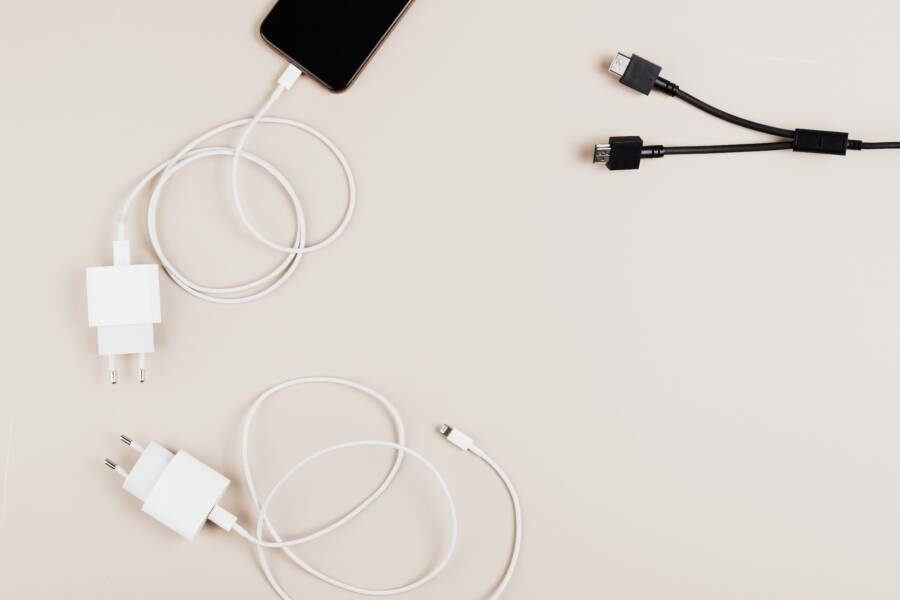
Waking up to a drained smartphone battery after a full night on the charger is frustrating. This issue usually stems from heavy background apps, outdated software, or failing power cables that break the connection during the night.
You can often resolve this by managing your app activity and inspecting your hardware. Proper charging habits prevent the power loss that plagues many modern devices.
Check the following sections to identify the specific cause of your battery drain and find the right fix for your phone.
Why Your Smartphone Loses Power While Charging
A smartphone often drains battery faster than it charges because the device consumes more energy than the power source provides. This imbalance creates a net loss of power even when the phone shows a charging icon. You can identify the culprit by examining your software settings and your charging equipment.
The Role of Background Apps and Syncing
Many apps run processes in the background that silently consume electricity even when your screen stays off. Social media platforms frequently fetch new feeds and notifications, while email clients constantly poll servers for incoming messages. These activities keep the processor active and prevent the phone from entering a deep sleep state, which is the most power-efficient mode.
Cloud backup services are another common cause of unexpected drain during charging sessions. If your phone triggers an automatic photo backup or a system update while you plug it into a wall adapter, the device puts a significant load on the battery. These tasks demand high energy usage from both the wireless radio and the CPU.
You can manage these hidden drains with a few simple adjustments to your device settings:
-
Disable background refresh for apps that do not require real-time updates.
-
Schedule large cloud backups to run only when the battery is near full or at a specific time of night.
-
Turn on battery saver mode if you notice excessive warmth while the phone charges.
-
Review your app usage statistics in the settings menu to identify which software consumes the most power while the screen is off.
Hardware Issues That Prevent Efficient Charging
Your smartphone relies on a steady flow of electricity to fill its battery cells effectively. If the hardware components fail to deliver this consistent stream, the charging rate drops significantly. A damaged charging cable is the most frequent hardware issue, as frayed internal wires provide a lower voltage than a new, intact cable.
Weak or incompatible wall adapters also contribute to slow charging or battery drain. Older chargers often struggle to meet the power demands of modern, high-capacity batteries. Using a charger from a different device, especially one with a low wattage output, may result in the phone using more energy to run its internal systems than the charger sends into the battery.
Debris inside the charging port acts as a barrier to a clean connection. Lint, dust, and pocket fuzz accumulate within the port over time, preventing the charging cable from seating firmly. This loose connection leads to an intermittent charge, where the phone repeatedly disconnects and reconnects, which causes the battery to drain rapidly due to the constant screen wake-up cycles.
Consider these quick checks if your device fails to hold a charge:
-
Inspect the cable for visible tears, bends, or exposed insulation.
-
Use a wooden toothpick to gently remove any debris packed inside the phone charging port.
-
Test your wall adapter with a different cable or a different device to rule out a faulty unit.
-
Verify that your wall outlet provides reliable power before attempting to troubleshoot the phone itself.
Addressing these hardware factors usually restores your charging speed. If you replace the cable and clean the port, your smartphone should maintain a steady charge throughout the cycle.
Practical Steps to Stop Overnight Battery Drain
Preventing battery loss while your phone charges requires a mix of software management and hardware checks. You can reclaim your battery health by identifying rogue processes and optimizing how your device handles nightly power intake.
Checking System Battery Usage Statistics
Your settings menu provides a window into which apps consume the most energy while your phone remains idle. Most modern operating systems include a detailed power breakdown that lists software by its percentage of battery usage over the last 24 hours.
Follow these steps to find the hidden drains on your device:
-
Open the Settings app and select the Battery or Device Care category.
-
Tap on Battery Usage or View Details to see a list of applications.
-
Toggle the view to show usage during the last 24 hours or since the last full charge.
-
Look for apps that show high percentages despite minimal active screen time.
If you find an app consistently consuming a large portion of your battery overnight, consider restricting its background activity. You can often toggle off “Background App Refresh” or “Allow Background Activity” specifically for those offenders. This forces the app to stop pulling data or syncing unless you have the application open. Frequent updates are usually unnecessary for most apps, and disabling them preserves significant energy during sleep hours.
Using Optimized Charging Features
Modern operating systems include intelligent tools designed to protect your battery during long, overnight charging sessions. Features like Optimized Battery Charging on iOS or Adaptive Charging on Android learn your daily wake-up routine to manage the flow of electricity more efficiently.
These systems work by pausing the charge once the battery reaches 80 percent. The phone then holds this level until shortly before you typically disconnect the charger. By keeping the battery at a lower state of charge for most of the night, the device reduces the chemical stress that occurs when a battery sits at a full 100 percent for several hours. You can find these options within your Battery Health settings. Keeping these features active helps your battery maintain its capacity over the long term and prevents unnecessary overheating while you sleep.
Verifying Your Charging Accessories
The quality of your charging equipment significantly impacts your phone ability to hold a steady charge. Cheap third-party cables or power adapters often lack the internal components necessary to regulate voltage correctly. This fluctuation causes the smartphone to cycle through different power states, which creates constant, minor drains.
Stick to chargers manufactured by your phone brand or those that carry verified safety certifications such as MFi for Apple devices or USB-IF standards for Android. A cable that feels flimsy or shows signs of heat damage probably provides inconsistent power, forcing the device to work harder to maintain a stable connection. Using a high-quality, certified charging block ensures the current remains smooth and reliable. If you suspect your charger is failing, swap it with a known working unit for one night to observe if the battery percentage remains stable by morning.
Common Mistakes When Charging Your Device
Many users inadvertently damage their smartphone battery health or prevent effective charging through simple, repetitive errors. Charging a phone seems straightforward, but poor habits often lead to internal heat buildup, chemical stress, or power cycles that drain the battery faster than the source can replenish it. Identifying these mistakes is the first step toward reclaiming your device efficiency and extending the longevity of your battery.
Leaving Your Phone in Hot Environments
Heat is the primary enemy of lithium-ion batteries. Many people leave their device charging under a pillow, on a sunny windowsill, or near a heating vent. These locations trap the heat generated by the charging process, causing internal temperatures to rise well above safe operating levels. When a smartphone gets too hot, the battery management system limits the charging rate to protect the internal components, which results in much slower charging speeds or a failure to reach full capacity.
You should always place your phone on a cool, hard surface like a wooden desk or a nightstand during a charge. If you notice your device feels warm to the touch while plugged in, disconnect it immediately and allow the temperature to normalize. Using a case that traps heat can also exacerbate this problem, so removing the cover during long charging sessions is a simple way to keep your battery cool and healthy.
Using Non-Certified Charging Equipment
The market is flooded with inexpensive cables and power adapters that often lack the safety components found in original or certified gear. These third-party accessories frequently fail to regulate voltage properly, leading to inconsistent power delivery. A smartphone expects a specific, steady stream of electricity; when a cheap cable provides fluctuating voltage, the device may struggle to maintain a stable charge.
This fluctuation forces the phone to work harder, generating unnecessary heat and wasting energy in the process. Always look for certifications like MFi for Apple products or official USB-IF standards for other devices. These labels indicate that the manufacturer tested the hardware for safety and compatibility. Investing in a high-quality cable might cost a little more upfront, but it prevents the erratic charging behavior that contributes to battery drain.
Keeping the Battery at 100 Percent Constantly
Lithium-ion batteries experience the most chemical stress when they remain at maximum capacity for long periods. If you plug your phone in every time you sit at your desk or leave it connected to power all day, the battery cells stay in a high-voltage state that degrades their capacity over time. Modern smartphones are designed to manage power cycles, but keeping the battery between 20 percent and 80 percent is generally better for long-term health.
Most recent operating systems offer settings that manage this automatically by pausing the charge before it hits the final 20 percent until you actually need the device. If your phone allows for battery limit settings, consider enabling them to prevent the constant “trickle charging” that occurs when a device stays at 100 percent. This habit prevents the battery from aging prematurely, which helps it hold a full charge for longer throughout the day.
When to Seek Professional Repair
Sometimes you perform every troubleshooting step and your phone still loses power while plugged in. If basic software updates, cable swaps, and port cleanings fail to fix the issue, the problem likely stems from internal hardware failure. Continuing to use a damaged battery creates safety risks like swelling, leaks, or even fire. You should consult a professional technician when you identify physical signs of damage or if software fixes offer no improvement.
Recognizing Physical Battery Damage
Physical degradation is a common, non-negotiable reason to seek expert help. A smartphone battery often reveals its failing state through external symptoms that you cannot fix at home. If you notice your screen pushing outward or a gap forming between the glass and the frame, your battery is likely swelling. This occurs when chemical breakdown produces gas inside the battery housing.
Stop using the device immediately if you observe these warning signs:
-
Your screen appears slightly lifted or separated from the phone casing.
-
The rear glass or metal back feels warped or creates a rocking sensation when placed on a flat table.
-
You smell a faint, sweet chemical odor coming from the device charging port or seams.
-
The battery temperature rises rapidly even when you perform very light tasks or keep the phone idle.
Attempting to force a swollen battery back into place or ignoring the deformation causes the internal cells to rupture. Professional shops have the tools to discharge these batteries safely and replace them without damaging your screen or internal logic board.
Dealing With Persistent Software or Firmware Conflicts
You might find that your device consistently reports charging but the battery percentage never rises. If you have already performed a factory reset and verified your hardware, the issue could reside in the charging controller chip or the system firmware. These internal components monitor how much electricity enters the battery and manage voltage levels.
When the logic board itself fails to recognize a charger, you need a professional diagnostic assessment. A technician can use specialized software to read the power input logs and determine if the motherboard is failing to negotiate a charging protocol. If the smartphone cannot communicate with the charging block, it will not pull enough current to sustain the system, leading to a permanent state of drain.
Choosing Between Authorized and Independent Repair
Deciding where to take your device involves weighing the cost against the quality of parts and warranty coverage. Authorized service providers, such as Apple or Samsung support centers, use original manufacturer components and calibrate the battery to the logic board. This ensures the phone correctly identifies the new battery and reports health statistics accurately.
Independent repair shops often offer quicker turnaround times and lower prices. They are a reliable option if your device is out of warranty, but you should verify that they use high-quality replacement parts. Ask if they offer a warranty on the labor and the battery itself before you drop off your device. If you use a third-party repair service, confirm that they have experience with your specific model to avoid issues with specialized housing adhesives or waterproofing seals.
Conclusion
Most overnight battery drain issues stem from simple software conflicts or worn charging accessories. You can fix these problems by adjusting your background app permissions, cleaning your charging port, or replacing faulty cables. Consistent maintenance of your charging habits prevents future power loss and protects your battery health over the long term.
Follow this quick checklist to restore your phone charging performance:
-
Remove any debris from the charging port using a wooden tool.
-
Switch to a certified, high-quality cable and wall adapter.
-
Disable background refresh for apps that drain power while idle.
-
Enable optimized or adaptive charging settings in your software menu.
-
Move your phone to a cool, hard surface away from heat sources.
If these steps fail to stop the drain, consult a technician to inspect the internal battery for signs of swelling or hardware failure. Promptly addressing these issues keeps your device reliable and safe for daily use.