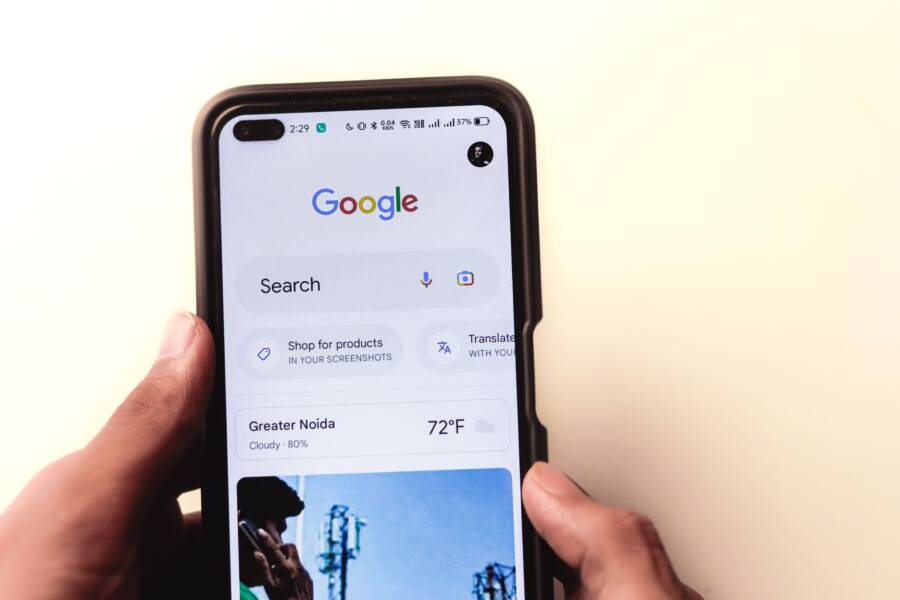
A phone that shows no service usually results from a loose SIM card, outdated network settings, or a temporary software glitch. You can often fix this issue by toggling airplane mode, reseating the card, or checking for carrier updates.
When your smartphone suddenly loses its connection, the frustration is immediate. Whether you rely on mobile data for work or staying in touch with family, a device that fails to find a signal is essentially useless. This guide provides a simple, effective path to restore your cellular connection without needing a trip to a repair shop.
Follow these steps to diagnose and resolve the connection error on your device.
Quick Fixes to Get Your Signal Back
When your smartphone loses its connection, the problem is often a simple communication error between your device and the local cellular network. You do not always need complex technical support to resolve these issues. Often, a brief refresh of your phone’s wireless radios is enough to clear the error and find a signal again.
Toggling Airplane Mode to Reset Connections
Your smartphone constantly scans for the nearest cell towers to maintain a stable link. If that handshake fails, the device may get stuck in a loop where it tries and fails to connect to a non-existent or unreachable signal. Turning on Airplane Mode acts as a hard reset for your internal antennas.
When you toggle this setting, the device immediately cuts off all cellular, Wi-Fi, and Bluetooth transmissions. Leaving it in this state for at least ten seconds forces the modem to clear its current registry. Once you turn Airplane Mode off, the smartphone must initiate a fresh search for local towers. This new handshake often bypasses temporary glitches that prevent your device from registering with the network.
If you are unsure how to perform this, follow these steps:
Open your control center or settings menu.
Tap the airplane icon to activate the mode.
Wait at least ten seconds to ensure all active radio processes terminate.
Tap the icon again to disable the mode and watch the signal bars return.
Performing a Hard Restart
Sometimes, the issue originates deeper within the software. The modem on your smartphone relies on temporary cache files to manage network authentication and tower identification. If these files become corrupted or outdated, the modem may struggle to communicate with your SIM card or the network provider.
A full power cycle is more effective than simply turning the screen off and on. By performing a hard restart, you flush the system memory and clear the temporary cache associated with your radio hardware. This process allows the operating system to reload the modem drivers from scratch, which often resolves persistent connection errors that toggling Airplane Mode cannot fix.
The method for a hard restart depends on your specific model:
On most modern smartphones, you press and hold the power button and the volume down button simultaneously until the screen goes black and the manufacturer logo appears.
If you own an older device with a physical home button, holding the power and home buttons together typically triggers the forced restart.
If your phone has a removable battery, powering it down and leaving the battery out for thirty seconds achieves the same result by completely cutting off electricity to the motherboard.
After the device reboots, give it a moment to initialize the SIM card and verify your credentials with the network. This simple cycle frequently repairs hidden software conflicts that block your cellular service.
Inspecting Your SIM Card for Physical Damage
If your smartphone still shows no service after a system restart, you should examine the SIM card for physical wear. A damaged SIM card is often the culprit behind intermittent connectivity or total signal failure. Over time, the internal hardware can suffer from oxidation, scratches, or minor bends that prevent a solid connection with the phone internal pins.
Before you assume your device is broken, remove the SIM tray and inspect the card under bright light. Look for deep scratches on the gold contact area or any signs of corrosion, which often appears as a dull or discolored film. If the card shows visible damage, your carrier will likely need to issue a replacement to restore your service.
Cleaning the Contact Points
If the card looks intact but still fails to connect, residue on the contacts might be the issue. Skin oils, dust, or microscopic debris can build up on the gold surface and block the electrical connection. You need to clean these surfaces carefully to avoid creating static electricity that could damage sensitive internal components.
Use a soft, dry, lint-free cloth to gently wipe the gold contacts. Avoid using paper towels or tissues, as these materials can leave behind fibers or cause abrasive scratches. If the contacts are particularly dirty, you can use a cotton swab lightly dampened with high-percentage isopropyl alcohol.
Power off your smartphone completely before handling the SIM card.
Touch a metal surface nearby to discharge any static electricity from your body.
Wipe the gold contacts in one direction to avoid dragging debris back across the surface.
Let the card air dry for a minute before reinserting it into the device.
Never use harsh chemicals, household cleaners, or water to scrub the card. These substances can corrode the delicate metal plating or leave residues that prevent your smartphone from reading the SIM properly.
Checking the SIM Tray for Debris
Even a perfectly clean SIM card will fail if it cannot sit flush within its tray. Small particles like pocket lint, sand, or dust often migrate into the SIM slot over time. Even a tiny speck of debris can create a physical gap between the card and the internal contact pins, leading to erratic signal drops or a persistent no-service message.
Inspect the SIM tray opening on the side of your smartphone with a flashlight. If you see dust or lint inside the port, use a can of compressed air to blow it out with short, controlled bursts. Do not insert needles, toothpicks, or metal tools into the tray slot, as you could accidentally bend or snap the fragile spring-loaded pins inside.
If the tray itself feels loose or appears bent, it may not be holding the SIM card in the correct alignment. Ensure the card clicks firmly into place before sliding the tray back into your device. A properly seated card should sit flat and remain still when you gently shake the tray, ensuring a stable connection to your cellular network.
Adjusting Software and Network Settings
Your phone relies on a complex set of internal configurations to communicate with cellular towers. When these settings become corrupted or outdated, your smartphone may struggle to register with the network, resulting in a no service error. You can often restore connectivity by forcing the device to re-read its network protocols or update its configuration files.
Refreshing Carrier Settings
Wireless carriers periodically release updates for their network settings to improve performance and fix compatibility bugs. These updates are distinct from major operating system upgrades. They contain specific instructions that tell your smartphone how to interact with the carrier towers in your region. If your phone runs an outdated version of these files, it may fail to authenticate your signal properly.
You can manually trigger a check for these updates to ensure your device is running the latest configuration:
Navigate to your device Settings menu.
Select General or System depending on your smartphone model.
Tap on About or Software Information.
If an update is available, a prompt will appear on your screen after a few seconds asking if you want to install it.
Follow the on-screen instructions and wait for the process to finish.
Your smartphone will generally perform this check automatically in the background, but manual intervention can force a successful handshake if the initial process was interrupted. If no prompt appears after waiting for a minute, your device already uses the current version provided by your carrier.
Resetting Network Settings Safely
If software updates do not resolve the issue, your network configuration may contain deeper errors that require a full reset. Resetting network settings returns your cellular, Wi-Fi, and VPN configurations to their factory default state. This action is one of the most reliable ways to clear persistent software glitches preventing your smartphone from finding a signal.
You must be aware that this process erases specific saved data:
All stored Wi-Fi networks and their associated passwords.
Every paired Bluetooth device, including speakers, headphones, and car systems.
Custom network names or VPN configuration profiles you previously added.
Because this reset wipes your connectivity history, you will need to reconnect to your home or office Wi-Fi networks after the phone reboots. Most users find that this small inconvenience is a worthwhile trade for fixing a recurring no service error. To perform the reset, navigate to your System or General settings, locate the Transfer or Reset menu, and select the option to reset network settings. Your smartphone will restart automatically once the process concludes, at which point it will begin a fresh scan for available cellular bands.
When to Contact Your Cellular Provider
You should reach out to your cellular provider if basic troubleshooting steps, such as toggling airplane mode, performing a hard restart, or checking your SIM card, fail to restore service. Persistent connection errors often stem from issues beyond your control, including billing account status, local tower outages, or configuration blocks on the network end. Identifying when to stop troubleshooting yourself saves time and helps you get back online faster.
Verifying Account and Billing Status
Many users overlook their billing status, but unpaid balances or expired plans frequently trigger an automatic suspension of service. If your account is in good standing, it remains possible that your plan has reached a data limit or a feature has been disabled by mistake. Most providers offer a mobile app or a customer portal where you can view your real-time account status.
If you cannot access these tools because your smartphone lacks a connection, consider using a secondary device to log in to the provider website. You can also call support from a landline or a friend’s phone to verify that your account has no active blocks. Service disruptions often occur when an automatic payment fails or an old credit card expires on file.
Investigating Local Network Outages
Sometimes the problem exists at the tower level rather than on your specific device. If friends or neighbors using the same provider in your immediate area also show no service, a local outage is likely. Providers often maintain a status map on their official website where you can enter your zip code to see if a repair crew is working on nearby equipment.
Severe weather, planned maintenance, or hardware failure can take down cellular infrastructure for hours. If an outage is confirmed in your area, no amount of adjusting your phone settings will fix the issue. In this case, you simply wait for the provider to complete their repairs and bring the signal back online.
Requesting Technical Support for Device Provisioning
When your account is active and no outages are reported, your smartphone might have lost its provisioning credentials. Provisioning is the process where the network recognizes your device and grants it access to specific services like voice, text, and data. Occasionally, these digital credentials become corrupted or disconnected during a software update or a carrier network change.
Contacting customer support allows a representative to re-provision your account from their side. They can send a reset signal to your device or confirm that your IMEI number is properly registered on their network. If the representative confirms everything is correct on the network side, they may suggest that your SIM card is failing or that the internal modem on your device requires hardware service. Dealing with the provider directly ensures you do not waste time on further software adjustments when the issue requires an administrative fix.
Conclusion
Fixing a connection error on your smartphone starts with basic steps like toggling airplane mode and performing a hard restart to clear temporary software glitches. If these actions fail, inspect the SIM card for physical damage and ensure it sits correctly within the tray. You can further address persistent issues by refreshing carrier settings or resetting your device network configurations.
Stay patient throughout this process because network authentication sometimes takes several minutes to complete after a reset. If these troubleshooting steps do not resolve the issue, physical hardware damage to the device antenna or internal reader is likely. In that case, contact your carrier for an official diagnostic check or visit a professional repair shop to restore your cellular service.