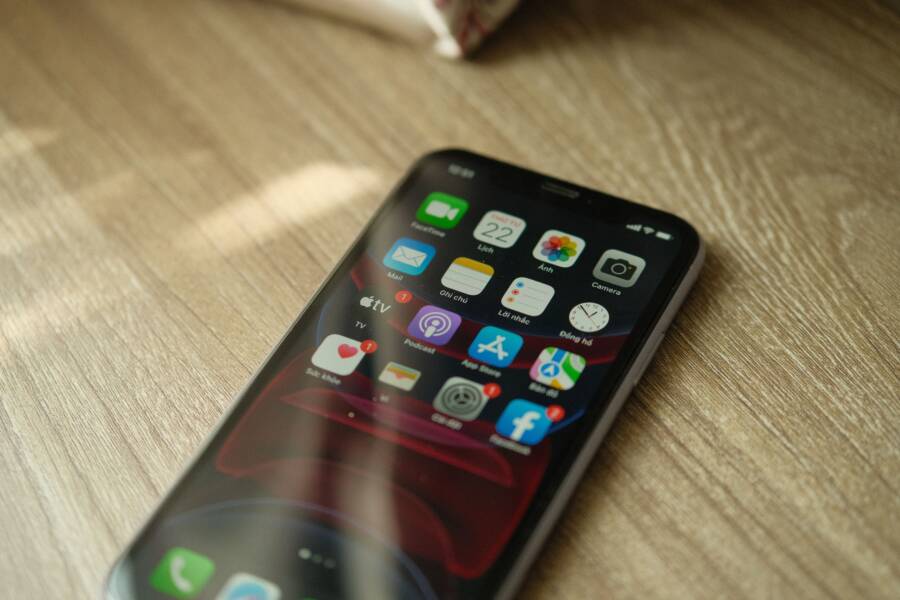
Your music app stops playing in the background because your smartphone actively restricts energy use for inactive apps. Manufacturers include aggressive battery management features to extend your device life, which often leads to the system killing your audio processes to save power.
You can fix this by adjusting your background activity permissions. When you modify these settings, your phone stops treating your media player like a background drain and allows it to run consistently.
Adjusting Battery Optimization Settings
Most Android devices use battery optimization to limit apps that consume resources while you are not actively looking at the screen. You must exempt your music player from these restrictions to keep your audio playback smooth.
Navigate to your settings menu and locate the battery or power section. Look for an option labeled battery optimization or background usage limits. Select your music app from the list and switch the setting to unrestricted or do not optimize. This change tells your smartphone to ignore the app during routine power-saving cycles.
Managing Background Data Access
If your music app relies on streaming, the system might cut your connection to save data when the screen turns off. You should ensure the app has full access to background data even when you are not using Wi-Fi.
Open your app info page for your music player within the system settings. Tap on mobile data and enable the toggle for background data usage. This permission allows your smartphone to pull data continuously without interruption. You should also check if your device has a data saver mode turned on, as that feature often interferes with background streaming services.
Clearing System Cache and Checking App Updates
Corrupted temporary files often cause apps to crash when moved to the background. Clearing the cache can resolve these performance issues without deleting your downloaded songs or account data.
Go to the storage section for your specific music app in the settings menu and select clear cache. You should also check the application store for pending updates. Developers frequently release patches that fix power management conflicts with the latest mobile operating systems. Keeping your software updated ensures your app communicates correctly with the system hardware.
Check Your Smartphone Battery Optimization Settings
Your music app often stops playing because the operating system prioritizes battery longevity over continuous background processes. When your battery level drops or the screen remains off for an extended period, the phone forces resource-heavy apps into a deep sleep state. This action cuts the data stream and kills the active playback thread to save power. You can prevent these interruptions by adjusting specific power management settings on your device. Modifying these permissions tells your system to keep your audio player active even when you are not actively using the interface.
Adjusting Power Saving Modes on Android
Android devices offer granular control through a feature called Battery Optimization. Manufacturers often enable aggressive settings by default, which can be detrimental to media streaming. You can change these restrictions in a few simple steps to maintain consistent playback.
Open your device settings menu and select the Apps or Applications category.
Find your specific music app in the list and tap on it to view App Info.
Tap on the Battery or Battery Optimization option.
Select the Unrestricted setting instead of Optimized or Restricted.
This configuration prevents the system from automatically suspending your app when it runs in the background. If you use a device with a custom skin, such as those from Samsung or Xiaomi, you may also need to check the Auto-Launch settings. Turning on the Auto-Launch toggle for your music player ensures the app starts correctly after a system reboot and stays active throughout your listening session.
Modifying Background App Refresh on iPhone
Apple handles background processes through a feature known as Background App Refresh. This setting controls whether apps can check for new content or continue tasks while suspended in the background. If this feature is disabled for your music player, the system may pause your music to conserve resources.
To manage these settings, follow this path on your device:
Go to your Settings app and scroll down to the list of installed applications.
Locate and tap on your preferred music app.
Toggle the Background App Refresh switch to the on position.
While this setting is active, iOS allows the app to fetch data and maintain its state while you use other software or keep the screen locked. You should also verify that Low Power Mode is not active when you listen to music. Low Power Mode automatically disables background updates and limits processing power, which frequently causes media apps to stop responding. Turning off Low Power Mode usually resolves playback issues if you notice the app failing only when your battery charge is below 20 percent.
How to Manage Data Restrictions for Streaming Apps
Streaming apps often stop working because your phone restricts their ability to pull data while in the background. Your smartphone prioritizes active apps to save bandwidth and battery life. If your music cuts out unexpectedly, the system might be blocking the app from accessing the network. You can fix this by checking specific permissions within your system settings to ensure your streaming services remain connected at all times.
Reviewing Cellular Data Limits
Most modern devices include a settings menu that tracks how much data each app uses. If you accidentally toggle off data access for a specific app, that app cannot stream music when you disconnect from Wi-Fi. You should first verify that your music app has permission to use cellular data.
To check these settings on your smartphone:
Open the Settings app and select the Apps or Application Manager menu.
Find your music streaming service in the list of installed programs.
Tap on the Data Usage or Mobile Data option.
Ensure the toggle for Background Data is turned on.
If this switch is inactive, your phone cuts the internet connection for that app the moment you switch to another screen or lock your device. By enabling this permission, you grant the app continuous access to your cellular network. You should also check if the app is restricted while your device is in data-roaming mode. Many users find that allowing unrestricted data usage solves most playback interruptions occurring outside of Wi-Fi zones.
Disabling Data Saver Modes
System-wide data saver modes help reduce your overall monthly usage, but they frequently interfere with background media playback. When you enable this feature, your smartphone blocks most background activities for every app on the device. This creates a conflict for music players because they need a steady, ongoing stream to keep your audio buffer full.
When your phone enters data-saving mode, the system aggressively terminates background connections to prevent small amounts of traffic. While this helps save your data plan, it stops the constant flow of audio data to your speakers or headphones. You can disable this for individual apps to keep your music running while still limiting other software.
Look for a Data Saver or Ultra Data Saving option in your network settings menu. If the mode is on, you can often select an “Unrestricted Data” list. Adding your music player to this list allows it to bypass the global restriction. This approach gives you the best of both worlds because your phone continues to save data for web browsers and social media while allowing your music to stream without disruption. If you prefer keeping data saver mode active, checking this whitelist is the most effective way to restore your audio experience.
Troubleshooting App Conflicts and Cache Issues
When your music player stops unexpectedly, the culprit is often a conflict between saved temporary files and the current version of the app. Your smartphone stores small pieces of data, known as cache, to help the app load faster. Over time, these files can become corrupted or outdated. This prevents the app from running smoothly in the background, which causes your music to skip or stop entirely. Fortunately, you can fix these glitches without losing your personal data or account information.
Clearing App Cache and Data
Clearing the cache deletes temporary files that are no longer useful to your smartphone. This process forces the app to generate fresh, clean files the next time you open it. Most importantly, this action does not remove your playlists, saved songs, or login details.
Follow these steps to refresh your app:
Open the Settings menu on your device.
Tap on Apps or Manage Apps to see a list of everything installed.
Locate your specific music player and select it.
Tap on Storage or Storage and Cache.
Select Clear Cache.
Do not tap Clear Data or Clear Storage unless you are ready to log in again. Clearing data resets the app to its original state, which removes your login session and local settings. If clearing the cache fails to solve the playback issue, you can try clearing the data as a secondary step. Just be sure you know your password before you proceed.
Updating and Reinstalling Music Players
Outdated software often creates performance gaps that the operating system struggles to manage. Developers frequently release updates to fix bugs that specifically interfere with background audio processing. When your app version is behind, it may not follow the latest power-management rules required by your smartphone. This mismatch leads to the system killing the process to save energy.
You should always verify that your app is on the latest version. Check the app store on your phone to see if an update is available for your music player. If the app is already updated, a clean reinstall often repairs damaged files that simple cache clearing cannot reach.
Uninstalling and reinstalling the app clears out all leftover configuration files from the previous version. Before you reinstall, restart your phone to ensure no ghost processes remain in the memory. A fresh installation typically resolves persistent conflicts, as it provides a clean baseline for the app to interact with your system. If the problem persists after a clean install, the issue likely resides with a specific setting in your phone rather than the application itself.
When to Consider Hardware or System Updates
Sometimes, music playback issues stem from deeper technical limitations rather than simple setting conflicts. If you have tried adjusting your permissions and clearing your cache without success, your smartphone might require a more comprehensive update. Outdated firmware often lacks the memory management patches needed to keep modern, resource-heavy apps running smoothly. By addressing your system software and internal memory, you provide the necessary environment for your music to play without interruption.
System Software Updates
Phone manufacturers frequently release firmware updates to improve how devices handle background tasks. These updates often include patches for memory management, which dictate how your smartphone allocates space to active applications. If your firmware is outdated, the system may struggle to balance your music app against other processes. As a result, the operating system might force your music to pause or close entirely to reclaim memory for other tasks.
Check for available updates in your phone settings under the system or software update menu. Installing these updates ensures your device can correctly prioritize your audio stream. Manufacturers often refine their power management algorithms in these updates, which directly benefits background media apps. Keeping your firmware current is a simple way to maintain high performance across all your installed software.
Checking Memory Availability
Your smartphone manages a limited amount of RAM to run multiple apps at the same time. When you have too many applications open, the device must decide which ones to keep active and which ones to suspend. If the system detects a memory shortage, it automatically shuts down background apps to prevent the device from slowing down or crashing.
Music apps typically require a consistent amount of memory to buffer audio tracks properly. You can test this by closing other unused applications before you start your music player. If your audio stops playing when you open a heavy app, such as a camera or a complex game, the problem is likely a lack of available memory. Reducing the number of active background processes allows your music app to retain the resources it needs to stay running throughout your session.
Conclusion
Most background audio issues stem from your smartphone applying aggressive power-saving rules to media apps. By adjusting your battery optimization, enabling background data access, and clearing outdated cache files, you restore the stable connection your music needs.
These steps provide a permanent fix for most playback interruptions. If your music still cuts out, verify your fix by playing a long track while your phone remains locked for ten minutes. This simple test confirms that your system settings now correctly prioritize audio playback over idle power consumption.