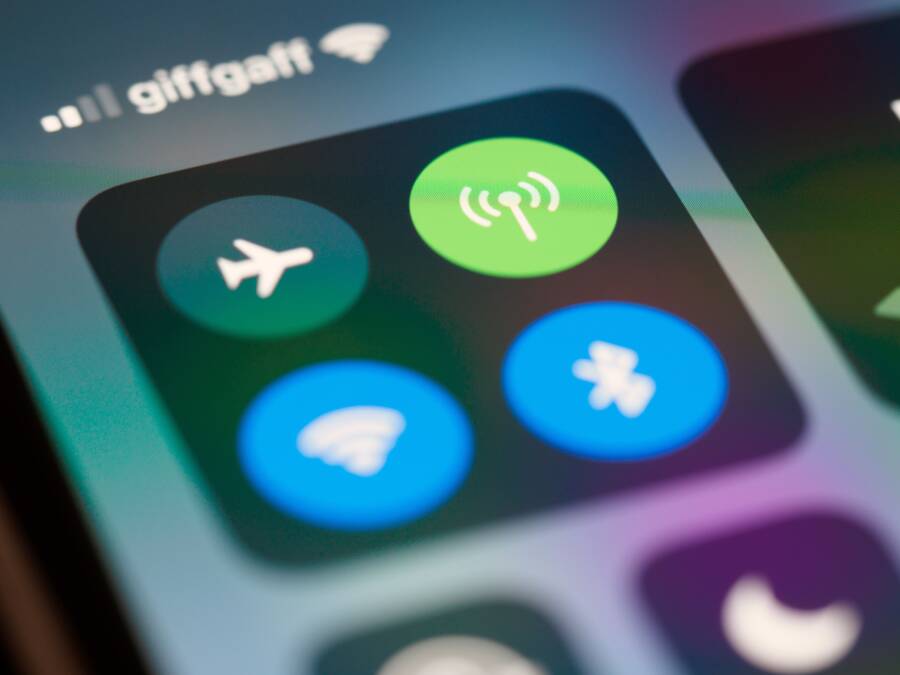
It is frustrating when your smartphone works perfectly for most tasks, but a single app refuses to load data. This issue usually stems from internal software permissions or aggressive battery management rather than a faulty device.
You can typically resolve this by adjusting your background data settings and disabling battery restrictions for the affected app. These small tweaks often restore connectivity without needing a factory reset or repair.
Follow these steps to identify the setting blocking your connection and restore full functionality.
Check Your Mobile Data Settings for Individual Apps
When a specific app fails to load content while your smartphone remains connected to the internet, your device settings might be restricting that application’s access to mobile data. Modern operating systems prioritize battery life and data conservation by allowing users to toggle network permissions for every installed app independently. If you previously disabled these permissions, or if a recent system update reset your preferences, the app will remain offline even when you have a strong signal. Identifying these settings takes only a few moments and often resolves persistent connection errors.
Verifying Permissions on Android Devices
Android provides granular control over how each application interacts with your network hardware. You can check the specific status of an app by navigating through the system menu. Open your phone Settings, tap on Apps, and select the specific app experiencing connection issues. Locate the option labeled Mobile Data or Data Usage within the app information screen.
The toggle for Allow background data usage is the most important setting to verify here. When this switch is off, the app can only fetch new information while it is open and active on your screen. Turning this toggle on permits the app to refresh feeds, download updates, or sync notifications while running in the background. If you notice the app loses connectivity as soon as you switch to another task, this background data restriction is likely the primary cause. Some Android skins also include a toggle for Unrestricted data usage, which allows the app to bypass data saver modes; enabling this can further stabilize connectivity for heavy media apps.
Adjusting Settings on iPhone and iPad
Apple simplifies network management by grouping all cellular data permissions under a single menu. To confirm that your apps have the necessary access, open the Settings app and tap on Cellular or Mobile Data. This screen displays your total data usage and provides a comprehensive list of all installed applications that utilize your mobile connection.
Scroll down through the list until you find the app that is not working as expected. Ensure the toggle switch next to the app name is turned on. If the switch is grayed out, your iPhone or iPad is actively blocking that app from using mobile data. Tapping the switch turns it green, which restores immediate network access for the application. This control serves as a quick way to audit your data usage and prevent background syncing for apps you rarely use, but it frequently catches users off guard when they accidentally disable a necessary tool. After toggling this setting, return to the app and attempt to refresh its content to confirm the fix works.
Disable Battery Optimization and Data Saver Modes
Modern smartphones prioritize power efficiency by controlling how apps behave in the background. While these systems extend battery life, they often restrict network access for apps that need a constant connection to function correctly. If you experience intermittent connectivity, your phone might be killing the process or cutting the data link to save power. You can prevent this by manually adjusting your system settings to grant the affected app higher priority.
Turning Off Battery Optimization
Battery optimization monitors your usage patterns and limits activity for apps that it considers inactive. When an app needs to stay connected to a server to receive real-time updates, this aggressive management causes the connection to drop. Setting the app to an unrestricted state tells the system to ignore power-saving rules for that specific program.
Follow these steps to whitelist an app on Android:
Open the Settings app on your smartphone and select Apps.
Tap the name of the app causing the connection issues.
Select Battery or Battery Usage within the app information menu.
Choose the Unrestricted option instead of Optimized or Restricted.
Once you change this setting, the operating system stops throttling the background processes for that application. This adjustment allows the app to maintain a stable, persistent connection to the internet even when you aren’t actively using it on your screen. If the connection issues persist, check if your phone has a specific power-saving mode active in the main battery menu, as these modes often override individual app settings.
Configuring Data Saver Features
Data saver modes act as a global firewall to reduce cellular traffic. When enabled, the operating system blocks background data for almost every app to prevent you from exceeding your monthly data cap. While this feature saves money and bandwidth, it frequently breaks apps that rely on background synchronization or high-speed data streams for media content.
You can determine if data saver is interfering by checking the status bar on your screen for a small icon shaped like a shield or a circle with a cross. To test if this feature is the cause, temporarily turn it off to see if the app regains functionality:
Go to Settings and tap Network or Connections.
Select Data Usage or Mobile Data.
Look for Data Saver and verify the toggle position.
Switching the toggle to the off position disables the restriction across the entire device. If the app begins working immediately after this change, the data saver mode is indeed the culprit. You can keep the global setting on for most apps while creating an exception for your specific tool. Most Android phones provide a list of apps allowed to access data while the saver mode is active; simply find the problematic app in that list and switch its individual permission toggle to on. This approach maintains your overall data efficiency while providing the specific app the bandwidth it requires.
Fix Connectivity Glitches by Clearing Cache and Reinstalling
When minor setting adjustments fail to restore data access, the issue often stems from corrupted temporary files or incomplete application updates. Clearing the cache removes stored junk data that interferes with network requests, while a fresh installation replaces missing or damaged system files. These steps are standard troubleshooting procedures for any modern smartphone user dealing with stubborn app behavior.
Clearing Temporary App Cache
Every application saves temporary data on your internal storage to speed up loading times. Sometimes, these files become outdated or corrupted, which prevents the app from communicating with remote servers. Clearing this cache is a non-destructive process that deletes only the temporary files, leaving your personal settings, login information, and saved data intact.
Follow these steps to clear the cache on Android:
Open the Settings app and select the Apps menu.
Find the application that is failing to load data.
Tap on Storage or Storage and Cache.
Select Clear Cache.
If you use an iPhone or iPad, the process is slightly different because iOS manages cache automatically. You cannot clear cache for a specific app through a simple menu. Instead, you should offload the app. Go to Settings, tap General, then select iPhone Storage. Locate the specific app, tap it, and select Offload App. This action removes the app binary while keeping your documents and data. Reinstalling the app from the App Store afterward often resolves hidden file corruption without losing your progress.
Performing a Clean Reinstallation
If the app still refuses to connect after you clear the cache, the underlying installation package might be damaged. A clean reinstallation ensures every component of the app is updated and configured correctly. Before you delete the app, verify that you have your username and password saved, as this process removes local application data.
To reinstall an app effectively, follow this sequence:
Uninstall the app from your device home screen or through the system settings menu.
Restart your smartphone to clear the system memory and finalize the removal of any lingering processes.
Open the Google Play Store or Apple App Store and search for the application.
Download and install the latest version of the app.
Log back into your account and check if your data connection functions normally.
This fresh start forces the app to re-establish a secure handshake with the developer servers. If the problem persists after a clean installation, the issue is likely not with your device but with the service provider itself. Check the app developer support page or social media channels for widespread service outages.
System-Level Troubleshooting for Persistent Issues
Sometimes the root cause of an app connectivity failure sits deep within the device firmware rather than the specific application settings. When you have exhausted individual app permissions and battery management toggles, your smartphone might hold onto corrupted network configurations that prevent a stable data handshake. Addressing these system-level factors often requires a broader reset of your connection architecture or an update to the underlying software environment to fix compatibility gaps between the operating system and your apps.
Resetting Network Settings Safely
If your device continues to struggle with data access, a network settings reset is a powerful tool. This action flushes out outdated configuration files, mismanaged DNS settings, or cached server pathways that interfere with modern application traffic. Because these files accumulate over months of usage, they sometimes contain conflicting data that blocks specific apps from verifying their connection.
When you initiate this process, your device will revert all network-related variables to their original factory defaults. You should prepare for this because it will erase your saved Wi-Fi network passwords, paired Bluetooth devices, and custom cellular access point names. Despite the minor inconvenience of having to re-enter your home or office Wi-Fi password, this reset is an effective way to clear the digital noise that prevents an app from identifying your active data stream. You can usually find this option under the General or System menu within your settings, often labeled as “Reset Network Settings.” Once the process finishes and your phone restarts, your device will treat the network environment as new and uncorrupted, which frequently allows problematic apps to reconnect without further intervention.
Updating the Smartphone Software
Outdated operating systems are a frequent cause of unexpected network behavior. Developers build modern apps to work with the latest security protocols, APIs, and networking frameworks found in current system versions. If your software is several versions behind, the app might struggle to communicate because the base code on your smartphone no longer aligns with the requirements of the app’s server infrastructure. These mismatches often manifest as random connectivity drops or the failure of specific features to load content.
Keeping your device updated provides more than just new features; it replaces the underlying system libraries that manage how your hardware handles incoming and outgoing data packets. Manufacturers and OS developers frequently include patches in their updates specifically designed to stabilize radio performance and resolve known bugs in the networking stack. You can check for these improvements by visiting your software update menu. If a download is available, install it and restart your device to ensure all system partitions integrate the changes correctly. Once the update completes, the compatibility bridge between your system and your apps typically stabilizes, often resolving the persistent data issues that plague outdated builds.
Conclusion
Around 90% of app-specific data issues stem from individual app permissions or aggressive battery management settings. Checking these areas first will resolve most connectivity failures without requiring drastic changes to your device.
Restart your smartphone immediately after adjusting these settings to allow the operating system to re-establish a fresh connection. This simple final step often clears temporary glitches that linger after you update your configuration. You now have the tools to maintain a stable data connection for every app on your device.