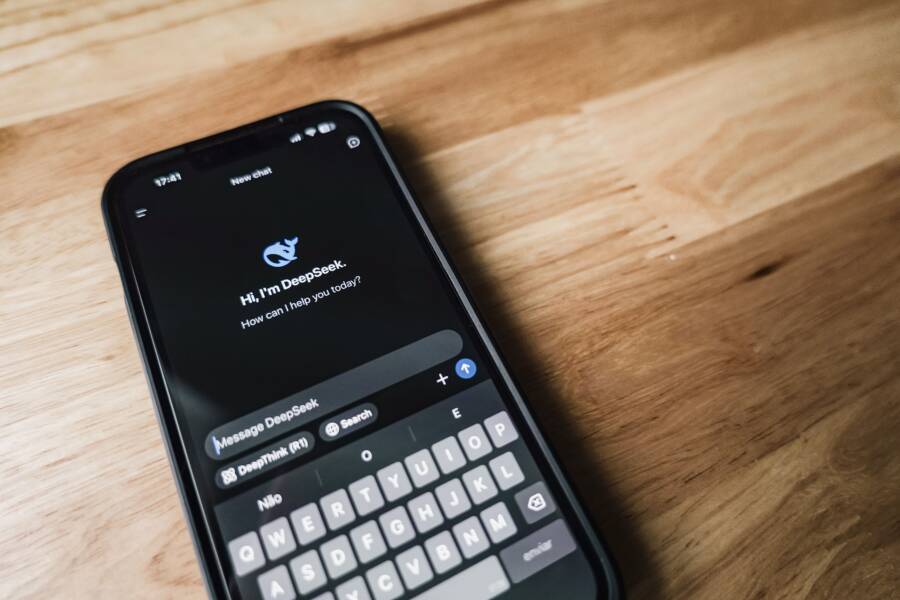
When your smartphone fails to display image previews in chat apps, the issue typically stems from a minor glitch in your network settings, app permissions, or stored cache data. Most users resolve this by checking their internet connection, updating the app, or clearing temporary files.
These previews often break because the app cannot fetch data correctly due to restricted background activity or outdated software. Following a few simple troubleshooting steps will restore your media viewing capabilities quickly.
You can fix this by adjusting your data permissions, clearing your cache, and ensuring your apps stay updated. If you are ready to get your chat apps working properly again, follow these steps to identify and solve the problem.
Checking Your Network Settings First
Network connectivity is the most frequent culprit when your smartphone stops loading image previews. If the application cannot reach the server, it cannot pull the latest media files to your device. Often, your phone holds onto a weak connection or a misconfigured access point that blocks specific data requests. Verifying your connection status is the first logical step to isolate the issue.
Switching Between Wi-Fi and Cellular Data
You should test your connection by toggling between Wi-Fi and mobile data. Sometimes, a specific router prevents chat apps from fetching images due to strict firewall settings. Other times, a spotty cellular signal fails to provide enough bandwidth for high-quality media.
Follow these steps to refresh your connection:
Swipe down to open your quick settings menu on your smartphone.
Toggle on Airplane Mode and wait about ten seconds.
Turn off Airplane Mode to force the device to reconnect to the nearest cell tower.
If the images still fail to load, disable your Wi-Fi to force the phone to use cellular data.
If the images appear while using cellular data, your router or home network is the likely source of the problem.
If you suspect your Wi-Fi is the issue, try restarting your modem or router. Unplug the power cable for thirty seconds before plugging it back in. This often clears out hidden configuration conflicts that disrupt background app traffic.
Disabling Data Saver Modes
Modern mobile operating systems include aggressive power and data management tools. While these features extend your battery life, they frequently block background processes that chat apps need to download image previews. Your smartphone may restrict data usage to save resources when it thinks you are not actively using the app.
Check your system settings to confirm if a restrictive mode is currently active:
Open your main settings menu and search for Data Saver or Battery Saver options.
Verify that these modes are turned off, as they often prevent apps from fetching images in the background.
Check the specific app permissions to see if your phone has unrestricted data access granted to the chat app.
Some devices allow you to set specific exceptions for apps. Adding your primary chat app to an exclusion list ensures it can access the internet even when a system-wide saver mode is active. If you frequently use these modes to conserve power, remember that they prioritize simple text communication over heavier media files like images or videos.
Managing App Settings and Storage Cache
Over time, your chat apps collect temporary data to load content faster on your smartphone. While this cache improves performance, corrupted files within this storage often prevent images from displaying. Clearing these temporary files forces the app to fetch fresh data from the server. If your app settings block media downloads, the cache remains empty and images will not load at all.
How to Clear App Cache Safely
You can fix many loading errors by manually clearing the cache on your Android device. This process removes temporary data without deleting your chat history, photos, or saved contacts. If you use an iPhone, the process differs because iOS manages cache automatically.
Follow these steps on your Android device:
Open your phone settings and tap on Apps or Application Manager.
Find your specific chat application in the list and select it.
Tap on Storage or Storage and Cache.
Choose Clear Cache.
Restart the application to refresh your media previews.
If you use an iOS device, you cannot clear individual app caches manually. Apple optimizes storage by managing temporary files automatically. When an app fails to load images, you must offload or reinstall it. Go to Settings, tap General, then select iPhone Storage. Find the chat app, tap Offload App, and then reinstall it from the App Store. This process resets the application data while keeping your messages intact.
Verifying Media Auto-Download Permissions
Many users encounter missing previews because the application settings restrict media downloads. Chat apps often include a feature designed to save mobile data by preventing images from downloading automatically. If your smartphone has these restrictions enabled, the app will show a blank placeholder instead of the actual image.
Check these settings to verify your permissions:
Open your chat application and look for Settings or Data and Storage.
Locate the Media Auto-Download section.
Ensure that photos or images are allowed to download over cellular data and Wi-Fi.
Verify that a power-saving mode is not overriding these individual app settings.
Some applications allow you to set different rules for various networks. You might have media downloads disabled for cellular data to save your monthly data cap. If you notice images load only when you are connected to Wi-Fi, this configuration is the likely cause. Always review these settings after you update your app, as updates sometimes reset user preferences to their default states. Adjusting these permissions ensures your app retrieves images as soon as they arrive.
Updating Your Software and Applications
Outdated software often creates compatibility gaps that prevent your smartphone from rendering image previews correctly. Developers regularly release patches to fix bugs that disrupt media loading or display performance. If your chat app or operating system relies on older code, it might struggle to process new image formats or server responses. Checking for updates is a simple way to rule out bugs that arise from version conflicts.
Installing Pending App Store Updates
Chat applications frequently receive updates to improve performance and fix known display errors. These releases often include specific code to address issues where images fail to appear or stay stuck as blank placeholders. Manually checking for these updates ensures your smartphone runs the most stable version of the app.
Follow these steps to find pending updates on your device:
Open the Google Play Store or Apple App Store on your smartphone.
Tap your profile icon located at the top of the screen.
Select the option to manage apps and devices or view available updates.
Look for your messaging app in the list of pending updates.
Tap Update to install the latest version immediately.
If you do not see an update available, try refreshing the list by pulling down on the screen. Some apps perform better when you completely restart them after an installation. If the previews still fail to load, you might consider uninstalling and reinstalling the app to clear out any lingering configuration errors from previous versions.
Checking for Operating System Patches
Your smartphone relies on the underlying operating system to handle graphics and media rendering. When your system software is out of date, it may struggle to display images within third-party messaging interfaces. These system-level updates fix security flaws and core library errors that impact how apps interact with your hardware.
Navigate to your device settings to confirm your software status. On Android, look for System or Software Update in your settings menu. For iPhone users, go to General and then select Software Update. If a pending patch exists, install it to refresh the drivers and system tools that manage data processing. Many display bugs vanish after a system reboot, as this forces the phone to reinitialize its media rendering services. Always keep your OS current to maintain the best performance for all your installed applications.
Troubleshooting Advanced Storage and Permission Conflicts
Sometimes, your smartphone faces deeper obstacles that prevent media from rendering properly. Beyond standard network or cache errors, the root of the problem often lies in how your operating system manages file space and security protocols. If your device lacks room to create temporary display files, or if the app lacks the system-level clearance to touch your media folder, the image will appear as a blank box.
Freeing Up Phone Storage Space
A full smartphone cannot generate image previews because it lacks the space to store temporary thumbnails. When you open a chat, the app tries to create a small, viewable version of the media file. If your storage is near its limit, the system denies this request to protect your core data.
Check your available space by following these steps:
Open your main settings menu.
Select Storage or Device Care.
Review the breakdown to see if you have less than 1 GB of free space.
If you are close to the limit, delete old videos, large documents, or unused apps. Once you clear a few gigabytes, restart your messaging application. The app will then have the necessary room to download and process the image data. If you still see blank boxes, your device might be struggling to index new files due to the previous lack of space. In that case, restarting the smartphone forces the file system to re-index your media gallery.
Reviewing Privacy and File Access Permissions
Modern privacy controls are strict, and your smartphone may block an app from accessing your gallery for security reasons. Even if you previously granted access, a system update or a security patch can sometimes reset these permissions. You must ensure the messaging app retains the authority to read and write files on your device.
To verify these settings on your device, follow these steps:
Go to your system settings and select Apps or Privacy.
Find your messaging app in the list of installed programs.
Tap on Permissions or App Info to see what the app can access.
Ensure that the Photos, Storage, or Files and Media setting is set to Allow.
If the setting is currently set to Deny or Ask Every Time, change it to Allow. Sometimes, the permission might show as active, but toggling it off and on again forces the system to re-verify the connection. After adjusting these settings, return to your chat. The app should now have the green light to pull images from your storage or write new previews to your device. This often solves the issue without requiring further troubleshooting or reinstallation.
Conclusion
Most image preview errors on your smartphone stem from simple misconfigurations like restricted data settings or a cluttered cache. You can resolve the majority of these issues by toggling your network connection, verifying media permissions, or clearing temporary app data.
If these steps fail to restore your previews, a full reinstall of the messaging app is your best final resort. This process removes corrupted files that standard updates might miss.
Before you take that step, restart your device one last time to clear any lingering system processes. This quick action often finishes the job and restores your media view.