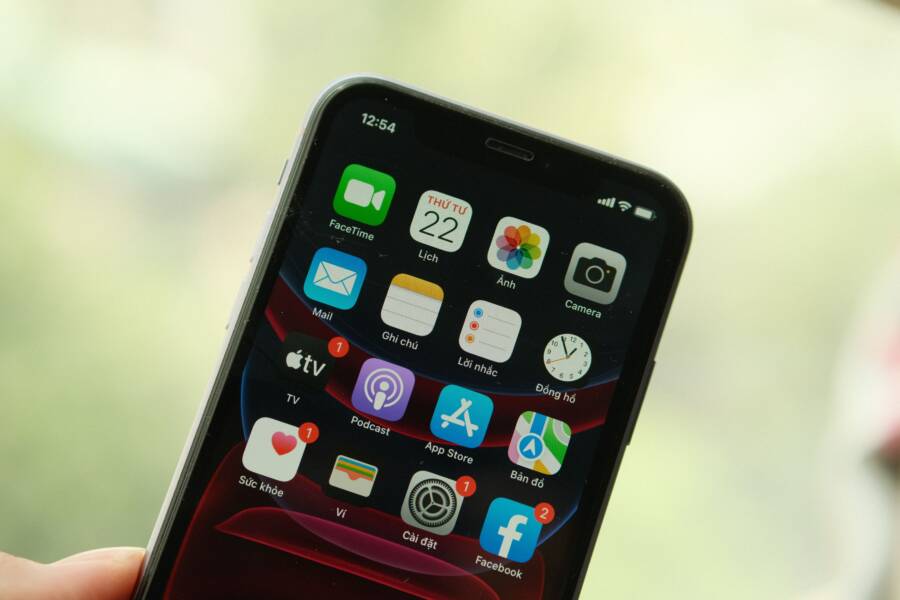
Missing notifications for a single app are usually the result of a software settings conflict rather than a hardware fault. You can often restore your alerts by adjusting specific permission or battery management rules on your smartphone.
This troubleshooting guide helps you identify and fix these notification gaps on any modern device. Follow these steps to get your alerts working again.
Quick Checks for App Notification Settings
Fixing missing alerts often starts with your smartphone system settings. You need to confirm the device actually allows the app to communicate with you. If the master switch is off, no amount of internal configuration will push an alert to your screen. These first steps take only a few moments and resolve a large portion of notification issues.
Verifying Permissions for Individual Apps
Your smartphone manages permissions for every application installed on the system. If an app lacks the required access, it cannot trigger sound, vibration, or visual banners. You must check the main settings menu to confirm the application has permission to display alerts.
- Open your phone Settings app.
- Select the Apps or Manage Apps section.
- Find the specific app that isn’t sending alerts in the list.
- Tap on the Notifications menu for that app.
- Look for a primary toggle labeled Show Notifications or Allow Notifications.
If you find this toggle turned off, flip it to the on position. Make sure you also check the alert categories below the main switch. Sometimes the main toggle stays on while specific types of alerts, such as silent notifications or lock screen alerts, remain disabled. Ensure the settings reflect your preference for how you want to see these updates.
Checking In-App Notification Preferences
Many modern applications manage their own alert systems independent of your phone operating system. Even if your smartphone system settings look correct, the internal preferences within the app might keep your alerts silenced. These custom menus provide more control over what specific updates trigger a notification.
Open the app in question and search for a menu labeled Settings, Preferences, or Account. Look for a section explicitly named Notifications or Alerts. Developers often categorize these notifications by type, such as direct messages, friend requests, or system updates.
- Toggle individual alert types: Many apps turn off specific categories by default.
- Review sound settings: The app might have its own mute switch for incoming sounds.
- Check notification channels: Some apps allow you to choose if an alert should make a sound or just appear silently on the lock screen.
Adjusting these settings inside the app ensures your choices align with how the developer designed the software. If you see a toggle for push notifications turned off, enable it and restart the app. Sometimes changes take effect after you close the app completely and reopen it on your device.
How System Focus and Do Not Disturb Modes Block Alerts
Modern smartphone operating systems include robust tools to minimize distractions. Features like Focus mode on iOS or Do Not Disturb on Android silence incoming notifications to help you stay productive. While these settings protect your peace of mind, they often hide alerts from apps you actually need to see. When a specific app remains silent, the system might be grouping it into a restricted category. Understanding how to manage these overrides helps you regain control over your incoming alerts without disabling your focus settings entirely.
Configuring Exceptions for Priority Apps
You can grant specific apps permission to bypass silent modes. This ensures you still receive critical updates from important tools while keeping other distractions at bay. Follow these steps to whitelist an app on your smartphone so it pierces through your Focus or Do Not Disturb settings.
- Open your device settings and navigate to the Focus or Do Not Disturb menu.
- Search for a section labeled Allowed Apps, Exceptions, or Priority Apps.
- Tap the plus icon or the add button to view your full list of installed software.
- Select the specific app you want to receive alerts from even when silent modes are active.
- Confirm your changes by saving the settings or exiting the menu.
Once you add an app to this list, your smartphone ignores the silent restriction for that software. You will see banners and hear notification sounds as usual. If you still miss alerts, check that the app is explicitly listed in your exceptions menu. Sometimes, system updates reset these preferences, so verify your whitelist if your notifications stop appearing after a software patch.
Reviewing Scheduled Notification Summaries
Notification scheduling is a battery-saving feature that bundles alerts instead of delivering them immediately. Your smartphone may appear to stop notifying you because it holds these updates in a hidden list to present later. This behavior helps reduce constant interruption, but it creates the illusion that an app is malfunctioning.
Check if you have enabled a summary feature that delays notifications. These summaries group non-urgent alerts and release them at designated times of the day. If you notice your notifications arrive in a single batch, your device is likely using this scheduling tool.
- Go to your notification settings menu.
- Look for an option titled Scheduled Summary, Notification Digest, or Batching.
- Review the timing settings to see if your missing alerts are queued for later delivery.
- Disable the scheduling feature if you prefer receiving every notification the moment it arrives.
Turning off this scheduling mode allows your apps to push alerts to your screen immediately. This is the fastest way to confirm if your app is broken or if it is just waiting for the next scheduled delivery window. When you prioritize real-time updates, you gain full visibility into your app alerts throughout the day.
Deep Troubleshooting for Persistent Notification Issues
If standard settings don’t fix the problem, your smartphone might be using aggressive power management to save battery life. These features prioritize energy efficiency over constant data synchronization, which often blocks apps from pushing real-time alerts. When the system forces an app into a deep sleep, it prevents that app from checking for new data until you manually open it.
Managing Background Data and Battery Settings
Most modern smartphones feature a battery optimization tool that monitors app activity. If an app consumes too much power while running in the background, the system restricts its ability to connect to the internet. This restriction is a common cause for delayed or missing notifications.
Check your battery settings to see if the app is currently restricted:
- Open the system settings menu on your smartphone.
- Select the Battery or Device Care section.
- Locate the list of apps optimized for battery saving.
- Find the app having issues and change its status from Optimized or Restricted to Unrestricted.
- Ensure the Background Data usage is toggled on for this app under your Data Usage settings.
Allowing unrestricted battery usage tells your phone that the app is permitted to run processes in the background. This allows the app to maintain a constant connection to the server. You should also verify that the phone itself is not in a low-power mode, as these system-wide settings override individual app preferences.
Reinstalling the App as a Last Resort
Sometimes the internal configuration files or the notification cache for a specific application become corrupted. This often happens after a major system update or an interrupted app installation. If you have verified all permissions and background settings, a fresh installation is the most effective way to reset the app to its factory state.
Deleting the app removes all associated temporary files that might be blocking the notification process. Before you uninstall, make sure your account data is synced with the cloud so you don’t lose progress or messages. Once you remove the app, restart your smartphone to clear any stuck processes. Finally, download a fresh copy from your official app store and grant all requested permissions when you open it for the first time. This process effectively wipes the slate clean and forces the app to re-establish its connection with the system notification service.
Common Questions About Smartphone Notifications
Users often encounter minor issues with how their devices handle alerts. Many people assume these glitches require professional repair, but simple software adjustments usually solve the problem. Understanding how your smartphone manages data traffic and user preferences helps you troubleshoot these occurrences quickly.
Why do some notifications arrive only after I open the app?
This behavior typically stems from battery optimization settings. Your smartphone restricts background activity to preserve power for your daily tasks. When an app cannot sync with its server in the background, it waits until you manually launch it to fetch new data. You can fix this by navigating to your battery settings and switching the app status to unrestricted usage.
Does turning off Wi-Fi affect my incoming alerts?
Mobile data keeps your device connected when you are away from a stable internet source. If you disable Wi-Fi without having a reliable cellular connection, your smartphone loses its bridge to the outside world. Apps require a constant data stream to push real-time alerts to your lock screen. Always check your signal strength or data toggles if you notice a sudden silence across your messaging tools.
Are notification delays related to system software updates?
Operating system updates occasionally reset internal notification permissions or power profiles. If your alerts stop working immediately following a software patch, the system may have reverted your custom settings to their default state. Verify your notification channels and battery restrictions once more after each major update to ensure your preferences remain active.
Can clearing my cache fix missing alerts?
A corrupted cache often holds onto old data that interferes with current app processes. Deleting the cache removes these temporary files without erasing your personal messages or account information. This action forces the app to build a fresh connection with the notification server. Most users find that this simple step clears up erratic behavior within just a few minutes.
These common scenarios cover the majority of issues people face with their hardware. When you identify the cause, you avoid unnecessary frustration. Simply walking through these verification steps ensures your device performs exactly as you expect.
Conclusion
Restoring notifications on your smartphone rarely requires complex technical skill. Most issues stem from minor permission conflicts or aggressive battery management rules. By checking your app-specific settings and verifying your focus mode exceptions, you can typically resolve these silent app problems in minutes.
Test your device by sending a message from another account or waiting for a scheduled alert. If the notifications still fail to appear after you adjust these settings, a fresh installation often clears away persistent cache errors. You now have the tools to keep your alerts working exactly how you prefer.