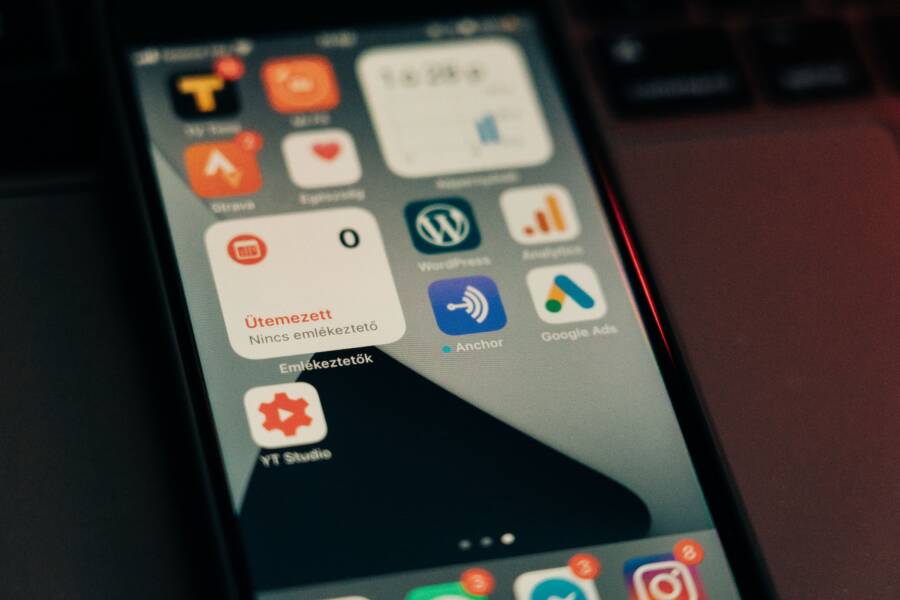
Inaccurate notification badges on your smartphone are a common frustration, appearing when your apps claim you have unread messages that simply do not exist. These badges are small visual indicators, usually red circles with numbers, designed to show how many alerts await your attention within an app.
When these counts drift from reality, it is usually because the app cache is out of sync or the operating system is struggling to refresh background data. Fortunately, most of these glitches originate from minor software hiccups and you can fix them using a few straightforward troubleshooting steps.
Follow these procedures to recalibrate your notification settings and clear those stubborn, incorrect alerts for good.
Quick Fixes to Refresh Your Notification Badges
When your smartphone displays phantom notification badges for messages you have already read, the software typically just needs a nudge to synchronize the correct count. These visual markers rely on background communication between your installed applications and the operating system. If that handshake fails, the badge persists even after the underlying data update occurs. A few targeted adjustments can force your device to recalculate these counts and return your interface to a clean state.
Toggling Notification Settings for a Reset
You can manually trigger a status refresh by toggling the badge permission off and back on within your system settings. This action forces the operating system to re-evaluate the status of all pending alerts for that specific application.
On an iPhone, open the Settings app and select Notifications. Locate the specific app displaying the incorrect badge, toggle the Badges switch to the off position, and wait a few seconds. Switch the setting back on to prompt a fresh sync with the server.
On an Android smartphone, the path varies slightly by manufacturer, but you generally start by navigating to Settings and then Apps. Find the app in your list, tap on Notifications, and look for the App icon badges setting. Disabling this option and re-enabling it clears the local cache for that notification stream. Many users find this simple toggle effectively resolves persistent display errors because it clears the stale data holding the badge in place.
Closing and Restarting Apps to Clear Cache
Background processes often get stuck when an app remains open for extended periods without a full refresh. If the application is suspended in your memory, it might stop updating its notification count even if your smartphone retrieves new data in the background. A force quit clears the current session and forces the app to reload its data state upon the next launch.
To force quit an app on iOS, swipe up from the bottom of your screen to enter the App Switcher. Locate the problematic app and swipe it upward to close it completely. Once it is gone, reopen the app from your home screen. The application will fetch fresh data from its servers, which usually forces the notification badge to update to the correct number.
On Android, open your recent apps menu, which is typically accessed by a square icon or a swipe-up gesture from the bottom of your screen. Swipe the app away to terminate the process. If a simple close does not work, go to Settings, Apps, select the app, and tap Force Stop. This action terminates the background process entirely, preventing any lingering errors from affecting the displayed badge count. Reopening the app immediately after this step often clears the minor glitches that cause the mismatch.
System-Level Solutions When Badges Still Don’t Sync
When standard app refreshes fail to clear ghost notifications, the problem usually hides within deeper system settings. Your smartphone maintains strict rules for how apps communicate with the server to save battery and data. If these rules become too restrictive, or if the operating system itself contains bugs, notification counts lose their accuracy. You can often resolve these deeper issues by adjusting system-wide preferences or applying updates that patch known communication gaps between your apps and the hardware.
Updating Your Smartphone Software
System updates are more than just new features or interface changes. They contain patches for internal bugs that manage background services, including the push notification delivery system. If your device runs an outdated version of the operating system, it might struggle to interpret sync signals from your apps, leading to persistent badge errors. A software update often fixes these compatibility issues by refining how your smartphone handles app data requests.
Check for available updates by visiting your device settings menu. On an iPhone, go to Settings, then General, and finally Software Update. Android users typically find this option under Settings, System, and System Update or About Phone. If an update exists, install it immediately to ensure your notification engine runs the latest code provided by the manufacturer. These updates specifically target performance stability, which is often the primary reason your notification badges fail to reflect real-time information correctly.
Checking Background Data and App Refresh
Your smartphone intelligently manages power by restricting how often apps talk to the internet when you aren’t using them. This is a helpful battery-saving feature, but it can stop an app from receiving the signal to clear a notification badge. If the system blocks an app from background synchronization, the badge stays stuck on your home screen because the app never receives the confirmation that you have addressed the alert.
You should verify that your critical apps have permission to fetch data in the background. On an iPhone, navigate to Settings, General, and Background App Refresh. Make sure the toggle is on for both the general setting and the specific app causing the badge issue. For Android, open Settings and select Apps, then find the specific application. Look for an option labeled Mobile Data or Background Data and verify that the switch for background activity is set to allow. Enabling this ensures your apps stay updated and accurate even when you aren’t actively using them. If you recently entered a low-power or battery-saver mode, your smartphone might have disabled these background services automatically. Disabling power-saving modes or manually overriding the restriction for your messaging apps often restores normal badge functionality.
Advanced Troubleshooting for Persistent Badge Errors
When minor fixes like toggling permissions or restarting apps fail to clear your notification counts, the root cause often resides in the underlying software environment of your smartphone. System-level conflicts, corrupted temporary data, or deep configuration errors can prevent the operating system from reading the correct status of your installed applications. These scenarios require more thorough interventions that reset the communication pathways between your apps and the core software.
Clearing System Cache Partitions
Your smartphone stores temporary data in a dedicated area known as the cache partition. This data helps the device load apps and system processes faster, but over time, these files can become outdated or corrupted. When this occurs, the operating system may struggle to interpret data correctly, which frequently manifests as stuck notification badges that refuse to vanish even after you read your messages.
Clearing this partition is a surgical way to force the system to rebuild its temporary index without deleting your personal photos, contacts, or saved settings. This procedure is most effective after major software updates or if you notice multiple apps behaving erratically. To clear the cache on most Android devices, you must turn the phone off and enter Recovery Mode, which typically involves holding a specific button combination like Power and Volume Down during startup. Once inside this menu, select the option to wipe cache partition and reboot the device. While iOS handles cache management automatically, a simple hard restart often performs a similar function by flushing active memory.
Resetting App Preferences
If you have tried every other troubleshooting step and those stubborn badges still persist, you might need to reset your app preferences. This is a nuclear option because it restores all system-wide app settings to their default state. It does not erase your actual data, such as your messages, photos, or saved game progress, but it does reset critical configurations like background data restrictions, notification permissions, and default app associations.
Executing this reset forces your smartphone to re-establish the handshake between the operating system and every installed application. To perform this on an Android device, navigate to the settings menu for your applications and look for an option to reset app preferences or reset notification settings. On iOS, you can achieve a similar result by going to Settings, General, Transfer or Reset iPhone, and choosing Reset All Settings. Although this step requires you to reconfigure your notification preferences and default app choices, it effectively clears out any deep-seated configuration errors that cause incorrect badge counts. By returning the system to its original state, you remove the hidden constraints that prevent your apps from reporting their true notification status.
When to Consider Reinstalling the Application
Reinstalling an application is a final measure to resolve persistent notification badge errors. This process removes the app and all its associated local data, effectively wiping away corrupted files that standard troubleshooting cannot reach. When you have exhausted options like clearing the cache or toggling permissions, a fresh installation ensures the app establishes a clean connection with your smartphone system.
Identifying Unfixable Software Glitches
Some notification issues stem from deep file corruption within the application directory. You might notice that while your system settings appear correct, the app continues to display incorrect badge counts or fails to register new alerts entirely. This usually happens after a failed app update or a sudden power loss that interrupts data synchronization. If you experience these symptoms, the internal state of the app is likely compromised. A reinstall replaces these broken files with a fresh copy from the official store, which usually restores normal communication between the app and the operating system of your smartphone.
Preparing for a Clean Reinstall
Before deleting any app, you must verify that your data is safe. Many modern apps synchronize content to the cloud, meaning your messages, photos, or progress will reappear after you log back in. However, some apps store information locally without a backup mechanism. If you use a messaging tool, ensure you have an active chat backup enabled in the app settings. Once you confirm your data is secured or synced to an external account, follow these steps to remove the app:
Locate the application icon on your home screen or within the app drawer.
Long-press the icon until a menu appears or the app begins to shake.
Select Remove App, Uninstall, or the minus icon to delete the software.
Restart your smartphone to clear any residual temporary files from the system memory.
Visit the App Store or Google Play Store to download the latest version of the application.
After the installation completes, sign in to your account and verify your notification settings immediately. The fresh install re-establishes the push notification handshake, which often resolves the badge mismatch by forcing the app to re-fetch the current unread count directly from the server. This method is the most reliable way to fix deep configuration errors that cause persistent badge inaccuracies on your device.
Conclusion
Incorrect notification badges often stem from synchronization delays between your apps and the operating system of your smartphone. You can resolve most of these issues by toggling notification permissions, restarting the affected applications, or clearing background data restrictions.
Regular software updates keep your device running the latest communication protocols, which prevents many of these display errors from occurring in the first place. These maintenance steps ensure your home screen remains organized and provides an accurate count of your pending alerts.