Your smartphone is stuck because a background process, a corrupted system file, or low storage space is blocking the power command. These technical conflicts prevent the hardware from responding correctly to your touch.
You can usually fix this by performing a forced restart, which bypasses the standard software shutdown sequence. If the problem persists after a reboot, you likely have an app conflict or an outdated operating system.
Follow the steps below to clear these errors and restore normal power functions to your device.
Quick Fixes for a Frozen Smartphone Shutdown
When your device becomes unresponsive, the screen might freeze or show a static image. A standard shutdown command through the interface often fails because the system software is no longer communicating with the hardware. You need to interrupt the power supply directly to clear the temporary memory and regain control. Forced restarts are safe to perform on any modern smartphone, as they do not erase your personal data or photos.
Using a Forced Restart on iPhone
Apple devices require a specific sequence of button presses to trigger a hard restart. This process cuts the power connection momentarily so the operating system can reload. If you use a newer model, follow these precise steps:
Press and quickly release the Volume Up button.
Press and quickly release the Volume Down button.
Press and hold the Side button on the right edge.
Keep holding the button even when the screen goes black, and release it only when the Apple logo appears.
Older models use different combinations. If you own an iPhone 7 or 7 Plus, press and hold both the Side button and the Volume Down button at the same time. Keep holding them until you see the logo. For the iPhone 6s or original SE, press and hold both the Home button and the Top button until the device reboots.
Performing a Hard Reboot on Android
Android manufacturers often vary their button layouts, but the primary method to force a restart remains consistent across almost every smartphone. You should use the hardware keys to signal a reboot when the touch interface is unresponsive.
Locate your Power button and the Volume Down button. Press and hold both buttons simultaneously for at least 15 to 20 seconds. Some models might require you to hold them for up to 30 seconds before the screen turns off. Once the screen goes dark and the manufacturer logo flashes, you can let go.
If the standard combination fails, try holding the Power button and the Volume Up button instead. Certain older Android devices use this alternative command to trigger the recovery menu or a hard reset. If the screen remains frozen after these attempts, plug the smartphone into a wall charger for 15 minutes before trying the button sequence again. A depleted battery sometimes prevents the device from registering a restart command even when connected to power.
Clearing Software Conflicts to Speed Up Power Cycles
Your smartphone relies on a clean handoff between hardware and software to shut down or restart properly. When an app or background process hangs, it sends conflicting signals to the operating system. This interruption prevents the power menu from closing current tasks. Resolving these software-level conflicts helps your device cycle power without stalling or freezing.
Identifying Apps That Prevent Shutdown
Background apps often lock system resources, making it impossible for your phone to terminate its power state. You can pinpoint these problematic programs by reviewing system logs and usage monitors. Most modern devices provide built-in tools to track which services consume the most energy or processor time.
On Android, open your Settings menu and select Battery or Device Care. Look for a list of apps ranked by energy consumption. If a specific app shows unusually high usage or remains active despite not being used, it is a likely candidate for the conflict. You can force these apps to close by selecting them and tapping Force Stop.
iPhone users should navigate to Settings and select Battery to view app activity. While you cannot force stop apps individually in the same way, you can identify which ones drain the most power. If an app consumes a disproportionate share of battery life, uninstall it or check for pending updates in the App Store. Software developers frequently release patches that fix bugs affecting system stability and power management.
If the phone remains unresponsive, check your task manager or app switcher. Swipe away any apps that seem frozen or stuck on the screen. Removing these entries clears the memory space they occupy, which allows the system to finalize the shutdown sequence.
Managing Storage Space for Better System Health
A full storage drive acts like a bottleneck for your operating system. When your internal memory is near capacity, the device struggles to write temporary files needed for a clean shutdown. This limitation causes the processor to hang as it tries to find space for essential system data.
Check your current storage status in the general settings of your smartphone. If you have less than a few gigabytes free, the system lacks the room to manage its own power cycle processes. Removing unnecessary files allows the OS to function with room to breathe.
Follow these steps to improve system space:
Delete large video files or unused high-resolution photos that consume significant space.
Uninstall games or large applications that you no longer use on a daily basis.
Clear the cache for browsers and social media apps that accumulate temporary data over time.
Move older files to a cloud storage service or an external backup drive.
Maintaining a buffer of at least 10 percent of your total storage keeps the system running efficiently. When the operating system has sufficient space, it performs background tasks and shutdown routines much faster. Clearing space prevents the system from getting stuck in a loop while attempting to save power state information during a restart or shutdown command.
Deep System Maintenance for Persistent Issues
Persistent power failures suggest a deeper instability within the operating system or its core files. When simple restarts and storage cleanups fail to restore normal function, the software layer likely contains corrupt data that blocks basic commands. Addressing these deep-seated errors requires more than standard troubleshooting. You must perform targeted updates or restore the system to its original state to regain control over the hardware.
Updating the Operating System
Firmware updates act as the primary defense against recurring shutdown bugs. Software developers frequently include patches that fix known power management conflicts in these updates. If your smartphone runs an outdated version of its operating system, it may lack the necessary fixes to handle modern app requirements or memory processes. An old version might even contain code errors that specifically prevent the device from entering a low-power or off state.
Checking for available updates is a direct way to rule out known system bugs. Follow these steps to ensure your device stays current:
Open your settings menu and locate the general or software update section.
Allow the device to scan for pending firmware packages.
Download and install any available updates immediately.
Keep the smartphone connected to a power source during the installation to prevent unexpected shutdowns.
These updates often recalibrate how the system communicates with hardware components like the battery and power button. After the installation completes, the smartphone typically wipes away old, buggy code and replaces it with stable files. This process often resolves issues where the phone remains unresponsive to the standard power button command.
When to Consider a Factory Reset
A factory reset is the final option to resolve a smartphone that refuses to shut down or restart properly. This process clears the entire internal storage, including user data, app settings, and system configurations. You should only use this method after you have attempted every other troubleshooting step, including software updates and manual app removal.
Consider a factory reset when your device remains unstable despite having plenty of free storage and current firmware. Persistent issues that survive a forced reboot usually point to deep file system corruption that simple commands cannot reach. A reset returns the device to its original factory state, effectively erasing the corrupted data that causes the power loop.
Always back up your photos, contacts, and important documents to a cloud service or computer before starting the reset. Once you initiate the process, the smartphone erases everything, and you cannot recover your information afterward.
Navigate to your system settings and find the reset or backup menu.
Select the option for a full factory reset.
Confirm your choice and enter your device passcode if requested.
Wait for the process to complete, which may take up to an hour depending on the model.
After the phone reboots, it will act as if it is brand new. If the power issue persists after the device has been reset and set up without your old apps, the problem might be a hardware failure. In that case, contact the manufacturer or a professional technician to examine the internal power management chip.
Determining If Your Hardware Needs Repair
Sometimes a smartphone stops responding due to physical damage rather than a software glitch. If your buttons feel stuck, the screen shows distorted lines, or the device gets unusually hot while charging, you might face a hardware failure. Recognizing these signs early prevents further damage to internal components.
Physical Indicators of Internal Failure
Check your buttons first. If the power button clicks without providing tactile feedback or feels jammed, the internal switch might be broken. This physical blockage prevents the device from registering a shutdown or restart command. You should also inspect the charging port for debris or bent pins. A damaged port causes connection issues that interfere with the power cycle, especially if the device requires a stable connection to perform a hard reboot.
Visible screen damage often correlates with underlying hardware issues. If you notice dead pixels, flickering displays, or unresponsive touch areas, the internal display ribbon cable could be loose or severed. Because the screen interface is the primary way to interact with a smartphone, a damaged display often prevents you from selecting restart options, even when the software itself remains operational.
Signs of Battery and Heat Problems
A failing battery often manifests through unexpected power behavior. If your smartphone shuts down randomly when the battery percentage indicates it has plenty of charge, the battery capacity might be compromised. Chemical degradation causes the voltage to drop suddenly, which forces the system to power off to prevent electrical shorts. You should also touch the back of the device. If the phone feels hot to the touch while idle or plugged in, the battery or internal power management chip might be malfunctioning.
When to Seek Professional Support
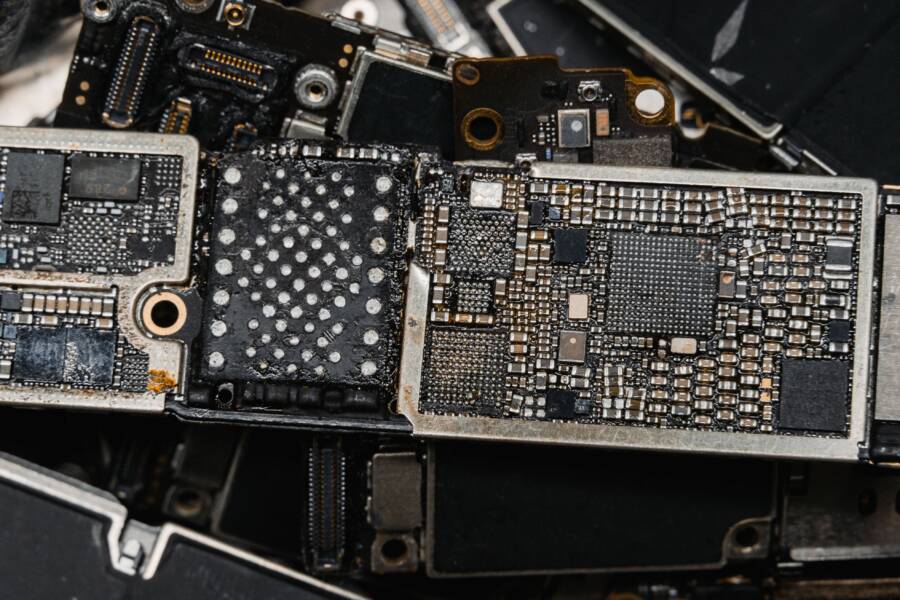
You need to contact a repair professional if the device fails to respond after you have ruled out software errors. If the smartphone does not show any signs of life after a forced restart, a full factory reset, and a verified charge, the motherboard or power IC chip is likely the issue. These components require specialized equipment to test and repair. Trying to open the case yourself often leads to further damage, such as punctured batteries or disconnected cables. A certified technician can confirm if your hardware requires a replacement part or if the device is beyond repair.
Conclusion
Most power issues on a smartphone stem from minor software conflicts or lack of memory space rather than serious hardware damage. You can usually restore functionality by performing a forced restart or clearing background apps that hog your processor.
Regular maintenance is the most effective way to prevent these freezes from happening again. Aim to keep at least 10 percent of your storage free and install system updates as soon as they become available. These simple habits ensure your device operates smoothly throughout its lifespan.
If your device continues to stall despite these efforts, contact the manufacturer for a professional assessment. Consistent power failures despite a full factory reset often indicate a deeper fault that requires specialized repair.