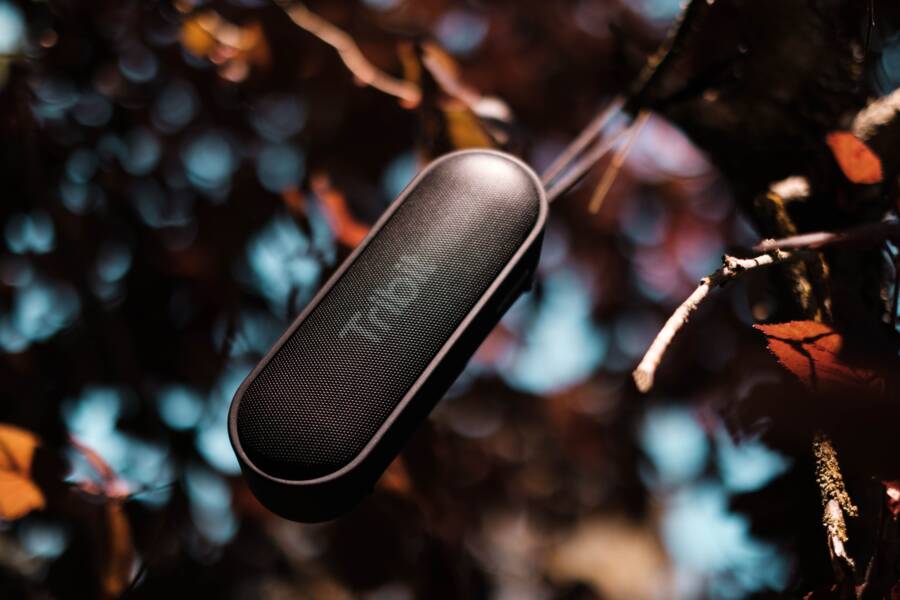
Distorted audio from a Bluetooth speaker is usually a minor software glitch rather than a hardware failure. You can often restore clear sound on your smartphone by toggling your connection settings or clearing cached data.
Most audio problems occur because of distance, signal interference, or outdated software settings. You rarely need to replace your gear to fix these crackling noises.
Follow the steps below to troubleshoot your device and get your music back to normal.
Quick Fixes for Distorted Audio on Your Smartphone
When your music sounds like it is coming through a broken radio, a quick reset often solves the problem. Smartphone audio issues frequently stem from minor software communication errors between your device and the speaker. You can troubleshoot these glitches by refreshing your connection or checking your volume balance. These simple adjustments typically restore high-quality sound in seconds.
Re-pairing Your Devices to Clear Glitches
If your audio remains crackling or muffled, the Bluetooth handshake between your devices might be corrupted. A fresh connection forces your smartphone to renegotiate the data transfer protocols with the speaker, which often clears out temporary bugs.
Follow these steps to reset the link:
Open the Settings app on your smartphone and select the Bluetooth menu.
Locate your speaker in the list of connected or saved devices.
Tap the information icon or the gear symbol next to the speaker name.
Select the option labeled Forget This Device or Remove Device.
Turn your smartphone Bluetooth off, wait ten seconds, and turn it back on.
Put your speaker back into pairing mode according to the manufacturer instructions.
Select the speaker from your available devices list to establish a clean, new connection.
After you re-pair, play a high-quality audio file to test for clarity. This process ensures the smartphone and the speaker agree on the best possible settings for your current session.
Adjusting Volume Settings for Better Clarity
Many users assume that pushing every volume slider to the maximum creates the best sound. However, this often leads to digital clipping and audible distortion. When you crank your smartphone volume to 100 percent, the internal signal can become overloaded before it ever reaches the speaker.
A better strategy involves a balanced approach to gain staging. Keep your smartphone volume at roughly 80 to 90 percent. Then, use the physical volume controls on the speaker itself to reach your desired loudness.
This method prevents the phone from distorting the signal at the source. If you still hear fuzzy audio after adjusting these levels, lower the smartphone volume slightly further. Digital speakers handle a clean, lower-voltage signal much more effectively than a maxed-out, distorted one. Balancing these levels ensures that you preserve the integrity of your audio files while keeping the output clear and crisp.
Checking Environmental Interference and Distance
Bluetooth connections rely on radio waves to transmit audio from your smartphone to a speaker. When these signals encounter obstacles or competing frequencies, the audio quality drops immediately. You can often restore clarity by limiting physical barriers and reducing the density of other wireless devices in your immediate area.
The Impact of Wi-Fi and Other Wireless Signals
Many modern homes operate on a crowded 2.4GHz frequency band. Your Wi-Fi router, cordless phone, and smart home appliances often share this same spectrum as your Bluetooth connection. When too many devices broadcast signals in one space, they create radio frequency congestion. This traffic jam causes your smartphone to drop data packets, which manifests as stuttering, clicking, or distorted audio output.
You should consider these factors to reduce signal conflict:
Move your smartphone and speaker away from active Wi-Fi routers or range extenders.
Disconnect unused wireless peripherals that might be creating background noise on the 2.4GHz band.
Test your audio playback while toggling your home Wi-Fi off to see if the distortion disappears.
If your audio clears up after shutting off the Wi-Fi or moving away from the router, you know the interference is environmental. You can then try switching your home Wi-Fi to a 5GHz band if your router supports it. This keeps the network traffic separate from your Bluetooth streaming path.
Ideal Range for a Clean Connection
Bluetooth technology is designed for short-range communication. While manufacturers often claim a range of 30 feet or more, that number assumes a perfect, open environment. Real-world performance varies based on the physical environment between your smartphone and the speaker.
Line-of-sight is the most important factor for maintaining a high-quality signal. Radio waves struggle to penetrate solid objects like walls, large furniture, or even human bodies. When you place your smartphone in a different room or block the signal with your body, the effective range drops significantly.
Keep these distance guidelines in mind for the best results:
For the cleanest output, keep your smartphone and speaker in the same room. Avoid placing the devices behind obstacles that might absorb or reflect the radio waves. If you need to move around, try to keep the phone in your pocket or a position that maintains a clear path to the speaker. This minimizes the chance of signal degradation during your listening session.
Software Updates and Audio Codec Settings
Internal software and configuration settings often dictate how your smartphone processes audio data before sending it to your speaker. When these settings conflict, the result is often crackling, popping, or muffled sound. Addressing these digital components is a practical step if physical adjustments do not resolve the distortion.
Updating Firmware on Your Bluetooth Speaker
Manufacturers frequently release firmware updates to correct bugs in the communication protocol between devices. These updates often address synchronization issues that cause intermittent distortion. Many modern Bluetooth speakers include a dedicated companion application available on your app store to handle this process.
If your speaker requires an update, follow this general workflow:
Download the official manufacturer app on your smartphone.
Ensure your speaker is powered on and connected to your phone via Bluetooth.
Open the app and check for a section labeled Firmware, Software Update, or Device Settings.
Follow the on-screen instructions to download and install any pending software patches.
Do not turn off your speaker or close the app during the installation. Once the process finishes, the speaker usually restarts automatically. A patched device often handles high-bitrate data more efficiently, which reduces the chance of artifacts or distortion appearing during playback.
Disabling Audio Enhancements or EQ Presets
Many smartphones and music apps include built-in equalizers or audio enhancement features designed to boost specific frequencies. While these settings aim to improve sound, they frequently cause digital clipping when active during high-volume playback. This distortion occurs because the software pushes the gain on specific frequency bands beyond the physical limits of the speaker drivers.
If you hear fuzzy audio, try these steps to reset your sound profile:
Locate the equalizer settings in your music app or your smartphone system sound menu.
Switch the EQ to Flat or Neutral to disable all software-based frequency manipulation.
Toggle off any spatial audio, virtual surround sound, or bass-boost features.
Play a familiar track at a moderate volume to determine if the distortion remains.
Testing your audio with a flat profile serves as a baseline for troubleshooting. If the sound becomes clean, you know the previous EQ settings were the cause of the clipping. You can slowly reintroduce minor adjustments later, but keeping the profile close to neutral helps the speaker reproduce audio exactly as the original recording intended.
How to Tell if Your Hardware is Damaged
Determining whether your distortion issues originate from the software on your smartphone or the physical components of your speaker requires a systematic approach. Most audio problems remain software-based, but hardware failure is possible if you notice persistent crackling, vibrating, or rattling sounds regardless of the source.
Testing with a Different Device
The most efficient way to isolate a hardware fault is to remove your smartphone from the equation entirely. If the speaker produces identical distorted audio when paired with a different source device, such as a friend’s phone or a tablet, you can confirm the speaker hardware is the source of the trouble.
Follow this simple diagnostic process to verify your equipment status:
Turn off Bluetooth on your own smartphone to prevent accidental reconnection.
Put the suspect speaker back into pairing mode.
Connect a secondary smartphone or media player to the speaker.
Play a high-quality audio track that you know sounds clear on other headphones or speakers.
Listen closely for the same popping, buzzing, or rattling noises you encountered before.
If the audio sounds perfectly clear on the second device, your original smartphone configuration likely contains a settings error or a corrupted cache. If the distortion persists, the speaker drivers might be damaged or blown. Mechanical damage often occurs after drops, exposure to moisture, or long-term use at maximum volume. If you conclude the speaker hardware is faulty, check your warranty status or consult the manufacturer for repair options, as internal component failure usually requires professional service rather than a simple software adjustment.
Conclusion
Most audio distortion you encounter is a temporary software glitch rather than a permanent hardware failure. You can often restore clear sound on your smartphone by resetting the connection or adjusting your gain levels.
Systematically work through these steps to identify the root cause of your audio issues. Start with a simple re-pairing process and move toward testing your environmental factors if the problem persists.
If you reach the final diagnostic stage and still hear crackling, your hardware might require professional attention. Following this structured approach saves you time and keeps your music sounding crisp.