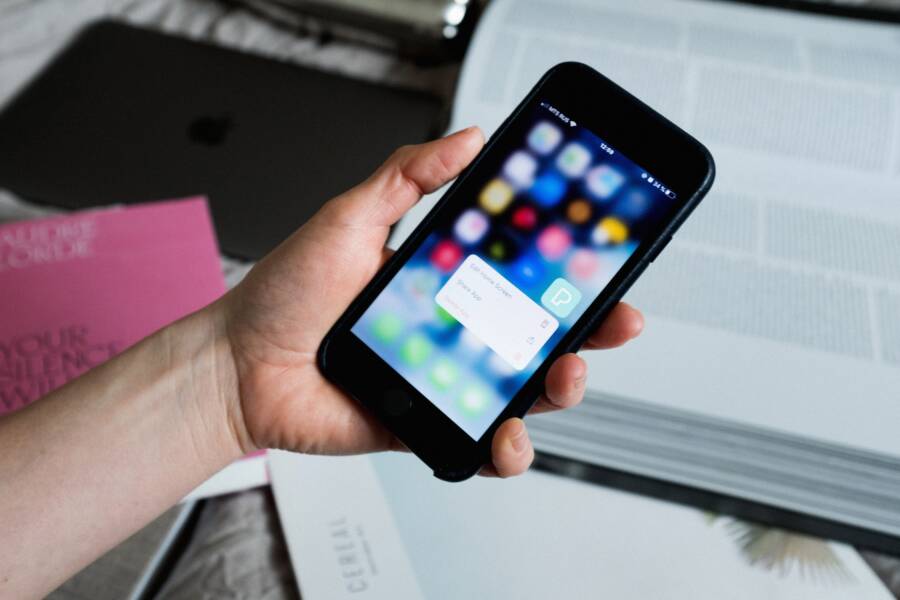
If your Bluetooth tracker disconnects after a day, the problem is usually a battery optimization setting on your smartphone or a strict background app restriction. These power-saving features often kill the processes required for your tracker to maintain a constant link, effectively disabling your device to save a small amount of energy.
It is a frustrating cycle to wake up and find your tracker offline, but you don’t need technical expertise to fix it. Adjusting a few specific settings on your smartphone will restore a stable, persistent connection. The following sections walk you through the exact permissions and system tweaks that resolve this issue for good.
Check Your Smartphone Battery Optimization Settings
Your smartphone manages power by monitoring how apps use energy in the background. While this is helpful for general efficiency, it often conflicts with Bluetooth trackers that require a constant connection. When your system forces these tracker apps into a power-saving mode, the link breaks. You need to manually adjust these permissions to maintain a stable connection between your device and your tracker.
How to Allow Background Activity for Tracker Apps
You must grant your tracker application permanent permission to remain active. This ensures the app can scan for your device even when you are not using it.
For Android devices, follow these steps to exempt the app from battery restrictions:
Open the Settings app on your smartphone and select Apps or Manage Apps.
Find your specific tracker app in the list and tap it.
Select the Battery or App Battery Usage option.
Choose the Unrestricted setting to prevent the system from killing the app process.
Confirm that Battery Optimization is set to Don’t Optimize for this specific application.
For iPhone users, the process focuses on Background App Refresh:
Open your Settings menu and scroll down to the list of apps.
Tap on your tracker app to view its individual permissions.
Toggle the switch for Background App Refresh to the On position.
Go to Settings, tap General, and then check Background App Refresh to verify it is enabled for the entire system.
Ensure that Location Services are set to Always Allow for the tracker app, as this works alongside background data to keep the connection alive.
Preventing Your Phone from Putting Apps to Sleep
Modern operating systems use advanced algorithms to predict which apps you use the most. This is often called adaptive battery or deep sleeping apps. If you rarely open your tracker app manually, your smartphone assumes it is unnecessary and puts it into a suspended state. This hibernation stops the app from communicating with your Bluetooth hardware.
Smartphone manufacturers design these features to protect your daily usage time, but they rarely distinguish between important background services and truly inactive software. Because your tracker relies on a persistent connection, any attempt by the system to sleep the app creates a connection failure. By setting the app to ignore these power-management policies, you effectively tell your device that this background process is essential.
If you notice the tracker remains unstable after these adjustments, restart the app to clear out any old cached states. Some manufacturers also include a Lock App feature in the recent apps menu. Tapping an icon or selecting a padlock symbol there prevents the system from clearing that specific app during a memory cleanup. Applying these settings turns your tracker from a background-restricted process into a high-priority service.
Managing Bluetooth Permissions and Location Services
Bluetooth trackers rely on consistent communication with your smartphone to function correctly. If the system blocks the tracker app from accessing location services or Bluetooth hardware, the connection drops frequently. Many modern mobile operating systems require location access for Bluetooth Low Energy scanning to work, even if the tracker does not use GPS. Configuring these permissions properly turns a spotty connection into a reliable link.
Ensuring Always-On Location Access
You must grant location permissions that stay active even when the app sits in the background. Without the Always Allow setting, the smartphone pauses communication the moment you lock the screen or switch to another task. This causes the tracker to lose its tether to the device, making it appear offline or disconnected until you open the app again.
To fix this on an iPhone, head to Settings and find your tracker app at the bottom of the list. Tap Location and select Always. If you only see While Using the App, you might need to check for a software update or reinstall the app to trigger the broader permission request.
On Android, the process often involves specific permission categories. Navigate to your app info page and select Permissions. Tap Location and verify that Allow all the time is active. If your version of Android only offers Allow only while using the app, check your battery settings for that specific app to ensure it possesses unrestricted access to background resources. This dual-layer approach keeps the location sensor ready to maintain the Bluetooth handshake at all times.
Updating Bluetooth Firmware and App Versions
Outdated software frequently creates compatibility gaps between your smartphone and the tracker. Manufacturers release firmware updates to address connection stability, battery management, and handshake protocols. When your tracker runs old firmware, it may struggle to re-establish a link after a temporary signal loss. Similarly, an outdated app version might not use the latest API hooks provided by your mobile operating system.
Check these two areas regularly to prevent connection issues:
Open your tracker app and look for a settings menu or device dashboard. Most apps display a notification if a firmware update is available for your hardware.
Visit your phone app store to ensure the tracker companion app is current. Developers frequently push updates to fix bugs related to new operating system versions.
Restart your smartphone after updating the app. This clears any lingering background processes that might still rely on the old version logic.
Consistent updates provide the most effective defense against intermittent disconnects. Manufacturers adjust their software to stay compatible with the changing power-saving habits of modern phones. Keeping both your app and the tracker firmware current ensures your devices use the most recent methods for maintaining a persistent, stable connection. If you still face issues after an update, toggling the Bluetooth switch off and back on can help the phone refresh its device cache.
Troubleshooting Common Hardware and Range Issues
Even when your settings are perfectly configured, physical factors and hardware limitations often disrupt the connection. Bluetooth is a short-range wireless protocol that requires an unobstructed path to function reliably. When your tracker drops from your smartphone unexpectedly, you should investigate potential signal blockers or hardware degradation. Most connection problems stem from simple environmental interference or a power delivery issue within the device itself.
Is Your Tracker Battery Actually Low
Many users assume a battery is fine if the tracker still turns on or provides basic status lights. However, Bluetooth trackers require a consistent voltage to maintain the background “handshake” with your smartphone. If the battery voltage dips below a certain threshold, the device may lack the power to transmit a strong enough signal to sustain a constant link. This frequently causes the tracker to drop off your device list after only a few hours of operation, even if the app reports the battery as partially full.
Coin cell batteries, which power the vast majority of trackers, suffer from significant voltage drops in cold weather or during heavy usage cycles. If your tracker frequently disconnects after you have used it for a few months, consider replacing the battery with a fresh, high-quality cell. Do not rely on the percentage shown in the app, as these readings are often estimates based on voltage rather than exact capacity. A new battery often resolves instability that seems software-related but is actually caused by the tracker struggling to maintain its radio broadcast.
Avoiding Signal Interference
Bluetooth operates on the 2.4 GHz frequency, which is shared by many household items like Wi-Fi routers, microwaves, and cordless phones. If you keep your tracker near these electronics, you might experience signal noise that prevents your smartphone from effectively “hearing” the tracker. Large metal objects, such as refrigerators or heavy shelving, also block Bluetooth signals, creating dead zones in your home where your tracker may lose its connection.
When you suspect interference is the culprit, perform a quick test by placing the tracker right next to your smartphone. If the connection stabilizes immediately, the issue is likely environmental distance or interference.
You can improve connection reliability with these habits:
Keep your tracker away from active Wi-Fi routers or smart hubs that emit strong wireless signals.
Avoid storing your keys or bag in areas surrounded by thick metal walls or dense appliances.
Place your smartphone in a different room if you suspect the local 2.4 GHz environment is too crowded for your tracker to reach it.
If the connection remains unstable despite these physical adjustments, the tracker hardware might have a faulty antenna. Test the tracker with a different phone if possible to rule out a specific Bluetooth radio issue with your primary device. This diagnostic step quickly identifies whether the problem belongs to the tracker hardware, the app configuration, or the smartphone itself.
Quick Fixes When Connections Fail
Sometimes a Bluetooth tracker stops responding even after you adjust your background permissions. When the connection feels stuck or unreliable, you can perform a series of quick manual resets to restore communication. These steps force your smartphone to refresh its connection cache and clear out temporary communication errors.
Perform a Bluetooth Radio Reset
Your smartphone stores a list of known Bluetooth devices and their associated handshake protocols. If this cache becomes corrupted, the phone might struggle to maintain a stable link with your tracker. Toggling the Bluetooth radio acts as a soft reset for your wireless hardware, clearing the current handshake attempt.
Open the Control Center or the main Settings menu on your smartphone.
Toggle the Bluetooth switch to the Off position.
Wait at least 15 seconds to allow the radio chip to fully cycle down.
Turn the Bluetooth switch back on and wait for the app to attempt a fresh connection.
This simple action forces the device to renegotiate its protocol with the tracker. You should notice the connection status update in your tracker app within a few seconds of reactivation. If the device remains disconnected, you may need to repeat this cycle while keeping the tracker within three feet of your phone.
Use the Forget and Re-pair Method
If the connection remains broken after a radio reset, the pairing profile itself might contain an error. Deleting the device from your system history forces the phone to treat the tracker as a brand-new peripheral. This creates a clean handshake from scratch, often resolving hidden conflicts from previous firmware versions or app updates.
Follow these steps to reset the pairing link:
Go to your phone Bluetooth settings menu.
Find the tracker in the list of connected devices and select it.
Choose the Forget or Unpair option to remove the profile entirely.
Open your tracker app and follow the manual add or scan process to re-establish the connection.
This method effectively wipes away any corrupted configuration data that built up over time. It is a highly effective way to solve persistent drop-outs that seem to occur without an obvious cause. Once you pair the device again, make sure to check the app permissions once more to verify that the system did not reset your previous settings during the removal process.
Conclusion
Persistent connection issues usually stem from aggressive power management rather than broken hardware. Checking your smartphone battery optimization settings is the most effective way to solve these disconnects. By granting your tracker app unrestricted background access, you stop the operating system from disabling the necessary link to your device.
If you still notice drop-outs after adjusting these permissions, examine the physical status of your tracker battery and look for environmental interference. Replacing a aging battery or moving your belongings away from signal-blocking metal objects often provides the final piece of the puzzle. You can now rely on your equipment to stay connected throughout the day and enjoy the peace of mind that comes with a perfectly working tracker.