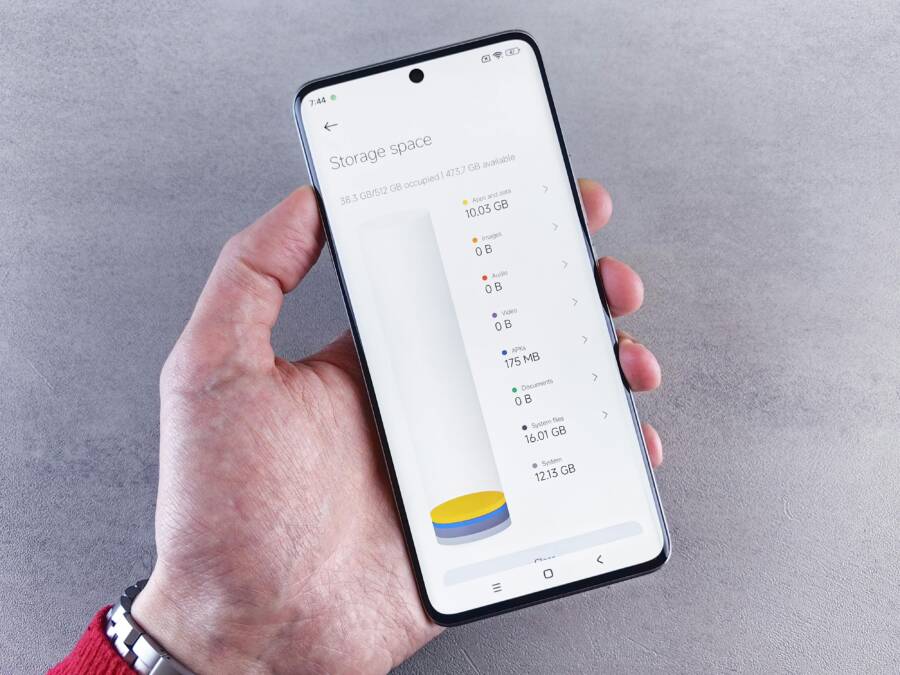
Opening your chat app and seeing your phone flood with photos and videos you didn’t ask for is a major annoyance. Auto-downloads waste data, drain battery, and push your storage toward full fast. The fix is simple: turn off automatic media downloads and control what actually comes through.
This guide explains why stopping auto-download matters and how it helps your smartphone run more smoothly. You’ll learn the concrete steps for Android and iOS, plus quick tips for common chat apps. By the end, you’ll have a reliable setup that keeps media in check and your data plan under control.
First, the practical impact. When media saves automatically, your data plan gets eaten fast, especially if you’re on a limited or pay as you go plan. Your phone uses more power, which shortens battery life during the day. And storage fills up with files you rarely view, making it harder to find the shots you actually want.
The benefits are clear. You’ll save money on data by avoiding unintended downloads, keep more space free for important files, and speed up your phone’s performance. A calmer media flow also reduces noise in your photo gallery, so you can spot important messages sooner.
Below you’ll find a straightforward path to control settings. We cover why it matters, then walk through Android steps and iOS steps. There are quick app guides for popular chat apps and practical tips to fine tune the controls. If you run into quirks, you’ll find reliable workarounds that don’t require technical expertise.
If you want, I can tailor the steps to the specific chat apps you use most. You’ll be able to keep a tidy inbox, protect your data, and extend your phone’s battery life with minimal effort.
Why Stop Auto-Downloading Media in Chat Apps
When you keep auto-downloads on, your chats can become a data and storage monster. Turning off this feature puts you back in control, so you can decide what actually lands on your smartphone. This section breaks down the practical benefits and, more important, shows you how to keep media in check without losing important messages or images.
Save Your Mobile Data Plan
Auto-downloads can wipe through data in minutes, especially in busy group chats where media is flying fast. Imagine one hour of activity and 100 MB of media lands on your device even if you only opened a few messages. That adds up quickly over a month, pushing you past your data limit and into extra charges or slower speeds.
The difference between Wi Fi and mobile data matters here. When you’re connected to Wi Fi, downloads often feel free, but they still count toward data allowances if your plan includes a cap. On mobile data, each photo or video is a direct hit to your quota. By disabling auto-downloads and choosing when to fetch media, you can avoid surprise data spikes. Use Wi Fi for large downloads when available, and reserve mobile data for essential messages only.
Practical tip: in most chat apps you can set media auto-download preferences by connection type. Pick Wi Fi only for media and keep mobile data off. If you’re traveling or on a tight plan, this change can save you a surprising amount of data each month.
Free Up Storage Space Fast
Media piles up quickly on a phone. Even if you rarely view each file, copies accumulate, taking up precious space. A few forwarded videos can become gigabytes in a relatively short period, especially in active groups where big files spread in minutes.
With auto-downloads off, you regain control over what lands on your device. You can review items before saving and delete duplicates or unnecessary files. Regularly cleaning your gallery or media folder helps keep your phone responsive and your apps snappy. If you tend to forward a lot of content, consider a quick habit: save only what you truly need and move the rest to cloud storage or a separate device.
A practical approach is to enable memory- efficient settings, like limiting downloads to high priority media (for example, photos from close friends or family). This keeps your most valued files accessible while preventing your phone from filling up with everything that circulates in chats.
Boost Privacy and Battery Life
Auto-downloading media poses privacy and security risks. Files arrive without your explicit consent, and some could contain malware or unsafe content. Keeping downloads off reduces the chance of landing risky files on your device.
Background downloads are another battery drain. When media downloads occur in the background, your phone uses power even when you’re not actively checking the chat. Turning off auto-downloads minimizes this background activity, extending screen time and reducing heat generation. You’ll notice your phone feels lighter in day-to-day use, and you’ll save precious minutes each day on charging.
If you still want quick access to media, a simple workaround is to set the app to notify you when media is available and let you choose to download. This keeps you in the driver seat while still letting you stay on top of important updates. Regularly review permissions for your chat apps as well; limiting access can improve privacy and battery efficiency without sacrificing usability.
Step-by-Step Guide to Disable Auto-Download on Android
Auto-downloading media in chat apps can quickly drain data, clutter storage, and waste battery life. This section helps you disable auto-download on Android with a clear, step by step approach. You’ll learn how to limit background activity and set your preferred download conditions so you stay in control of what lands on your phone. Whether you use your device for work or personal chats, these settings keep media flow predictable and help your smartphone run more smoothly.
Enable Data Saver Mode
Data Saver mode is a simple first line of defense against unwanted background downloads. When turned on, it restricts background data usage for most apps, including chat clients, so media only downloads when you actively use the app or explicitly choose to fetch items.
To enable it, follow these steps:
- Open the Settings app on your Android device.
- Tap Network & internet.
- Select Data Saver and switch it on.
Once Data Saver is active, several background activities slow down or pause. This means auto-downloads are less likely to occur without your direct action. It can also help you manage data more efficiently when you’re not connected to Wi Fi. If you need a quick exception, you can whitelist essential apps from the Data Saver list, but keep chat apps limited to prevent surprise downloads.
Tips for best results:
- Use Data Saver in combination with app level controls for finer tuning.
- If your data plan is generous, you may still want to disable Data Saver for certain periods to ensure important media arrives promptly.
- Remember that some apps may still download critical updates in the background; you can adjust individual app permissions later if needed.
Adjust Settings in Google Messages
Google Messages includes built in controls that let you prevent auto downloading of media while still receiving notifications when new content is available. This keeps your conversations flowing without loading every file automatically.
Follow these steps to fine tune auto-downloads:
- Open the Google Messages app.
- Tap the three dot menu icon in the upper right corner and choose Settings.
- Go to Chat features and look for Auto-download.
- Toggle off the media types you don’t want to download automatically (images, videos, audio, files).
What this achieves:
- Images and videos won’t appear in your gallery unless you approve them.
- You retain access to messages with links and previews without being overwhelmed by media clutter.
- You can still view media by tapping to download when you want it, keeping control in your hands.
Practical note:
- If you use rich communication features, some media may still appear as previews without a full download. You can disable those previews in the same settings area if you prefer a leaner chat view.
Handle Other Android Apps
Different chat apps handle media downloads in their own ways, so a general approach helps you cover most of them. The goal is to set data restrictions and review permissions so media only arrives when you say yes.
Quick, practical steps:
- Open the Settings app and go to Apps (or Apps & notifications).
- Tap the specific chat app from the list.
- Look for Data usage or Background data and disable background data if available.
- Review Permissions and turn off storage or media access if the app doesn’t need it to function for your main use.
- Return to the app and check in app settings for any media auto-download options and set them to off or to manual download only.
Extra tips to keep things tidy:
- Schedule regular cleanup of your download folders to prevent buildup.
- Use a cloud backup solution for important media so you can remove locally stored copies without fear of losing them.
- When you switch networks, recheck app settings because some apps reset preferences after updates.
If you notice occasional downloads despite these settings, consider a short period of trial with a single app. Disable auto-download in that app first, then gradually extend the change to others. This helps you verify which apps behave differently and tailor a reliable routine.
Easy Steps to Stop Auto-Download on iPhone
Automatic media downloads can quickly drain data, clutter storage, and drain battery. This section lays out practical steps you can take on your iPhone to gain control over what lands on your device. You’ll learn a simple, effective approach that keeps media in check without missing important messages. Think of it as a small set of guardrails that protect your data plan and your phone’s performance, while still letting you see what matters.
Turn On Low Data Mode
Low Data Mode helps reduce background activity across the system, including some automatic media fetches in apps. It’s a broad, safeguard that pairs well with app level controls.
- Go to Settings > Cellular > Cellular Data Options > Low Data Mode.
- Turn it on. The setting applies system-wide, so you’ll notice fewer background downloads and less data use in general.
- If you still want certain apps to fetch media when you really need it, keep an eye on the individual app permissions and settings.
Practical tip: Use Low Data Mode when you’re on a limited plan or traveling. It makes it easier to stay within your data limits while you maintain access to essential updates.
Tweak Messages App Settings
Messages is a common source of auto downloads for images and videos. Fine tuning its behavior helps you control what arrives automatically.
- Open Settings > Messages.
- Review iMessage settings for images and videos. Disable auto-download or set media to download only when you tap to view.
- Look for a Low Quality Image Mode option and consider enabling it if you don’t need full resolution right away.
What you gain: fewer photos and clips land in your gallery without your ok. You still receive message previews so nothing important is missed, but you decide when to download larger media.
Small reminder: if you share a lot of media, you can strike a balance by allowing previews while keeping large downloads off by default.
Manage Third-Party Apps on iOS
Many people rely on a handful of chat apps for daily communication. Each app can handle media downloads differently, so it’s worth pruning permissions and tuning data usage at the source.
- Open the iPhone Settings app and look for the specific chat apps you use most.
- In each app’s settings, review data usage and background activity. Disable background downloads where available.
- Check app permissions for storage and media access. Turn off access if it isn’t essential to the app’s core function.
- If an app supports in-app media controls, set it to download media only when you manually approve it.
What this achieves: you reduce the chance of unexpected downloads from third-party apps while keeping essential messages accessible. It also helps extend battery life by cutting background work.
Extra tips for steady results:
- Periodically review app updates, as changes can reset media preferences.
- Consider enabling cloud backup for important media so you can remove local copies without worry.
- For apps that keep trying to download in the background, disable background refresh or background data until you’re sure you won’t miss critical updates.
App-Specific Fixes for WhatsApp, Telegram, and LINE
Taming auto downloads means taking control app by app. Some users assume one global setting covers everything, but each chat app handles media differently. Below, you’ll find precise, practical steps for WhatsApp, Telegram, and LINE, plus quick tips to keep your phone tidy and your data safe. The idea is simple: set clear download rules, review permissions, and only fetch media when you want it. If you rely on your smartphone for work or family updates, these tweaks pay off in data savings and faster performance.
Disable in WhatsApp
WhatsApp gives you solid control over what your phone saves. By turning off automatic media downloads, you decide what lands in your gallery and when.
What to do:
- Open WhatsApp. Go to Settings > Storage and data > Media auto-download.
- Under each connection type (When using Wi-Fi, When using mobile data, When roaming), uncheck all media types you don’t want downloaded automatically, such as Photos, Audio, Videos, and Documents.
- Consider leaving at least one connection type enabled for essential media only, like important documents received from work chats.
Pro tips:
- Use “Notify me when received” instead of auto-download so you know media is there but choose to fetch it.
- If you share a lot of media, set up a separate WhatsApp folder or use cloud storage for backups. This keeps your local gallery lean.
- Review media visibility settings in WhatsApp for Android or iOS to control whether downloaded media shows up in your phone’s gallery automatically.
Why it helps:
- You prevent data spikes from group chats with heavy media traffic.
- You gain quick visibility over what you actually want to save.
- Your battery life improves when downloads aren’t happening in the background.
Control Telegram Downloads
Telegram users appreciate speed, but that can mean a flood of media arriving behind the scenes. Telegram makes it easy to set strict rules so nothing lands without your say.
What to do:
- Open Telegram and go to Settings > Data and Storage > Automatic media download.
- Choose Never for automatic downloads, or customize by type and by chat; for example, you might allow images in private chats but block videos in groups.
- Enable “Save to Gallery” only for items you want, and consider turning off auto-download for large media by default.
Extra tips:
- Use “Download media with a preview” if available, so you can preview content without fully saving it.
- If you still need fast access to certain files, set up exceptions for trusted chats or channels.
- Regularly prune saved media to avoid backlog and keep the app responsive.
Why it helps:
- Telegram becomes a predictable tool where you control which media gets stored.
- It reduces clutter in your gallery and accelerates app performance.
Stop LINE Auto-Downloads
LINE handles media differently, but you can disable auto-downloads with a few taps. This keeps your chats responsive and your storage manageable.
What to do:
- Open LINE and navigate to Settings > Chats > Photo & Video auto-download.
- Turn the switch off for both photos and videos, or set thresholds so downloads only occur when you choose to view content.
- If you still want basic visibility, enable previews without full downloads.
Pro tips:
- Consider setting a default save location outside the primary gallery to avoid clutter.
- Periodically review LINE’s permissions to ensure the app only accesses media you actually want saved.
Why it helps:
- Fewer unexpected files land on your device.
- Your data plan stays intact and your gallery stays cleaner.
Fix Facebook Messenger and Others
Facebook Messenger and other popular apps can bypass expectations if you don’t keep an eye on their data settings. A few proactive moves go a long way.
What to check:
- Messenger data saver and media settings: turn on data saver if you’re on a tight plan, and set auto-download preferences for photos and videos to manual.
- Review core apps like Signal, WeChat, and others you rely on. For Signal, consider limiting media auto-download and using message previews instead.
- For WeChat and similar apps, disable automatic downloads for large media by default and rely on in-app prompts to fetch when needed.
Practical approach:
- Start with a quick audit of each app’s settings after updates, as updates can reset preferences.
- Enable cloud backups for important media so you can remove local copies without worry.
- When a specific app keeps re-enabling downloads, temporarily restrict it with system permissions or background activity controls.
Why it helps:
- You gain a consistent media flow across apps without surprises.
- It supports privacy by reducing unseen data transfers.
- It simplifies device management, especially on smartphones with limited storage.
If you want, I can tailor the steps to the chat apps you use most. You’ll end up with a tidy inbox, stronger data protection, and longer battery life with minimal effort. And as you test these tweaks, you’ll start seeing how small changes in one app can improve your overall smartphone experience.
Troubleshoot Problems and Save Even More Space
You’ve turned off auto downloads and started tidying up, but a few stubborn issues can still creep in. In this section, you’ll learn quick checks to prevent unwanted media from slipping through and easy ways to reclaim space you didn’t realize was slipping away. Think of this as the final polish that keeps your storage lean, your data safe, and your phone responsive. A well managed chat media flow means less clutter, faster apps, and longer battery life.
 Photo by Andrey Matveev
Why Downloads Still Happen
Even with auto-downloads off, there are scenarios where media lands on your device. Knowing the common culprits helps you stop them at the source rather than chasing files later.
- Check Wi Fi rules and network awareness. Some apps fetch media when you join a new network or reconnect after being offline. This can happen even if you’ve disabled auto-downloads in the app. Make it a habit to review network related settings after every update or change to your home or mobile network.
- App updates may reset preferences. A routine app update can revert download permissions or media visibility settings. After updates, skim through each chat app’s media options to re enforce your rules.
- Group and broadcast dynamics. Large groups with many media attachments push notifications and previews even when full downloads are paused. In some apps, previews count toward your visible media without fully saving them. Adjust group specific settings if the feature exists.
- In app media previews. Some apps show previews or thumbnails without saving the full file. If previews are enough for your needs, disable automatic preview downloads and require explicit confirmation for full saves.
- Cloud syncing and backups. If you enable cloud backup for chats, some media may stream to cloud storage automatically, then sync back to your device. Verify your cloud settings and whether they impact local storage.
How to act fast:
- Regularly audit settings after updates or changes to your network.
- Create a short checklist: verify auto-download status, review group settings, and confirm cloud backup behavior.
- When in doubt, temporarily disable a single app’s background activity to see if downloads drop. This isolates the source quickly.
Clean Up Existing Files
A clean up now prevents a bigger cleanup later. Start with a structured approach to locate chat media folders and remove what you don’t need. This keeps your gallery readable and your device memory free for what matters most.
- Locate chat media folders. On Android, look under the “Media” or “Downloads” directory, and inside each chat app’s folder. On iPhone, use the Photos app and the Files app to track where media is being saved from chats.
- Review by type and source. Separate photos, videos, audio clips, and documents. Prioritize removing duplicates and large files you haven’t opened in a while.
- Delete or offload in batches. Start with the oldest or largest files. If you’re unsure about keeping something, move it to the cloud first and delete the local copy.
- Reorganize for easy access. Create a dedicated archive or cloud folder for important media. This keeps your primary gallery clean while preserving memories.
- Schedule regular cleanups. A 15 minute monthly review is enough to stop buildup. If you share a lot of content, shorten the interval to every two weeks.
- Consider automatic cleanup tools. Some apps or file managers offer auto delete or time based purge options for downloaded media. Use them selectively to avoid losing items you want.
Tips to stay on top of storage:
- Enable small previews only in apps that support it, so you see what a file is without saving the full version.
- Use cloud backup for important media so you can remove local copies without worry.
- If you frequently move files between devices, set a consistent folder naming scheme to make cleanup easier.
By taking control of both settings and storage habits, you’ll notice a quicker, more responsive phone. Your gallery becomes a reliable window to your messages rather than a dump of random files.
If you’d like, I can tailor the steps to the exact chat apps you rely on. A precise plan makes it simple to maintain a tidy inbox and a lean device over time.
Conclusion
Turning off auto-downloads in chat apps puts you in control of your data, storage, and battery life. You’ll see fewer surprises, quicker app performance, and a cleaner gallery. The key steps you already followed—adjusting per app, using connections wisely, and keeping previews on demand—still apply and keep your phone running smoothly.
Recap of the main wins: lower data use, faster device response, and better privacy. By applying the steps across Android and iPhone, and then refining per app, you create a predictable media flow that respects your choices. A well managed setting routine means you spend less time managing files and more time focusing on what matters.
Act now to lock in the improvements. Check your data usage every month to confirm the change sticks and adjust as needed. Keep an eye on app updates, because settings can reset. Use cloud backups for important media, but store locally only what you truly need. Your smartphone will thank you with longer battery life and a calmer media routine.
If you found this helpful, share your results in the comments or tell us which app surprised you most.