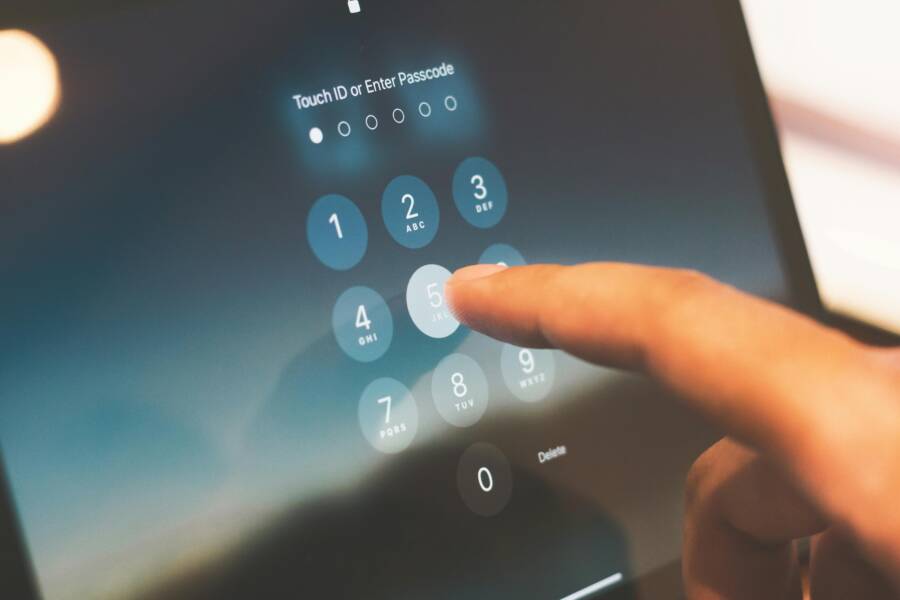
Forgotting saved passwords is the tiny drag that slows your day down. Each time you open an app or site, you’re asked to sign in again, which means retyping the same long strings. Saved passwords are autofill data stored by your password manager, and they should speed you up, not hold you up. This happens to both Android and iPhone users, and a lot of us end up typing our passwords more than we want.
There are several common culprits behind it. Sync issues can break autofill across devices. Software updates can reset or hide stored data. Changes to accounts or security settings can trigger a fresh login. Sometimes a third party password manager or a browser extension gets in the way. In other cases, storage limits or corrupted autofill data create a friction you feel every time you sign in.
In this guide you’ll find a clear, step by step path to a quick fix and long term prevention. We’ll cover the basics first, then dive into platform specific tips for Android and iPhone, and finish with practical habits to protect your saved data. By the end you’ll know how to reduce interruptions and keep your accounts easily accessible on your smartphone stores these for convenience. This is a straightforward, hopeful approach to the problem of a phone forgets passwords fix.
Top Reasons Your Phone Forgets Saved Passwords
When your phone suddenly stops autofilling passwords, it can be frustrating. Below are the most common culprits and quick checks to confirm what’s going on. Each subsection focuses on a specific issue and how to verify and fix it. Use these tips to keep your passwords ready when you need them, on both Android and iPhone. This section should feel practical and actionable, so you can move from problem to solution in minutes.
 Photo by indra projects
Cloud Sync Problems with Google or iCloud
When passwords vanish on one device but remain on another, a sync glitch is often to blame. Google Password Manager on Android and iCloud Keychain on iPhone rely on cloud accounts to keep autofill data current. If one device is offline for a long period or uses a different account, saved passwords may not sync correctly. You might see a password work on your tablet but not on your phone, or vice versa. Quick checks: confirm you’re signed into the same Google or Apple ID across devices, verify that sync for passwords is enabled, and ensure there are no recent sign‑in alerts that paused autofill. If needed, re‑enable sync or sign out and back in to reset the connection.
Full Storage or Cache Buildup
Low storage or a flood of cached data can slow autofill services to a crawl. When space is tight, the system may pause background tasks, including password syncing and autofill updates. A bloated cache can also confuse the password database, causing occasional mismatches or missing entries. To fix this, check available space first. On most devices, go to Settings > Storage to see your free gigabytes. Delete unused apps or media if needed, and clear app caches for your password manager and browser. A quick restart after clearing cache helps the autofill service refresh its data.
Outdated Software or App Bugs
Software updates fix bugs that affect password storage and autofill. If you’re running an old OS version or an outdated app, saved passwords can disappear or fail to autofill. This is common after a major update or when a new app version changes how autofill works. Signs include new login prompts after an update or passwords stopping after you install a browser extension. Update the OS to the latest version and update the password manager and browser apps. If the issue persists, check for known bugs with the device model and software version and follow official guidance.
Autofill Settings Turned Off or Changed
Autofill can stop quietly if a setting is toggled off or if biometrics are changed. Sometimes a simple accidental toggle disables autofill across apps. Biometric unlock methods, like fingerprint or face recognition, also link to password storage. If you recently updated security settings or re‑registered your biometrics, autofill might require re‑authorization or re‑enabling. Check: Settings > Passwords or Autofill, make sure autofill is on, and confirm that the chosen password manager or browser is selected as the primary autofill provider. Re‑enable if needed and test a sign‑in.
Start Here: Basic Steps to Restore Forgotten Passwords
If you’ve ever struggled to sign in because a password has fallen off your radar, you’re not alone. These basic steps help you regain access quickly and safely. The goal is to reestablish a smooth flow of account access without losing momentum on your day. Think of it as a quick reset for your digital life. You’ll walk through simple checks, then move to device specific tips. By following these starting steps, you restore confidence in your login process and keep your smartphone functioning as a reliable helper rather than a roadblock.
Restart Your Phone Completely
A full restart clears temporary glitches that hide or misreport saved passwords. Here’s a simple path: press and hold the power button, then choose Restart. If the device seems unresponsive, perform a force restart by holding power and volume down for about 10 seconds on Android, or the power button plus volume up until the Apple logo appears on iPhone. After the reboot, test a few sign ins to confirm autofill is working again. If issues return, a restart may be a sign you need to review other steps in this guide.
Check and Toggle Autofill Settings
Autofill can vanish if a setting changes or a new update overrides your defaults. Start at Settings, then find Passwords or Autocomplete. Turn autofill off, wait a moment, and turn it back on. Make sure the correct service is selected, such as Google on Android or iCloud on iPhone. If you use a separate password manager, ensure it is set as the primary autofill source. After reactivating, try signing into a familiar site to verify the change. This quick toggle often resolves stubborn sign in prompts on your smartphone.
Clear Browser and Password Manager Cache
Cache and browser data can get tangled with saved passwords, causing mismatches or missing entries. To fix this, clear cache for both your browser and the password manager app. On Chrome, go to Settings > Privacy and security > Clear browsing data, choosing cached images and files. For Safari, clear history and website data. Don’t clear saved passwords themselves. Also, review your device storage and free up space if needed. A fresh cache helps the autofill pipeline run cleanly, reducing sign in friction on your smartphone.
Update Your Phone’s Software
Software updates fix bugs that affect how passwords are stored and filled. Check for OS updates first. On Android, open Settings > System > Advanced > System update and tap Check for update. On iPhone, go to Settings > General > Software Update. Install any available updates, then reboot and test password autofill. After updating, re-sign in to a few apps to confirm the fix. Regular updates keep password storage reliable and protect you from known issues that affect 로그인 on your device.
Android Fixes: Troubleshoot Google Password Manager
When passwords won’t autofill on Android, it disrupts your flow and adds friction to daily tasks. This section offers practical, device-friendly steps to get Google Password Manager back on track. Each sub-section focuses on a targeted fix you can apply quickly. Work through them in order, and you’ll likely restore smooth sign-ins across apps and websites. Think of your smartphone as a trusted helper; a small reset here and there can keep it dependable.
Re-Sync Your Google Account
A hiccup in account sync can throw off password autofill across devices. Start by removing and re-adding your Google account on the phone. This resets the connection and prompts a fresh sync. After re-adding, verify that password syncing is turned on in Settings > Google > Devices & sharing > Sync Google services, then choose Passwords. If you use Smart Lock, ensure it remains enabled for autofill. Test several sign-ins on WiFi to confirm the changes, then sign out from any secondary devices and sign back in if you still see gaps. A quick re-sync often resolves gaps without further steps.
Reset Autofill Service App
If the autofill service itself gums up, a reset can clear lingering glitches. Locate the Autofill service in the Apps list. Tap it, then select Clear data or Clear cache, and Force stop. This resets the service without removing your saved passwords from Google Password Manager. Next, reopen the Autofill settings and reselect Google Password Manager as the primary autofill provider. You may be prompted to sign in again or reauthenticate. After reconfiguration, try signing into a familiar site or app to confirm the autofill pipeline is flowing again. If problems persist, consider a full device restart.
Check Permissions for Password Apps
Autofill relies on a few core permissions to work correctly. Go to Settings > Apps & notifications > See all apps > Google Play services and review its permissions. Storage access is essential for reading saved credentials and syncing securely. If storage or other permissions were revoked, regrant them. Also review the permissions for the password manager app and any browser you rely on for autofill. After adjusting, open a password-protected app and attempt a sign-in. If autofill remains stubborn, repeat the permission check for any related accessibility services. This quick audit often fixes silent permission issues that block password autofill.
iPhone Fixes: Get iCloud Keychain Working Again
When iCloud Keychain isn’t pulling through saved passwords, it slows you down at the exact moment you need quick access. The fix is usually straightforward and involves a few clear checks. This section covers practical steps you can take to revive the autofill service on your iPhone. You’ll verify settings, refresh connections, and confirm your device sees the latest password data. Keep in mind that small changes can restore a smooth sign-in flow across apps and websites. Approach this like a quick maintenance tune up for your digital life, not a full reset.
Turn iCloud Keychain On and Verify
Start by ensuring iCloud Keychain is enabled on your iPhone. Go to Settings, tap your name, then iCloud, and select Passwords and Keychain. Turn on iCloud Keychain if it isn’t already active. Sign out of iCloud, then sign back in to refresh the connection. If your account uses two factor authentication, complete the prompt on all devices. After re signing in, test a familiar app or website to confirm autofill works again. If cross device syncing still fails, check that the same Apple ID is used on your iPhone and any other devices. Re enabling sync often resolves the issue.
Reset Safari and Password Settings
Resetting can clear stubborn autofill glitches without erasing stored passwords. On iPhone you can reset a few related items without a full wipe. Start with Settings > Safari and choose Clear History and Website Data. This clears cookies and cache that can block autofill updates. Next, open Settings > Passwords and check that iCloud Keychain is selected as the primary autofill provider. If you use a third party password manager, ensure it has the proper permissions and ordering in Settings > Passwords. After these changes, restart Safari and try signing into a couple of sites to confirm the improvement.
Review Approved Devices in iCloud
Sometimes a device that isn’t active or is far away from your current network causes a sync bottleneck. Open iCloud settings on your iPhone and review the list of devices under your account. If you see old or unused devices, remove them to prevent stale data from interfering with sync. This is especially helpful if you recently retired a phone or tablet. After removing, give iCloud a moment to propagate the change, then sign in again on your iPhone and test password autofill. A clean device list often clears up the last mile of syncing.
Last Resorts and How to Prevent Password Forgets
Passwords stored on your phone should speed things up, not slow you down. When autofill fails, you waste time retyping and juggling codes. This section covers the last resort option and proactive steps you can take to keep forgets from happening in the first place. Think of it as a safety net for when the usual fixes don’t hold. We’ll keep the tone practical and direct, with clear checks you can apply on both Android and iPhone. Along the way, you’ll pick up habits that make your smartphone a dependable helper rather than a daily friction point.
Factory Reset as Final Fix
 Photo by Safwan C K
Before you reach for a factory reset, back up everything you can’t replace. Save passwords, contacts, photos, and app data to a trusted cloud or local storage. On Android, back up to Google Drive or a local computer; on iPhone, use iCloud or a Mac/PC backup. Schedule the reset only if you’ve exhausted every other option and you’re seeing persistent autofill failures across multiple apps. The upside is a clean slate that eliminates software quirks. The downside is the time and minimal risk of data loss if a backup isn’t complete. After reset, restore from your backup and test autofill on a few apps to confirm the fix.
Pros and Cons to Consider
- Pros: Eliminates deep software issues, can fix stubborn autofill glitches, restores native behavior.
- Cons: Requires thorough backup, may erase custom settings, takes time to reinstall apps.
When to Use It
- Repeated autofill failures across several apps after trying all standard fixes.
- The device behaves oddly even after updates and cache clears.
- You suspect a corrupt profile or system file that simple resets won’t repair.
Quick Steps to Prepare
- Verify you have a recent backup of passwords and essential data.
- Note accounts that require re-authentication after reset.
- Plan a period with a WiFi connection and time to reinstall apps.
Aftercare Tips
- Restore data in small chunks to verify each app behaves properly.
- Re-establish autofill from the intended provider and re-enable biometrics if needed.
- Run a few sign-ins to confirm everything fills smoothly.
Safer Alternatives to a Full Reset
If you’re tempted to reset as a fix, try lighter options first. Re-sync accounts, reset just the autofill service, or clear caches for password managers. These steps can restore function with far less disruption and no data loss. If the problem recurs, a reset may be your last resort, but it should be a well-planned move rather than a shot in the dark.
Daily Habits to Keep Passwords Safe
Maintaining good password hygiene is the best long term defense. When you build strong habits, your phone becomes a resilient tool rather than a puzzle. This section outlines practical routines you can adopt to keep saved passwords reliable and easy to access across devices. The aim is steady, predictable autofill behavior that reduces interruptions during your day.
Regular Updates and Backups
- Keep your OS and apps up to date. Updates fix bugs that affect password storage and autofill.
- Enable automatic backups for your password data when possible. This ensures you can restore quickly if a device fails.
- Check backup integrity every few weeks. A backup isn’t helpful if it doesn’t restore cleanly.
Avoid Sketchy Apps and Extensions
- Only install trusted apps from known sources. Unverified apps can steal data or disrupt autofill.
- Limit browser extensions that manage or intercept passwords. They can conflict with your primary autofill provider.
- Review app permissions periodically. Revoke anything unnecessary, especially accessibility permissions that aren’t essential.
Use Strong Biometrics and Enable Notifications
- Set up robust biometric locks that are easy to use, like a reliable fingerprint or facial recognition.
- Turn on autofill notifications so you know when a password fills or a change happens.
- When biometrics are changed, re-authenticate your password manager to re-link it with your saved data.
Keep a Simple Recovery Plan
- Maintain a short list of recovery options for your most critical accounts.
- Use a single trusted password manager as your anchor, with a strong master password.
- If possible, enable two factor authentication on important accounts to reduce risk if a password leaks.
Third-Party Password Managers to Try
If you need a fallback or want to compare options, consider reputable password managers. They can provide stronger guarantees for autofill reliability and cross-device syncing. This subsection highlights a couple of dependable choices and how they compare with built-in solutions.
- LastPass: A well known option with cross platform support and password sharing features. It often offers robust autofill across apps and browsers, making sign in smoother on a busy day.
- Bitwarden: An open source alternative that emphasizes security and transparency. It’s usually lighter on system resources and easy to customize.
Why Choose a Manager Over Built in
- Cross device syncing keeps passwords current on both Android and iPhone.
- Stronger security options, including unique vaults and time based one time codes.
- More predictable autofill behavior, especially if you use multiple browsers and apps.
Setup Tip
- Start with one device and your main browser. Create a strong master password and enable biometric unlock. Then enable autofill for the password manager as the primary source. After you’re comfortable, add a second device and repeat the setup. This staged approach minimizes friction and helps you verify each step works.
答案
Conclusion
Misplaced saved passwords on a phone can slow you down, but most issues fall back to a few basics. Start with a quick restart, then check autofill settings and clear relevant caches. If clouds or storage are involved, verify accounts and free space. Most problems clear up with these simple steps, so you can keep sign ins fast and reliable.
Key steps to try now
- Restart the device to reset small glitches.
- Toggle Autofill on and then back off again, choosing the correct provider.
- Clear browser and password manager caches, then test a sign in.
- Update the OS and password manager apps to the latest versions.
- Re-sync or re‑authenticate cloud services like Google Password Manager or iCloud Keychain.
- Check permissions for password apps and related services.
These fixes address the majority of forgetful passwords. A quick run through the basics is usually enough to restore smooth autofill, so you can move on with your day. If issues persist, consider a targeted reset of the autofill service rather than a full device reset. A small maintenance pause now can prevent bigger grip points later.
Proactive habits to protect saved passwords
- Keep a trusted password manager as the main source and enable biometric unlock.
- Enable automatic backups for password data and test restore occasionally.
- Limit unnecessary extensions and apps that may interfere with autofill.
- Use two factor authentication on key accounts to add a layer of safety.
If you run into a snag, share what you tried in the comments and I’ll help you troubleshoot.