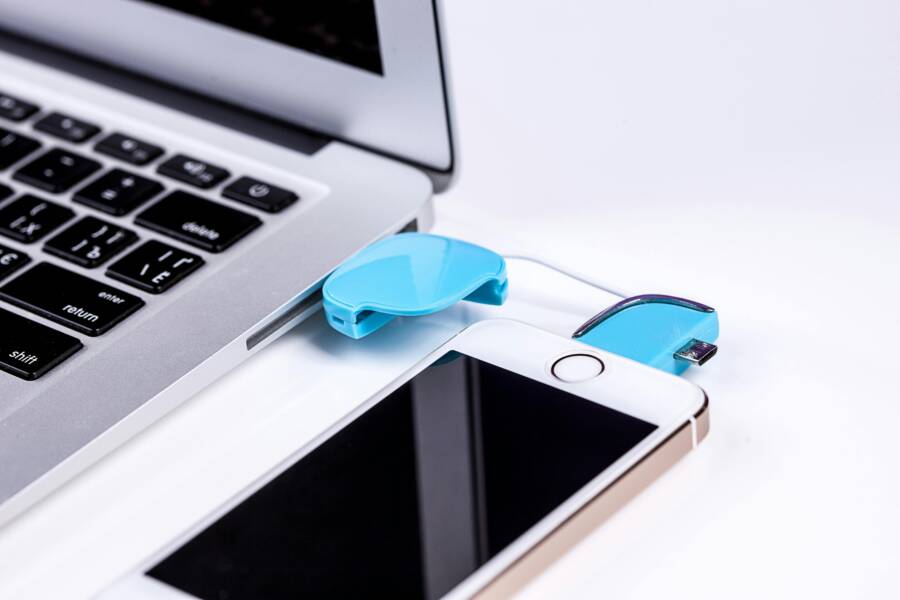
You’ve connected your smartphone to the computer, but photos won’t import. The screen stays blank, or you see error messages. This snag hits iPhone users on Windows and Android owners on Mac all the time.
Searches like import photos from phone to computer, transfer photos to PC, iPhone to Windows import, Android to Mac transfer, and USB data transfer issue lead folks here for real help.
Bad USB cables, dirty ports, and software quirks cause most problems. Don’t worry; simple fixes solve them fast.
This guide gives step-by-step instructions. You’ll check cables and trust settings, update software and drivers, handle storage issues, and use backup tools if needed. Get your photos moved in minutes.
Common causes that block photo import
You plug in your smartphone, but nothing happens. Photos refuse to show up. These everyday problems often stand in the way. Faulty hardware, settings slips, and software hiccups top the list. Spot them early, and you fix the block fast.
Bad cables and USB ports
A worn-out cable or grimy USB port kills data flow. Low-quality cables snap inside or lack strong pins for transfer. Dusty ports block contact; bent ones fail outright.
Watch for these signs:
- The connection feels loose; the phone wiggles free.
- Your device charges but shows no photos.
- The computer beeps but lists no files.
Data cables differ from charging ones. Many cheap chargers skip data wires. Grab the original cable from your phone maker or a certified match.
Test with these steps:
- Swap to another cable you know works.
- Plug into a different USB port on your computer.
- If you can, connect the phone to a second computer.
Clean ports with compressed air. Skip toothpicks; they scratch metal. This simple swap solves most connection woes.
Wrong USB mode on the phone
Phones default to charging mode when you connect them. This blocks file access. You need file transfer or photo transfer mode instead.
On Android (great for Mac transfers):
- Swipe down the notification shade.
- Tap the USB charging alert.
- Pick “File Transfer” or MTP.
On iPhone (key for Windows users):
- Unlock your phone.
- Tap “Trust” on the pop-up when you connect.
- Enter your passcode if asked.
Missed the prompt? Reset trust on iPhone: Go to Settings > General > Transfer or Reset iPhone > Reset > Reset Location & Privacy. Android sticks to the swipe method. Set it right, and your photos appear.
Software updates and system glitches
A fresh update on your phone or computer can scramble imports. New code clashes with old drivers. Pending restarts hide the real fix.
Check your smartphone first. Restart both devices. Then hunt updates.
Quick paths:
- iPhone: Settings > General > Software Update.
- Android: Settings > System > System Update.
- Windows: Settings > Update & Security > Windows Update.
- macOS: System Settings > General > Software Update.
Scan release notes for transfer bugs. iOS tweaks often hit Windows links; Android patches fix Mac handshakes. Apply them, restart, and retry. Glitches fade.
Low storage space on phone or computer
Full storage halts transfers mid-way. Your phone skips sends; the computer rejects copies. Even 1GB free helps small batches.
Peek at space:
- Phone: Settings > General (iPhone) or Storage (Android).
- Computer: File Explorer (Windows) or About This Mac > Storage (macOS).
Clear room fast:
- Delete duplicate photos or old videos.
- Move big files to cloud storage like Google Drive or iCloud.
- Empty the Trash or Downloads folder.
Work in chunks: Import 500 photos at a time. Full drives crash big libraries. Free 10-20% space, and transfers roll smooth.
Unsupported file formats and corrupted files
iPhones shoot HEIC or HEIF to save space. Windows balks at them without help. Android sticks to JPEG mostly, but Mac tools vary. Corrupted files from bad saves block batches.
Spot trouble: One photo fails; the rest stall. Thumbnails look broken.
Fix formats:
- On iPhone: Settings > Photos > Transfer to Mac or PC > Automatic (converts to JPEG).
- Windows: Grab “HEIF Image Extensions” from Microsoft Store.
- Mac: Use Image Capture to convert folders.
For corrupted ones, skip errors in the Photos app. Or dive into File Explorer (Windows) or Finder (Mac): This PC > iPhone > Internal Storage > DCIM. Copy good files; ditch bad. Third-party apps like CopyTrans handle skips. Your library saves intact.
Quick fixes you can try right away
When you’re importing photos from your phone to your computer, small issues can block the entire process. These quick fixes are practical, fast, and designed to get you moving again without digging through complex settings. Start with the simplest step and work your way through the list. You’ll often solve the problem in minutes.
 Photo by Pixabay
Restart devices and reconnect
A fresh start can clear many transfer hiccups. Start with a simple reboot sequence for your phone and computer, and include your router if you’re using cloud or network transfers. After reboot, re-connect the cable and verify the correct USB mode is active.
- Restart order: Power down the phone first, then the computer. After a few seconds, turn the computer on, then the phone.
- Reconnect and retry: Plug the cable in firmly on both ends. If you’re using a USB hub, try a direct connection to the computer.
- Check USB mode again: On Android, set the connection to File Transfer (MTP). On iPhone, ensure Trust appears and accept it.
If you’re using network transfers, power cycle the router as well and wait for full reboot before trying again. A fresh network handshake can fix slow or interrupted transfers.
Try a different cable or port and correct USB mode
Cables and ports are the most common culprits. A known good data cable and a couple of port tests usually save you from bigger issues.
- Use a data cable you know works: Some cables are designed for charging only. If you have a cable that’s clearly a data cable, use it.
- Test multiple USB ports: Front panel ports are handy, but test a port on the back of the computer as well. If you’re on a laptop, try a USB-C port and then a USB-A port if available.
- Confirm USB mode on both devices:
- Android: Swipe down, tap the USB notification, choose File Transfer or MTP.
- iPhone: When connected, unlock the device and trust the computer if prompted. If you miss the prompt, replug and try again.
- Re-check after switching cables or ports: If the device still doesn’t show up, move to the next step.
For iPhone users on Windows, ensure iTunes or the necessary drivers are installed because Windows relies on them to recognize the device. For Android users on Mac, ensure your Mac has the Android File Transfer utility if you’re not using USB-C transfers.
Use built in import tools
Both Windows and macOS have straightforward import workflows that bypass some of the guesswork with file management. These tools are designed to handle large libraries and preserve your photo metadata.
- On Windows with an iPhone or Android:
- Connect your phone via USB and unlock it.
- Open the Photos app from the Start menu.
- Click Import > From a USB device.
- Choose the photos you want and select Import.
- Wait for the import to finish and disconnect safely.
- On macOS with an iPhone or Android:
- Connect your device and unlock it.
- Open the Photos app.
- You should see an Import screen with new photos.
- Choose Import All New Photos or select specific files and Import Selected.
- Alternative on Mac: If Photos isn’t behaving, use Image Capture. It offers precise control over where files are saved and can be faster for large transfers.
If you run into trouble, check that the Photos app has permission to access files in the background and that your user account has sufficient storage space for the import.
Check for updates and known issues
Software bumps can disrupt transfers. Keeping devices up to date reduces the chance of hiccups and resolves many known issues.
- Phone updates:
- iPhone: Settings > General > Software Update.
- Android: Settings > System > System Update.
- Computer updates:
- Windows: Settings > Update & Security > Windows Update.
- macOS: System Settings > General > Software Update.
- App updates: Make sure the Photos app (Windows or macOS) is current. On the phone, ensure the camera or gallery app is updated as well.
If you still encounter problems after updating, visit official support pages for known transfer issues. Patches and workarounds are often posted there, sometimes with specific instructions for your device model or OS version.
Manage storage and file formats
Low storage or incompatible formats can derail imports before they begin. A quick space check and a small format tweak can restore flow.
- Check storage space:
- Phone: Settings > General (iPhone) or Storage (Android).
- Computer: Windows Explorer or macOS Storage pane.
- Free up space quickly:
- Move recent photos to cloud storage or another drive.
- Delete duplicates and export large videos later.
- Empty the Recycle Bin or Trash.
- Format considerations by platform:
- If your phone saves HEIC/HEIF and your PC struggles, enable automatic JPEG transfer on iPhone: Settings > Photos > Transfer to Mac or PC > Automatic.
- On Windows, install HEIF Image Extensions from the Microsoft Store to view HEIC files without converting.
- Batch strategy: Import in smaller chunks to avoid stressing devices with large libraries. Start with 200–300 photos, then increase if the transfer completes smoothly.
Check for damaged files and compatibility issues
A few bad files can stall the entire import. If you notice one image causing trouble, skip it and continue with the rest.
- Identify problematic files: If the import stops at a specific photo, try copying a smaller subset that excludes that file.
- Workaround for damaged media: In the Photos or Finder window, you can skip problematic files or use a file manager to copy only the healthy files to a new folder.
- Think ahead for future imports: If you frequently shoot in high resolution, consider converting to a lightweight format before import or using a cloud backup that handles format conversion automatically.
Device and OS specific import guides
When you’re moving photos from a phone to a computer, the exact steps can vary by device and operating system. Below you’ll find concise, proven workflows for the most common pairings. Each guide emphasizes the simplest path first, then covers helpful alternatives. Expect a mix of direct USB transfers and built-in import tools, with practical tips to keep your library intact and organized. A quick note: you’ll often need to unlock your phone and, on iPhone devices, Trust the computer when prompted. A smartphone is a powerful camera in your pocket, and the right workflow makes saving those memories effortless.
Import from iPhone to Windows
Start with the easiest route: use the Windows Photos app to import directly from your iPhone. This method preserves metadata and makes organization straightforward.
- Step-by-step workflow:
- Connect your iPhone to the PC with the original USB cable.
- Unlock your iPhone and, if prompted, tap trust to allow access.
- Open the Windows Photos app from the Start menu.
- Click Import > From a USB device, then select the photos you want and Import.
- The images save to your Pictures folder by default; verify the files appear in File Explorer afterward.
- Alternative: use File Explorer for full control
- Connect and unlock the iPhone, then trust the computer.
- Open File Explorer and locate Apple iPhone under This PC.
- Navigate to Internal Storage > DCIM, then drag or copy photos to a preferred folder on your PC.
- For a quick auto-import, right-click Apple iPhone and choose Import pictures and videos.
- Tips for smoother results:
- If a prompt is missed, replug the device and re-approve Trust.
- Ensure iTunes or the necessary drivers are installed if Windows has trouble recognizing the device.
- If HEIC files appear, Windows can convert them with built-in support or via Settings when needed.
Import from iPhone to Mac
Mac users have a couple of reliable options. The Photos app is the default path, but Finder on macOS Ventura and later offers a direct, USB-based alternative. For a quick share, AirDrop often feels like magic for recent shots.
- Photos app import (USB)
- Connect the iPhone to your Mac with the USB cable and unlock the device.
- Open the Photos app. You should see an Import screen with new photos.
- Import All New Photos or select specific items to import.
- If prompted, choose a destination or keep the default Photos library.
- Finder import (macOS Ventura and later)
- Connect the iPhone and unlock it.
- Open Finder and select the iPhone from the sidebar under Locations.
- Use the Files tab to access photos or drag desired images to your Mac.
- Quick alternative: AirDrop for recent photos
- Enable AirDrop on both devices, set visibility to Everyone or Contacts Only, then share selected photos with a single tap.
- Tips for reliability:
- Keep the Photos library and Finder permissions up to date.
- If you don’t see new photos, try reconnecting the device or restarting the Mac.
- For large imports, consider splitting into smaller batches to reduce memory pressure.
Import from Android to Windows
Android devices work well with Windows, but you’ll want to set the correct USB mode and use familiar tools to prevent friction. The MTP (Media Transfer Protocol) path is the standard.
- Prepare the device
- On the Android device, set the USB mode to File Transfer or MTP. Avoid Charging Only mode.
- Import options
- Using Windows Photos Import:
- Connect the Android phone to the PC and unlock it.
- Open the Photos app and choose Import > From a USB device.
- Pick your photos and click Import.
- Using File Explorer:
- Open File Explorer and locate the Android device under This PC.
- Navigate to Internal Storage > DCIM, then copy or drag photos to a PC folder.
- Using Windows Photos Import:
- If needed, install Android File Transfer utility
- Some setups benefit from the Android File Transfer utility on Windows, especially with older devices.
- Practical tips
- Avoid mixing large transfers with other heavy tasks to prevent timeouts.
- If you see partial imports, try a smaller batch and verify each folder fills correctly.
- Keep device drivers updated to ensure smooth recognition by Windows.
Import from Android to Mac
Macs can access Android content cleanly, but you may need the right bridge app or a fallback method for a quick transfer. DCIM structure generally holds your images, which makes drag and drop straightforward once the device is connected.
- Primary method: Android File Transfer (AFU)
- Install the Android File Transfer utility on your Mac.
- Connect the Android device with a USB cable, unlock the phone, and set it to File Transfer.
- Open Android File Transfer and drag photos from the DCIM folder to a Mac destination.
- Quick alternative: cloud backups as a fallback
- Upload photos to a cloud service from the phone, then download to the Mac.
- This approach works well when USB transfer is problematic or the computer lacks ports.
- Tips for smoother transfers
- DCIM folders typically contain subfolders like 100MEDIA or 101ANDRO. You can copy entire folders or select individual files.
- If AFU fails, reboot both devices and try again.
- When using cloud backups, organize files in the cloud first so you can batch download to your Mac later.
By following these device and OS specific guides, you’ll iron out most import issues quickly. Treat each step as a guarantee that your photos move safely from your smartphone to your computer, ready for editing, sharing, or archiving.
Advanced troubleshooting and workarounds
When import issues pop up, a calm, methodical approach saves time. This section covers practical, proven workarounds you can apply right away. You’ll learn how to handle file formats, bridge gaps with cloud transfers, and fix driver or software hiccups that block imports. Think of it as your quick playbook for smooth photo migration from phone to computer.
File format compatibility and conversion
File formats can stall an import before you even start. The two most common culprits are HEIC/HEIF files on iPhone and the sometimes differing defaults on Android. Understanding how to convert or view these formats on your computer keeps the process moving.
- Common formats you’ll encounter
- iPhone: HEIC/HEIF by default, JPEG when transferred with automatic conversion enabled.
- Android: JPEG is the standard, with some devices offering RAW or PNG exports.
- Quick conversion methods on the go
- On the phone
- iPhone: Settings > Photos > Transfer to Mac or PC > Automatic converts to JPEG during transfer.
- On the computer
- Windows: Install the HEIF Image Extensions from the Microsoft Store to view HEIC files directly in Photos.
- macOS: The Photos app can handle HEIC natively; if you need JPEG, use Image Capture to export in a different format.
- On the phone
- Built-in tools and apps that speed things up
- iPhone to PC: Use the automatic JPEG option noted above to avoid manual conversions.
- iPhone to Mac: Image Capture lets you choose exactly where to save and can batch convert as needed.
- Quick ritual: If a folder contains mixed formats, convert only the freshest batch to keep the workflow lean and predictable.
- Practical tips
- If JPEG is not essential, keep HEIC for higher efficiency and use a viewer that supports it.
- For older devices or drivers, converting a small subset first lets you confirm the result before converting your entire library.
If you’re dealing with a stubborn HEIC file that won’t open, try opening it in a viewer that supports HEIC and re-export as JPEG. It’s a simple fix that unlocks a stalled import without affecting the rest of your library.
Using cloud backups and offline transfers
Cloud backups offer a reliable fallback when a direct USB transfer stalls. They also make it easy to access your photos from multiple devices. Here’s how to use Google Photos on Android and iCloud Photos on iPhone, plus how to download copies to your computer.
- Why cloud backups help
- They create a safe copy of your library and let you pick up transfers where USB left off.
- They’re useful when you’re short on ports or cables and want to access shots on a different device.
- Google Photos on Android
- Steps to back up
- Install the Google Photos app on your device.
- Open the app, sign in, and go to Photos settings > Backup & sync > Turn on.
- Accessing on a computer
- Visit photos.google.com, sign in, and download the photos you need.
- Quick tip: Organize uploads into albums on the web so you can batch download later.
- Steps to back up
- iCloud Photos on iPhone
- Steps to enable backup
- On the iPhone, go to Settings > [your name] > iCloud > Photos and turn on iCloud Photos.
- Choose whether to optimize storage on the phone or download and keep originals.
- Accessing on a computer
- On Windows, use iCloud for Windows to access photos, or log in to iCloud.com to download originals.
- On Mac, photos appear in the Photos app if you’re signed in with the same Apple ID.
- Quick tip: If needed, download originals from iCloud.com to your PC or Mac and then move them to a local folder.
- Steps to enable backup
- General offline transfer steps from the cloud
- Create a temporary download folder on your computer.
- Download batches of photos to that folder to avoid filling your entire drive at once.
- Move the downloaded files to your preferred archive or editing location.
- Practical considerations
- Cloud quality depends on your internet speed; expect waits for very large libraries.
- If privacy is a concern, review app permissions and use private browsing or separate accounts for downloads.
In many cases, cloud transfers provide the most stable route, especially when you’re dealing with large libraries or devices that don’t play nicely with USB. They also make future imports simpler because you already have a centralized, organized archive to pull from.
Driver and software updates, and uninstalling problematic updates
Outdated drivers and software conflicts can turn a simple import into a drawn-out troubleshoot. Here’s how to identify issues, fix them, and prevent reoccurrence.
- Start with a quick health check
- Ensure both devices are on recent, stable builds.
- Reboot both ends before you start any troubleshooting.
- How to fix driver issues on Windows and Mac
- Windows
- Update the motherboard or USB controller drivers via Device Manager or the manufacturer’s site.
- Reinstall Apple Mobile Device Support if you’re importing from an iPhone. This often requires iTunes to be installed or reinstalled to pull in the proper drivers.
- Restart the Apple Mobile Device Service: open services.msc, find the service, set to Automatic, then Stop and Start again.
- Mac
- Keep macOS updated through System Settings > General > Software Update.
- If your Android device isn’t recognized, install Android File Transfer or confirm that Finder has the proper permissions to access connected devices.
- Windows
- Uninstalling problematic updates
- If a recent Windows or iOS/macOS update disrupts imports, you can uninstall the latest updates as a last resort.
- Windows path
- Settings > Update & Security > View update history > Uninstall updates.
- Reboot and test; if the problem is resolved, you can pause features updates until a fix lands.
- macOS path
- System Settings > General > Software Update > Show updates. If a recent update caused trouble, you may be able to reinstall a previous version or wait for a fix.
- Preventing reinstallation of troublemakers
- In Windows, temporarily defer feature updates and hide the troublesome patch when possible.
- In macOS, defer nonessential updates or schedule them after a known good cutoff for your workflow.
- Practical tips to keep imports smooth
- Always use the latest version of the Photos app on your computer.
- Recheck cables and ports after any driver changes.
- If you rely on a specific workflow, document the steps you know work and revert to them after any software changes.
By staying current with drivers and keeping a tidy upgrade path, you reduce the chance of a future import snag. If issues persist after updates, consult the official support pages for device-specific guidance or known issue notes.
Images
- A calm, productive setup with a smartphone and laptop can symbolize smooth imports. Photo by iam hogir from Pexels.

These strategies help you transform a frustrating transfer into a quick, reliable job. Use them in combination with device-specific guides to keep your photo library neatly organized and easy to access.
Preventive tips and quick checks for future transfers
Planning ahead saves time when you need to move photos quickly. This section covers practical, repeatable steps that reduce friction before travel or events. Think of it as a preflight checklist for your smartphone to computer transfers. By building simple routines around cables, backups, and knowing when to call in help, you’ll keep your library ready to go with minimal drama.
Best practices for cable care and transfer routines
Cables wear out, ports collect dust, and last minute issues disappear when you treat transfer gear like a small toolkit. Keep everything tidy and predictable with these habits.
- Label and organize cables: Use color-coded tags or short labels to identify each cable by device and port. It helps when you travel or share gear with others.
- Maintain cables: Avoid twists, yanks, and tight bends. Coil cables loosely and store them in a dedicated pouch or case. Replacing worn cables early prevents mid‑transfer failures.
- Clean ports regularly: Use compressed air to clear dust from USB ports and device charging ports. Gentle cleaning reduces contact resistance and dropouts.
- Have a portable backup routine: After each shoot, copy photos to a small, carryable backup drive or USB stick. Create a routine like “copy first, verify second, archive third.” This avoids last minute scrambles before events.
- Create a repeatable transfer workflow: Use the same order every time—check cables, unlock both devices, choose the correct USB mode, then run your preferred import tool. Consistency minimizes mistakes.
A simple, consistent setup lets you transfer with confidence. It also reduces the chance of missing shots when you’re on the road with your smartphone.
Setting up automatic backups to cloud storage
Automatic cloud backups give you steady protection and quick access from any computer. Here’s how to enable them and how to reach your backups from a PC or Mac.
- iPhone to cloud backup (iCloud Photos)
- On the iPhone: Go to Settings, tap your name, then iCloud, choose Photos, and turn on iCloud Photos. Decide whether to optimize or download originals.
- Access on a computer:
- Windows: Install iCloud for Windows and sign in. You can view and download originals from the iCloud Photos section.
- Mac: Open the Photos app signed in with the same Apple ID; your iCloud Photos appear there automatically.
- Quick tip: If you need local copies, download originals from iCloud.com and save them to a chosen folder.
- Android to cloud backup (Google Photos)
- On the Android device: Open Google Photos, go to Settings > Backup & sync, and turn it on.
- Access on a computer: Visit photos.google.com and sign in to view or download your images.
- Quick tip: Organize uploads into albums in Google Photos so you can batch download later.
- Cross‑device access and verification
- Ensure you have enough cloud storage to handle your library. Consider upgrading if you’re approaching limits.
- Regularly check the backup status after major shoots to confirm all new photos are synced.
- Security and privacy
- Review app permissions to limit access to only what you need.
- Use strong passwords and enable two‑factor authentication where available.
Automatic backups let you start editing or sharing from any device without waiting for a direct USB transfer. They also simplify future imports by giving you a ready, organized archive to pull from.
When to seek professional help
Sometimes a transfer issue goes beyond cables and settings. Here are clear signs it’s time to call in help, plus a practical checklist you can share with a technician.
- Signs you may need professional help
- Repeated hardware failures on the same device or multiple devices.
- Persistent software corruption that reappears after resets and updates.
- Drive errors or file system problems that cause data loss during transfers.
- Unexplained delays or crashes during import that resist standard fixes.
- What to do next
- Document symptoms: note when the problem occurs, which devices were involved, and any error messages.
- Gather essentials: collect model numbers, OS versions, and a list of steps you’ve tried.
- Start with official support: check the manufacturer’s site for known issues and firmware or driver updates.
- Consider repair options: device repair, data recovery services, or IT help if the data is valuable.
- Technician checklist you can share
- Confirm device compatibility with the computer’s OS and current drivers.
- Verify USB mode settings on the phone (File Transfer or MTP) and ensure Trust prompts are acknowledged.
- Check for corrupted files by attempting to copy a small, known-good batch and observing any errors.
- Test with a different cable and port to rule out physical faults.
- Review storage space and file formats, including HEIC/HEIF handling on the computer.
- Run a clean boot or safe mode test to isolate software conflicts.
- If needed, perform a controlled backup to an external drive before troubleshooting further.
If a professional is needed, having this checklist ready helps you get faster, more precise support and reduces back-and-forth.
This preventive guidance will help you keep transfers simple and reliable. By caring for cables, setting up automatic backups, and knowing when to seek help, you turn photo transfer from a stress point into a routine you can trust.
Conclusion
Troubleshooting photo imports from a smartphone to a computer is a straightforward, do it yourself process. Start with simple checks like using a known good data cable, ensuring the phone is in File Transfer or MTP mode, and then trying the built in import tools on Windows or macOS. If the problem persists, split large transfers into smaller batches and look at storage space on both devices.
Backups stay essential. If USB transfers stall, cloud backups provide a reliable fallback and give you access to your photos from any device. Regularly verify that your automatic backups run correctly and keep a local copy on a drive as well. This habit saves time and protects memories when cables or ports fail.
Bookmark this guide for future use and share tips or questions in the comments. A quick check of the steps below can save hours on a busy day, and your practical experiences help others tighten their smartphone to computer workflows.