Ever pair a game controller with your phone only to find the buttons doing the wrong thing or nothing at all? You’re not alone. Mapping issues are a common snag that can ruin a session in seconds, especially when you’re aiming for precision in a tight moment.
This post breaks down how to troubleshoot game controller mapping on phone setups for both Android and iOS. You’ll learn what mapping means in practical terms, why it happens, and how to quickly check for the simplest fixes first. Expect fast wins like quick updates and straightforward settings checks you can do in minutes.
If you’re curious why a game won’t recognize your controls, I’ll show you how to verify compatibility, confirm Bluetooth connections, and inspect firmware. I’ve been there during intense gaming sessions, and a few small tweaks can restore confidence in the controls without juggling extra apps.
We’ll walk through step by step fixes you can try right away. Start with basic updates, then review in game controls and system settings to align actions with your physical buttons. I’ll call out common missteps and how to avoid them, so you can move from uncertain inputs to accurate performance.
By the end, you’ll have a practical checklist to keep handy during future sessions. The goal is simple: smoother play and fewer surprises on the smartphone screen. If you’ve got a particular game or controller model in mind, you’ll know exactly which settings to tweak for reliable, responsive play.
Spot the Common Causes of Controller Mapping Problems
When your phone reads a controller incorrectly, it isn’t always a faulty cable or a stuck button. Most mapping problems come from a few repeatable sources. By understanding these causes, you can quickly target the right fix and get back to playing.
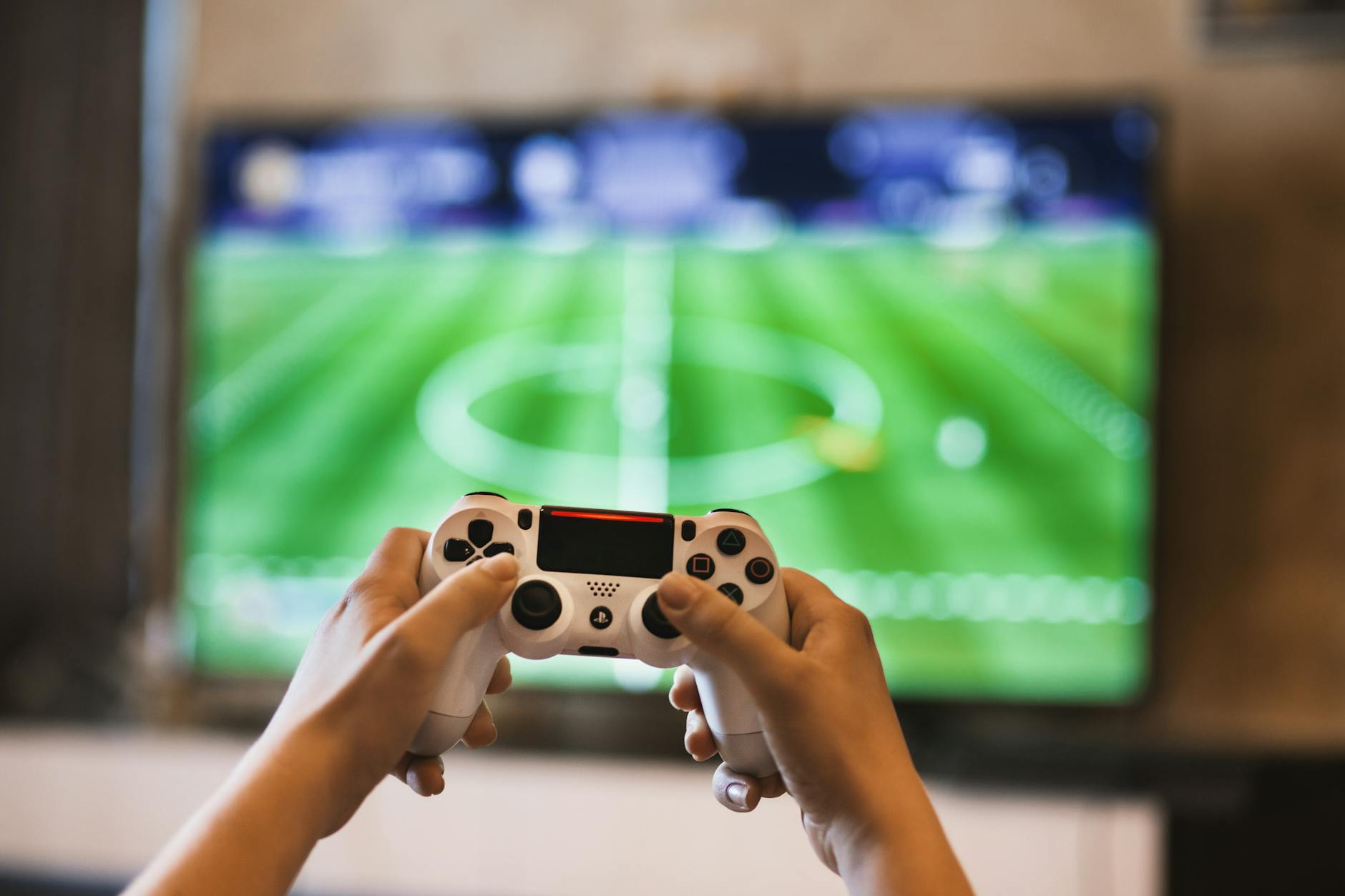 Photo by EVG Kowalievska
Outdated Software or Firmware
Old software on your iPhone or Android device can misread controller signals. When the OS updates, it often changes how input data is processed, which can create mismatches with game controls. If your iOS or Android version is several major updates behind, you may see delayed responses, random button presses, or some buttons not registering at all.
Controller firmware matters too. Manufacturers update firmware to fix input timing, button mapping, or Bluetooth quirks. If the controller hasn’t received a firmware refresh in a while, it may not align with newer phones or apps. Signs to watch for include intermittent button response, drift in directional inputs, or certain actions not triggering in-game.
What to check now
- Verify your phone’s software is current. Install any pending OS updates.
- Check the controller’s firmware version in its companion app or on the manufacturer’s site. Update if available.
- Re-pair the controller after updating firmware to ensure the new data is recognized cleanly.
Bluetooth Connection Glitches
Wireless connections introduce a layer of complexity. Interference, weak signals, or a busy Bluetooth spectrum can cause pairing problems or unstable input.
Common Bluetooth issues
- Difficulty pairing or frequent dropouts during gameplay.
- Delayed or missing button presses after you hit a button.
- Interference from nearby devices like wireless headphones or other controllers.
Solutions to try
- Keep the controller close to the phone and remove other Bluetooth devices during setup.
- Forget the device in your phone’s Bluetooth settings, then re-pair from scratch.
- Change the controller’s pairing mode if necessary, and ensure you’re using the official app or system settings to connect.
- If possible, test a USB connection to confirm whether the issue is specific to Bluetooth.
Game or App Support Limits
Not every game is made to work with controllers, and even when a game supports controllers, it might not honor your preferred button layout. Some apps use their own input schemes or override certain mappings, which can leave your inputs feeling misaligned.
Key points to check
- Confirm that the game supports external controllers and supports your platform (iOS or Android). Look for official compatibility notes.
- Review the in-game control settings. Some titles allow custom mappings, while others lock buttons to on-screen actions.
- Test multiple games to differentiate between a universal issue and a game-specific problem. If one title works well while another doesn’t, the fault lies with the app’s controller support.
Practical steps to address this
- Open the game’s control settings and look for mapping options. Create a new layout if available.
- Reset to default mappings and reconfigure from scratch.
- Check for in-game patches or updates that improve controller support.
- If a game relies on a middleware layer for input, ensure that component is up to date.
By recognizing these three core causes, you can triage controller mapping problems quickly. Start with the simplest fix, such as a quick update or re-pair, and then move to more involved steps if needed. Remember, a well-tuned setup often comes down to a clean pairing, current firmware, and compatible game support. If you’re juggling multiple titles, maintain a small baseline profile for each game to keep mappings consistent across sessions.
Fix Controller Mapping on iPhone Step by Step
If you’re battling misaligned controls on your iPhone, you’re not alone. The fix often lives in the settings menu, not in the game itself. This section walks you through the exact steps to access and edit game controller mappings on iOS, plus a quick check to confirm everything behaves as it should. Follow these steps to restore precise control and a smoother gaming session.
Access and Edit Game Controller Settings
To correct mapping, you’ll first need to pair your controller and open the dedicated Game Controller settings. Here’s the straightforward path you can follow on most recent iPhone models:
- Open the Settings app.
- Tap Bluetooth and ensure your controller is paired. If not, put the controller into pairing mode and select it from the list to connect.
- Return to the main Settings screen and tap General.
- Select Game Controller to view your connected device and the available customization options.
Once you’re in the Game Controller area, you can adjust mappings for all games or for individual titles:
- Enable customizations if you don’t see options yet. Look for a toggle labeled Enable Customizations.
- Remap for all games (the default profile):
- Tap your controller name at the top of the list.
- Choose Default (or Profiles > Default).
- Tap a button icon (for example A, B, or a stick) and assign a new action from the list.
- Fine tune any available options such as haptic feedback.
- Save by tapping Done or going back.
- Remap for a specific game:
- In the Game Controller menu, select Add Game (or open Customizations for the controller).
- Pick a supported game from the list.
- Tap Default for that game and remap buttons as desired. These changes apply only to that game.
- After saving, test in a game. If you switch games, you may want to turn off customizations to keep mappings clean across titles.
Tips to ensure a clean setup
- If you don’t see the Game Controller options, verify the controller is properly paired and your iPhone is on the latest iOS update.
- For best results, perform a quick reconnect after making changes: disconnect, then reconnect the Bluetooth pairing.
- When mapping for a specific game, start with a simple layout first and gradually adjust as you play to avoid repeated testing in the heat of a session.
Test and Tweak After Changes
With mappings updated, run quick tests to verify everything feels right. A little testing goes a long way to catching edge cases you might miss in menus.
- Launch a supported game that shows a controller icon or mentions controller support in the App Store listing.
- Play a short round focusing on fresh mappings. Check primary actions like Jump, Shoot, Move, and Pause. If something feels off, return to Settings > General > Game Controller and adjust.
- Try a second game to confirm consistency. If one title remains finicky, it may use its own control scheme that overrides the default profile.
- Confirm in-game menus reflect your current mappings. If they don’t, revisit the app’s in-game control options and reassign as needed.
- If precision still seems off, perform a quick hardware reset: toggle Bluetooth off and on, restart the iPhone, then re-pair the controller. This simple refresh can clear timing or input glitches.
- Keep a lightweight baseline profile for each game you play often. It makes future sessions faster and reduces the chance of drift between apps.
When you finish testing, you’ll have a clear sense of which changes stuck and which need another pass. If a game frequently ignores your mappings, it’s worth checking for a game-specific patch or official controller support notes from the developer. A well-tuned setup means smoother moves, quicker reactions, and fewer misfires during critical moments. And remember, your iPhone is a smartphone platform with regular updates; revisit mappings after major OS or game updates to keep everything aligned.
Solve Mapping Issues on Android Phones Easily
Encountering mapping hiccups on Android can feel frustrating, but most fixes are straightforward and fast. This section focuses on practical, device-agnostic steps you can apply right away. You’ll get a clear path from quick checks to deeper tweaks, with an emphasis on in-app mappings and solid Bluetooth handling. Keep your smartphone handy as you work through these steps, because you’ll likely test changes in real time.
Update Your Phone and Controller Firmware
Keeping both your Android device and your controller up to date is the simplest path to reliable input. System updates fix bugs and improve Bluetooth and input handling, while controller firmware updates correct timing and button mapping issues. Here’s a plain, actionable routine you can follow.
- Check the phone for OS updates: open Settings > System > Software Update and install any pending updates.
- Check the controller for firmware updates: use the manufacturer’s companion app or visit the official site to find a USB or Bluetooth firmware tool.
- After updating, re-pair the controller to ensure the new data is recognized cleanly. If you can, test multiple games to confirm the fix isn’t game-specific.
- If available, enable any default or enhanced input timing options in the controller app after updates.
Tips for a smooth update cycle
- Do updates in a quiet environment where you won’t rush the process.
- Keep the controller powered during firmware updates to avoid mid‑update drops.
- If you notice odd behavior after an update, perform a quick reboot of the phone and a fresh pair.
Reset Bluetooth Pairing Properly
Bluetooth glitches are the second most common cause of mapping problems. A clean pair often fixes misreads and drift. Follow a full reset protocol to set a solid baseline.
- Forget the controller in Settings > Bluetooth. If you see it listed as connected, choose Forget this device.
- Restart both devices. Power down the controller, then the phone, wait a few seconds, and turn them back on.
- Put the controller into pairing mode and reconnect from the Bluetooth screen. If your controller offers multiple pairing modes, start with the standard one for gaming.
- Test in a game to confirm the buttons align with actions. If a mismatch remains, re-pair once more and verify in a few different titles.
Extra tips for reliable connections
- Keep devices within a short distance during pairing and testing.
- Turn off other Bluetooth devices nearby to reduce interference.
- If your controller supports USB-C or a wired option, temporarily test a wired connection to verify whether the issue is Bluetooth specific.
Hunt for In-Game Controller Options
Some mapping problems live inside the game itself. Games may override system mappings, or offer their own control schemes. Knowing where to look and how to adjust can save a lot of testing time.
- Start by opening the game that’s giving trouble and locate the in-game controls menu. Look for sections labeled Controller, Gamepad, or Input.
- Check for button remapping options. Some titles let you customize each button, others only offer presets.
- If a game supports per-game profiles, create or select one dedicated to your controller. This keeps mappings consistent across sessions.
- If the game lacks a mapping option, note whether the issue appears across multiple titles. A game‑specific limitation may be the root cause.
Practical in-game tuning
- Begin with a simple layout to avoid confusion during play.
- Save changes and re-enter the game to confirm the new mappings take effect.
- Test core actions (Jump, Attack, Move, Pause) in quick rounds before a longer session.
- When you switch games, consider applying the same baseline layout to keep muscle memory consistent.
Why in-game controls matter
- Some games use their own input layer that ignores system mappings.
- Per-game profiles help avoid drift between titles with different control schemes.
- Regular checks after app updates prevent hidden overrides from breaking your setup.
By focusing on in-game options, you can quickly determine whether a problem is universal or game specific. If several games behave well with the same mapping, you know the issue is isolated to one title. If many games exhibit problems, it’s time to revisit the phone’s Bluetooth setup or firmware state.
This approach helps you build a dependable baseline for future sessions. After you finish these steps, you’ll know exactly which changes stuck and where more work is needed. If a game continues to ignore your mappings, check for a game patch or official notes from the developer about controller support. A well-tuned setup translates to quicker reactions and fewer misfires during intense moments.
Quick Universal Tips to Try First on Any Phone
When you troubleshoot game controller mapping on a phone, some fixes work across both major platforms. These quick universal tips help you address the most common culprits before diving into device-specific settings. Think of them as your first-aid kit for misreads and drift. They’re fast, practical, and easy to reapply across different games and smartphones.
Restart and Reconnect Basics
A simple restart often cures stubborn input glitches. It clears temporary software hiccups and resets the connection path between your controller and your phone.
- Power cycle everything: turn off the controller, then reboot your phone. After it restarts, turn the controller back on and attempt a fresh pairing.
- Reconnect in order: enable Bluetooth (or wired mode if available), pair the controller, and launch a test game or a controller-testing app to verify inputs respond correctly.
- Quick in-game test: open a supported title and run through core actions (move, jump, attack, pause). If anything feels off, redo the pairing once more to confirm a clean link.
Why this works: a reset clears timing quirks and stale Bluetooth states that can misread button presses or axis input. It’s the fastest way to rule out sporadic battery or radio interference. If you use a smartphone with a busy Bluetooth environment, a fresh connection often reduces cross-talk from other devices.
Tips to maximize success
- Keep the controller close during pairing and testing.
- Avoid testing while other Bluetooth devices are active in the same room.
- If problems persist, perform a full network restart by turning off Wi‑Fi briefly and then re-enabling it; sometimes network apps compete for resources that affect input timing.
Verify Controller Compatibility
Before you invest time adjusting mappings, confirm that the controller is compatible with your phone and the games you want to play. Compatibility checks save you from chasing shadows and help you focus on the real cause if issues remain.
Key steps to verify general compatibility
- Confirm basic device support: ensure your phone’s OS version is current and that the controller can pair via Bluetooth or USB-C. Some controllers also offer a dedicated app to verify connection status.
- Check app store notes and official docs: look for statements like “controller support” or “gamepad compatible.” This helps you know whether a game or platform supports external controllers at all.
- Test with a universal input tester: use a free app or built-in tester to confirm that each button, trigger, and stick reads correctly outside of a game. This isolates whether the issue is hardware, OS, or game-specific.
- Run a quick cross-title test: try a couple of different games known to support controllers. If one title works reliably and another does not, you’re likely facing a game-specific mapping issue rather than a device problem.
- Consider platform expectations: Android generally handles a wide range of Bluetooth devices with fewer hurdles, while iPhone tends to favor certified options and uses a consistent mapping workflow when available.
Practical pointers for a smoother check
- If your phone or controller shows a firmware notice, apply the update before retesting. Firmware improves timing and button responses.
- Use a simple baseline layout first in each test. Once it works, you can customize per-game mappings with confidence.
- Document your baseline on a quick note: which games worked, which didn’t, and any steps you took. It saves time on future sessions.
Why these checks matter
- They distinguish universal issues from game or app limits. If a controller passes the tester and a couple of games, you know the setup is solid. If compatibility is unclear, you’ll know where to focus next—firmware, pairing, or a specific game’s controls.
By starting with these universal tips, you set a solid foundation for any deeper troubleshooting. A well-validated controller setup reduces guesswork and makes subsequent tweaks more precise. Remember to revisit compatibility after major OS updates or when adding new games to your library.
When Fixes Fail: Next Steps and Alternatives
If you’ve powered through the common fixes and mapping still feels off, it’s time to broaden the approach. Not every problem has a quick in-app solution. By expanding to hardware checks, alternative tools, and a few practical workarounds, you can keep gaming momentum even when the first set of fixes doesn’t stick.
 Photo by Emmanuel Jason Eliphalet
Revisit the Basics with a Fresh Pairing
Sometimes the simplest steps need a second look. A fresh pairing can clear stubborn timing quirks that linger after updates or resets.
- Reboot your smartphone and controller.
- Forget the device on both ends, then pair from scratch using the official Bluetooth settings.
- Test a neutral input tester app to verify each button and axis respond correctly outside of games.
If the inputs still misbehave, note whether the issue is identical across multiple games. A universal misread points to a broader hardware or OS problem, while game-specific drift suggests the title’s own control layer. In either case, a clean slate helps you isolate the root cause.
Try a Different Controller or Connection Type
If one setup refuses to cooperate, a different hardware path can confirm where the fault lies. A second controller or a wired connection can reveal whether Bluetooth is the bottleneck.
- Use a wired USB-C or Lightning adapter if your phone supports it and your controller offers a compatible cable.
- Borrow or purchase a different controller with a known good compatibility track record for iOS or Android.
- Compare Bluetooth modes if your controller supports multiple pairings or profiles.
Why this helps: a new device or connection type eliminates several variables at once. If the problem vanishes with another controller, you know the original hardware needs attention or replacement. If the issue persists, focus on the phone, OS, or game-level mapping.
Check for Hidden In-Game or System Conflicts
Some games hold back or override external mappings in subtle ways. The problem can hide inside a specific app’s controller handling rather than the device or controller itself.
- Inspect in-game accessibility or controller options for any guardrails that might disable certain actions.
- Disable on-screen touch controls temporarily if the game lets you substitute with a full controller layout.
- Look for system-level accessibility features that could alter input timing or button behavior.
If a title continues to ignore your mappings, it’s one of those cases where the game developer’s notes or patches become the fastest path to a stable setup.
Consider Firmware and App Version Gaps
Firmware or app gaps often surface after major updates. Even when both sides pair nicely, a mismatch in versions can cause sporadic input timing.
- Double-check for the latest firmware for your controller and install any available updates.
- Ensure the companion app (for example the manufacturer’s controller app) is current.
- Check for game or app updates that improve controller support, then test again.
If updates aren’t available, you may need to adapt by using a baseline layout that works across several games, accepting a small performance trade-off in exchange for consistency.
Use a Custom Profiles Strategy
A robust approach is to maintain dedicated profiles for each game or genre. This reduces drift and makes future sessions faster.
- Create a core baseline profile with reliable mappings for common actions.
- For each game, tailor a per-title profile that maps key actions to the controller buttons you prefer.
- Save these profiles in a simple, organized folder on your phone for quick access.
Having a ready-to-go set of profiles minimizes the time spent tweaking during live sessions and helps you recover quickly if an update resets mappings.
When to Seek Professional Help
If mappings remain unreliable after trying the above, professional support can save time and frustration.
- Contact the controller maker’s support team with your model, OS version, and a short description of the issue.
- Check official forums, knowledge bases, or community channels for similar reports and fixes.
- If you’re relying on a specialized app or middleware, reach out to the developer for known issues and workarounds.
A fresh pair of eyes can identify a fault line you might have missed, especially when multiple variables collide.
Consider Alternatives for the Long Term
If you frequently run into mapping friction, consider long-term alternatives that reduce setup friction and improve reliability.
- Invest in a well-supported controller with broad platform compatibility and regular firmware updates.
- Use a gaming-focused phone or a model known for stable Bluetooth performance in your region.
- Explore mapping apps or tools with strong cross-title support and clear update histories, especially if you play many different titles.
These choices can pay off in smoother sessions and fewer mid-game interruptions.
Build a Quick Troubleshooting Playbook
Capture your findings so you can act fast next time. A concise playbook helps you move from diagnosis to action in seconds.
- What tested controller and connection type were used.
- OS version and controller firmware state.
- Games tested and whether issues were universal or title-specific.
- The final hardware or app change that resolved or did not resolve the issue.
Keep this documented in a notes app or a small PDF you can pull up mid-session. A reliable playbook saves time and reduces guesswork when you’re under pressure.
Final Quick-Check Checklist
- Fresh pairing completed on both ends
- Firmware and app updates applied
- Booted in a test game with core actions verified
- Alternative controller or wired connection tested
- In-game and system-level controls reviewed
- Profiles created or updated for key titles
If you’ve worked through this checklist and still face issues, you’re not alone. Many users reach a similar point where the solution sits outside routine fixes. By applying these next steps and keeping a few solid profiles handy, you can keep playing with confidence, no matter the title or device.
Conclusion
When you troubleshoot game controller mapping on a phone, fast wins come from updates, quick settings tweaks, and a simple restart. Start with OS and controller firmware updates, then re-pair to reset the connection path. A refreshed pairing often clears timing quirks and Bluetooth hiccups that cause drift or missed inputs.
Next, review both system and in-game controls. Check for controller support in the app, and adjust mappings or profiles where available. If a title uses its own control scheme, test a second game to confirm whether the issue is universal or title specific. Keeping a clean baseline helps you move quickly from problem to reliable play.
If problems persist, broaden the approach with a wired option or a different controller to isolate the fault. Revisit in-game options and per-game profiles to ensure your layout matches your muscle memory. Document what works across titles, so future sessions start strong with minimal testing.
Share your fix in the comments and subscribe for more practical guides. With these steps, smoother mobile gaming awaits, and you’ll spend more time playing and less time troubleshooting.