Ever tried to type on a Bluetooth keyboard and saw no devices found on your phone? That frustration is more common than you think, and most of the time the fix is a simple oversight or a quick software nudge. In this guide we walk through practical checks that stop the guesswork and get you back to typing in minutes.
We’ll cover the core trouble spots you should investigate first. Think about pairing data, the number of devices stored in Bluetooth memory, and any software updates that might be waiting in the wings. You’ll learn a clear sequence: reset the pairing, update software, and sanity check basic settings to ensure nothing blocks a clean connection. These steps work for most smartphones and keyboards, so you can trust the path is solid.
If you’re pressed for time, start with the quickest fixes. Turn Bluetooth off and on again, then try a fresh pairing with the keyboard powered up and in pairing mode. If that doesn’t do it, remove old paired devices and re pair from scratch. For stubborn cases, a targeted reset of Bluetooth settings or a quick software update can clear hidden glitches. Following this approach solves about 90 percent of issues, giving you reliable guidance without delving into technical jargon. By staying methodical, you’ll regain a smooth typing flow on your smartphone and keep productivity moving.
Check the Basics First: Power, Mode, and Bluetooth Settings
Before you dive into deeper troubleshooting, confirm the basics. A lot of pairing issues come down to simple missteps that are easy to overlook. In this section, you’ll verify battery health, confirm the keyboard is in pairing mode, and ensure your phone’s Bluetooth is ready to discover new devices. Think of this as clearing the whiteboard so the real diagnostics can do their job.
Verify Keyboard Battery and Charge It Up
Low power is often the top culprit when a keyboard won’t pair. A weak signal or an abrupt disconnect can stop the pairing process before it even starts.
- Check LED indicators on the keyboard. A dim, flickering, or non-existent light usually points to a depleted battery.
- Recharge via USB if your keyboard supports it. Plug it in for at least 20 to 30 minutes to provide enough runtime for a fresh pairing attempt.
- After charging, power the keyboard back on and test again.
Why this matters: a strong battery ensures the keyboard maintains a stable radio link. If the device runs on stale power, it can appear as if it’s not in pairing mode or simply refuse to respond to the phone. Once you confirm a good charge, you’re removing a major variable from the equation.
Tip: keep a small USB-C or micro-USB cable handy and a quick-charging routine. A quick boost can save minutes when you’re in a pinch.
Switch Keyboard to Pairing Mode Correctly
Pairing mode is the bridge between your phone and the keyboard. If the keyboard isn’t in this mode, the phone won’t find it in the available devices list.
- Use the common button combo for your keyboard. For many models it’s a function key together with a Bluetooth or Q/W/E style key. Some keyboards switch with a physical switch to Bluetooth, then a long press to enter pairing.
- Expect a fast blink from the LED. A quick blink or a rapid double blink usually means the keyboard is ready to pair.
- If you don’t see any light, try the troubleshooting motion: turn Bluetooth off, then back on, and reattempt the pairing sequence.
Common options you might encounter:
- Generic keyboards: Fn + Q for device 1, Fn + W for device 2, Fn + E for device 3
- Logitech keyboards: Fn + Bluetooth or a dedicated Easy-Switch key
- Apple Magic Keyboard: simply toggle the power and hold briefly if needed
- Dell or Microsoft keyboards: look for a dedicated pairing button or light indicator
If the light blinks slowly or stays on without entering pairing mode, hold the combo longer or reset the keyboard’s memory to clear old pairings. This reset often helps especially if the keyboard has paired with many devices in the past.
Enable and Scan for Bluetooth on Your Phone
With the keyboard in pairing mode, your phone has to be ready to see it. Turn on Bluetooth and start a fresh scan so the keyboard appears in the list of available devices.
- Android: swipe down to access Quick Settings, tap the Bluetooth icon to enable, then go to Settings > Connected devices > Pair new device and start scanning.
- iOS: open Settings > Bluetooth and switch it on, then look under “Other Devices” for your keyboard as it appears.
- Tips to improve success:
- Keep both devices close and free from dense metal surfaces or heavy walls between them.
- Move away from routers and microwaves which can interfere with the signal.
If your phone doesn’t see the keyboard right away, turn Bluetooth off and back on, then retry the scan. Sometimes a quick restart of the phone helps reset the discovery process. If you’ve got multiple devices, forget older ones and try pairing from scratch to avoid confusion in the list.
Images 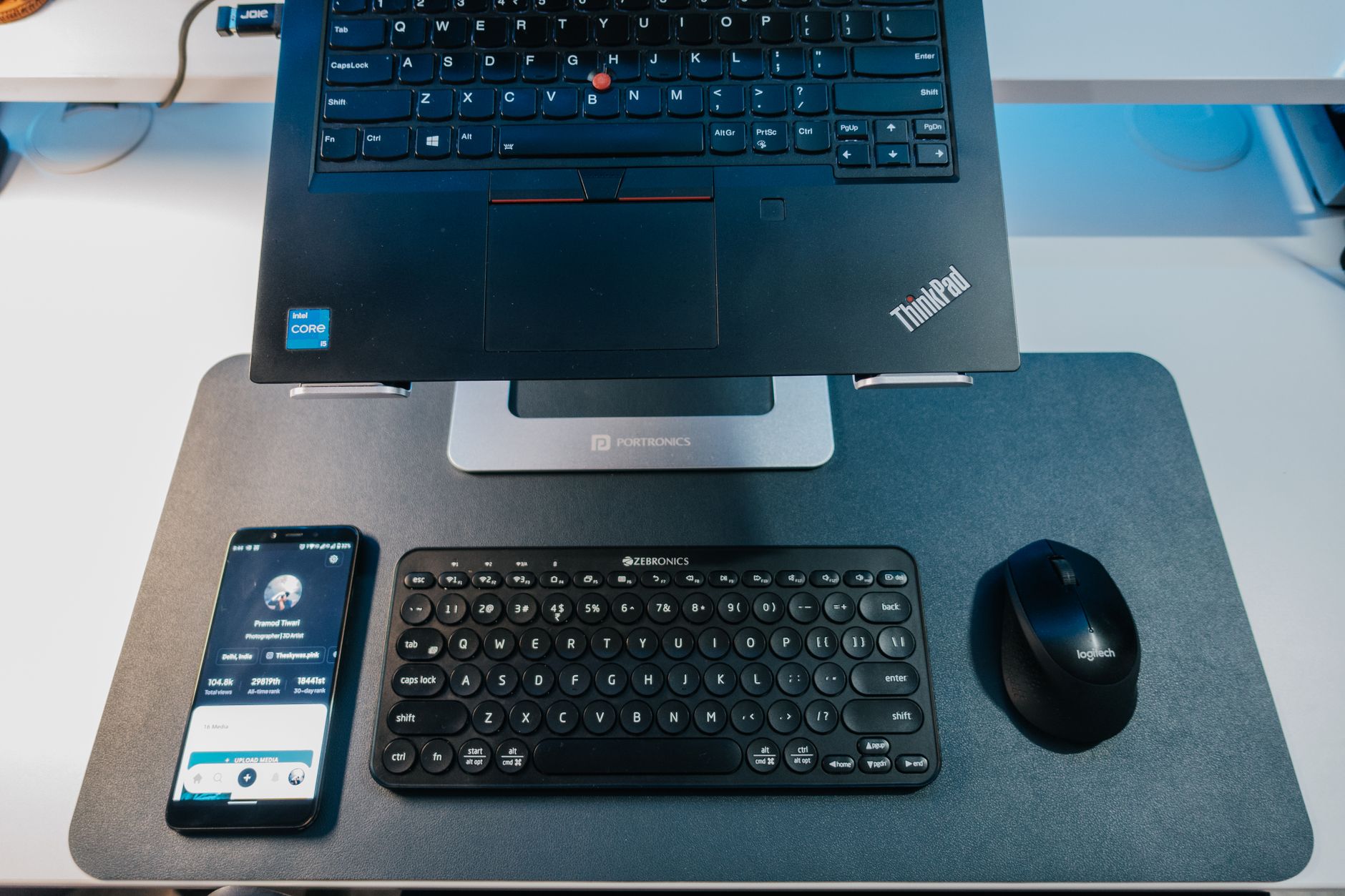 Photo by Pramod Tiwari
Reset Connections: Forget Devices and Restart Everything
When a Bluetooth keyboard won’t pair, the quickest path to a reliable connection is to reset the core pairing data and start fresh. This approach clears stubborn ghost connections and lets your devices re-negotiate a clean link. You’ll often see a noticeable difference after forgetting the old pairing and restarting the devices involved.
 Photo by Josh Sorenson
Forget and Unpair the Keyboard from Phone Settings
Forgetting the keyboard clears past connections that may block new pairing attempts. After you remove the device, re-enter pairing mode and try again.
- Android: Bluetooth list > gear icon > Forget. If you don’t see a gear icon, tap the settings cog next to the keyboard entry and choose Forget or Unpair.
- iOS: tap the (i) next to the keyboard under My Devices, then choose Forget This Device. After that, put the keyboard back into pairing mode.
What to expect next: once you’ve unpaired, re-scan for new devices and start the pairing process from scratch. This simple step eliminates accumulated pairing data that can confuse both devices.
Tips to improve success:
- Keep the keyboard powered and in pairing mode during the process.
- If the keyboard has multiple stored connections, remove all old entries to avoid auto-reconnections with the wrong device.
Restart Your Phone and Keyboard for a Clean Slate
A full restart often clears system quirks that aren’t obvious. Restarting both devices gives you a clean slate to work from.
- Power cycle both devices: turn off, wait a few seconds, then turn back on.
- Quick reset trick for iOS: enable Airplane Mode for 10–20 seconds, then disable it to refresh wireless radios.
- Benefits of a full reboot: clears temporary glitches, resets Bluetooth hardware states, and re-indexes device lists for a smoother pairing attempt.
What this achieves: after the restart, you’ll typically see a more stable discovery process and fewer hiccups during the pairing flow. If you’re still stuck, proceed to verify Bluetooth settings and reattempt pairing with the keyboard in its ready state.
Platform Fixes: Android and iOS Steps That Work
When a Bluetooth keyboard won’t pair, platform-specific tweaks often seal the gap. These fixes address common culprits like outdated software, background restrictions, and device limits. Follow these steps in order to restore a stable connection quickly.
Android-Specific Tweaks Like Software Updates and Power Settings
Software updates can fix underlying Bluetooth bugs and improve compatibility with peripherals. Start here if the pairing issue feels random or persistent.
- Update your Android software
- Go to Settings > System > Software Update (or Settings > About phone > System update on some devices).
- Tap Check for Update and install if available. Back up important data first.
- After the update, reboot and attempt pairing again with the keyboard in pairing mode.
- Disable battery optimization for Bluetooth
- Open Settings > Apps > See all apps.
- Find the Bluetooth-related app (or the app you use to manage Bluetooth devices).
- Tap Battery, then choose Unrestricted or Don’t optimize.
- This prevents the phone from closing Bluetooth processes in the background during pairing.
- Enable Developer Options and set the Bluetooth codec to SBC
- Go to Settings > About phone and tap Build number seven times to unlock Developer options.
- Return to Settings > System > Developer options.
- Find Bluetooth audio codec and select SBC.
- Reconnect the keyboard to apply the change.
- Clear the full Bluetooth device list
- Open Settings > Connected devices > Connection preferences > Bluetooth (or Settings > Bluetooth).
- Tap the gear icon next to Bluetooth, then Paired devices or Previously connected devices.
- Forget or Unpair every device you no longer use.
- This removes stale entries that can trip up a fresh pairing.
Notes for Android users
- Paths can vary by brand and Android version, but the general sequence stays the same: update, adjust battery behavior, enable a basic codec, and purge old devices.
- If you’re on Android 15 or newer, the options are typically labeled as shown here, with minor brand-specific naming.
Tips to improve success
- Keep both devices close and free from metal obstructions.
- After making these changes, perform a quick reboot to ensure the new settings take effect.
- If you keep a few devices stored, try pairing from scratch with the keyboard in pairing mode.
iOS Solutions: Updates, Airplane Mode, and Device Limits
iPhone and iPad users often see better results by refreshing software, resetting radios briefly, and trimming the list of trusted devices. These steps are straightforward and effective.
- Update iOS and iPadOS
- Open Settings > General > Software Update.
- If an update is available, install it and restart the device afterward.
- After updating, attempt to pair the keyboard again with both devices nearby.
- Use Airplane Mode briefly to reset radios
- Swipe to open Control Center or use Settings to enable Airplane Mode.
- Leave it on for about 10 seconds, then disable it.
- This quick reset clears transient wireless states and helps the phone re-scan for devices.
- Check the keyboard’s multi-device limit
- Some keyboards support multiple connections but limit how many devices can be remembered.
- Common limits are seven to eight connections. If the keyboard has reached its max, forget older devices and try pairing again.
- Forget and retry if needed
- On iOS, go to Settings > Bluetooth, tap the (i) next to the keyboard, then Forget This Device.
- Put the keyboard back into pairing mode and attempt to pair again.
- If needed, repeat with a fresh start after a reboot of the iPhone or iPad.
Practical tips for iOS users
- Keep the keyboard in pairing mode while you initiate the pairing on the iPhone.
- If the keyboard has been paired with multiple devices previously, removing those entries helps prevent automatic reconnection to the wrong device.
- A brief device restart can clear stubborn Bluetooth glitches without affecting other settings.
Images Photo by Pramod Tiwari
Images Photo by Josh Sorenson
If the issue persists after trying these platform fixes, the problem may lie with the keyboard itself or a deeper hardware compatibility quirk. In that case, testing with another keyboard or checking for firmware updates from the keyboard maker can help. Remember, a calm, methodical approach saves you time and keeps your productive workflow uninterrupted.
Handle Interference, Compatibility, and Stubborn Issues
When a Bluetooth keyboard won’t pair, interference and compatibility gaps are often the culprits. Signals share space with many devices in every home and office, so a little fine-tuning can make a big difference. Think of this section as the practical filter you run before diving into more tech-heavy fixes. You’ll learn to reduce noise, confirm you’re on solid spec ground, and ensure your keyboard’s firmware is up to date. Follow these steps in order to regain a clean, reliable connection without frustration.
Eliminate Signal Interference Around You
Bluetooth keyboards operate in the crowded 2.4 GHz band. A few smart moves can clear the air and help your phone find the keyboard quickly. Start by removing or reducing known interference sources and testing in a low-noise environment.
- sources to check:
- Routers and other Wi Fi devices nearby
- USB dongles and active USB hubs
- Kitchen appliances that emit 2.4 GHz signals, like microwave ovens and some smart devices
- practical tests:
- Test with devices close to each other in a clear space, then move outdoors or to a different room to compare results
- Power down or relocate potential offenders one at a time to see if the pairing improves
- quick wins:
- Temporarily switch off or move a router from the immediate pairing area during setup
- Disconnect nonessential USB hubs or wireless peripherals during the test
- Avoid placing the keyboard near metal furniture or large appliances that can reflect signals
Why this matters: interference can cause intermittent discovery, weak responses, or stubborn dropouts. By isolating the keyboard and phone from competing signals, you remove a large source of failure and make the next steps more predictable.
Tips for best results
- Keep both devices within a short distance and avoid dense walls between them.
- If you must test indoors, choose a room with fewer active electronics in the 2.4 GHz band.
- When testing outdoors, bring only the essentials and maintain line of sight between devices.
Check Compatibility and Update Keyboard Firmware
Even when devices pair normally, subtle compatibility issues can surface after an update or when a keyboard is past its prime. Verifying Bluetooth standards alignment and applying the latest firmware from the maker ensures the two devices can negotiate cleanly at the start of every session.
- steps to take:
- Visit the keyboard maker’s official site or app for firmware updates
- Verify the keyboard supports the Bluetooth standard your phone uses (for example, Bluetooth 4.0, 4.2, 5.0 and beyond)
- Compare the keyboard’s current firmware version with the latest listed by the maker
- If a newer version exists, follow the update instructions carefully and perform a fresh pairing afterward
- why it matters: mismatched Bluetooth profiles or outdated firmware can create stubborn pairing hurdles, especially after system updates on the phone
- post update checks:
- Reboot the keyboard and put it back into pairing mode
- Trigger a fresh scan on your phone and attempt to pair from scratch
- Test typing to confirm the connection stays stable during use
Where to look for updates
- Maker site for updates: look for firmware or driver sections, release notes, and supported devices lists
- App companions: some keyboards offer a companion app that streamlines updates and pairing presets
- Documentation: review the user manual for any model specific pairing quirks or required reset steps prior to an update
Bluetooth standards match
- Ensure your phone supports a Bluetooth version that the keyboard can use efficiently
- If the keyboard supports a newer codec (for audio devices) but you don’t need it for typing, you can usually leave it at a basic codec like SBC
- Some older keyboards may benefit from a firmware fix to improve compatibility with newer phones
Practical example
- If your phone runs Android 14 and the keyboard hasn’t seen a firmware update in a few years, check the maker’s site for a 2024 or 2025 release. Update, then re-pair with the keyboard in pairing mode. A quick reboot after the update helps ensure the new firmware is active.
Putting it together
- Start by clearing interference sources to give you a clean test environment
- Then confirm you are on the latest firmware and the two devices support compatible Bluetooth profiles
- Finally, reattempt pairing in a controlled setup to confirm stability and responsiveness
Images Photo by Pramod Tiwari
Images Photo by Josh Sorenson
If the issue persists after these checks, the problem might lie with the keyboard hardware itself or a rare compatibility quirk. Testing with another keyboard can isolate the fault, and firmware notes from the maker may reveal model specific fixes. A calm, methodical approach saves you time and keeps your workflow uninterrupted.
Conclusion
With Bluetooth keyboards, a calm, step by step approach pays off. Most pairing problems boil down to power, pairing mode, or a cluttered device list. By following the tried and true sequence—start simple, then go deeper—you’ll reclaim your productive flow quickly. A stable connection means faster typing, smoother meetings, and less friction when you work across devices.
- Try in order: verify keyboard battery and pairing mode, then enable Bluetooth on your phone and scan for the keyboard.
- If the phone still can’t see the keyboard, forget the device and re pair from scratch.
- Restart both devices to clear minor glitches, then test again in a clean pairing state.
- Apply platform fixes only after basic checks: update software, purge old paired devices, and adjust any background or codec settings as needed.
- Check for interference sources and move to a quieter environment to confirm the signal is the real blocker.
- If the issue persists, verify keyboard firmware and Bluetooth standards compatibility, and test with another device to isolate the fault.
If none of these steps resolve the problem, it may be hardware related or a rare compatibility quirk. Contact the keyboard maker or your device maker for guidance, and consider testing a different keyboard to confirm where the fault lies. A methodical approach saves time and helps maintain your productivity boost.
If you’ve found a solid sequence that worked for you, share your experience in the comments. Your tips can help someone else solve this fast and keep typing productive.