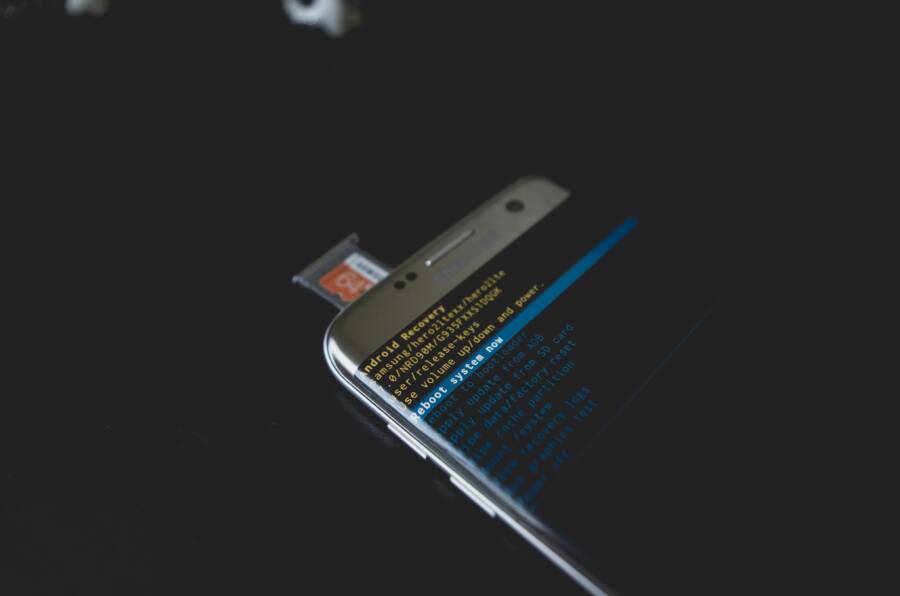
Ever tried updating your phone and watched it reboot again and again, leaving you stuck in a loop? This problem shows up on both Android and iPhone during software updates, and it can be tougher to fix than you expect. This guide gives you simple, at home steps to get you back on track without losing data.
First, we’ll look at what usually causes a reboot during an update. Most often it’s a hiccup in the update file, a low power issue, or a full storage problem. By understanding the why, you’ll see which steps matter most for your situation. You’ll also learn why backups are essential before you start, so you don’t risk your photos, messages, or apps.
Next, we cover quick checks you can do right away. A stable internet connection, a charged battery, and enough free storage make a big difference. If your phone still reboots, we move into device specific fixes for Android and iPhone, focusing on safe modes, recovery options, and how to reinstall the update without data loss.
Finally, we outline what to do after you stabilize your device. We include practical steps to prevent future boot loops, recommended backup routines, and when to seek professional help. With these steps, your smartphone will be steady again, and you’ll be back to everyday use in no time.
Common Reasons Your Phone Reboots During Updates
When a phone reboots in the middle of an update, it’s usually a sign something went off track during the install. Most issues fall into a few buckets you can check quickly: software glitches, corrupted update files, boot loop behavior, or a weak connection during download. Understanding these causes helps you pick the right fix without losing data. In this section we’ll focus on two common culprits and how to address them.
Software Glitches and Corrupted Files
Partial downloads or bad files are a frequent cause of boot loops during updates. If the update package is incomplete or contains errors, the system may attempt to apply corrupted code and end up rebooting repeatedly. This is similar to loading a program from a damaged USB stick; the phone tries to read broken data and resets to try again, only to hit the same snag.
Fixes you can try now:
- Confirm the update finished downloading over a stable Wi Fi connection. If the download interrupted, cancel the update and re download from a reliable network.
- Free up storage space before retrying. You should have plenty of free space and a healthy battery. Remove unused apps and media if needed.
- Clear cached data for the updating app or system updater. This can remove corrupted cache files that interfere with the install.
- After clearing cache, start the update again. If the issue persists, consider downloading the update file again from the manufacturer’s site or waiting for a fresh OTA release.
What to watch for next time:
- A spotty internet connection is often the root of partial downloads. If you notice the device stalling mid download, switch to a quieter network or move closer to the router.
- If the phone continues to reboot after an attempted update, it may be time to enter recovery mode or seek professional help to inspect the software integrity.
Hardware Triggers Like Phone Cases
Sometimes the problem isn’t software at all. A phone case or screen protector can press buttons or interfere with the hardware during updates. A case that fits tightly around the device or has raised edges can press the physical buttons at the wrong moment, triggering a reboot sequence or entering a recovery option unintentionally.
What to do if hardware is the culprit:
- Remove the case and any accessories before starting an update. This eliminates pressure on the power button or volume controls during the install.
- If the phone insists on rebooting with the case off, re attempt the update in a calm state with the device resting on a flat surface.
- Check for any case anomalies, like mis aligned power button or button stubs that could become pressed during vibration during an update.
If you notice the rebooting only happens with the case on, it’s a clear sign hardware pressure is at play. In that case, keep the device case free during critical updates and re apply it once the update finishes successfully. This simple step can save a lot of troubleshooting time.
Quick Fixes to Try First
When a phone reboots during an update, there are a few simple actions you can try before diving into deeper fixes. These quick wins often resolve the issue without risking data loss. Think of them as the first-aid steps for your smartphone, designed to stabilize power, storage, and network conditions so the update can proceed smoothly.
Charge Your Phone and Force Restart
Step-by-step: plug in the charger and let the device sit until it’s fully charged or near full. Then perform a forced restart to clear temporary glitches that might be triggering the reboot. The exact button combo varies by device, but the goal is the same: wake the system cleanly and give it a fresh start.
- Android: hold the power button and volume down at the same time for about 10 to 20 seconds until the device reboots. Some models may use a different combo, such as power and volume up, so check your model if needed.
- iPhone: press and release the volume up button, press and release the volume down button, then hold the side button until the Apple logo appears.
Why it works
- A full battery eliminates power-related interruptions during the update. Low power can cause the update to abort or the system to shut down unexpectedly.
- A forced restart clears minor software faults that accumulate during updates. This isn’t a data loss action; it simply resets the state and allows the update to resume from a clean slate.
- It also helps if a background process is stuck in a loop. By rebooting, you give the system a chance to reinitialize all services with a stable baseline.
Tips to improve results
- If your phone is slow to respond, wait a minute after plugging in the charger before starting the restart. A fully awake device is easier to control during the restart sequence.
- After the restart, open the update screen again and confirm you want to install. If it balks, try a quick restart once more.
What to watch for next
- If the reboot continues after charging and a forced restart, move to more targeted checks like storage space, network stability, and safe mode. The goal is to isolate whether the issue is software corruption, a faulty update file, or a hardware trigger.
Additional note for smartphone users
- If you use a case or screen protector, remove them during the update. A tight case can press buttons during a reboot, which may trigger another restart cycle. Keeping the device unobstructed reduces accidental inputs.
This quick fix is often enough to get you past the boot loop and back to a normal update flow. If it doesn’t help, you’re ready to try more specific Android or iPhone recovery steps.
Step-by-Step Fixes for Android Phones
If your Android device reboots during an update, you’re not alone. The problem can stem from software quirks, background apps, or even how the system handles updates. This section walks you through practical, easy-to-follow fixes that don’t require a factory reset. You’ll learn two quick, repeatable actions you can try first and understand why they help. Think of these as reset buttons for a stressed phone, designed to get you back to a smooth update experience without losing data. We’ll cover two focused steps you can perform right away, with clear instructions you can follow in minutes.
Turn Off Auto Restart and Clear Apps
A common culprit behind update reboots is automatic maintenance that restarts the device or pushes updates in the background while you’re using the phone. Turning off auto restart and pruning recently installed apps can stop these interruptions and give you a cleaner update process.
What to do:
- Turn off auto restart and auto optimization
- Path: Settings > Device Care > Auto optimization > toggle off.
- If your device uses a slightly different menu, look for Battery or Maintenance settings and disable any automatic restart options.
- Clear or uninstall recently installed apps
- Path: Settings > Apps.
- Review the most recently installed apps, especially those installed just before the reboot issue began.
- Uninstall any apps you don’t recognize or that look suspicious.
- If you’re unsure about an app, try disabling it first to test whether the reboot stops.
- Keep certain apps out during updates
- When you’re about to install a major OS update, it’s a good idea to limit heavy apps in use. Pause or close games, media-streaming apps, and other memory-hungry programs to reduce background load.
- Why this helps
- Auto restart and optimization can trigger a reboot loop if the system is preparing to install an update while an app or service is taking control of resources. Clearing recently added apps reduces the chance of conflicts, while disabling auto-restart ensures the device stays in update mode without surprise reboots.
Tips you can use right away
- Do a quick storage check before trying the update again. You should have free space available for the new files.
- If you notice the phone behaving oddly after removing an app, re-check the list to see if you missed a recent installation that could be the source.
What to watch for after this step
- If the reboot stops, you’ve likely addressed a conflict between a new app and the update process.
- If reboots persist, proceed to more targeted recovery steps. The goal is to isolate whether the issue is software corruption, a faulty update file, or a hardware trigger.
Additional note for smartphone users
- If you use a case or screen protector, remove them during the update to rule out accidental button presses. A snug case can press the power button during the install and mimic a reboot sequence.
Wipe Cache from Recovery Mode
If applications and settings aren’t the root cause, a corrupted cache partition can interfere with an update. Wiping the cache forces the system to rebuild temporary files without touching your personal data. This step is safe and often resolves stubborn boot loops during updates.
What to do:
- Power off the device completely.
- Enter recovery mode
- Hold the power button and volume up button (the exact combination can vary by model; some devices use power + volume down or a different key combo). Keep holding until the recovery menu appears.
- Navigate to the wipe cache partition option
- Use the volume buttons to move and the power button to select.
- Choose “Wipe cache partition” and confirm.
- Reboot the device
- After the wipe completes, choose “Reboot system now.”
- What you gain
- This action clears out temporary system data that may have become corrupted during the update download or install. It does not erase your photos, messages, or apps.
Why cache wipes matter
- System caches can accumulate stale files after an update. If the cache contains partial or broken data, the installation process might restart or stall. Rebuilding the cache helps the system install cleanly.
Safety and expectations
- A cache wipe is a safe operation with no data loss. If you’re unsure of your device’s recovery key combo, look up the exact method for your model before you begin. A quick search will confirm the correct button sequence so you don’t enter a wrong menu by mistake.
What to watch for next
- After the reboot, try the update again. If normal installation resumes, you’re likely past the hurdle.
- If you still see a reboot during the update, you may need to explore advanced options like safe mode testing or a clean reinstall, depending on your device model and OS version.
Putting it all together
- Start with the simplest fixes. Disable auto restart and tighten control over background apps to remove likely triggers.
- If the problem persists, clear the system cache via recovery mode. This often resolves issues caused by corrupted temporary data.
- If you still face reboots, consider more in-depth steps tailored to your Android manufacturer, such as testing in safe mode or re-downloading the update from a reliable network.
As you work through these steps, keep an eye on whether the reboot occurs at a specific time, after particular actions, or with certain apps installed. Each of these details can point you toward the most effective next step. This practical, methodical approach helps you reclaim control of your update process and keeps your data secure.
How to Fix Reboots on iPhone During iOS Updates
When your iPhone reboots in the middle of an update, it can feel like a stall you can’t bypass. The fix often lies in quick, targeted steps that reset the device without risking data. In this section we focus on a reliable first move that works across most iPhone models: forcing a restart. It’s a safe, practical way to clear temporary glitches and reattempt the update with a clean slate.
Force Restart Your iPhone
If your device is stuck in a boot loop or won’t respond to touches during an update, a force restart can break the cycle. This action does not erase your data; it simply reboots the system in a controlled way and gives the update process a fresh start.
- Quick press volume up, quick press volume down, then hold the side button until the Apple logo appears. Release when you see it.
- Repeat if the Apple logo does not show on the first try. Some devices benefit from a second attempt to fully reinitialize system services.
What to know about the button sequence
- The exact combo is designed to wake the device by triggering a controlled restart. It works for most iPhone models that support iOS updates, including newer generations. If you’re unsure of your model’s specifics, this three-step sequence is a safe starting point.
- If you have a stubborn reboot loop, performing the sequence several times can help. Each attempt gives the system a chance to reinitialize hardware and software.
Why this method helps
- It clears temporary software glitches that can appear during an update. A clean restart often stops the reboot loop and lets the update resume.
- It prevents data loss. This action is non-destructive and simply restarts the operating system in a stable state, which is exactly what you want when the update stalls.
Tips to improve outcomes
- Ensure the device is charged or plugged in before attempting the restart. A power drop during a forced restart can trigger another loop.
- After the Apple logo appears, give the update screen a moment to respond. If it stalls again, try the force restart sequence once more.
- If the reboot persists after several attempts, consider moving to recovery mode steps or contacting support. Some update loops require deeper intervention.
What to watch for after this step
- If the force restart breaks the loop and the update continues, you’ve successfully stabilized the device. Let the update finish without interruption.
- If reboots return, you’ll want to proceed with more advanced options such as reinstalling the update via recovery mode or performing a clean reinstall, depending on your iPhone model and iOS version.
Practical note
- If you’re using a case or screen protector, remove them during the update. A snug case can press buttons during a restart and trigger another boot sequence. Keeping the device unobstructed reduces accidental inputs and speeds recovery.
This basic reset is a reliable first step for most iPhone reboots during updates. If it doesn’t resolve the issue, you’re ready to explore recovery options that address deeper software problems or faulty update files.
What to Do If Your Phone Still Reboots
If you’ve already run through the quick fixes and your smartphone still reboots during an update, it’s time to push a bit deeper. The goal is to isolate whether the issue is software corruption, a faulty update file, or a hardware trigger. Stay systematic, and document what you try so you don’t repeat steps. This section outlines practical, data-safe avenues you can pursue without losing your photos, apps, or messages.
 Photo by Kelvin Valerio
Reconfirm Power, Storage, and Network Conditions
A stubborn reboot often hides in plain sight. Recheck three essentials that APIs and OSes rely on during updates:
- Power: Keep the device on a reliable charger or near full battery. A dip mid install can trigger a restart loop.
- Storage: Ensure there is ample free space. Updates often require extra room to unpack and install.
- Network: Use a stable connection, preferably Wi Fi with a strong signal. A flaky download can corrupt the update package.
What to do now
- Reconnect to a trusted network and restart the update from the beginning.
- Free up space by removing large apps or media you don’t need temporarily.
- If you’re on mobile data, switch to Wi Fi and try again.
If these checks don’t resolve the issue, the reboot is likely tied to firmware or software integrity. It’s time to move to targeted recovery options for Android and iPhone.
Android: Safe Mode and Clean Booted State
Safe Mode helps you determine if a third party app is causing the reboot. If the device runs stable in Safe Mode, a recently installed app is the likely culprit.
Steps to try
- Enter Safe Mode
- Most devices: Hold the power button, then tap and hold Restart until Safe Mode appears; confirm.
- If your model uses a different gesture, check the manufacturer’s guidance.
- In Safe Mode, observe for a reboot. If it stays stable, focus on recently installed apps.
- Remove suspicious apps
- Go to Settings > Apps, sort by Recently Installed, and uninstall those you don’t recognize or that were added just before the issue began.
- Exit Safe Mode and retry the update
- Restart normally, then attempt the update again.
If Safe Mode doesn’t stop the reboot, or if the device reboots even with no third party apps installed, move to a cache or data clear path without factory resetting.
Android: Wipe Cache Partition (Again, Safely)
Wiping the cache partition clears temporary files that can become corrupted during updates. This won’t erase personal data.
What to do
- Power off.
- Enter recovery mode (button combo varies by brand; typically Power + Volume Up, or Power + Volume Down).
- Navigate to “Wipe cache partition” using volume keys; confirm with the power button.
- Reboot and try the update again.
If the reboot persists after a cache wipe, you may need a more thorough approach, such as a factory reset. Back up first if possible.
Android: Consider a Clean Reinstall
A clean reinstall sets the device back to a fresh state, removing all apps and settings. It’s a last resort that can fix stubborn boot loops.
How to prepare
- Back up essential data: contacts, photos, messages, and documents.
- Ensure you have access to your Google account and that you remember passwords for re signing in.
How to perform
- Use your vendor’s PC tool or the standard recovery menu to perform a factory reset.
- Recovery path: Power off > Recovery mode > Wipe data/factory reset > Reboot.
- After the reset, set up the device fresh or restore from a clean backup, then apply the update again.
Caution
- A factory reset erases apps and data, so use this only after you’ve exhausted lighter options.
iPhone: Deeper Recovery Options
If an iPhone keeps rebooting during an update, you may need to move beyond force restarts to more robust recovery steps. The aim is to reestablish a clean software baseline without erasing data unless necessary.
Approach
- Force restart if you haven’t recently tried
- Quick press volume up, quick press volume down, then hold the side button until the Apple logo appears.
- If needed, repeat once or twice.
- Update via computer
- Connect the iPhone to a Mac or PC with Finder or iTunes.
- Check for the latest iOS version and apply the update from the computer rather than over the air.
- Reset settings (not data)
- On the device, go to Settings > General > Transfer or Reset > Reset All Settings.
- This resets system settings while keeping apps and data intact.
- DFU restore (last resort)
- DFU mode reinstalls iOS from the ground up. It erases all content, so back up first if possible.
- Use the manufacturer’s official steps for your exact model.
If these steps don’t resolve the reboot loop, the issue could be a deeper software bug or a hardware problem. Contact Apple Support or your carrier for further guidance.
When to Seek Professional Help
If the reboot continues despite all at home fixes, professional support is the safest path. This is especially true if:
- Your device periodically loses power during updates and won’t boot past the recovery screen.
- You notice unusual noises, heat, or screen flicker during the update process.
- You have important data you cannot back up due to the loop.
A qualified technician can run diagnostics to determine whether the issue is hardware related, such as a failing storage chip or power management circuit, or a stubborn firmware fault that needs a vendor tool to repair.
Preventive Steps for Future Updates
Prevention is easier than repair. Build these habits to reduce reboot risks during updates:
- Back up before every major update
- Use cloud backups and local copies where possible.
- Keep free storage ample
- Aim for at least 20% free space on the primary drive.
- Disable heavy apps during updates
- Pause or close memory-hungry apps before starting a software install.
- Maintain reliable power
- Charge the device fully or keep it plugged in during updates.
- Monitor for odd behavior after updates
- If you notice abnormal battery drain or slow performance, address it before the next update.
This approach helps you keep your device stable and reduces the chance of another boot loop.
If you need a version tailored to a specific model or region, I can adjust the steps accordingly. The goal is straightforward: stabilize your device, complete the update, and keep your data intact.
Conclusion
Most reboot loops during an update can be resolved at home with a calm, methodical approach. Start by confirming basics—power, storage, and a stable network—then try OS specific fixes and keep a fresh backup. If the issue clears, retry the update and monitor for any new signs of trouble.
Android users should finish with a safe mode test or a cache wipe, then consider a clean reinstall only if needed. iPhone users can lean on forced restarts and, if necessary, a DFU style restore after backing up. Across both platforms, a quick backup before updates makes future attempts safer and faster.
Backup is non negotiable. It protects photos, contacts, messages, and apps every time you push through a major update. With a solid restore plan, you can retry confidently rather than fear data loss. Keep updates downloaded over reliable networks and ensure plenty of free space so installations proceed smoothly.
If you find a fix that works for your device, share it in the comments to help others. For more practical tips like this, subscribe and stay tuned. A well cared for smartphone usually solves the reboot issue quickly, letting you get back to everyday tasks with less downtime.