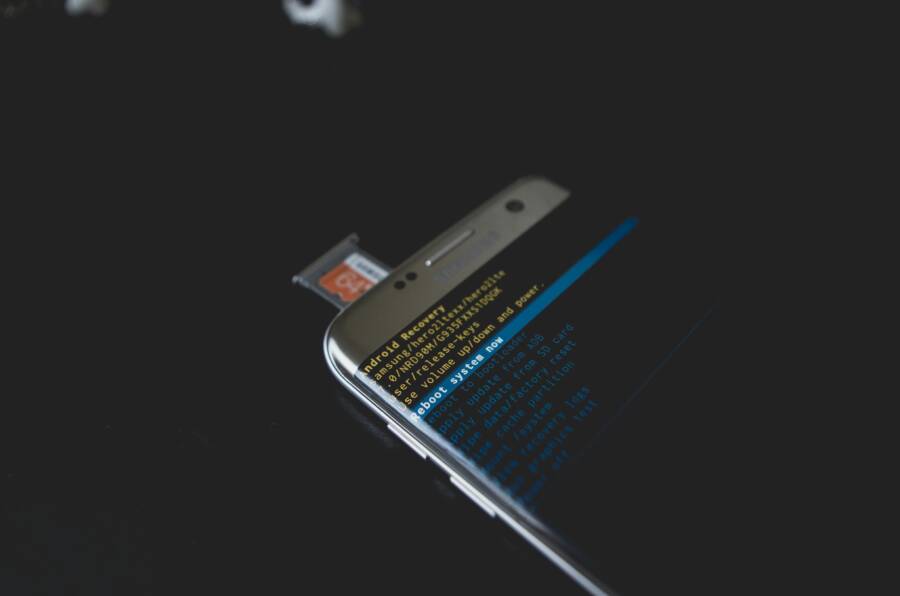
When your gallery stops showing photos even though the files are still on your phone, it can feel like a missing map for your memories. The issue isn’t the photos themselves but the media database that catalogs them. A broken index means your apps can’t find what’s there, which leads to empty albums and frustrated scrolling.
This guide walks you through the problem and explains why it happens on both Android and iOS. You’ll learn quick checks to confirm the files exist, plus a clear path to a full rebuild when needed. By following these steps, you’ll avoid data loss and get back to seeing your media in the places you expect.
First, you’ll see how the media database acts as a searchable catalog. Then we’ll cover safe, practical checks you can perform right away on your smartphone to verify files are intact. The goal is to restore visibility without touching your actual photos, videos, or music.
Next are Android specific steps to rebuild the database, followed by practical workarounds for iOS if a full rebuild isn’t the best option. Expect simple, step by step actions that don’t require extra tools or risky tweaks. The emphasis is on safety and speed, so you don’t risk your memories.
Finally, you’ll find tips to prevent these problems in the future. Routine backups, mindful file management, and occasional database maintenance can keep the gallery humming. Follow these steps to see your media again and keep your collection organized for days to come.
Spot the Signs of a Broken Media Database
When the gallery index loses track of your files, photos and videos can feel invisible. A broken media database doesn’t delete media; it just hides or misindexes it. You’ll notice gaps, snags, and odd behavior in your gallery apps. Recognizing the symptoms early helps you fix the problem quickly and without risking your actual files.
Common Symptoms to Watch For
There are several telltale signs a media database is broken. Start with these and note when they appear, especially after moving files between devices or using a computer.
- Empty folders or albums: Folders look blank even though files are present on the device. This is a classic sign that the index can’t read what’s stored.
- Blank or missing thumbnails: You may see gray boxes or no previews at all. Without thumbnails, it’s hard to know what’s inside each folder.
- App freezes on open or while scrolling: Gallery apps can stall or crash as they try to fetch data from the corrupted index.
- Search fails for known photos: You know a photo exists, but searching by name, date, or tag returns nothing.
- Photos not showing up after transfers: New or recently copied images vanish from view, common after moving files from a PC or external drive.
- Partial views or inconsistent results: Some pictures appear while others do not, or only older files show up.
While Android and iOS handle media differently, the underlying issue is the same: the index that powers your viewer is out of sync with the actual files. On Android, common gallery apps may fail to scan newly added files or ignore certain folders. On iOS, missing items can appear after imports or exports, with the Photos app occasionally showing “operation failed” errors or broken Live Photos. In most cases, the actual files are safe; you just need to refresh or rebuild the database to restore visibility.
If you notice these symptoms, you’re not alone. The fix usually involves safe, straightforward steps that refresh or rebuild the catalog without touching your media itself. A quick test that helps confirm if the database is the problem is to take a new photo. If it appears immediately after capture, the issue is with the index, not the files.
Quick Fixes Before a Full Rebuild
When your gallery is acting up, you don’t have to jump straight to a full database rebuild. Some quick, low-risk tweaks can restore order and get your media showing again. Think of these as the warm-up exercises for your phone’s memory catalog. They’re simple, fast, and often effective for both Android and iOS users. Then, if needed, you can move on to more thorough rebuild steps without risking your files.

Photo by Kelvin Valerio
Restart and Update Basics
A quick restart can clear transient glitches that creep into the media database. If you’re in a rush, this is your first move before more involved troubleshooting.
- Force close the gallery app to stop all background activity. On Android, go to Settings > Apps > Gallery > Force Stop. On iOS, swipe up from the bottom (or use the app switcher) and swipe the Photos app off the screen.
- Restart your device. A fresh boot clears temporary files and resets background processes that might lock onto the index.
- Update the OS and the gallery app. System updates fix known bugs that affect how media is scanned and indexed. App updates patch glitches that can stall or confuse the database.
Why this helps: these steps reset stubborn little caches and refresh the database engine without touching your media. If you’ve recently moved files or connected new storage, a restart often brings the index back in sync with what’s on the device.
Tips to keep in mind:
- If the app still misbehaves, clear the gallery app cache on Android (Settings > Apps > Gallery > Storage > Clear Cache). You’ll often see a quick improvement after the app rebuilds its index.
- On iOS, don’t worry about caches in the same way; a restart plus any pending Photos app updates usually does the trick.
Check Storage and Cloud Sync
A full rebuild isn’t always necessary. Sometimes the issue is simple misalignment between what’s stored locally and what’s shown in the gallery due to space or syncing rules.
- Free space check: Insufficient local storage can cause the gallery to fail to index new or moved files. Verify available space and remove nonessential items if you’re running tight.
- Cloud sync toggles: Turn off cloud sync briefly, then turn it back on. On Android, disable Google Photos backup; on iOS, toggle iCloud Photos off and on again.
- Data use awareness: If you’re on a limited data plan, be mindful that re-synchronization can eat into your allowance. Schedule or perform syncs over WiFi when possible.
What this achieves: freeing space reduces the load on the media scanner, while refreshing cloud sync ensures the index re-scan recognizes the current set of files. This approach avoids accidental data loss and keeps your actual media intact.
Practical checks to perform:
- Open your cloud photo app and verify the last synced date. If it’s paused or stuck, re-enable sync and monitor for improvements.
- Look for large or duplicated files you can offload to another location or delete to free space.
- After toggling sync, take a quick new photo or video to confirm it appears promptly in the gallery. If it does, the problem was the index’s sync state rather than the media files themselves.
By starting with these quick fixes, you’ll likely restore normal behavior without needing a deeper rebuild. If problems persist after these steps, you’re ready to tackle the more involved solutions with confidence, knowing you’ve eliminated common stumbling blocks.
Rebuild Your Android Media Database Step by Step
If your gallery is showing gaps or missing thumbnails, the issue is usually the media database, not your actual files. Rebuilding the MediaStore index can restore visibility without touching your photos or videos. Below are practical, device-aware steps to perform this safely on Android devices, including common variations you might encounter on Pixel, Samsung, or other brands.
Find and Clear Media Storage Data
Resetting the media data forces Android to rescan folders and rebuild the index from scratch. This is a safe, targeted approach that often resolves stubborn gallery issues.
- Path to follow: Settings > Apps > See all apps > Media Storage (or MediaStore) > Storage & cache > Clear data. Confirm when prompted.
- What to expect: The system wipes the stored index data and immediately re-scans internal storage and any SD card for photos, videos, and audio files.
- Important notes: This does not delete your actual media files. It only removes the database that catalogs them. You may see a temporary drop in thumbnails as the rebuild runs.
Device-specific notes may include:
- Pixel and many other Android devices: Media Storage is a system app that might be hidden under “Show system apps.” Clearing data triggers a full re-scan.
- Samsung devices: Look for Media Storage under Show system apps, then clear cache first, followed by Clear data if needed.
What you should do after clearing data:
- Open the Gallery or Photos app and let it begin scanning. You may notice improved indexing after the first launch.
- If you rely on other apps for media viewing, open them once in a while to trigger their own scans and confirm consistency.
Restart and Let It Rebuild
A full reboot acts like a fresh start for the media pipeline. It clears temporary files and reinitializes background services that manage the index.
- Perform a full restart: power off the phone, then turn it back on.
- Allow the rebuild to run in the background. Don’t use the gallery aggressively for the first few hours.
- What you should expect: The system will re-scan storage, recreate thumbnails, and rebuild metadata like dates and file types. This process can take some time depending on storage size.
Timing guidance:
- Typical window is 5 to 30 minutes for a light scan, longer on larger libraries. In some cases, you may want to wait up to a few hours if you have terabytes of media or a very full device.
- A first, quiet boot helps avoid competing background tasks. If your device runs hot or feels sluggish, allow it to finish the initial pass before heavy use.
Common micro-steps to assist the rebuild:
- After the restart, avoid copying new files in bulk during the initial rebuild. Let the index catch up first.
- If you use the cloud sync features, re-enabling them after the initial scan can help the local index align with online copies.
Verify and Troubleshoot Results
After the rebuild window, verify that the media database now reflects your library accurately. If items are still missing or thumbnails remain broken, you may need to repeat the process or investigate storage and permissions.
What to check:
- Open the Gallery or Photos app and browse a few folders you know are complete. Confirm thumbnails appear and recent captures show up promptly.
- Run a quick test by taking a new photo or recording a video. If it appears quickly, the index is functioning again.
- If problems persist, review storage health and permissions.
Troubleshooting steps if the issue persists:
- Recheck storage space. Low available space can impede the indexing process. Free up space if needed and repeat the rebuild.
- Verify app permissions: Settings > Apps > Gallery (or Photos) > Permissions. Ensure access to storage is allowed.
- Clear gallery app cache (Android): Settings > Apps > Gallery > Storage > Clear Cache. Then reopen the app to trigger another scan.
- If you use multiple media viewers, consider forcing a scan in them as well to confirm consistency.
- Check cloud sync behavior: temporarily disable and re-enable cloud backup or sync. For Pixel and stock Android, pause Google Photos backup; for Samsung, toggle cloud services off and on again.
- If the database still fails to rebuild after these steps, perform a follow-up check with a larger data set or different user profile to rule out profile-specific issues.
When to seek deeper help:
- If you consistently see “operation failed” messages in Photos or the gallery after multiple rebuilds.
- If your device reports unusually low storage or persistent file permission problems even after a reset.
- If all else fails, a factory reset becomes a last resort. Back up all data first, then reinitialize the device.
By following these steps, your Android device should regain a healthy, responsive media index. A well-maintained media store keeps your memories easy to find, whether you’re browsing by date, location, or folder. And with the right checks in place, you can avoid these issues in the future and keep your gallery neatly organized.
iPhone Fixes When Gallery Acts Up
When the Photos gallery on your iPhone misbehaves, it can feel like your memories are out of reach. The issue often stems from the media library index rather than the files themselves. The goal of this section is to give you practical, safe steps you can take now to restore visibility of your photos and videos, without risking data loss. Start with quick checks and only move to deeper fixes if the issue persists on your smartphone.
Simple Restarts and Settings Tweaks
Sometimes the simplest actions fix the problem. A forcedQuit of the Photos app plus a quick reboot can clear stubborn glitches that hide media from view. If you use iCloud Photos, toggling the setting can re-sync the library and rebuild the index from the cloud.
- Force quit Photos, then reboot your iPhone: swipe up from the bottom (or double-click the Home button on older models) to view recent apps, swipe Photos off the screen to close, then power the device off and back on.
- Toggle iCloud Photos off and back on: go to Settings > [your name] > iCloud > Photos, turn off Sync this iPhone, wait a moment, then turn it back on. Choose Download and Keep Originals if you want full files on-device.
- After these steps, open Photos and let it re-scan. A fresh start helps the app index catch up with what’s actually stored.
Why this helps: it clears small caches and resets the indexing service without touching your media. If you recently moved files or added new storage, a restart often realigns the index with your library.
Helpful tips:
- If the gallery still misbehaves, clearing the Photos cache isn’t necessary on iPhone, but ensure the Photos app is up to date.
- For slow networks, allow time for iCloud sync to complete before testing again.
Advanced Steps for Stubborn Issues
When quick fixes don’t solve the problem, you can push a little deeper. These steps are designed to tackle stubborn indexing issues while keeping your media safe.
- Update iOS: Settings > General > Software Update. Install the latest version if available; these updates often include fixes for library indexing.
- Check file formats and downloads: if some items fail to display, try opening them in another app or the iCloud site. If playback works there, the issue is the index, not the files.
- Use a staged approach to resets: Reset All Settings as a last resort. This won’t erase your photos but will reset network and app preferences, which can resolve deeper library glitches.
- Let the library rebuild in the background: ensure the phone is charging and connected to Wi‑Fi. In some cases, letting the device sit overnight (or several hours) gives Photos the time it needs to re-index.
- Safe mode equivalents on iPhone: while there isn’t a true Safe Mode like on some devices, you can reduce background activity by closing other apps and avoiding heavy media tasks for a while. This can help Photos finish a stuck scan.
When to consider more drastic steps:
- If you repeatedly see errors like “operation failed” in Photos after multiple rebuild attempts.
- If the library remains incomplete despite all the usual checks.
- If you must recover a large portion of your library and the index continues to fail.
In most cases, these steps restore visibility without touching your actual media. If you reach this section after trying several times, you’ll have a clear path to a full rebuild while minimizing risk to your photos and videos.
Prevent Future Media Database Problems
A healthy media database keeps your memories easy to find. After you rebuild, a smart plan can prevent the same issues from coming back. Think of this as a routine that protects the index, the actual files, and the apps you rely on daily. Use these practical guardrails to keep your gallery accurate, fast, and reliable on your smartphone.
Regular Backups and Cloud Sync
Backups are your first line of defense against data loss and indexing problems. They let you restore a clean, known state if the index goes out of sync again.
- Automate daily or near‑daily backups: use iCloud Photos or Google Photos for automatic sync, plus an external drive for a second copy.
- Keep local and cloud copies in sync: if a file is missing in the gallery, you’ll have a recent version in your backup to restore from.
- Schedule backups around major changes: before big transfers, app updates, or OS upgrades, ensure a fresh backup is in place.
Why it matters: when the database misreads, you can re-create it from a solid backup without touching the original media.
Keep Your OS and Apps Updated
Software updates fix known indexing bugs and improve file handling. Staying current reduces the chance of future problems.
- Enable automatic updates where possible, but also monitor for new releases after major updates.
- Update the gallery or Photos app promptly, since these apps manage the index directly.
- If you postpone updates, plan a short maintenance window to apply them and verify the library after.
Key takeaway: updates patch vulnerabilities in the media pipeline and improve how files are scanned and indexed.
Manage Storage Wisely
Low space can cause indexing hiccups or incomplete scans. A tidy storage environment helps the database stay healthy.
- Regularly check available space and remove duplicates or large unused files.
- For Android users, consider moving rarely accessed media to a separate drive or cloud storage.
- For iPhone users, enable offloading of unused apps if you’re tight on space, and keep a healthy buffer for media.
Why this helps: more free space means the scanner runs smoothly and can complete tasks without pausing mid‑scan.
Safe App and File Habits
The way you use apps and save files directly affects the integrity of the index.
- Install apps only from official stores and avoid ones that request excessive permissions.
- When copying files, keep them in organized folders with clear names to help the index categorize them correctly.
- Close heavy media apps before powering off or letting the battery run very low to avoid corrupted writes.
- Prefer reliable viewers and editors that respect file integrity and metadata.
Helpful note: consistent file naming and folder structure makes it easier for the index to recognize new items during a scan.
Cloud Sync Management
Cloud services can both help and complicate the gallery experience. A thoughtful approach keeps things in sync without surprises.
- Use a stable Wi‑Fi connection for large syncs to avoid partial updates.
- Temporarily pause sync during large imports or when performing a rebuild, then resume to re‑align the local and cloud libraries.
- If multiple devices access the same library, ensure all devices are on compatible versions and have consistent settings.
Takeaway: coordinated cloud behavior reduces duplicates, conflicts, and misindexed items.
Routine Library Audits
Periodically review your media library to catch indexing gaps before they become visible issues.
- Do a quick scan of a few random folders and verify thumbnails load correctly.
- Create a known good test file and confirm it appears quickly after capture.
- Document any patterns you notice, such as certain folders always missing thumbnails, so you can adjust your workflow.
Why audits work: small, regular checks catch drift in the index and give you a chance to fix it early.
Safe Practices After Transfers and Adds
Moving files between devices or apps can momentarily confuse the index. Plan for a clean re-scan after big changes.
- After transferring from a computer or external drive, open the gallery and give it some time to rescan.
- If you add a large batch of files, avoid heavy editing until the index catches up.
- For Android, avoid ejecting storage during indexing; for iOS, keep the device on a stable power source during large imports.
Bottom line: gentle handling after big file moves reduces the risk of a corrupted or out of sync database.
When to Seek Help Before a Full Rebuild
If you notice repeated indexing failures across apps or devices, it’s time to consult deeper solutions rather than a routine rebuild.
- Look for persistent “operation failed” messages in Photos or Gallery after multiple attempts.
- If storage health reports problems despite apparent free space.
- If the same issue keeps coming back after you’ve performed the standard maintenance.
A proactive approach saves time and protects your library from recurring problems.
Putting It All Together
A robust maintenance routine combines backups, updates, smart storage use, careful file practices, and occasional audits. This approach reduces the likelihood of future media database problems and keeps your gallery fast and reliable. With the right habits in place, you’ll spend less time troubleshooting and more time enjoying your memories on your smartphone.
Conclusion
If your gallery is acting up, start with quick, low risk fixes. A restart, a cache clear for Android, or a toggle of cloud sync on iOS often restores order without touching your actual files. These steps are fast, safe, and set the stage for a full rebuild if needed. Your photos stay safe while the index catches up.
When a full rebuild is required, follow the Android path first by refreshing the Media Storage data and letting the system re-scan. On iPhone, quiet, targeted resets and controlled re-indexing through iCloud syncing can do the job. The goal is to restore visibility to every photo, video, and song while keeping the originals intact. Your photos wait.
If problems persist after these steps, proceed with deeper checks or a store-and-sync focused plan. By staying organized and keeping regular backups, you reduce the chances of future gaps in the library. Tell us in the comments what worked for you, and share any tips you’ve found helpful. For readers exploring backups or gallery apps, check the related posts to broaden your safeguards and keep your collection easy to find.