Are you tired of typing on a Bluetooth keyboard and watching your letters lag behind your taps on a smartphone screen? You’re not alone. Many users deal with slow responsiveness on both Android and iPhone, which makes quick notes or long messages a real grind. This guide gives you fast, tested fixes that usually clear the delay in minutes.
First, try the simplest steps. Forget the keyboard in Bluetooth settings and re-pair it from scratch. Turn off predictive text and other keyboard features that add processing, then restart the phone. Free up some storage space and make sure your phone is running the latest software. These small changes often fix most of the lag without any extra tools.
If the delay persists, check the hardware and connections. Move closer to the phone to avoid interference, and switch to a different Bluetooth profile if your device supports it. Disconnect other Bluetooth devices that you aren’t using, then reconnect the keyboard first if you’re pairing multiple devices. On some models a quick reset of the keyboard itself helps, especially if it stores long-term shortcuts.
For heavier lag, look at app level factors. Some apps run background tasks that steal processing power, so close unused apps and disable battery saver modes temporarily. If you rely on external keyboards for work, consider updating the keyboard firmware or testing with another keyboard to isolate the issue. These steps fix the majority of cases and keep your workflow smooth, but there are a few deeper causes to explore next.
What Causes Bluetooth Keyboard Lag on Your Phone
Bluetooth keyboard lag can feel like a stubborn gremlin tugging at your fingers. The good news is that most delays come from a few everyday culprits. By checking power, then ruling out interference and distance, you can usually restore snappy input quickly. Below are two focused subsections that cover the most common causes and practical fixes you can apply right away. This guidance is designed to be straight to the point and actionable, so you can get back to typing without frustration.
 Photo by cottonbro studio
Low Battery Drains Connection Speed
Low power on either the keyboard or the phone can slow Bluetooth signals. When a keyboard runs on a weak charge, its transmit cadence may drop, causing delayed keys or missed characters. The phone may also throttle Bluetooth to save energy, further increasing lag. The effect can feel like you’re typing in slow motion, especially during long sessions or while using power-saving features. Start by checking both devices’ battery levels and charging status. If either device is below halfway, plug in or replace fresh batteries. After charging, test the keyboard again to confirm the improvement.
- Quick checks you can do now: verify keyboard battery level in its app or indicator LED, check the phone’s battery saver mode, and ensure you’re not near the minimum charge. If the keyboard uses replaceable batteries, swap to fresh cells. If it’s rechargeable, use a known-good charger.
- What to look for: a sudden improvement after full charge typically confirms power is the root cause. If lag remains, move to the next troubleshooting steps.
Interference and Distance Issues
Interference and distance are two sides of the same problem. Walls, metal objects, or a cluttered desk can reflect or absorb Bluetooth signals, creating gaps where the keyboard’s input takes longer to reach the phone. Nearby devices such as Wi-Fi routers, cordless phones, or other Bluetooth gear can share the same airwaves, causing collisions that slow down transmission. Distance matters too; Bluetooth is short range, and even a few extra feet can introduce noticeable lag. Keep the two devices within clear line of sight and away from potential signal blockers.
- Best practice today: stay within 10 feet of your phone, ideally with no thick obstacles in between. Remove anything that sits directly between the keyboard and the phone. If you must have devices nearby, try to separate them or turn off nonessential Bluetooth devices temporarily.
- Environment tips: move to a room with fewer electronics, or switch to a different Bluetooth channel or band if your phone offers it. A quick test with a second keyboard can help identify whether the issue is device-specific.
- A practical preview: reducing interference often yields a noticeable drop in input lag within minutes, letting you type with confidence again.
Quick Fixes That Work on Any Phone
When a Bluetooth keyboard drags its feet on your phone, it can slow you down just when you need to type fast. This section gives you two practical fixes that apply to both Android and iPhone users. They’re simple, quick to try, and often clear the lag in minutes. If you’re mid-work or drafting notes, these steps help you regain focus without hunting for extra tools.
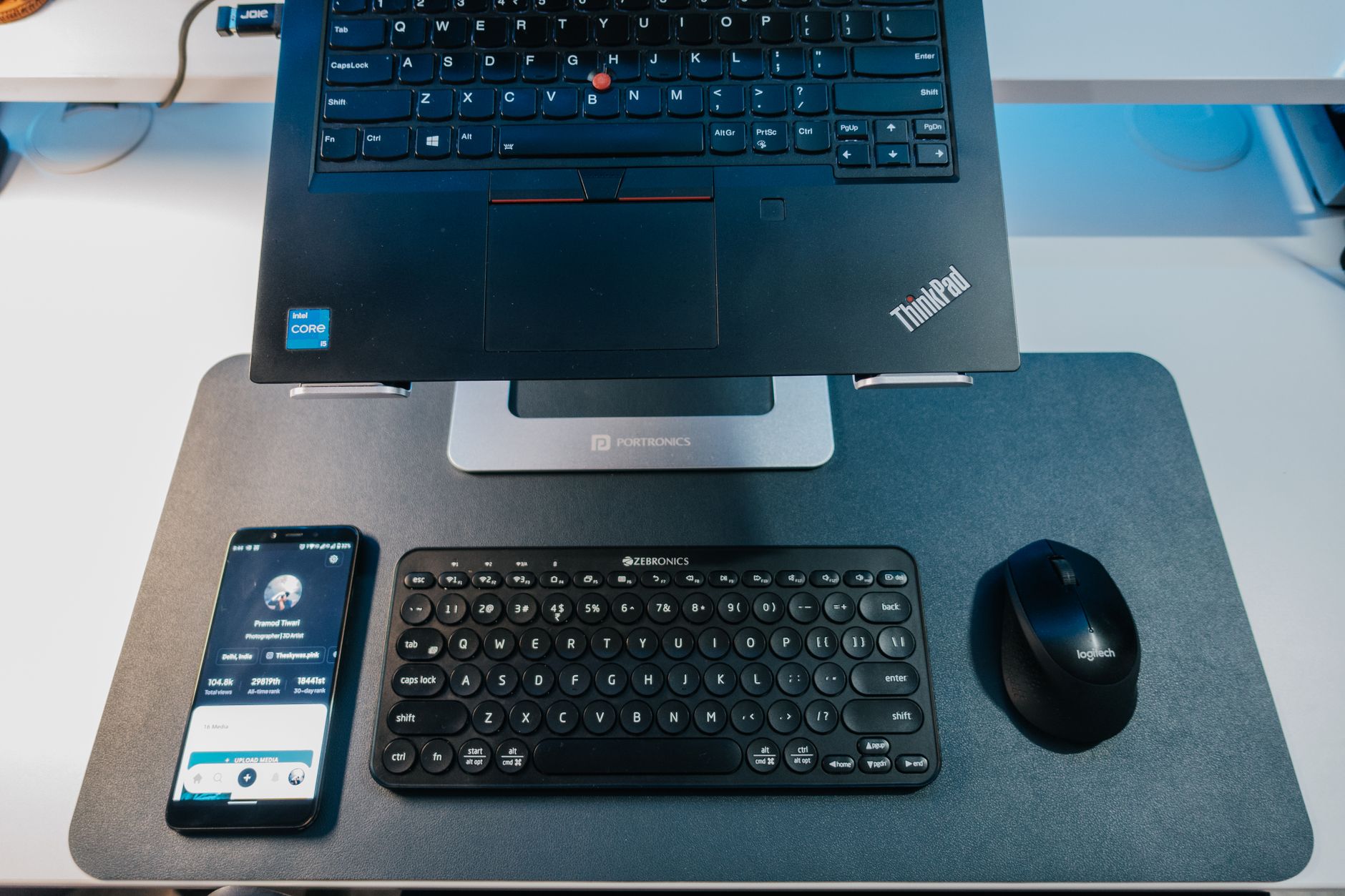 Photo by Pramod Tiwari
Unpair and Re-Pair Your Keyboard
Unpairing and re pairing the keyboard often resets quirks that cause input lag. Here are exact steps you can follow.
Android (Settings > Connections > Bluetooth)
- Open the Settings app on your phone.
- Tap Connected devices (or Connections, depending on your device).
- Tap Bluetooth to see all paired devices.
- Find your keyboard in the list.
- Tap the gear icon or options menu next to the keyboard name.
- Choose “Forget,” “Unpair,” or “Remove.”
- Confirm your choice if asked.
iPhone (Settings > Bluetooth > i icon)
- Make sure Bluetooth is on in Settings.
- Go to Settings > Bluetooth.
- Find your keyboard in the list of connected devices.
- Tap the information icon (ⓘ) next to your keyboard.
- Tap “Forget This Device” and confirm.
- Turn Bluetooth off for 10 seconds, then turn it back on if you still see the device.
After unpairing, re pair from scratch to ensure a clean handshake. On Android, turn Bluetooth off and back on, enable pairing mode on the keyboard, then select it from the list. On iPhone, repeat the same pairing process by choosing the keyboard from the Available Devices list.
Restart and Charge Everything
Sometimes the simplest moves have the biggest impact. A short restart and a full charge can reset stubborn lag and bring back snappy input.
- Power off both the phone and the keyboard.
- Wait 30 seconds to reset memory and connections.
- Turn the phone back on first, then the keyboard.
- Ensure the keyboard is fully charged. If you use replaceable batteries, swap in fresh cells.
- Test typing for a noticeable improvement.
- If lag returns, re check battery levels and try again after a fresh charge.
Android-Specific Steps to End Keyboard Lag
If you’re chasing faster keyboard input on an Android phone, two targeted settings can clear a lot of lag. These tweaks address how power saving and audio processing can slow down Bluetooth communications. Below, you’ll find precise paths and steps so you can implement them quickly and test the impact right away. These fixes complement the general tips and often finish the job in minutes.
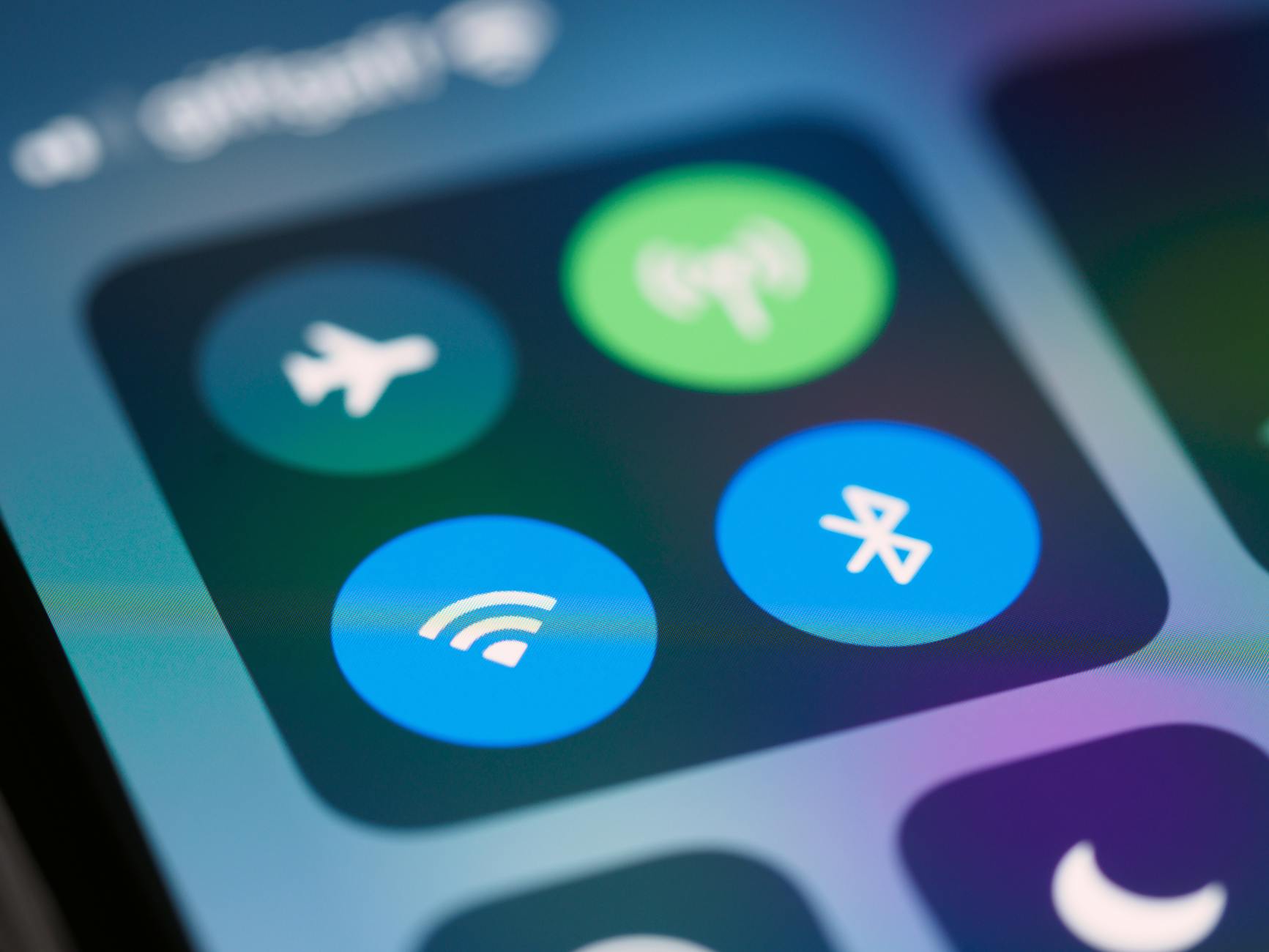 Photo by Brett Jordan
Turn Off Battery Saver Mode
Battery saver can slow Bluetooth by limiting CPU performance and activity in the background, which in turn delays how quickly the keyboard input reaches the phone. Turning it off often yields an immediate improvement in responsiveness.
Path: Settings > Battery > Off. When battery saver is active, you may notice sluggish keystrokes and longer pauses between taps and characters. Disabling it restores full processing power for Bluetooth tasks and reduces lag during typing.
- What to do now: toggle Battery Saver off, then re-test the keyboard. If you still see delays, proceed to the next step to rule out other culprits.
- Quick sanity check: ensure you’re not relying on aggressive power-saving profiles or scheduled optimizations, which can re-engage automatically.
Enable Developer Options and Tweak Audio
Developer Options give you granular control over how your device handles audio encoding, which can impact Bluetooth input timing. Disabling HD Audio is a simple lever you can pull to shave off input lag.
Full steps to access and disable HD Audio:
- Open Settings and go to About phone.
- Tap Build number seven times to enable Developer options.
- Return to Settings, open System > Developer options.
- Find HD Audio and switch it off.
- Re-pair the Bluetooth keyboard if you notice persistent lag, and test typing to compare results.
هذه steps can reduce delay without requiring extra tools. If the lag continues, you may want to explore additional variables like Bluetooth profile changes or nearby interference.
iPhone Fixes for Smoother Bluetooth Typing
If you type using a Bluetooth keyboard on your iPhone, a lag can throw off your rhythm and slow your productivity. This section targets two practical, non-invasive tweaks that often clear up input delay quickly. You’ll find each step straightforward, with clear paths to measure improvement. Start with the simplest option and move to more targeted fixes if needed. Remember, small changes can make a big difference for your smartphone typing experience.
Disable Extra Keyboard Features
Many keyboard features are helpful, but they can also add processing overhead that shows up as lag. Disabling a few of these can yield faster, more responsive keystrokes.
- Go to Settings > General > Keyboard and turn off features like Auto-Correction and Predictive Text. This reduces processing load during real-time typing.
- In Settings > Accessibility > Keyboards, disable Slow Keys if it’s on, and consider adjusting Key Repeat or Sticky Keys to minimize extra processing when you type quickly.
- After turning off these features, test the keyboard. If the lag diminishes, you’ve found a key culprit. If not, move to the next step and consider slightly different combinations to see what helps most on your iPhone.
Reset Keyboard Settings and Restart
A reset of keyboard data and a quick reboot can clear lingering glitches that cause delayed input. This approach is gentle on your files and settings, but it often delivers a noticeable improvement.
- Reset the keyboard dictionary: Settings > General > Transfer or Reset iPhone > Reset Keyboard Dictionary. This clears custom words that may slow down predictions, which in turn can cut into typing speed.
- Perform a force restart on the iPhone to clear temporary software hiccups. The exact steps vary by model, but a typical sequence is to press and release the volume up button, press and release the volume down button, then hold the side button until the Apple logo appears.
- After the restart, re-pair your Bluetooth keyboard if needed and run a quick typing test. If input is snappy again, you’ve likely resolved the issue. If lag persists, consider testing with a different keyboard to rule out hardware-specific problems.
Advanced Tips and Long-Term Prevention
Even after you fix the current lag, you want a setup that stays responsive. These advanced tips focus on long term prevention and ongoing maintenance. The aim is to keep your Bluetooth keyboard typing smoothly on your phone day in and day out, with minimal fuss.
Maintain Clean Bluetooth States
A tidy Bluetooth environment reduces interference and helps your keyboard stay fast. Think of it like decluttering a desk to keep you focused.
- Regularly review paired devices and remove ones you no longer use. This prevents unnecessary Bluetooth traffic.
- Reorder priority for your keyboard when you pair multiple devices. On many phones, you can designate the keyboard as a preferred device so it connects first.
- Keep firmware up to date for both the keyboard and your phone. Firmware updates often fix timing glitches and improve stability.
- Quick routine: once a week, check Bluetooth settings, remove unused devices, and confirm the keyboard reconnects promptly when you attempt to type.
Optimize Power and Performance Settings
Power saving and performance settings can quietly slow input if they kick in during typing. A small, well-timed adjustment can pay off in steadier keystrokes.
- For long typing sessions, consider a balanced power plan rather than a strict battery saver. This preserves performance without draining the battery as quickly.
- Disable any on-device features that throttle CPU when idle, such as aggressive background task limits or automatic app suspensions, if you notice lag during typing.
- Keep system animations at a normal level. If your phone offers a reduced motion setting, test with it off to see whether responsiveness improves.
- Pro tip: monitor CPU load during a lag spike with built-in diagnostics. A quick spike often points to an app or process that you can close.
Regular Firmware Checks for the Keyboard
The keyboard is a separate device with its own software. Keeping it current reduces known lag Ursachen and adds reliability.
- Check the keyboard’s companion app or manufacturer website for firmware notes.
- Update the keyboard firmware as soon as a new version lands, especially if you notice intermittent latency after a recent phone update.
- If possible, perform a full reset of the keyboard after a firmware update to ensure the new code initializes cleanly.
- Example workflow: verify version, apply update, reboot keyboard, re-pair if needed, then test typing speed and accuracy.
Manage Interference Proactively
Interference isn’t a one-time problem. It can creep back as you add new devices or move to different spaces.
- Map your typical work area and identify likely culprits such as routers, microwaves, or cordless phones. Keep your keyboard and phone away from these devices during critical tasks.
- If you frequently switch environments, carry a small Bluetooth dongle or test a different keyboard when you travel. A different radio profile can reduce conflicts.
- Consider changing the Bluetooth channel or band on devices that support it. A simple channel shift can dramatically cut collisions.
- Quick check: run a 5-minute typing test in two locations to confirm you’ve minimized interference.
Build a Simple Troubleshooting Routine
Having a repeatable process saves time and reduces frustration when lag returns.
- Step 1: confirm the keyboard is the last connected device and that it is the primary input method.
- Step 2: ensure both devices have up-to-date software and firmware.
- Step 3: test in a clean environment with minimal other Bluetooth devices nearby.
- Step 4: perform a quick battery check and, if needed, replace or recharge.
- Step 5: if lag persists, swap to a different keyboard to discern hardware issues from software.
- This routine helps you quickly rule out common causes and maintain smooth typing across apps and tasks on your smartphone.
When to Try a Dedicated Bluetooth Profile
Some phones support multiple Bluetooth profiles, and a less common profile can reduce latency in certain scenarios.
- Check your device’s developer options or advanced Bluetooth settings for alternative profiles.
- Test switching to a recent LE (Low Energy) profile, if available. It can offer tighter timing and less overhead.
- After switching, re-pair the keyboard and measure the difference in input lag.
- Note: changes here are device specific. If you don’t see these options, skip this step and rely on the broader tips above.
Long-Term App Hygiene for Stable Typing
Background apps and noisy processors are a frequent hidden cause of lag. A little regular pruning keeps things snappy.
- Close unused apps during heavy typing sessions. Even when minimized, some apps can wake and consume CPU cycles.
- Review apps that have heavy background activity, such as file sync, music streaming, or video editing. Temporarily disable background tasks if you notice lag.
- Periodically clear cache for critical keyboard apps or system keyboards. A clogged cache can slow prediction and input timing.
- Try this quick habit: a weekly pass to quit nonessential apps and run a brief keyboard test to confirm there’s no creeping delay.
Consider a Secondary Keyboard for Validation
If you rely on a Bluetooth keyboard for work, it helps to confirm whether the issue is device-specific or environment based.
- Test with a second keyboard for a day or two. If the second keyboard behaves the same, the problem is likely systemic (phone, settings, or environment).
- If the second keyboard behaves better, you’ve identified a hardware issue with your primary keyboard.
- In either case, you’ll know where to focus your troubleshooting and avoid unnecessary changes to your main setup.
- Practical takeaway: keep a spare keyboard handy for quick diagnostics and to minimize downtime.
Track and Benchmark Progress
A simple track record makes it easy to spot changes that help and those that don’t.
- Keep a log of when lag occurs, the app in use, and the type of connection. Record the phone model and keyboard model.
- Note any firmware or app updates in the log and the effect on typing speed.
- Use a short, repeatable typing test to measure improvement after each change.
- Why it matters: clear data helps you decide which tweaks are worth keeping and which ones to discard.
This set of advanced pointers helps you prevent future lag and keeps your keyboard experience smooth across apps and tasks. By combining regular maintenance with quick in-field checks, you can maintain reliable input on your phone for the long term.
Conclusion
If you want steady typing on a Bluetooth keyboard, start with the quick fixes and move to phone specific tweaks. Unpair and re pair your keyboard, restart both devices, and ensure batteries are fresh. These simple steps resolve most lag in minutes and set you up for immediate improvement.
Interference and distance matter just as much as power. Keep the keyboard and phone within clear line of sight, away from dense electronics, and test with another keyboard to rule out a hardware issue. If lag persists, adjust Android and iPhone settings to reduce background load and, where possible, test a different Bluetooth profile or keyboard. These targeted checks often restore snappy input on your smartphone.
For long term stability, maintain a clean Bluetooth state, monitor power effectively, and keep firmware up to date. A small routine—check connections, update firmware, test in a clean space—helps you stay productive with minimal fuss. Your workflow stays smooth, letting you focus on the task at hand.
Share your results in the comments and subscribe for more practical tips. If you follow these steps, you’ll notice faster, more reliable typing on your smartphone with a Bluetooth keyboard.