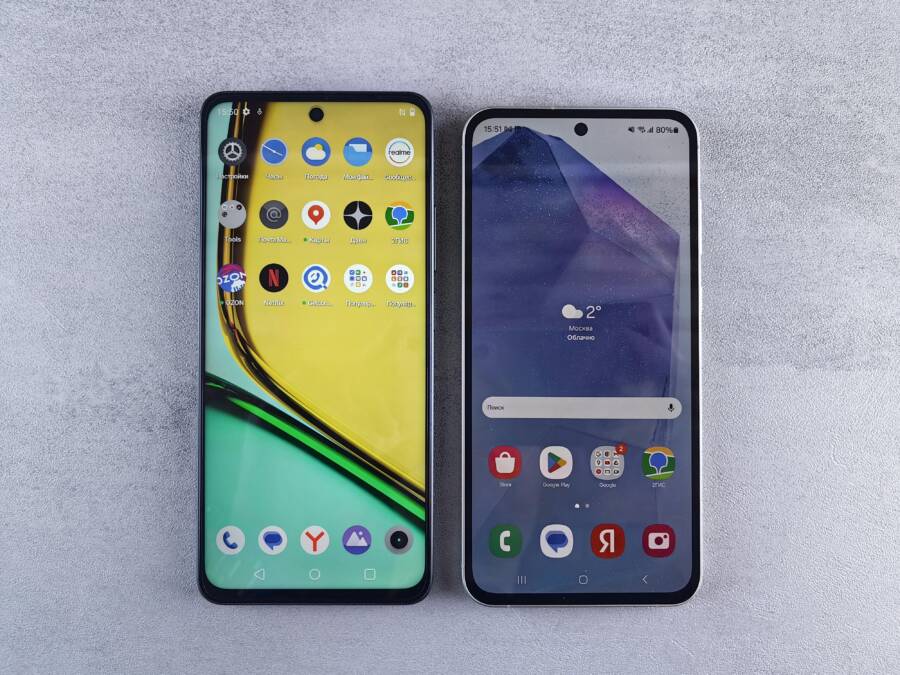
If your phone keeps crashing the launcher, you’re not alone. The launcher is the home screen app on Android phones, and when it misbehaves you lose quick access to your apps, widgets, and notifications. It’s frustrating, but there are simple fixes that work for most devices.
This guide walks you through step by step fixes from a quick restart to more thorough resets. You’ll learn how to spot the real cause, whether it’s outdated software, low storage, or a misbehaving app. The advice applies to most Android phones, so you can follow along no matter what brand you own. You can fix this without tech skills.
First try the easy options: restart your device, update the launcher and system software, and force stop the launcher if it feels stuck. If the problem persists, clear the launcher’s cache and data to reset it to a fresh state. Free up storage and check your internet connection, since background updates and permissions can trip the launcher up.
If the crash continues, boot into Safe Mode to see if another app is to blame, then uninstall recent apps you added. As a last resort, reinstall the launcher or switch to a different one to test stability. These steps cover most scenarios and help you reclaim a smooth home screen quickly.
Pinpoint the Cause of Your Phone’s Launcher Crashes
When your home screen keeps crashing, it’s a signal to check a few common fault lines. This section helps you identify the exact culprit, so you can apply the right fix without guesswork. You’ll learn how storage, cache, and app conflicts ripple into launcher instability. Start with the simplest checks and move to targeted fixes. A calm, methodical approach saves time and keeps your smartphone experience smooth.
Corrupted Cache and Low Storage Issues
Corrupted cache files and limited storage are two of the fastest ways to trigger launcher crashes. The launcher relies on temporary data to render icons, widgets, and transitions. If those cache files become corrupted or outdated, the system can misread resources, leading to freezes or a crash mid-task. Low storage compounds the problem by restricting the space needed for quick reads and writes, which slows everything down and forces the launcher to work harder than it should. Signs include the phone feeling sluggish, apps taking longer to open, and random freezes while you’re navigating the home screen. To start resolving this, check your storage usage in Settings and clear space if needed. Then clear the launcher cache to refresh its temporary data. If the issue persists, consider a full cache wipe of system services and a review of large, unused apps. Keeping enough free space acts like a safety valve for your entire device.
Third-Party Apps or Custom Launchers Clashing
Third-party apps or custom launchers can conflict with the built-in home screen, especially after updates or new installations. A recently downloaded game or utility might demand resources in a way the launcher cannot accommodate, causing it to crash or reset frequently. Even popular launchers from the store can have compatibility hiccups with certain device models or Android versions. When this happens, the launcher struggles to load screens, widgets, or transitions, and the home screen becomes unstable. Start by recalling any recent installations and removing or disabling them to test stability. If the crashes stop, you’ve pinpointed the offender. For ongoing use, stick to launchers with strong compatibility notes for your exact device and Android version, or revert to the stock launcher while you troubleshoot. Regular reviews and updates from trusted developers help prevent future clashes.
Try These Quick Fixes First to Stop Crashes Fast
When your home screen keeps crashing, you want relief now. These quick fixes target the most common culprits and can restore stability without digging into deep system resets. Start with the simplest steps and move to more thorough solutions if needed. Think of it like a quick tune-up for your smartphone. Each fix is practical, easy to follow, and designed to get you back to a smooth, responsive home screen in minutes.
Restart Your Phone for Instant Relief
A quick restart is often enough to clear the fluttering glitches that trigger crashes. Hold the power button, then tap restart. The phone powers down briefly and boots back up with fresh system processes. This clear reset wipes temporary files that might be forcing the launcher to misbehave. It also clears minor memory hiccups that can slow down transitions. If you’re juggling several apps, a restart gives everything a clean slate. Most crashes you’ve been dealing with will vanish after this simple refresh, leaving you ready to test the home screen again.
Force Stop the Launcher App
If the home screen feels stuck or unresponsive, force stopping the launcher can do wonders. Navigate to Settings > Apps > See all apps, then locate your launcher. Tap Force stop to terminate it completely. Reopen the launcher by pressing the Home button or tapping its icon. You should see a fresh start without the lingering background processes that caused the crash. This method is safe and quick, returning control to the system and letting the launcher rebuild its state on startup. If the issue recurs, you can pair this step with a cache clear for extra relief.
Free Up Space and Check Your Connection
Low storage or flaky network connections can cause the launcher to hiccup or crash during updates and widget rendering. Start by deleting junk files and apps you no longer use to free space. Then switch from Wi-Fi to mobile data or vice versa to test stability. A mobile data connection can help determine if the problem is tied to your network. After freeing space, reboot the device and monitor the home screen for improvements. Keeping ample free space ensures the system has room to write temporary data and keeps the launcher responsive.
Deeper Fixes for When Quick Steps Don’t Work
When the easy fixes don’t solve the issue, you may need deeper checks that target the root causes. This section guides you through more thorough steps that payment steady performance on your home screen. Stay methodical and patient, as these adjustments can take a little time but pay off with long lasting stability. You’ll learn how to identify stubborn app conflicts, how to reset components without losing your data, and how to confirm the launcher is indeed the source of the problem. Think of these as a diagnostic battery for your Android launcher, stepping beyond quick taps to real, lasting fixes.
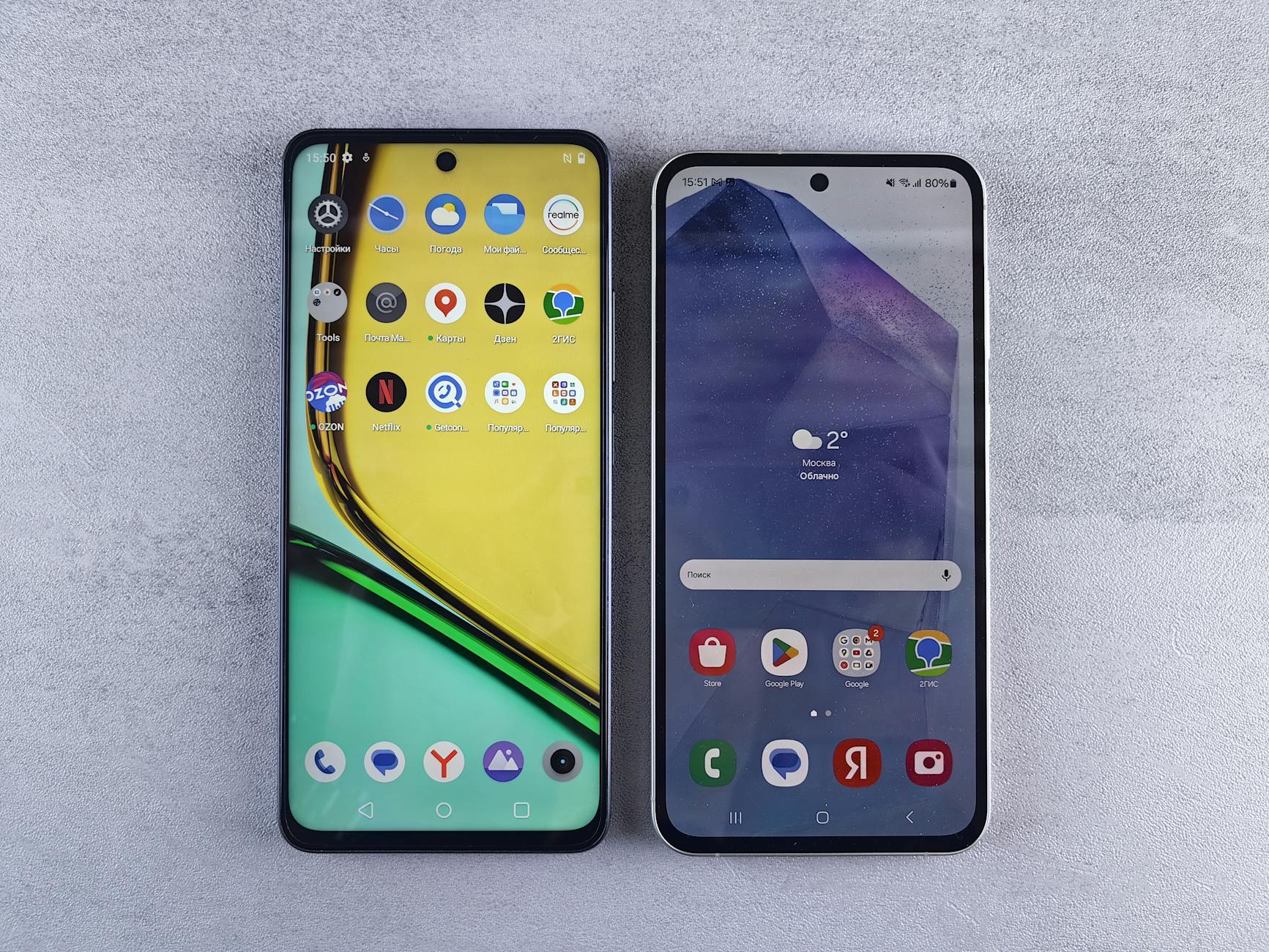 Photo by Andrey Matveev
Clear Launcher Cache and Data
Clearing the launcher cache and data can reset stubborn hiccups without touching your files. Start by navigating to Settings, then Apps, and find your launcher in the list. Choose Storage, then tap Clear cache to remove temporary files that may have become corrupted. If the problem persists, you can clear data to reset the launcher to its original state. This will revert home screen layout and widgets, so be ready to rearrange them later. After clearing, reboot the phone to apply changes. If the issue returns, there may be a deeper conflict with another app or system component.
Boot into Safe Mode to Find Bad Apps
Safe Mode runs only essential apps and can reveal if a third party is causing the crash. To enter Safe Mode, press and hold the power button, then long-press the restart option and confirm with OK. When you’re in Safe Mode, use the launcher as you normally would. If the crashes stop, start uninstalling recently installed apps one by one, testing after each removal. If you identify a culprit, remove it permanently or look for alternatives. Exit Safe Mode by restarting your phone. This approach helps you pinpoint the troublemaker without guessing.
Update All Apps and Your Phone’s Software
Keeping software current closes the door on many launcher issues. Open the Google Play Store and update all installed apps, focusing on the launcher first. Then check for a system update in Settings > System > System update and apply any available version. Updates include fixes that address bugs and compatibility problems that cause crashes. After updating, restart the device and monitor the home screen for stability. If updates are unavailable or don’t resolve the issue, proceed with deeper diagnostics.
Wipe the Cache Partition
Wiping the cache partition clears system level temporary data that can affect the launcher. Start by powering off the device, then boot into recovery mode (the method varies by brand). Once in recovery, use the volume keys to navigate to Wipe cache partition and confirm with the power button. This action does not erase personal data. After the wipe, reboot the device normally. If you still see crashes, the problem may be tied to a specific app or a firmware issue, which may require a factory reset or professional support. Always back up important data before performing deeper resets.
Advanced Steps and Ways to Prevent Crashes Long-Term
Keeping your launcher stable over time means building habits that reduce the chance of crashes and help your smartphone run smoothly. The goal is to prevent problems before they appear, not just fix them after they disrupt your day. Below are practical, long term strategies that you can implement without tech expertise. These steps blend routine maintenance with smart choices about apps and settings, so your home screen stays reliable.
Switch or Reinstall Your Launcher
If crashes persist, swapping to a known reliable launcher can restore stability without a full device reset. Start by trying Nova Launcher or Niagara Launcher, both well supported and easy to customize. Set a new launcher as the default in Settings, then monitor for a week to assess performance. If you prefer the stock experience, consider reinstalling the current launcher to reset its core files. While you do this, review permissions to ensure the app only has what it needs. Run a quick malware check with Google Play Protect to rule out hidden threats. Regularly updating the launcher after installation helps keep it compatible with system updates and other apps, reducing the chance of future crashes.
Factory Reset as Final Option
A factory reset is a last resort for stubborn launcher issues. It wipes all data and returns the device to its original software state, so back up everything valuable first. Use Google Backups or a local copy of critical files, photos, and contacts. To perform the reset, go to Settings > System > Reset options > Erase all data. After the reset, reinstall essential apps and carefully add one launcher at a time, ensuring each remains stable. This approach isolates software problems that other fixes can miss. If you choose this route, plan a month of reconfiguration to restore your preferred setup and widgets.
Prevent Future Launcher Problems
Long term stability comes from consistent habits. Keep your system and apps up to date, and avoid loading too many third party utilities on the home screen. Regularly clear launcher cache and monitor storage to prevent slowdowns or freezes. If you notice frequent crashes, consider using a stock launcher for a period to verify whether the issue lies with a third party. Manage widgets and live wallpapers since heavy visuals can tax resources on older devices. Finally, choose launchers with active development and clear compatibility notes for your device model and Android version. A well maintained home screen lasts longer and feels smoother.
Conclusion
Most launcher crashes can be fixed with a quick, methodical approach. Start with the simple steps, then move to deeper checks if the problem persists. Keep a habit of backing up your important data before making changes, so you’re ready for any reset or reinstall.
Quick fixes usually solve the issue. A restart clears tiny memory hiccups, a forced stop resets the launcher, and clearing the cache wipes stale files that can trigger freezes. Freeing up storage and testing your network helps confirm the crash isn’t tied to a resource shortage or an unstable connection. If these steps restore stability, you’ve saved time and avoided more drastic measures.
When quick fixes fail, deeper checks pay off. Safe Mode reveals if a recently installed app is the culprit, and updating all software closes gaps that cause conflicts. Wiping the launcher’s data or the cache partition resets behavior without touching personal files, and switching to a different launcher can prove whether the problem is launcher specific.
If the problem continues after all software fixes, consider a factory reset as a last resort. Back up first, then reinstall essential apps one by one to isolate the trigger. In rare cases, a hardware issue may be to blame; if you suspect that, contact device support for guidance.
Try these steps now and share how they worked for you in the comments. If a hardware problem surfaces, support can guide you through options. Your smartphone can run smoothly again with steady maintenance and careful testing.