
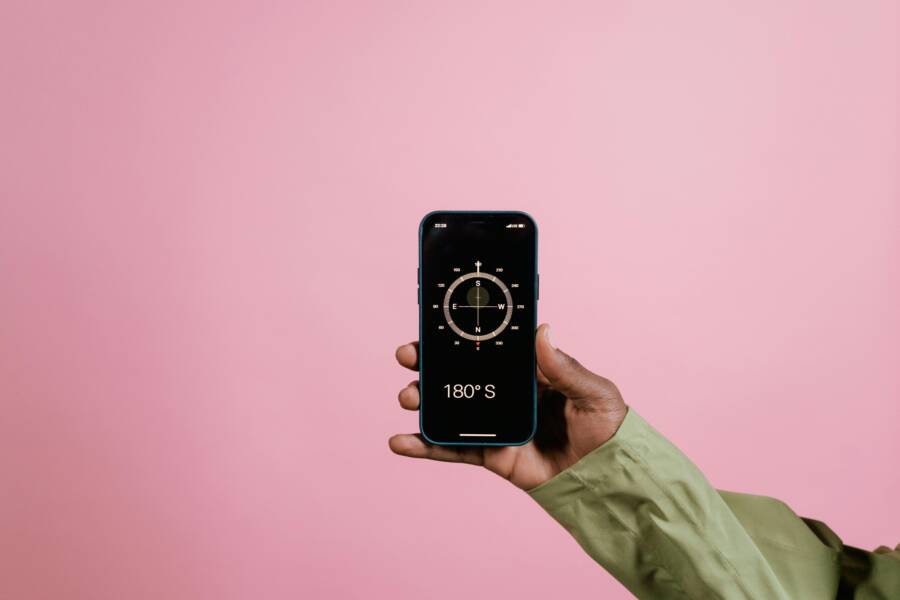
If your maps keep spinning or point the wrong way, you’re not alone. It’s a common hiccup on smartphones that can throw off navigation just when you need it most. This guide breaks the fix into simple steps you can follow without tech jargon.
First, run through quick checks that don’t require tools. Make sure Location Services are on for your map app, and try walking outdoors in an open area to reset the compass. If you’re near metal objects or other magnets, move away and retest; nearby interference is a frequent culprit.
If the issue persists, it’s time for calibration. On most Android devices, open the map app, tap the blue dot, and perform a careful figure eight motion in a non magnetic space. Repeat a few times until the compass response stabilizes. This simple move often restores correct orientation.
For Android, boost accuracy by enabling high accuracy mode in Location settings and consider scanning for nearby signals with Bluetooth and Wi Fi. A quick reboot can also clear sensor glitches that crop up after apps update or device usage. If you own a Samsung device, you may find a calibration option in the Compass tool that helps lock in the direction.
On iPhone, the game is a bit different but equally workable. Ensure Location Services are on for Maps, and enable Wi Fi to improve GPS pinpointing. A restart often resets the compass sensors, and spending a moment outdoors can let iOS recalibrate naturally as you move.
If the problem still sticks, check for external magnets or metal nearby that could mislead the sensor. Updating your OS and map app keeps sensor calibrations aligned with the latest fixes. When in doubt, repeat the calibration a few days apart to keep maps pointing true again.
Why maps rotate in the wrong direction
When your map spins the wrong way, it can be frustrating. The issue usually isn’t a failing app; it’s a sensor or signal problem tucked inside your smartphone. The good news is most fixes are quick and easy. Below are the main culprits and how to address them so your maps point true again.
Compass calibration issues
A miscalibrated compass can throw directions off in a hurry. If the arrow points northeast when you’re headed straight ahead, the map’s orientation is likely off. Calibration is a fast, effective remedy that many users apply with success.
What calibration looks like:
- A figure-8 or similar motion with your phone held flat or slightly tilted.
- Do it outdoors where there’s a clear sky and few magnetic distractions.
- You may need to repeat the motion a couple of times until the compass settles.
Simple steps to try:
- Open your map app and locate the blue dot or compass icon.
- Follow the on-screen prompts or perform a careful figure-8 motion as recommended.
- Move around a bit and watch the arrow settle in a stable direction.
Tip: If you use a phone case, test with the case on and off. Sometimes the case itself or nearby metal can affect calibration.
Weak GPS signal and low location accuracy
When GPS is weak, the app fills gaps with less reliable data from Wi-Fi or cellular networks. That guesswork can cause the map to drift or snap directions oddly as you move.
Symptoms you might notice:
- The blue dot jumps suddenly.
- The arrow drifts for several seconds before catching up.
- Indoor areas near tall structures are especially tricky.
Quick test you can try:
- Step outdoors to a wide, open area and watch if the direction stabilizes. If it does, you know the signal was the bottleneck.
Ways to improve location accuracy:
- Enable high accuracy mode in Location settings (GPS + Wi-Fi + cellular).
- Allow Wi-Fi scanning and Bluetooth scanning if prompted.
- Give the app a moment after you move to let it lock onto signals.
Magnetic interference from cases or nearby magnets
Metal phone cases, car mounts, or strong magnets nearby can disrupt the compass sensor. Even if the phone seems fine most days, a magnet near the device can throw off orientation during testing or in certain situations.
What to do:
- Remove the case temporarily and test again.
- Move away from magnets or metal objects during a calibration pass.
- If you rely on magnetic accessories, consider alternatives when navigating.
A quick note on accessories:
- Some magnetic mounts or screen protectors claim to be magnetic. If you suspect interference, test without them for a short period to confirm.
Software glitches and delayed updates
Occasionally a bug in an app or in the phone’s OS can cause sensors to misbehave. This is often most noticeable after an update or a new app install.
What to check:
- Update map apps and the phone’s operating system to the latest version.
- If problems linger, try restarting the phone to clear temporary sensor glitches.
- Clear app cache for maps if your device allows it, or reinstall the app.
Keeping things fresh:
- Auto-rotate settings should be enabled where needed.
- If you use a separate navigation app, test with it temporarily to see if the issue is app-specific.
- Recalibrate the compass after major updates or after you notice drift again.
Quick fixes you can try right away
When maps point the wrong way, fast, portable fixes can save you from getting lost. These quick actions are designed to be completed in minutes and work whether you rely on Google Maps or Apple Maps. Start with calibrating the compass, then move through location settings and a brief reset if needed. A few small tweaks can bring your map back to true north and keep you moving confidently.
Calibrate the compass on Android devices
Calibrating the compass on Android is simple and effective. Open Google Maps, tap the blue dot that marks your location, and look for Calibrate compass. If you don’t see the option, try Calibrate or Use compass in the prompt. The next step is a figure-8 motion: hold the phone flat and move it in a wide figure-8 several times until the beam narrows and the arrow settles north. For best results, perform this outside where there are fewer magnetic disturbances. Some devices label the option differently, but the goal remains the same: reset the compass so the map orientation aligns with your movement. If issues persist, repeat the motion a couple more times and test again by re-centering the blue dot.
Calibrate the compass on iPhone and iPad
On iPhone and iPad, the built-in compass is the key. Start by ensuring Location Services are on for Maps. If prompted, open the Compass app and complete any calibration requests there. Then recheck Maps to see if the direction aligns correctly. The steps are straightforward: use the on-screen prompts or open the Compass app when your device asks for calibration, then test the map again. A quick outdoor move can help the iOS sensors recalibrate naturally as you walk around. Keep your iPhone steady during calibration and avoid metal objects or strong magnets nearby to maximize accuracy.
Enable high accuracy location and permissions
High accuracy location makes a big difference for map orientation. Turn on Location Services, then set your map app to While Using the App or Always. If available, enable Precise Location so the app can determine your position with greater fidelity. These settings are quick to adjust and have a meaningful impact on accuracy, especially in urban canyons or indoor spaces where signals can be patchy. After enabling, give the app a moment to lock onto satellites and nearby signals.
Allow Wi-Fi and Bluetooth scanning for better location
Enabling Wi-Fi and Bluetooth scanning helps your phone triangulate position more quickly and precisely. On Android, ensure these scanning options are permitted within Location settings or the map app prompts. On iPhone, allow Wi-Fi scanning and Bluetooth scanning when asked. The effect isn’t limited to being connected to a network; even with mobile data off, these scans improve location fixing. A stronger fix means steadier compass orientation and fewer drift moments as you move.
Restart the phone and update apps
A quick reboot can clear sensor glitches that pop up after updates or heavy use. If you notice continued drift, restart your device and, if possible, clear the map app cache. After the restart, check for updates to Google Maps, Apple Maps, and your phone’s operating system. Keeping all software current helps calibrations stay accurate and reduces the chance of new bugs affecting compass behavior. If problems persist after a reboot, try performing the calibration steps again with a fresh test in an open space.
Device and app specific fixes
When compass misbehavior sticks, the fastest route is to tailor fixes to your device and the map app you use. The steps below are practical, easy to follow, and designed to confirm whether the problem is app specific or device wide. You’ll often resolve the issue by checking permissions, boosting location accuracy, refreshing cached data, or calibrating the compass. If you’re juggling both Android and iPhone, you’ll find parallel paths that get you back to reliable directions quickly.
Android and Google Maps specific steps
Start by ensuring your phone can share location with Google Maps without restrictions. Here’s the practical sequence:
- Check location permissions and set location accuracy
- Open Settings and navigate to Apps > Google Maps > Permissions. Make sure Location is allowed, preferably Always.
- Go to Settings > Location > Mode and select High accuracy. This uses GPS, Wi Fi, and cellular networks to pinpoint your position.
- Force high accuracy and testing after changes
- After adjusting permissions, reopen Maps and test by moving a few steps in an open area. If the map orientation still looks off, proceed to the next step.
- Clear Maps cache and data
- In Settings > Apps > Google Maps > Storage, clear the cache first. If issues persist, clear data (you will need to sign back in). Restart the device and test again.
- Update Google Play services and Maps
- Open the Play Store and ensure Google Play services are up to date. Also update Google Maps to the latest version. These components handle core GPS and compass functions.
- Calibrate the compass if prompted
- In Google Maps, tap the blue dot or the compass prompt and follow on screen instructions. Perform the figure eight motion in a location free from magnetic interference. Repeat once or twice if needed.
- Sanity checks and testing
- Remove any magnetic accessories temporarily and test in an open area. If the arrow still misbehaves, try a quick reboot and re-test after a short walk outdoors.
Tips for reliability
- If you carry a strong magnetic case or mount, test Maps with the case off.
- Keep your device free from heavy case bulk near the sensors during calibration sessions.
- Some Samsung devices offer a dedicated Compass tool in Settings. Use it to run a calibration pass and confirm accuracy.
iPhone with Apple Maps and Google Maps steps
Apple devices handle location data a bit differently, but the fix path remains straightforward. Use the steps below to align compass behavior across both Maps apps.
- Enable Location Services and Precise Location
- Go to Settings > Privacy > Location Services and ensure it is On. For Maps, select While Using the App or Always.
- If available, turn on Precise Location so the app can determine your position more accurately.
- Calibrate the compass if prompted
- Open the Compass app if your iPhone suggests calibration. Follow the on screen prompts and move the device through a few deliberate motions. This recalibrates the internal sensors.
- Test in Apple Maps and Google Maps
- After calibration, launch Apple Maps and verify that directions align with real world movement. Do a quick route check in familiar surroundings.
- Open Google Maps and perform the same test. Confirm that the blue dot and direction indicator respond as you move.
- Quick resets and updates
- If the compass still trips, restart the iPhone. Check for iOS updates and app updates for both Apple Maps and Google Maps.
- Magnetic interference and environment checks
- Move away from nearby magnets or metal objects during testing. If you use a metal phone stand or mount, test without it for a moment to isolate the issue.
- Regular maintenance
- OS and app updates help keep calibrations aligned with the latest fixes. If drift recurs, repeat calibration after major updates or after a period of heavy usage.
Try a different map app if issues persist
If the problem remains after device and app specific fixes, testing with another map app helps identify the source of the trouble. The aim is to confirm whether the issue is app specific or device wide.
- Install and test a second map app
- On Android, try a popular alternative like a different navigation app and compare its compass behavior with Maps.
- On iPhone, install a second navigation app from the App Store and run the same test routes.
- Compare results and draw conclusions
- If the second app shows correct directions, the issue is likely with the original map app’s settings or data. If both apps misbehave, the problem is more likely hardware related or due to environmental interference.
- Focused next steps
- If you confirm an app-specific issue, consider clearing cache for that app, reinstalling it, and checking for updates. If hardware seems at fault, reach out to the device maker’s support or consider a diagnostic test.
- Simple checklist for quick validation
- Test in open outdoor space with minimal interference.
- Verify GPS, Wi Fi, and Bluetooth scanning settings where applicable.
- Recalibrate after any major OS or app update.
- Re-test with the second app to confirm the source of the problem.
By following these device and app specific steps, you’ll quickly determine whether the compass and map orientation trouble is tied to settings, software, or hardware. The goal is a steady, reliable direction that you can depend on in daily life and during travel.
When to dive deeper and advanced fixes
If you’ve tried the quick calibration and basic checks but your maps still rotate the wrong way, it’s time to consider deeper adjustments. This section helps you decide whether you should reset permissions, update software, or move toward a factory reset as a last resort. Treat these steps as a layered approach: start with the least intrusive actions and progress only if needed. Your goal is stable compass readings and reliable map orientation with minimal disruption to your data.
Reset location settings safely
Sometimes a fresh start for location permissions can realign how your maps read your position. Here’s how to do it safely on both major platforms:
- Android
- Reset permissions for all apps is possible but you’ll need to re-grant access as needed. Go to Settings > Privacy > Permission Manager, or Settings > Apps > Google Maps > Permissions, and revoke Location access. Then re-open the map app to re-request permission.
- If you want a more holistic reset, you can enforce a broader permission reset by using Settings > Apps > Reset app preferences. This won’t delete apps or data, but it will reset all app permissions and default apps back to their original state. After this, you’ll re-enable Location services for your preferred map apps.
- Pro tip: recheck Location mode (Settings > Location) and set it to High accuracy whenever possible. This uses GPS, Wi Fi, and cellular networks to improve precision.
- iOS
- On iPhone, resetting location permissions is straightforward but powerful. Open Settings > General > Transfer or Reset iPhone > Reset > Reset Location & Privacy. This returns all apps to default permission prompts.
- After reset, re-enable Location Services at Settings > Privacy > Location Services and grant per-app access again as you use Maps.
- If you rely on a specific compass calibration, it’s a good idea to run a quick outdoor test after permissions are restored to confirm everything behaves as expected.
Why this helps: permissions determine which data the apps can read. A mistaken permission state or a cached policy can cause delays or misreads in your location signal. After you re-grant access, give Maps a moment to lock onto satellites and nearby signals.
Check for software updates and perform hardware checks
Software updates often fix orientation quirks and sensor glitches. Treat updates as safety checks that can prevent future drift.
- Check for OS updates
- On Android, go to Settings > System > Software update. Install any available updates, then reboot.
- On iOS, go to Settings > General > Software Update. Install if available, then restart your device.
- Check for maps app updates
- Update Google Maps or Apple Maps from the Play Store or App Store. Updates can include new calibration routines and bug fixes that improve compass behavior.
- Do a quick hardware sanity check
- Restart the device. A fresh boot clears minor sensor glitches that pop up after apps update or heavy usage.
- If the problem persists after updates, test the compass in a clear space outdoors. If arrows still wobble, consider recalibrating with the prompts in the map app.
- For devices with a known calibration tool in settings, run it once. Some devices offer a dedicated compass calibration path inside Settings.
- Last resort within this step
- If all software updates are applied and hardware checks are clean, try recalibrating again in an open area. If the drift recurs after multiple passes, you may be approaching a hardware limitation or environmental interference.
Why this helps: keeping the OS and apps current reduces the chance of bugs that affect sensor readings. It also rules out software-induced drift as the source of the problem.
Last resort considerations: factory reset
A factory reset wipes the slate clean and can fix stubborn, deep-seated issues. Use this only after you’ve exhausted other solutions and backed up what you need to keep.
- When a factory reset may be necessary
- Persistent compass drift that resists all calibration and software fixes.
- Recurrent sensor glitches after updates or after installing a problematic app.
- You’re preparing the device for a new owner and want a clean start.
- What to back up
- Photos and videos, contacts, messages, app data from essential apps, and any documents stored locally.
- Make a separate backup for notes, authenticator apps, and banking or health apps if needed.
- Cloud backups (Google Drive, iCloud) can cover most data, but verify that critical items are included.
- How to perform a factory reset
- Android: Settings > System > Reset options > Erase all data (factory reset). Confirm and follow on-screen instructions.
- iOS: Settings > General > Transfer or Reset iPhone > Erase All Content and Settings. Sign back in after the reset to restore data.
- After the reset
- Restore from a backup or set up as new. Reinstall maps apps and re-grant permissions as you test compass performance.
- Recalibrate the compass in a clear outdoor area once you’ve reinstalled essential apps.
Why this matters: a factory reset is a last resort because it disrupts your setup and requires reconfiguration. It can, however, resolve underlying issues that software updates and recalibrations cannot fix.
If you follow these steps in sequence, you’ll identify whether the compass issue is tied to permissions, software, or hardware. The aim is to have a reliable, well-calibrated navigation tool you can trust for daily use and travel.
Test, verify, and prevent future problems
After you’ve completed fixes, testing is your guardrail against repeating issues. The goal is to confirm that compass and map orientation stay aligned as you move, and to prevent drift from returning. Use simple, repeatable tests in open spaces, then apply ongoing habits that keep sensors healthy. Think of it as a quick smoke test for your phone’s navigation accuracy.
 Photo by Tima Miroshnichenko
How to test compass direction after fixes
A reliable test uses real movement to confirm the blue dot and the map arrow stay true as you walk and turn. Start with a straightforward straight-line test, then introduce deliberate turns to see if the map follows correctly.
- Test along a known straight path
- Walk in a straight line for 20–30 meters in open space. Observe whether the blue dot stays aligned with true north or a fixed bearing. If it drifts, pause and re-check calibration.
- Validate turns with simple direction changes
- Make a 90-degree turn and observe how quickly the map adjusts. A healthy compass should rotate the map in near real time with your turn, without lag or abrupt snaps.
- Recheck in short intervals
- Do three quick repeats: straight walk, 90-degree turn, straight again. If all three readings stay consistent, you’ve likely fixed the drift.
- Isolate potential interference
- During tests, remove magnetic accessories and stand away from metal structures. If the problem disappears, interference was the culprit.
- Practical outdoors test
- Pick a familiar route and compare the map’s orientation against real landmarks. If the blue dot and arrow corroborate your path, you’re in good shape.
Tips for repeatability:
- Use the same open area each time to avoid environment surprises.
- Perform tests after a fresh calibration or a software update to confirm stability.
- Keep sessions short and consistent; record results mentally or in a small notebook for future reference.
Tips to minimize magnetic interference
Magnetic interference is the single most common culprit behind compass misbehavior. Reducing or eliminating it during testing and daily use helps keep readings stable.
- Remove magnetic accessories during tests
- Take off magnetic phone mounts, magnetic cases, and any metal attachments that sit close to the sensor.
- Be mindful of nearby magnets and metal
- Test away from speakers, car dashboards, or large metal structures. Even a nearby coin in your pocket can introduce a small bias.
- Choose a magnet-free testing environment
- Open outdoor spaces with a clear sky and minimal metal objects around provide the cleanest baseline readings.
- Consider temporary workarounds
- If you rely on a magnetic stand for daytime use, switch to a non-magnetic stand while testing or navigating. Some users keep a separate device for navigation during trips if interference is frequent.
- Check for unexpected magnetic sources
- Items like power tools, elevators, or certain building materials can create local magnetic fields. Move to a different area if drift appears during tests.
Practical reminder:
- A simple check is to run the compass in a known weak-magnetism zone, then move to a higher interference zone and compare readings. The difference helps you gauge how sensitive your device is to the environment.
Ongoing maintenance for sensor health
Keeping the compass healthy is less about one big fix and more about a routine. Small habits reduce drift and extend the life of your sensor system.
- Regular software maintenance
- Keep the OS and map apps up to date. Updates frequently include sensor calibrations and bug fixes that improve accuracy.
- Avoid heavy cases during calibration
- Some bulky cases or kickstands sit close to the sensors; calibrate with and without the case to see which yields steadier readings.
- Periodic recalibration after key changes
- Recalibrate after a major OS update, a new phone, or if you notice persistent drift after a long period of use.
- Ensure location services stay precise
- Enable high accuracy mode when possible and permit precise location data. This helps the compass anchor to true bearings more reliably.
- Manage permissions and data access
- Review location permissions periodically. A drift can occur if an app lacks necessary access or if a permission state changes after an update.
- Monitor hardware health
- If recalibration and software updates do not fix the issue, run a diagnostic check or contact the device maker. A failing sensor is rarely fixed by software alone.
Practical tips to embed into daily use:
- Create a quick routine: after a software update, perform the figure-8 calibration in an open area and then test with a familiar route.
- When traveling, give the system a moment to lock onto satellites after a change in location (for example, after getting off public transit or entering a tunnel).
- If you notice a sudden drift, a quick reboot can clear minor sensor glitches and reestablish alignment.
This section helps you turn a one-off calibration into a durable improvement. By testing with simple motions, minimizing interference, and maintaining the sensor health, you can rely on maps that point the right way in everyday life and on long trips.
Conclusion
Most compass and map orientation issues come down to a mix of calibration and settings tweaks. Start with a quick compass calibration, check location accuracy, and remove magnetic interference to restore true direction on your smartphone. If the problem persists, update software and test with a second map app to confirm whether the issue is app or device related; you’ll usually spot a fix in the simplest steps. If this guide helped, share it with friends and check other resources on iPro+ 知識酷 for more practical smartphone troubleshooting and navigation tips. Thank you for reading, and may your next trip stay on course.

