Have you ever connected to a Wi-Fi network only to find your phone won’t save the password for future visits? This trouble happens across iPhone and Android devices, and it can feel like a stubborn bug in your smartphone. The good news is you can fix it with a few simple steps.
This guide explains why your phone might fail to save new Wi-Fi passwords, from software quirks to old saved networks and router settings. You’ll learn a practical, step by step approach that starts with quick checks on your device and ends with router tweaks that keep things smooth.
Along the way, you’ll get concrete tips you can apply today. We’ll cover both iPhone and Android solutions, plus practical router checks to prevent repeats. By the end, you’ll have a reliable path to keeping your Wi-Fi passwords saved and ready for automatic connections.
Why a phone won’t save new Wi Fi passwords
When your phone refuses to save a new Wi Fi password, it’s frustrating and often fixable with a few practical steps. This section breaks down the common culprits and simple remedies. You’ll learn how stale entries, caches, router settings, and a few iPhone quirks can block saving new credentials. Follow the steps in order, and you’ll likely have automatic connections back in no time.
Old saved networks and password conflicts
Stale network data is a frequent offender. If your device already has a similar network saved, it can block saving a new password for the same SSID or a nearby network with the same name. Here are easy checks and fixes:
- Look for duplicate or similar networks: If you see two entries for the same SSID with different passwords, pick one and remove the other.
- Forget the network entirely: On iPhone or Android, go to Settings > Wi‑Fi, tap the network, and choose “Forget This Network.” Then reconnect by entering the new password.
- Clear mixed credentials: If a previously saved password is still present but no longer valid, remove it and rejoin with the fresh password.
- Avoid shared password conflicts: If you share a network with family or roommates and someone changes the password, ensure all devices are cleared and rejoined with the new one.
Practical tip: after clearing old networks, reboot your phone and router. A clean slate reduces the chance of old data blocking the new password.
Network cache and device glitches
Temporary files and small software hiccups can stop a phone from saving passwords even when your password is correct. Simple, repeatable steps work best here:
- Restart both devices: Turn off your phone, then power it back on. If possible, also reboot the router.
- Reset network settings (last-resort option): On iPhone, go to Settings > General > Transfer or Reset iPhone > Reset > Reset Network Settings. This removes saved networks and passwords but leaves your data intact. Reconnect and re-enter passwords.
- Clear app caches (Android): In Settings, find Apps or Apps & notifications, locate the Wi-Fi or Settings app, and clear cache. Then try saving again.
- Update software: Install the latest OS version. If you recently updated and started seeing the issue, a quick update or a rollback of feature previews can help.
Simple reminder: this set of steps focuses on cleaning up temporary data without breaking your device’s core connections. If one method helps, you’re likely back to normal.
Router security settings and compatibility
Router settings can cause password saving to fail if the encryption type or firmware is out of date. The most common issues involve WPA2 and WPA3 configurations and mismatches with devices.
- Check encryption compatibility: Some devices struggle when a router uses WPA3 only. If you see this setting, try enabling WPA2/WPA3 mixed mode or WPA2 only, then test saving a password again.
- Update router firmware: Log in to the router’s admin page (often 192.168.1.1 or 192.168.0.1). Look for Firmware or Software Update, apply any available updates, and reboot.
- Reenter the password after a change: If you adjust encryption, re-enter the correct password on your phone and try saving once more.
- Consider a factory reset if issues persist: As a last resort, factory reset the router and set up the network again with a fresh password. This clears stale configurations that can confuse devices.
Why it matters: keeping router firmware current and using compatible security settings helps all devices reconnect smoothly and reduces password handling woes.
Bluetooth password sharing quirks on iPhone
iPhone users sometimes see a quirk where passwords shared over Bluetooth (AirDrop or direct Bluetooth sharing) do not save to Keychain. This is one of those small, easy-to-mix-up issues that frustrates users but has a straightforward fix.
- Understand the quirk: When a password is shared from another iPhone via Bluetooth, Keychain may not capture it automatically. That means you might need to enter the password manually.
- Manual entry matters: If you’re prompted to save, choose to type the password instead of relying on the prefilled or shared entry.
- How to fix if it happens: Disable the iCloud Keychain temporarily, then re-enable after you’ve saved the password locally. If the issue repeats, delete any old Keychain entries and re-enter the password from scratch.
- Bluetooth hygiene: Turn off Bluetooth, forget the network, and reconnect manually to bypass sharing glitches. Then try saving again.
A practical approach is to treat Bluetooth sharing as a convenience, not a guarantee. Manual entry remains the most reliable path when Keychain syncing stalls.
Quick checks you can perform across sections
- Forget and rejoin: For a stubborn network, forget it and reconnect with the correct password.
- Reboot everything: A quick reboot of your phone and router often clears conflicts.
- Keep firmware and OS up to date: Regular updates fix known bugs that affect Wi Fi handling.
- Verify security settings: Make sure your router uses compatible encryption (WPA2 or WPA2/WPA3 mixed mode) and that the password is exact.
If you run through these checks and still can’t save new passwords, the issue is probably one of the big three: stale network data, a temporary glitch, or router security settings. Addressing these usually resolves the problem and restores seamless Wi Fi access.
iPhone fixes to make Wi Fi passwords save again
When your iPhone won’t save new Wi Fi passwords, it slows down your daily routine. You want a quick path to fix it without reconfiguring everything. Below are practical, no‑nonsense steps that cover the common culprits. Try them in order, and verify after each step whether the network password saves correctly. A well‑maintained iPhone can remember passwords and connect automatically with minimal fuss.
Forget the network and reconnect
Exact steps to reset a stubborn Wi Fi connection on your iPhone:
- Open Settings and tap Wi Fi.
- Find the network name and tap the blue information icon (ⓘ) next to it.
- Choose Forget This Network and confirm.
- Return to the Wi Fi screen, select the network again, and enter the password manually.
This approach clears the conflicting entry and prompts the phone to store the new credential fresh. After reconnecting, test by turning Wi Fi off and back on, then try joining again to confirm the password saves.
Reset network settings if problems persist
If the issue sticks around, resetting network settings can clear deeper conflicts without touching your data.
- Go to Settings > General > Transfer or Reset iPhone.
- Tap Reset and select Reset Network Settings.
- Enter your passcode if prompted and confirm.
What changes: this resets saved Wi Fi networks, Bluetooth pairings, and VPN configurations. Photos and personal data stay intact. After the reset, reconnect to your networks and re‑enter passwords. This step often resolves stubborn password saving problems.
Update iPhone software and check iCloud Keychain
Keeping your software current helps fix bugs that affect password storage. Also verify that iCloud Keychain is syncing if you rely on it to store passwords.
- Check for updates: Settings > General > Software Update. If an update is available, install it.
- Verify Keychain: open Settings > your name > iCloud > Keychain and ensure it’s turned on.
If you use Keychain to share passwords across devices, ensure the feature is functioning and that your devices are signed in with the same Apple ID. After updating and confirming Keychain, try saving the Wi Fi password again on your iPhone.
Test after each step
After every fix, test the connection to confirm whether the issue is resolved before moving on. Here’s a simple routine:
- Turn off Wi Fi, wait a moment, and turn it back on.
- Rejoin the network by typing the password manually.
- Check if the device remembers the password for future connections.
If the password saves, you’re done. If not, move to the next step and repeat the test. Tracking progress step by step helps you identify precisely where the problem lies. This habit is especially useful for busy smartphone users who want a reliable network without repeated prompts.
Android fixes to make Wi Fi passwords save again
If you’re an Android user and your phone stops saving new Wi Fi passwords, you’re not alone. A handful of small glitches can disrupt how passwords are stored, especially after OS updates or router changes. This section walks you through practical, action‑or‑action steps to get automatic connections working again. You’ll learn how to reset the right data, verify that the password is stored correctly, and keep networks from slipping back into the cloud of forgotten entries. Follow each step and test the result before moving on.
Forget the network and reconnect
Forgetting a network and reconnecting forces Android to treat the connection as new. This is a fast, reliable way to replace a stale credential with the correct password.
- Open the Settings app and go to Network & Internet (or Wi‑Fi on some devices).
- Tap Wi‑Fi and locate the stubborn network.
- Tap the network name, then select Forget or Forget network.
- Return to the Wi‑Fi screen, turn Wi‑Fi off and on again, then reconnect by entering the correct password.
- After reconnecting, test by turning Wi‑Fi off briefly and back on to confirm the phone saves the password for future connections.
What to expect: Android remembers the new credential after a clean rejoin, so you won’t be prompted to enter the password every time you’re in range.
Clear network data and cache
Old cached data can block new credentials from sticking. Clearing saved networks and related cache helps the system store the latest password.
- Clear saved networks: In Settings > Network & Internet > Wi‑Fi, tap Saved networks (or a similar section). Remove the problematic network entries.
- Reset network settings (as a stronger reset): Open Settings > System > Reset options (or General management on some devices) and choose Reset Wi‑Fi, mobile & Bluetooth. This clears all saved networks and passwords but keeps your personal data intact.
- Reconnect and re‑enter the password: After the reset, connect to the network and input the correct password. Verify that Android now saves it automatically.
- Clear app caches related to Wi‑Fi (optional): In Settings > Apps & notifications, find the system Wi‑Fi service or your preferred Android settings app and clear its cache. Then try saving again.
Why this helps: a clean slate eliminates conflicting entries and stale cache that can confuse the system when storing new credentials.
Update Android OS and Google services
System updates and Google services updates often fix bugs that affect saved networks and password storage.
- Check for Android updates: Open Settings > System > Software update (or About phone > System updates on some brands). Install any available updates and reboot.
- Update Google Play services: Open the Google Play Store, search for Google Play services, and update if needed. Sometimes an update fixes background syncing that impacts password storage.
- Ensure Play services are healthy: If an update isn’t available, clear the cache for Google Play services (Settings > Apps & notifications > Google Play services > Storage > Clear cache). Do not clear data, which would reset settings.
Why this matters: keeping the core software and services fresh reduces the chance of a small bug breaking how passwords get saved.
Check password manager and autofill
Android can store Wi Fi credentials in a password manager or autofill app. If the wrong password is stored or a old copy is used, your phone may fail to save a new one or connect automatically.
- Locate the password entry: Open your password manager (Google Password Manager is common) through Settings or the app itself. Look for the Wi Fi network name (SSID) in the stored credentials.
- Verify and update: If you see an old password, update it with the correct one. If there is no entry, create a new one and link it to the network.
- Test the save: After updating, rejoin the network and let Android save the new password. If you rely on autofill, ensure the feature is enabled for Wi Fi credentials in the password manager.
- Cross‑check other apps: Some third‑party password managers may interfere with system storage. Temporarily disable autofill from third‑party apps to test if the problem was caused by a conflict.
Takeaway: accurate password management ensures Android stores the right credentials and uses them for automatic connections.
Bluetooth and device hygiene considerations
Sometimes other settings or nearby devices can influence how Android handles saved networks. A quick check can prevent minor glitches from becoming recurring issues.
- Turn off Bluetooth while testing: Disable Bluetooth, forget the network, then reconnect with the correct password. If this fixes the issue, you’ve isolated a potential Bluetooth‑related handoff problem.
- Keep devices near the router during tests: Proximity helps ensure a stable connection while you test saving the password.
- Separate network profiles: If you share a router with others, create distinct profiles for each device. This avoids cross‑contamination of saved credentials across phones and tablets.
Why it helps: clean test conditions help you confirm whether the issue is device specific or network related.
When to consider a factory reset or router check
If the problem persists after all Android‑level fixes, broaden the scope to the router and a factory reset scenario.
- Rule out router quirks: Check if the router uses unusual encryption or a guest network that interferes with saving credentials. Try enabling WPA2/WPA3 mixed mode or using WPA2 only. Remember to re‑enter the password on the phone after any change.
- Router firmware update: Log in to the router’s admin page and install any firmware updates. Reboot the router after updates.
- Factory reset the router if needed: This clears all custom settings and returns the router to default. Set up a fresh network name and password, then reconnect with a smartphone to verify storage works as expected.
The goal here is to ensure the problem isn’t rooted in the router’s configuration. With a clean router and a refreshed Android setup, saving new passwords becomes reliable again.
Quick tips to keep passwords saving smoothly
- Use unique, strong passwords for each network and note them somewhere secure.
- Reboot devices after major changes or OS updates.
- Periodically review saved networks and prune duplicates.
- If you rely on a password manager, keep it synced across devices to reduce manual entry.
If you follow these Android specific steps and test after each one, you’ll usually identify the cause quickly. Most issues fall into three categories: stale data, software glitches, or router settings. With a targeted approach, you restore smooth, automatic Wi Fi connections on your Android device.
Router and Wi Fi settings to review
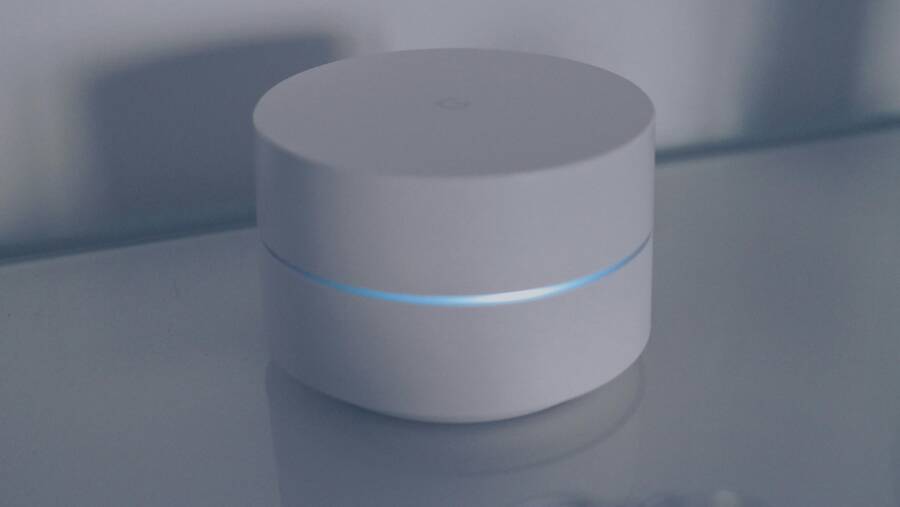
If your phone still refuses to save new Wi Fi passwords, the fix often lies inside the router or the basics of your network name and security. This section guides you through practical checks you can perform quickly. You’ll learn how to confirm encryption, keep firmware current, manage devices, and ensure you have a solid, easy to remember network setup. Think of it as re-tuning the router to play nicely with every smartphone in your home.

Photo by Jens Mahnke
Verify encryption and update firmware
Encryption quality and out of date firmware are common culprits when devices won’t save new passwords. Start by confirming that your router uses a modern standard and then apply any firmware updates.
- Check encryption type: Log in to your router’s admin interface and locate the Wi Fi security settings. The ideal setup is WPA3 Personal; if that isn’t available, WPA2/WPA3 Transitional or WPA2 Personal (AES) are solid options. Avoid WPA or open networks, which are insecure and can cause compatibility issues with newer smartphones.
- Why firmware matters: Firmware updates fix bugs, improve hardware compatibility, and address security flaws. Updates can resolve quirks that prevent password saving on newer smartphones.
- How to adjust:
- Access the router usually via a web address such as http://192.168.1.1 or through a companion app.
- Navigate to the Wireless or Security tab and check the current encryption mode.
- If you find a newer firmware version, apply it and reboot the router.
- After updating, reconnect with the new security settings and test saving a password on a smartphone.
- If devices don’t see a change: Try enabling a mixed mode (WPA2/WPA3) temporarily, then test saving again. This helps when some devices are older or have compatibility quirks.
Pro tip: keep a single strong password, but avoid using it across multiple networks. That reduces risk and keeps password management tidy.
Disable MAC filtering and manage connected devices
MAC filtering is meant to tighten access, but it can block legitimate devices from saving or using new credentials. If you have MAC filtering enabled, a new device might be blocked even when you enter the correct password.
- Why it can interfere: When a new device tries to save a password, the router must allow that device on the network. If MAC filtering blocks it, the phone won’t update its saved credentials.
- How to review:
- Access the router’s admin page and look for a section called MAC Filtering, Access Control, or Device List.
- Check whether the feature is turned on. If yes, confirm the device you’re using is whitelisted.
- How to fix:
- Temporarily disable MAC filtering to test saving a new password on a smartphone.
- If you prefer to keep some control, add the device’s MAC address to the allow list and leave filtering enabled.
- Ongoing management:
- Regularly audit the connected devices list. Remove devices you no longer use to minimize confusion.
- Assign each device a recognizable name in the router’s interface so you can identify them quickly.
A practical approach is to keep MAC filtering off unless you have a clear security reason to use it. It simplifies password management and reduces the risk of accidental blocks.
Restart and test with a fresh device
A simple reboot can fix many temporary glitches. When you test with a fresh device, you can isolate whether the issue is router related or device related.
- Restart steps:
- Power cycle the router by turning it off, waiting 15 seconds, then turning it back on.
- Restart the smartphone you are testing with as well.
- Fresh device test method:
- If you have a spare device, try saving the network password on it. This helps determine if the problem is isolated to one smartphone (iPhone or Android) or affects all devices.
- If the fresh device saves the password without issue, the problem is likely the original device’s settings. If not, the router or network settings are the likely culprits.
- Observing results:
- After the restart, try saving the password again on the phone. If the password saves and the device reconnects automatically, you’ve eliminated a temporary glitch.
- If the issue persists, consider moving to a more stable setup like a dedicated guest network for devices that struggle with saving passwords.
Restarting is low risk and often yields quick clarity about where the fault lies. It’s a quick diagnostic step you can perform in minutes.
Set up a stable password and network name
A clear, unique network name and a strong password reduce confusion when devices reconnect after updates or network changes. This step also makes it easier to diagnose future password problems.
- Network name (SSID) tips:
- Use a simple, memorable name that isn’t tied to your personal information.
- Avoid including your home address or full name.
- If you have a guest network, keep it separate from your main network to protect sensitive devices.
- Password tips:
- Create a long password, ideally 12 characters or more.
- Mix uppercase and lowercase letters, numbers, and symbols.
- Keep a written copy in a secure place. Do not reuse passwords across different networks.
- How to apply:
- In the router settings, update the SSID and the password.
- Save changes and reboot the router.
- Reconnect devices using the new password and verify that each device saves it for future connections.
- Practical test:
- After updating, connect a device and confirm it asks to save the password. If it does, complete the prompt and run a quick test by turning Wi Fi off and on again to verify automatic reconnect.
A well organized network name and a strong password are the foundation for reliable, automatic connections. With a stable base, future password changes will be easier to implement without triggering reconnect prompts on multiple devices.
Additional tips to keep your router and network healthy
- Schedule regular firmware checks: Set a reminder to review firmware every few months.
- Back up your router settings: If your router supports it, export a configuration file after you set up WPA2/WPA3 mixed mode and a strong password.
- Maintain a clean device list: Periodically remove old devices and reassign names that clearly identify each one.
- Test after changes: After any update or change, save a new password on at least one device to confirm the setting sticks.
If you follow these steps and test after each change, you’ll quickly identify whether the problem lies with the router, a specific device, or both. A stable network setup reduces the friction of reconnecting and keeps everyone connected with minimal effort.
Prevention and long term tips
Keeping saved Wi-Fi passwords reliable on both iPhone and Android boils down to good habits and smart setup. This section shares practical, easy-to-maintain strategies that reduce password mishaps over time. Think of it as a preventative playbook you can revisit whenever you add new networks or hand devices to guests.
 Photo by Andrey Matveev
Use a password manager and back up passwords
A trusted password manager is your best defense against forgotten or mistyped Wi-Fi keys. It keeps credentials organized, searchable, and secure, and it travels with you across devices so you can reconnect quickly on iPhone or Android.
- Recommended options: NordPass, 1Password, RoboForm, Keeper, and Bitwarden. They offer strong encryption, biometric access, and cross‑device sync. Each has its own strengths, so pick the one that matches your workflow.
- How to securely back up Wi-Fi passwords:
- Save each network as a dedicated item in the manager. Include the network name (SSID), security type, and password.
- Enable offline access where possible. This ensures you can recover passwords even if the internet is down.
- Create a small, encrypted note for shared networks with guest access rules and the date of the last change.
- Use secure sharing features for guests. Most managers let you generate time‑bound links or QR codes that reveal a password only to authorized people.
- Quick wins:
- Turn on auto‑fill for Wi-Fi credentials on your devices.
- Enable biometric unlock for fast access without typing.
- Regularly audit saved networks and prune duplicates or old entries.
Why this helps: you reduce the chance of entering the wrong password when a network changes, and you gain a fast recovery path if a device forgets a credential.
Keep devices and apps updated
Software updates are not just about new features. They fix bugs that can cause saved networks to misbehave or forget passwords.
- Prioritize OS updates: Schedule a regular check for iOS and Android updates. Install small, cumulative improvements rather than waiting for a big release.
- App updates matter too: The Wi-Fi or system settings components may receive bug fixes that improve credential storage and autofill.
- Backup before big updates: If possible, back up your device before applying major updates. This gives you a quick restore point if something goes awry.
- After updating, retest: Connect to a known network and verify that the password saves automatically on future visits.
Why this helps: a lot of password issues come from mismatches in how the system stores credentials after updates. Keeping things current reduces risk.
Avoid password sharing quirks
Shared networks can create confusing states that interfere with saving new credentials. The easiest path is to avoid relying on quick handoffs through Bluetooth or other quick shares.
- Bluetooth sharing caveats: When passwords are shared between devices via Bluetooth, the receiving device may not save the credential correctly.
- Prefer manual entry when needed: If you’re prompted to save and the password isn’t offered correctly, type it in and confirm the save.
- Isolate shared networks: If you have guests, set up a guest network with its own password. This keeps main network credentials stable and easier to manage.
- Regularly verify saved entries after changes: After someone updates a password, reset and rejoin on your devices to ensure the new credential sticks.
Why this helps: manual entry for critical changes keeps your savings state clean and predictable, reducing repeated prompts.
Create a quick routine for future setups
A small, repeatable routine helps you save passwords reliably every time you join a new Wi‑Fi network. Treat it like a 3‑step ritual you perform across devices.
- Forget and rejoin: When you join a new network, forget any old instance of that SSID first, then reconnect with the correct password.
- Save and test: After entering the password, confirm that the device prompts to save. If not, trigger the manual save in your password manager or OS settings.
- Verify persistence: Turn Wi‑Fi off and on, or reboot the device to confirm it remembers the password for automatic connections.
Why this helps: consistency reduces mistakes and builds a predictable experience across iPhone and Android.
- Quick tip: if a network name is changed or a password is updated, perform the routine again to ensure the updated credential sticks.
- Bonus: keep a small, secure note of frequent networks and their passwords for quick reference during travel or guest visits.
With a simple routine, you turn password maintenance into a habit rather than a chore.
Additional considerations for long-term health
- Periodic cleanup: Every few months, review saved networks and remove duplicates. This minimizes conflicts when a router updates its settings.
- Centralized management: If you manage a home with multiple users, consider a shared password manager approach with clear access controls.
- Security hygiene: Use a unique strong password for each network. Do not reuse credentials across different routers or guest networks.
- Documentation: Keep a short note of any router changes and the dates you updated firmware or security settings. This helps you track what might have caused a future issue.
By building these habits, you reduce the chances of recurring password problems and keep your home network running smoothly with minimal effort.
Conclusion
Most Wi Fi password saving issues trace back to saved networks, caches, or router settings. Clearing stale network data, refreshing device caches, and tuning the router’s security options resolve the vast majority of cases. A quick reboot of your phone and router after making changes often locks in the new credential for automatic connections. If you still see trouble, run through the router checks once more and consider a clean network setup to prevent future prompts. I’d love to hear your experience with these fixes, so share what worked for your smartphone and any questions you have in the comments.